Learn what to do if you cannot take screenshots or screen recordings of your Apple TV screen because it fails to show up in QuickTime Player on your Mac.
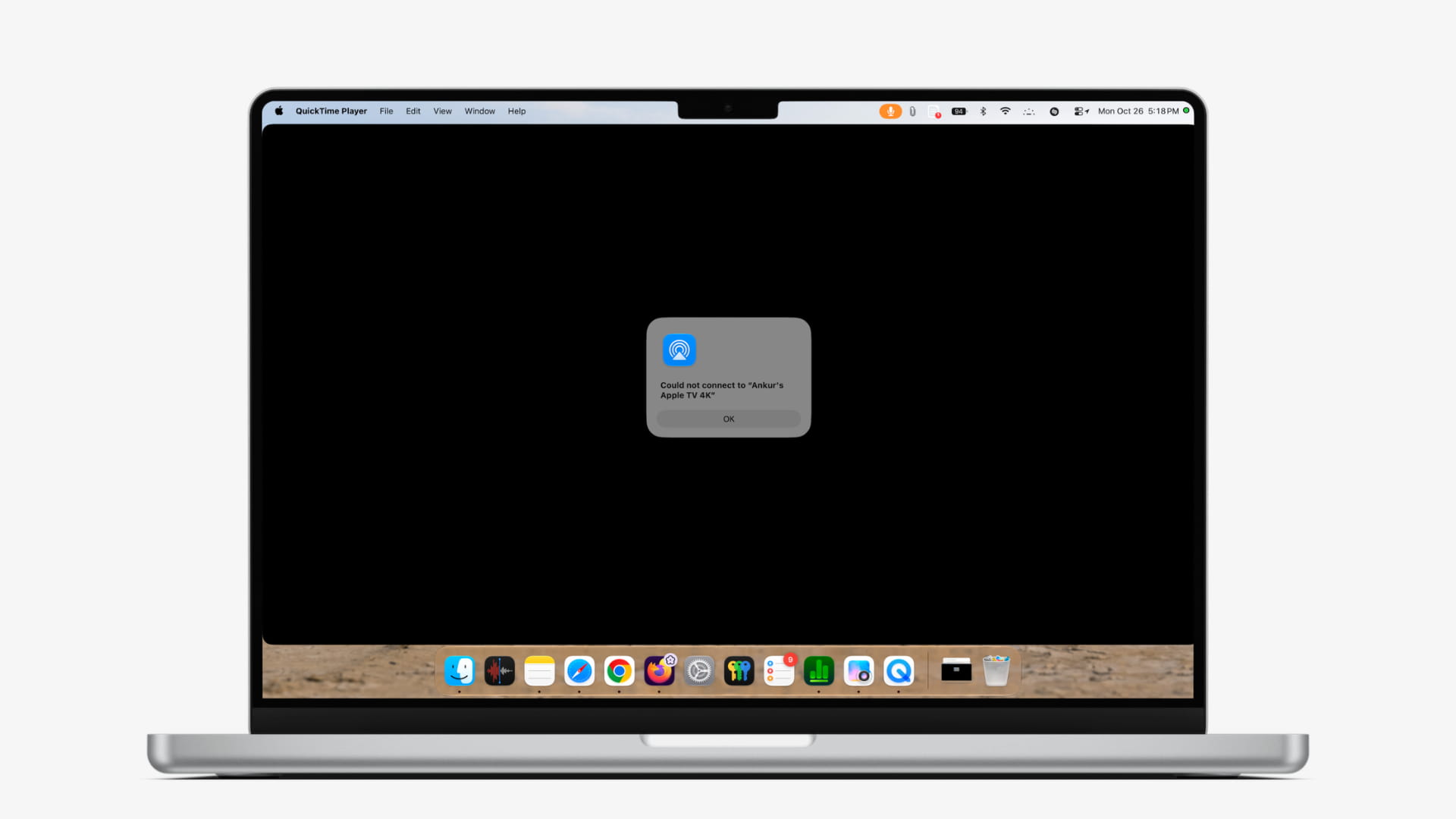
To take a screenshot or make a recording of your Apple TV screen:
- Connect Apple TV to the same Wi-Fi as your Mac.
- Open Apple QuickTime Player.
- Click File > New Movie Recording from the top menu bar.
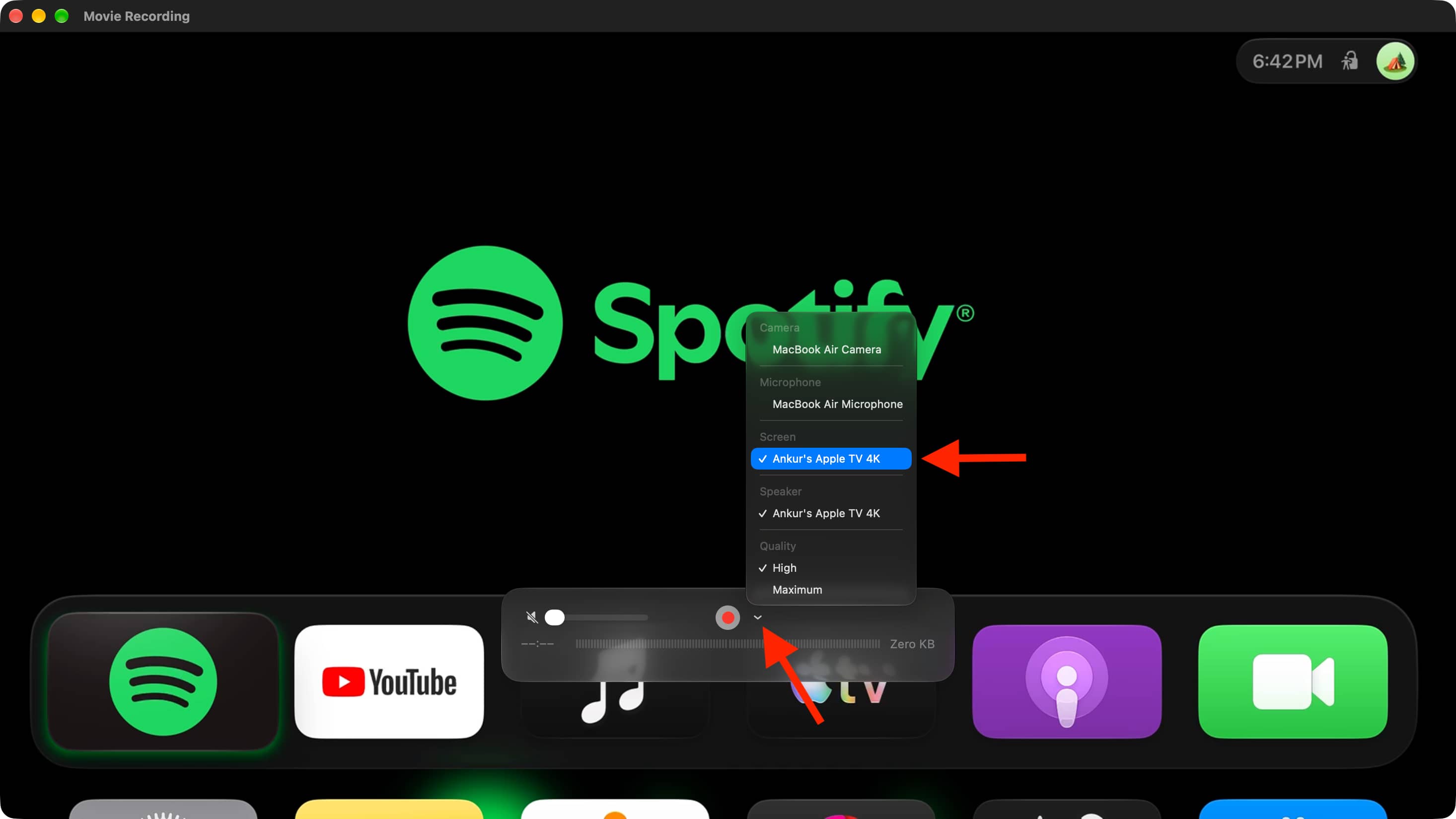
- Click the tiny arrow and select Apple TV as the screen, as seen in the screenshot below.
- Screenshot or screen record the QuickTime Player window.
The process is easy, but it depends on Apple TV showing inside QuickTime Player. If that doesn’t happen, here’s how to fix it.
These tips are updated for tvOS 27 and macOS 27 Golden Gate, but they also help if your devices are running an older version of the software.
Quit and reopen QuickTime Player
This is an important step, and you’ll need to do it now and every time you follow one of the fixes below.
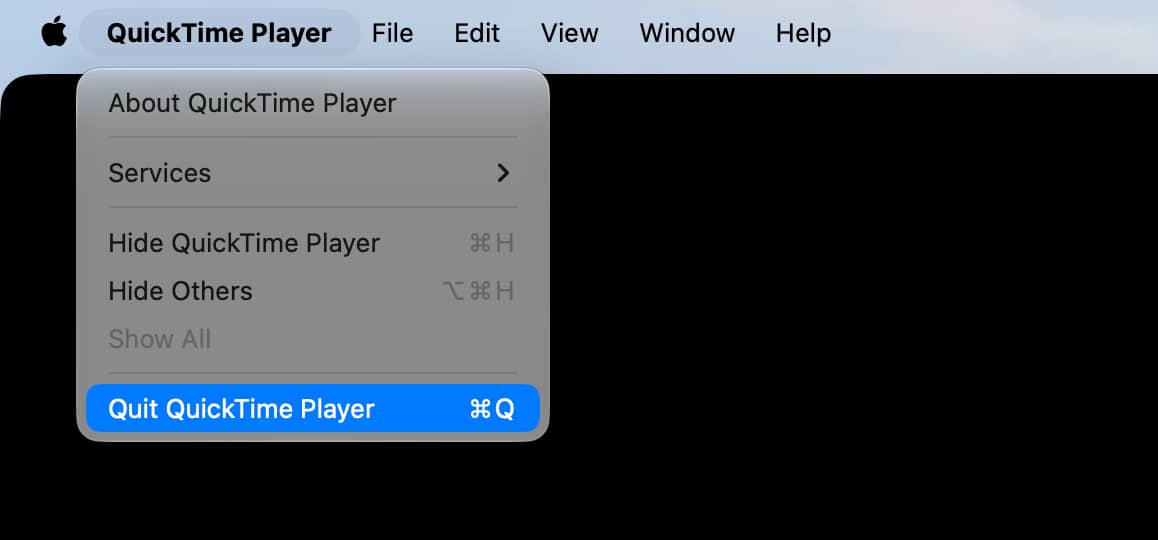
Press Command + Q to quit the app. Or click QuickTime Player > Quit QuickTime Player from the top menu bar. If that doesn’t help, Force Quit and retry.
Make sure Apple TV is switched on
Check your Apple TV to ensure its tiny white light is visible. Press the power button on your Siri Remote if it’s off.
Check the Wi-Fi
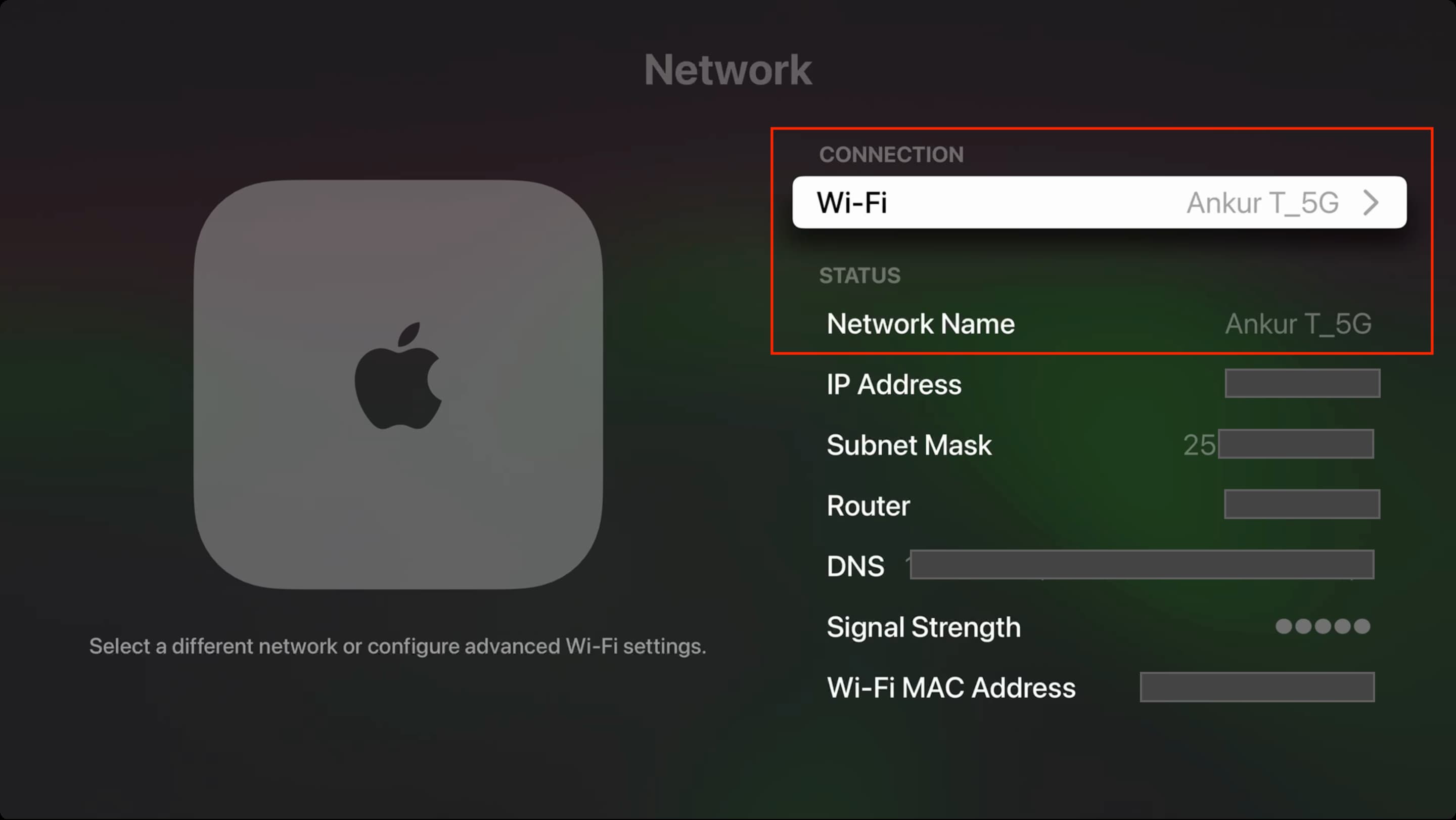
Quickly make sure both your Apple TV and Mac are connected to the same Wi-Fi network. If you have a dual- or multi-channel Wi-Fi router, make sure both devices are connected to the same channel (e.g., both on 2.4 GHz or 5 GHz).
- Apple TV: Settings > Network > Wi-Fi
- Mac: System Settings > Wi-Fi
Allow access on the same network
Screenshots and screen recordings on my Apple TV stopped working after I updated to tvOS 27 and macOS Golden Gate. It kept happening for weeks, and I installed every incremental tvOS and macOS update, hoping the problem would be fixed. It didn’t.
Then one day I made my way to Apple TV Settings > AirPlay and Apple Home and changed Allow Access to ‘Anyone on the Same Network’ instead of ‘Only People Sharing This Home.’ Then I reopened QuickTime Player, and magically, my Apple TV screen started showing there!
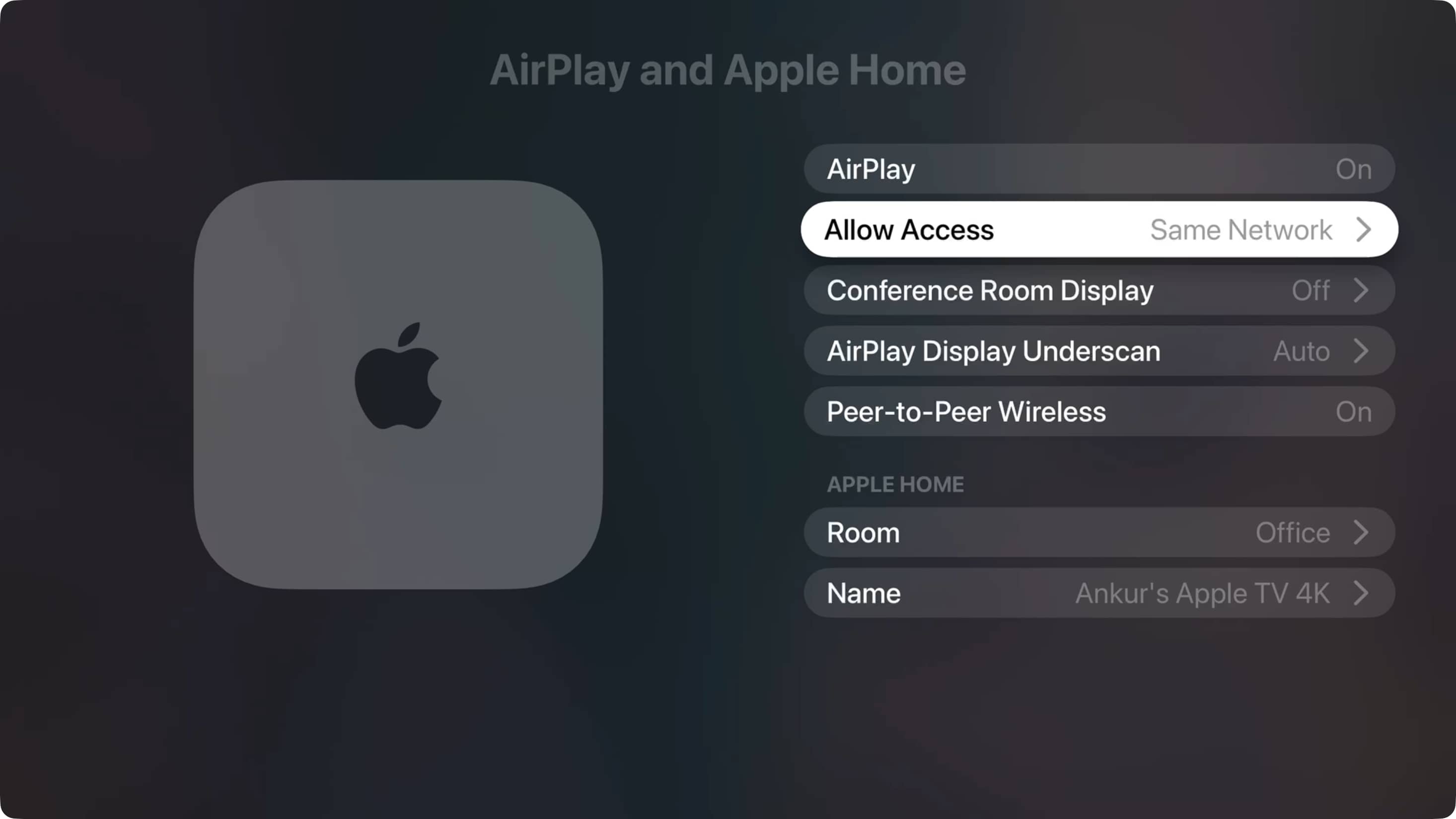
Now, both my Apple TV and Mac were already signed in to the same Apple Account, but the problem still happened. I don’t know why, but I’m glad the above steps fixed the problem.
Use the same Apple Account
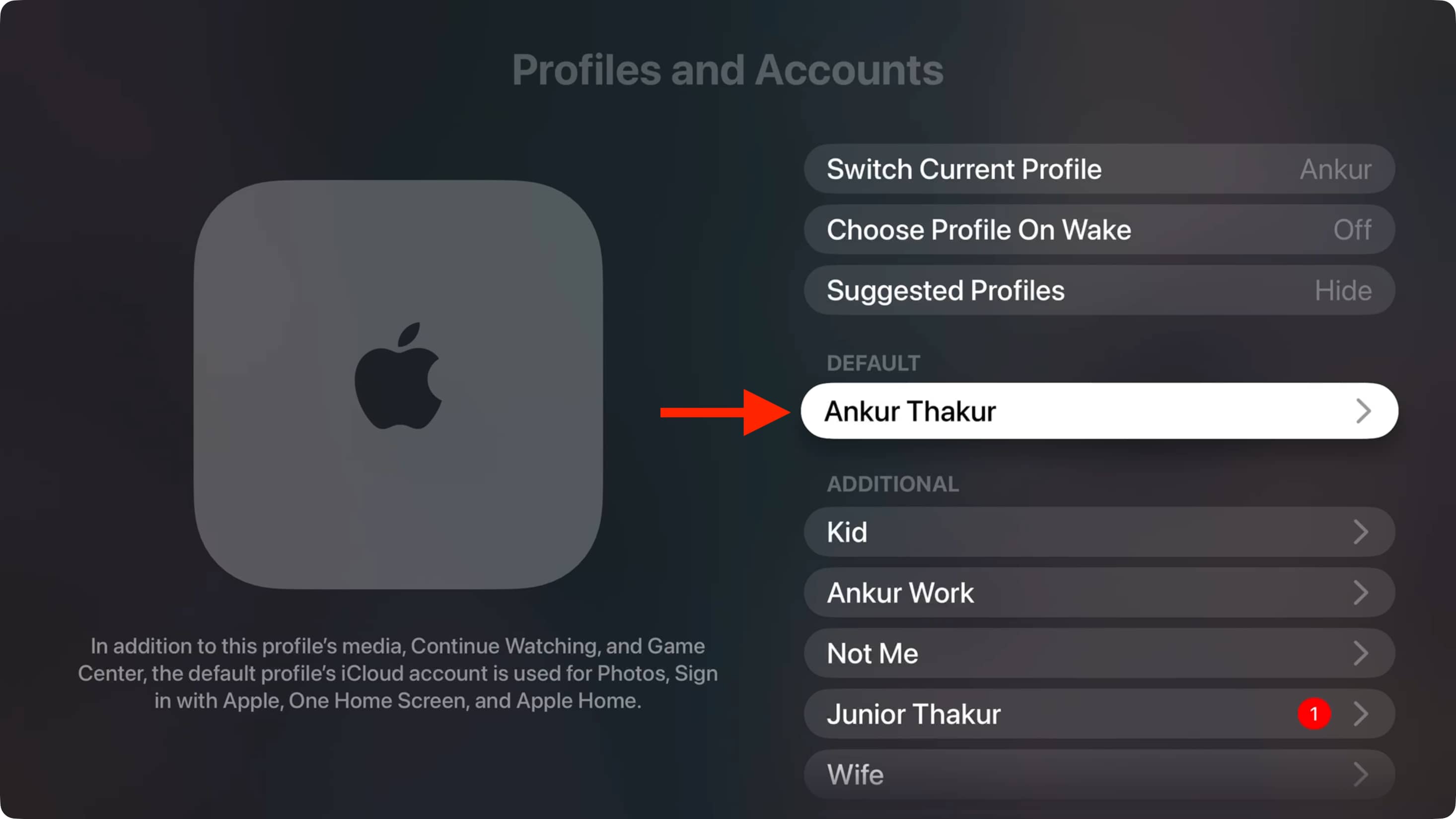
Follow these steps to make sure you’re using the same Apple Account on both devices. If not, sign out and sign in as needed.
- Apple TV: Settings > Profiles and Accounts > Default user and check the Apple Account used here.
- Mac: System Settings > Apple Account and note the Apple Account used on this computer.
Make sure Apple TV is connected to a display via HDMI
I have noticed that Apple TV doesn’t appear wirelessly in QuickTime Player unless it’s connected to a television or monitor via an HDMI cable. It doesn’t matter whether I switch the television or monitor to that HDMI input; it still needs to be connected, and that seems non-negotiable.
Stop using AirPods or other devices with Apple TV
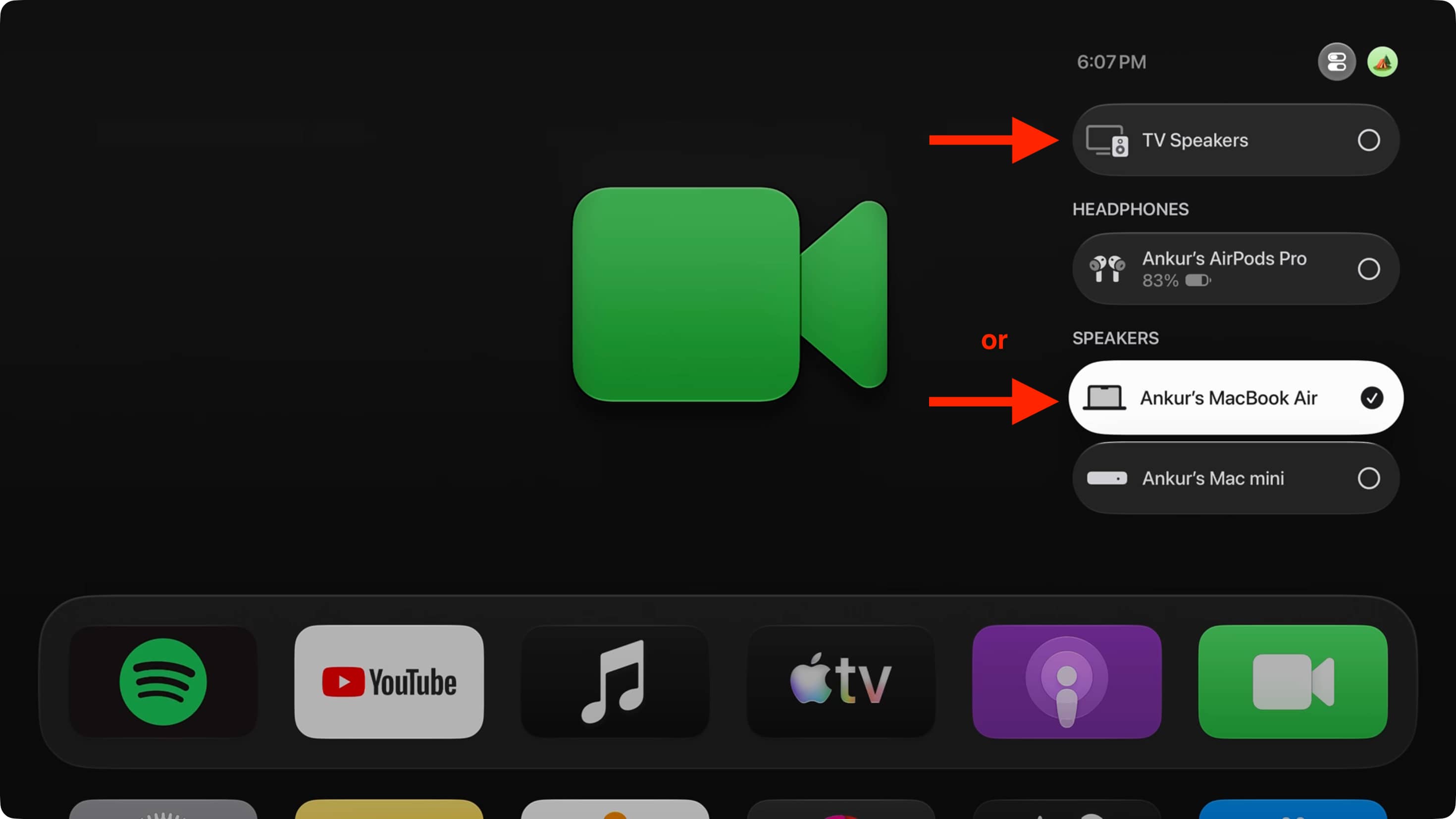
Apple TV won’t appear in QuickTime Player or stop working if you select AirPods (and maybe other wireless headphones) as the audio output.
To fix this, head over to tvOS Control Center and select TV Speakers or your MacBook as the audio destination. Then quit and reopen QuickTime Player, and Apple TV screenshot and recording should work now.
Stop using HomePod as default audio output
I have noticed this since the last several tvOS versions: if HomePod is set as the default audio output destination, Apple TV never shows in QuickTime Player on Mac.
To fix this, go to Apple TV Settings > Video and Audio > Audio Output and select TV Speakers or Mac instead of HomePod or other AirPlay speaker.
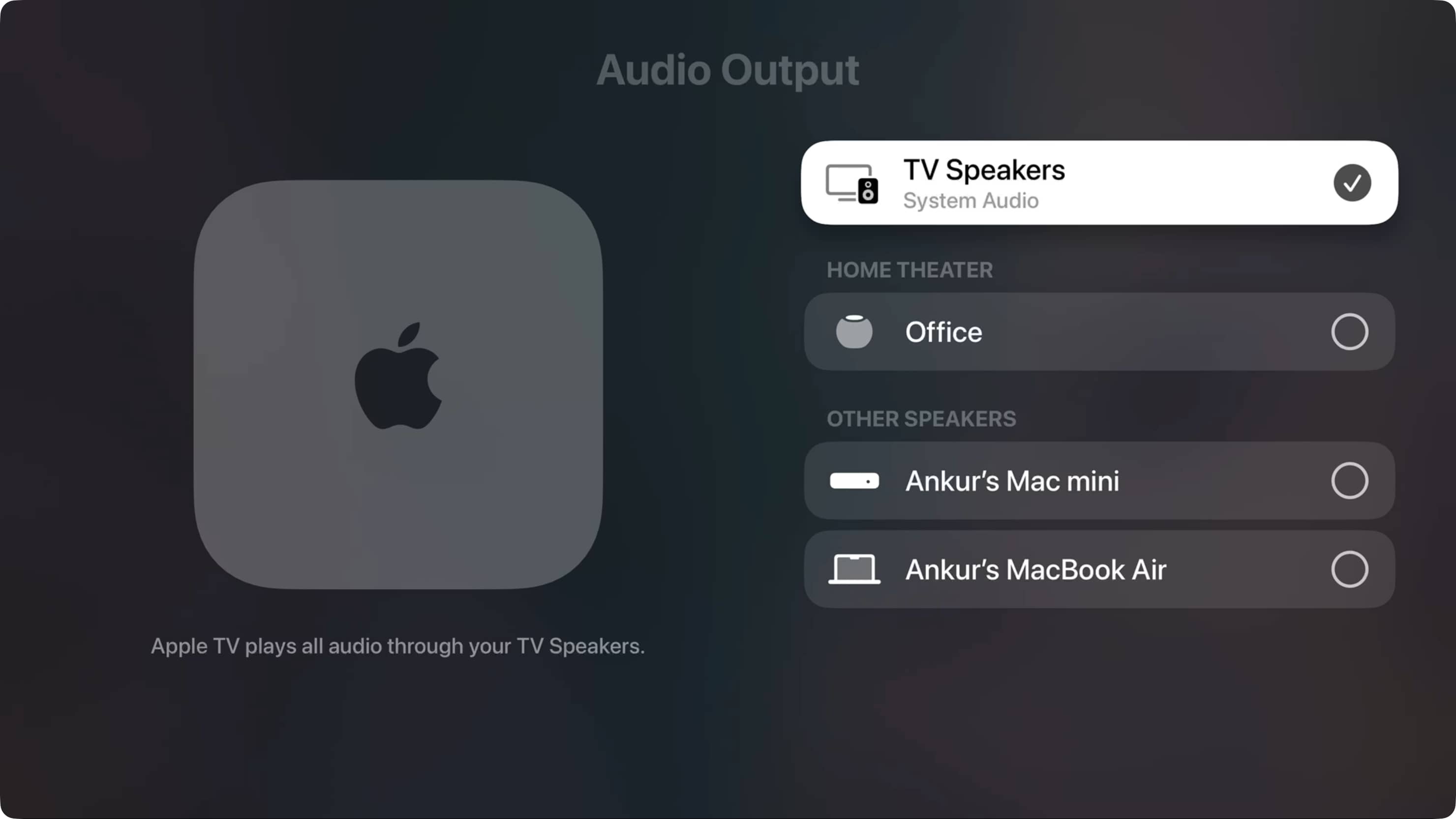
Once you’re done with your screenshot and recording needs, select HomePod as your default Apple TV speaker by following the steps above.
Restart one or both devices
This is yet another important solution. Often, system glitches are why your Apple TV may not appear on your Mac. To fix this, start by restarting one device and if that doesn’t work, restart both.
Note that there is a Restart option in tvOS settings as well as a Power Off button in Control Center. But I recommend using the main wall switch to turn off the power and then turn it back on.
Update one or both devices
If your devices are running an older version of tvOS or macOS, update them to the latest version available for your Apple TV or Mac model.
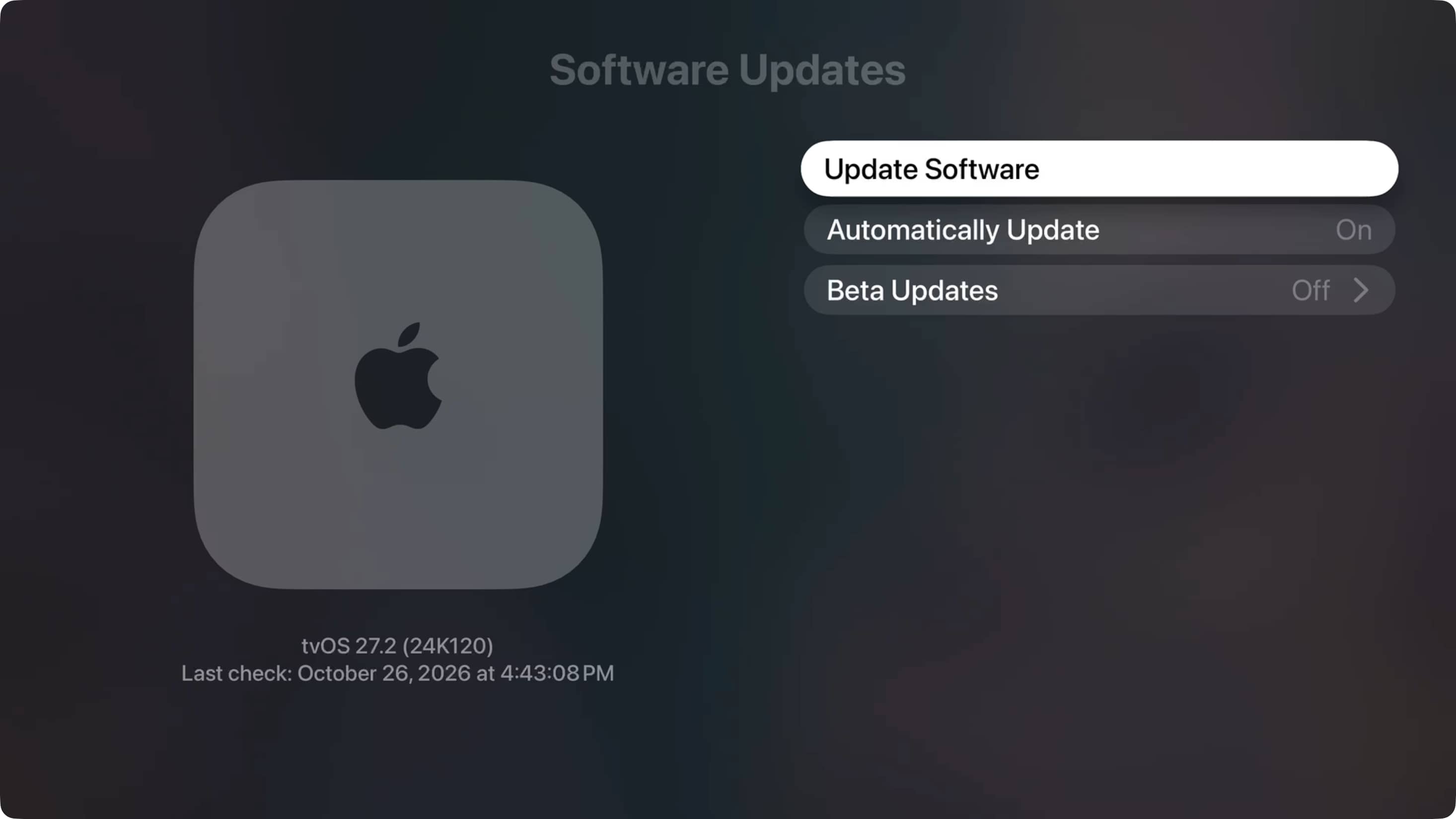
- Apple TV: Settings > System > Software Updates > Update Software > Download and Install (if an update is available).
- Mac: System Settings > General > Software Update.
Reset one or both devices and start over
Lastly, if nothing works:
- Forget and rejoin Wi-Fi on both devices.
- Switch to another Wi-Fi network if available.
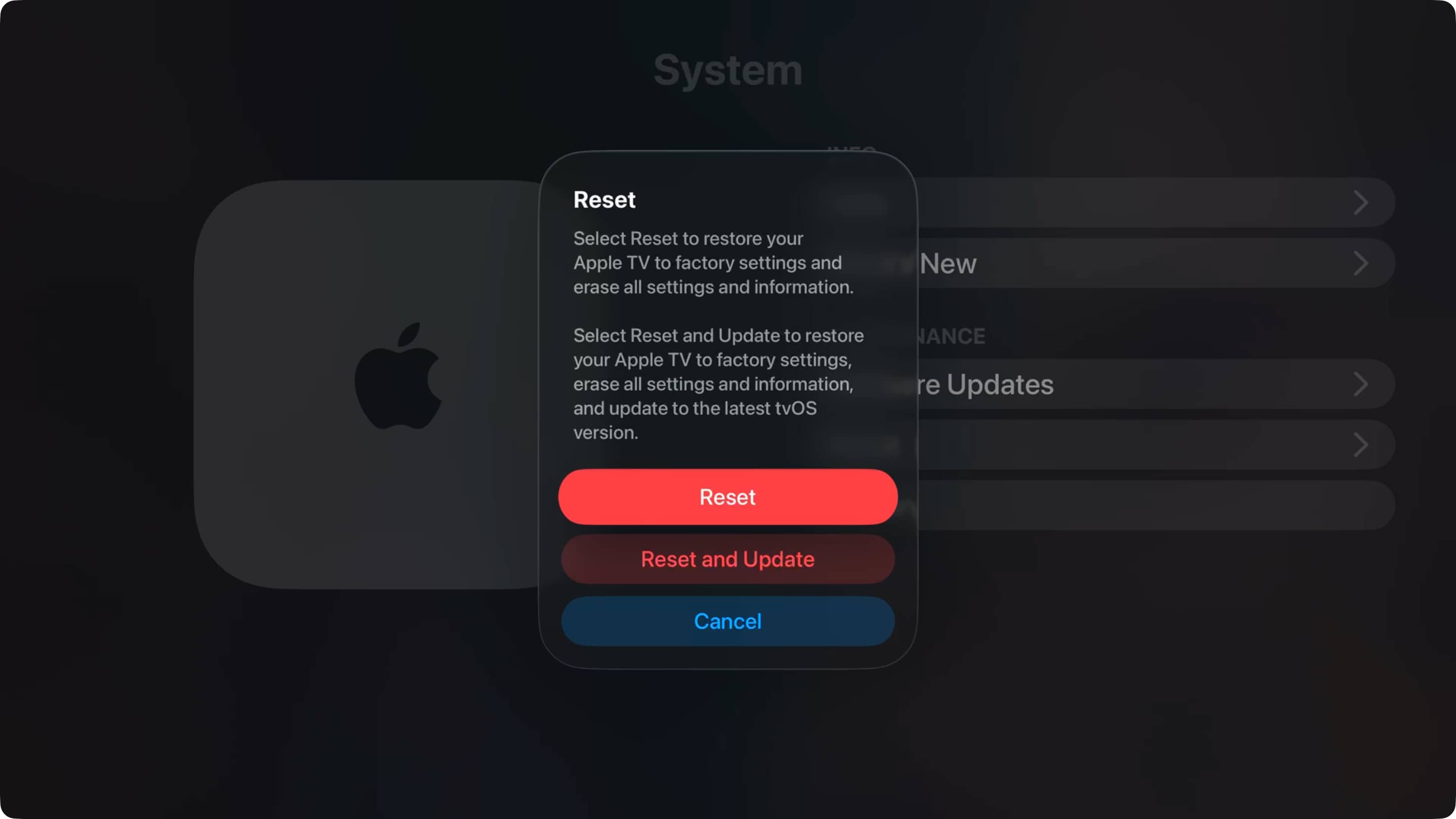
- Factory reset the Apple TV first (it’s quicker, and you likely don’t have anything important on it). If that doesn’t help, you can consider erasing and re-setting up your Mac.
Which of the above solutions worked for you?
Also, check out: