Review these tips before you download and install macOS 27 Golden Gate to avoid potential issues, last-minute hiccups, errors, or failed installations.

Note: If you don’t want macOS 27 to overwrite your current macOS 26 or older build, you have the option to install macOS 27 on a second partition of the same Mac (it’s very easy, and our step-by-step guide will help you).
And if you have to deploy it on several computers, create a bootable USB installer so you don’t have to download the massive macOS 27 file on each Mac separately.
Ensure your Mac is compatible with macOS 27
macOS Golden Gate drops support for all Intel Macs, while supporting all MacBook, Mac Studio, Mac mini, iMac, and Mac Pro models with Apple silicon chips.

Free up local space on your Mac
Like every other major Mac update, macOS Golden Gate requires around 20 GB of free space on the internal SSD so the new software can download, prepare, and install without issues.

Back up your Mac and your important files
While most macOS updates go smoothly, sometimes they can fail, which can cause file loss or corrupt the entire operating system.
Therefore, we recommend backing up your Mac to Time Machine or a cloud solution like Backblaze.
If you can’t do that, at least manually back up your important files, documents, and pictures to iCloud, Google Drive, Dropbox, or an external hard drive. You can even use your iPhone or iPad as a pen drive to store these important files until the update finishes.
Know your Mac’s admin password
Installing a new macOS update requires you to enter the correct Mac password. Make sure you know it; otherwise, reset it first.
Get your Apple Account email address and password in order
After the update, your Mac may prompt you to enter your Apple Account password to finish setting up the computer. Reset it now if you don’t know it.
Save your ongoing work
I regularly restart my Mac and don’t have to worry about it, but some people don’t shut down their Macs for weeks and leave unsaved work in open apps. If you’re one of those people, save your work, as installing a new macOS update requires a restart. If you have unsaved work, your Mac may have difficulty shutting down and installing the new update.
Ensure a fast and stable internet connection
Major macOS updates are about 15 to 20 GB. So, you should have a fast and reliable Internet connection to download them. If it’s choppy, the update may fail, restart, and resume multiple times, which can lead to issues. It’s best to update your computer on your home or office network rather than on public Wi-Fi at a coffee shop or airport.
Update important apps
You don’t have to worry about this tip if the app is downloaded and updated via the Mac App Store.
However, several Mac apps show the update button when you open them. If an important app isn’t compatible with the new macOS version, it may not even open, and you may not be able to update it. In this case, it’s better to update that app before installing the new macOS. In many cases, the developer will make the app compatible in the time period between the macOS developer beta release (June) and the stable public release (September or October).
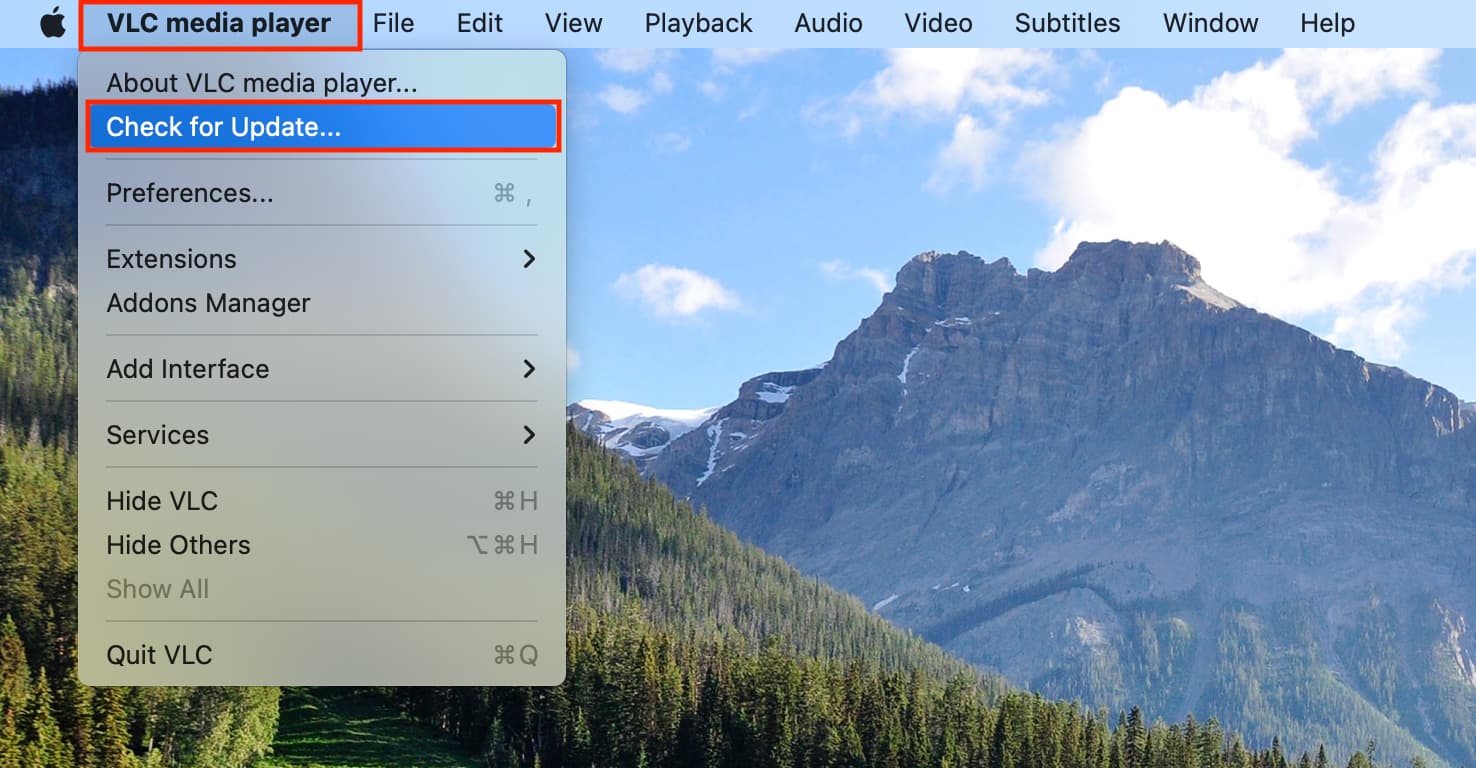
Update to the most recent build of macOS Tahoe
Another way to ensure a smooth transition to the next major macOS version is to make sure your Mac is running the latest version of the current macOS. For instance, if you want to update to macOS 27 (Golden Gate), make sure no macOS 26 (Tahoe) updates are pending.
Run First Aid in Disk Utility
If your Mac’s internal drive shows errors, it can lead to failed updates or even loss of all data and the operating system. So, before moving forward, open the built-in Disk Utility app, select your internal volume, and run First Aid. Your Mac will check the disk for errors and repair them if necessary.

Don’t want beta updates? Turn it off
Apple has made it really simple to get developer and public beta updates. Once you opt for beta updates, you get beta software for all new macOS updates unless you turn it off.
If you no longer want to run the beta version of macOS, go to System Settings > General > Software Update, click the info icon ⓘ next to Beta Updates, and set Beta Updates to Off.

Don’t update on the first day
Apple servers are typically overloaded in the first few days, which can lead to long wait times. It also means you’re getting the very first version of the OS, which can have major bugs. So it’s best to wait a few days, read what early testers are saying about the new macOS version and its stability on X, Reddit, etc., and then decide whether to update.
Get your MacBook’s power adapter
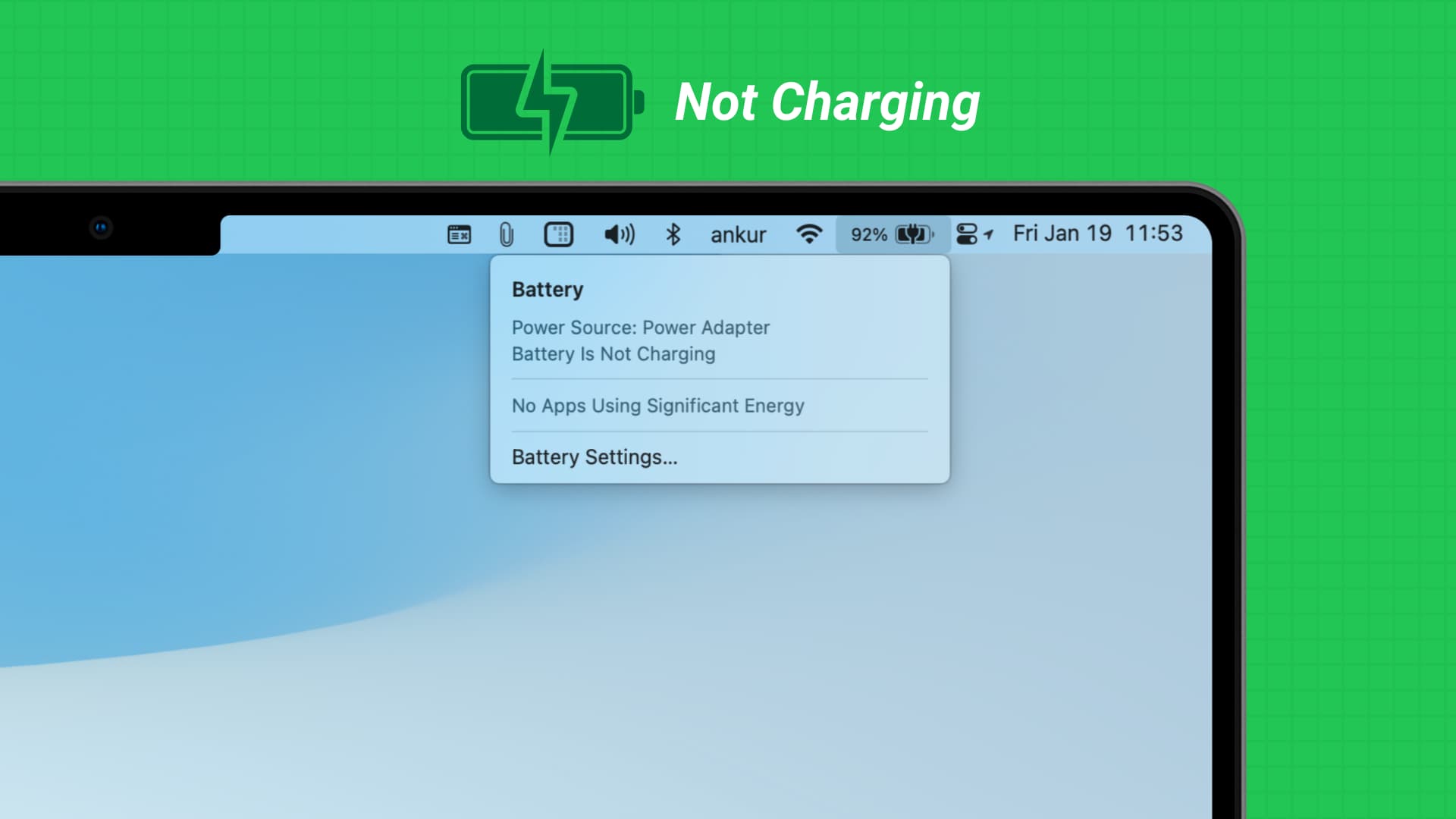
Your MacBook requires significant power to prepare and install the new macOS update. If you don’t have the right charging adapter, it may not charge or provide adequate power, leading to problems while updating.
A cool room will help
Lastly, macOS updates tend to increase the computer’s temperature. If you live in a hot area or it’s summer season at your location, install the update in a cool room with a fan or air conditioning.
Also see: How to prepare your iPhone or iPad for a new iOS version