Learn how to show or hide file extensions in macOS so you can quickly identify file types and better understand what kind of file you’re working with.
macOS hides file extensions by default.
For example, PNG images are displayed without the .png extension, installed apps don’t show the .app extension appended to their file name, and so on.
I prefer to see file extensions in Finder so I can perform different operations depending on file type.
You, too, can show or hide file extensions for all files on your Mac or just specific ones.
Important: After you show the extensions, be careful when renaming a file to avoid accidentally removing or changing the actual extension.
Show or hide extensions for all files
- Open a new Finder window on your Mac.
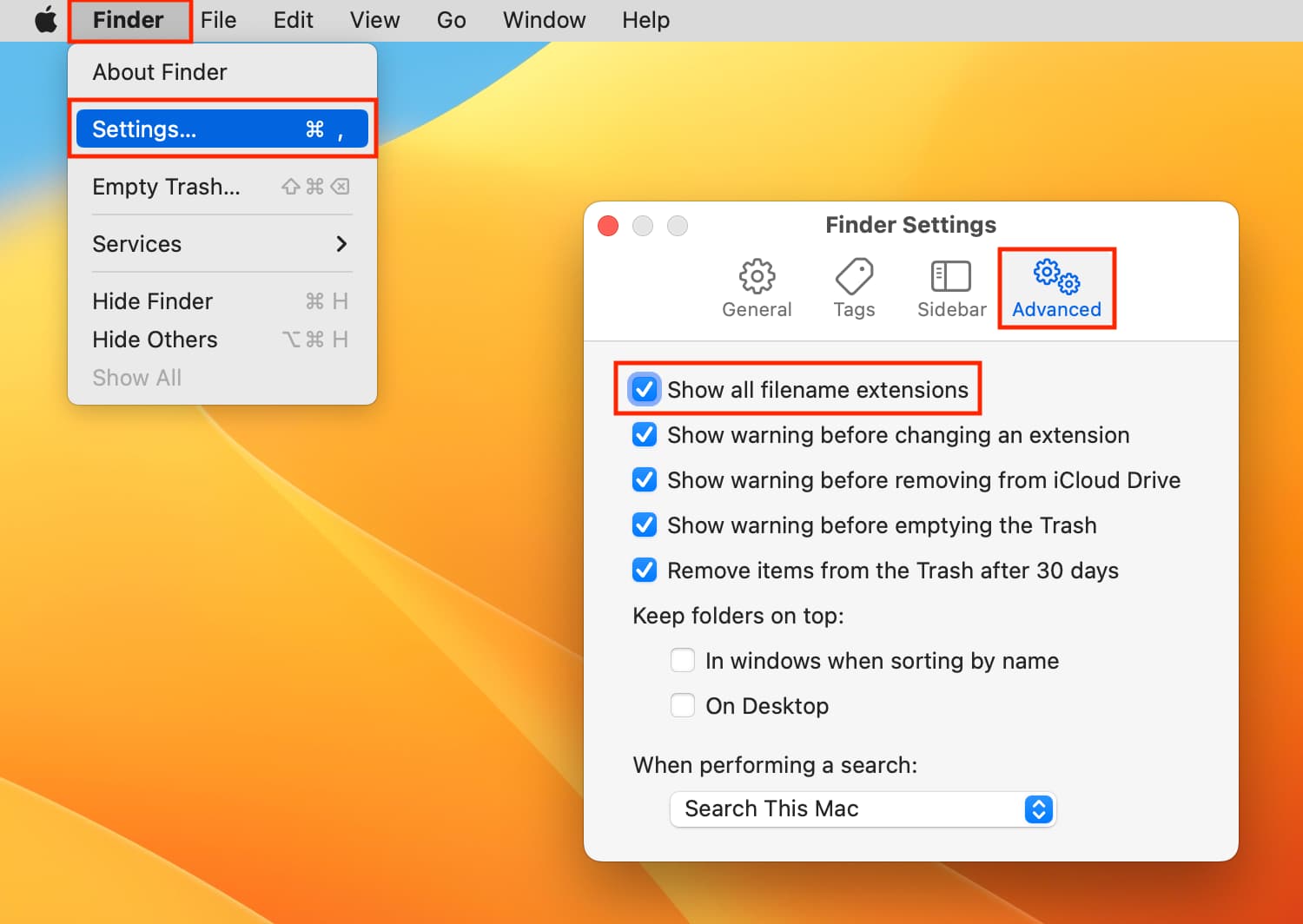
- Click Finder > Settings or Preferences in the menu bar at the top of the screen.
- Go to the Advanced tab.
- Toggle the box for “Show all filename extensions” to show or hide extensions for all files in the Finder.
Show or hide extension for one file
With the Show all filename extensions option turned on in the Finder settings, your Mac will show file extensions even with the Hide Extension box ticked in the file’s Get Info window.
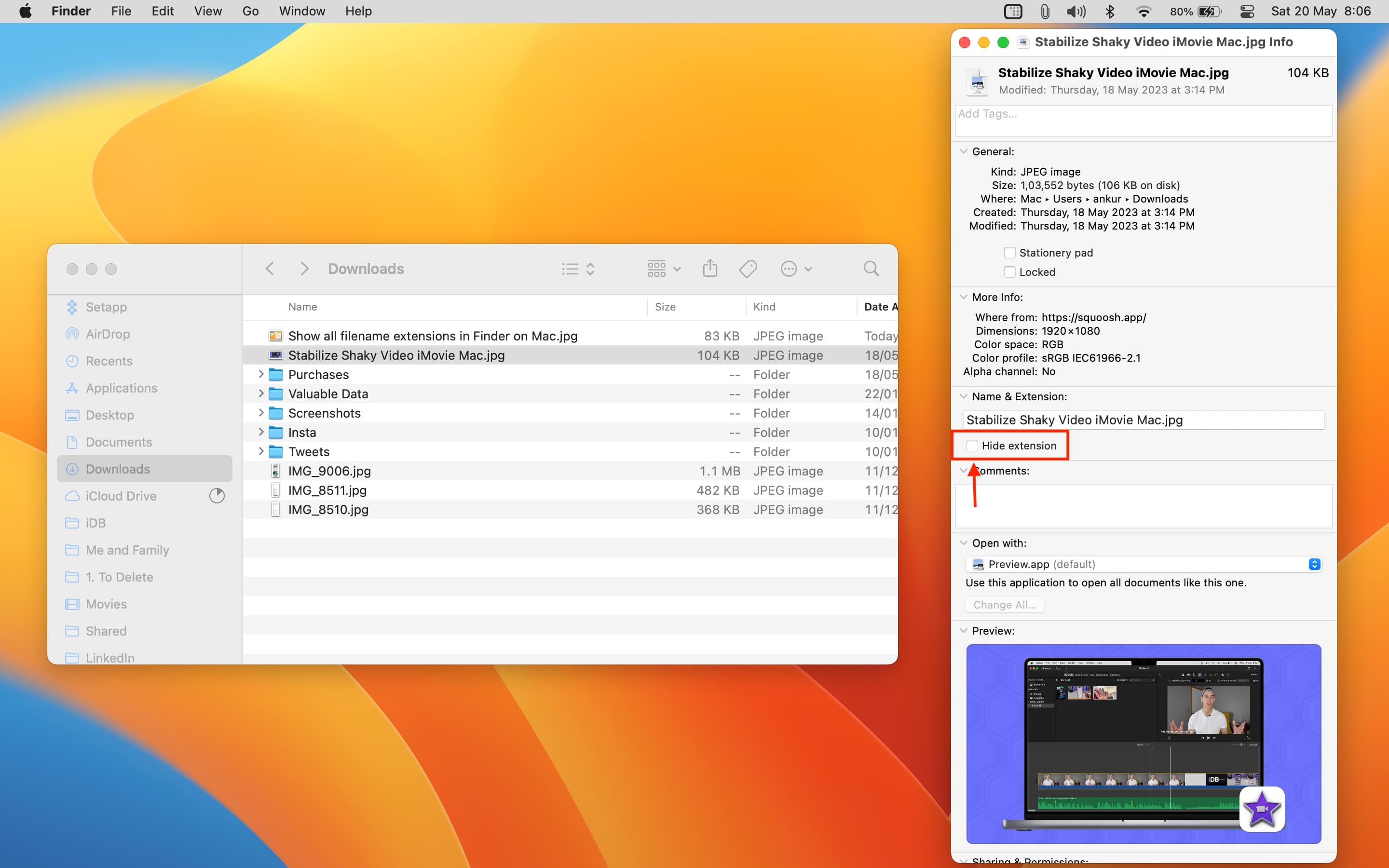
If you’d like to toggle extensions on a per-file basis, be sure to disable the Show all filename extensions option, then follow the steps below:
- Control-click or right-click a file in Finder and choose Get Info from the menu.
- Toggle the Hide Extension box to show or hide the extension for this file.
Related tips: