Check out four free methods to extract an audio track from a video clip on your iPhone, iPad, or Mac and save it as a separate file in the MP3 or M4A format.
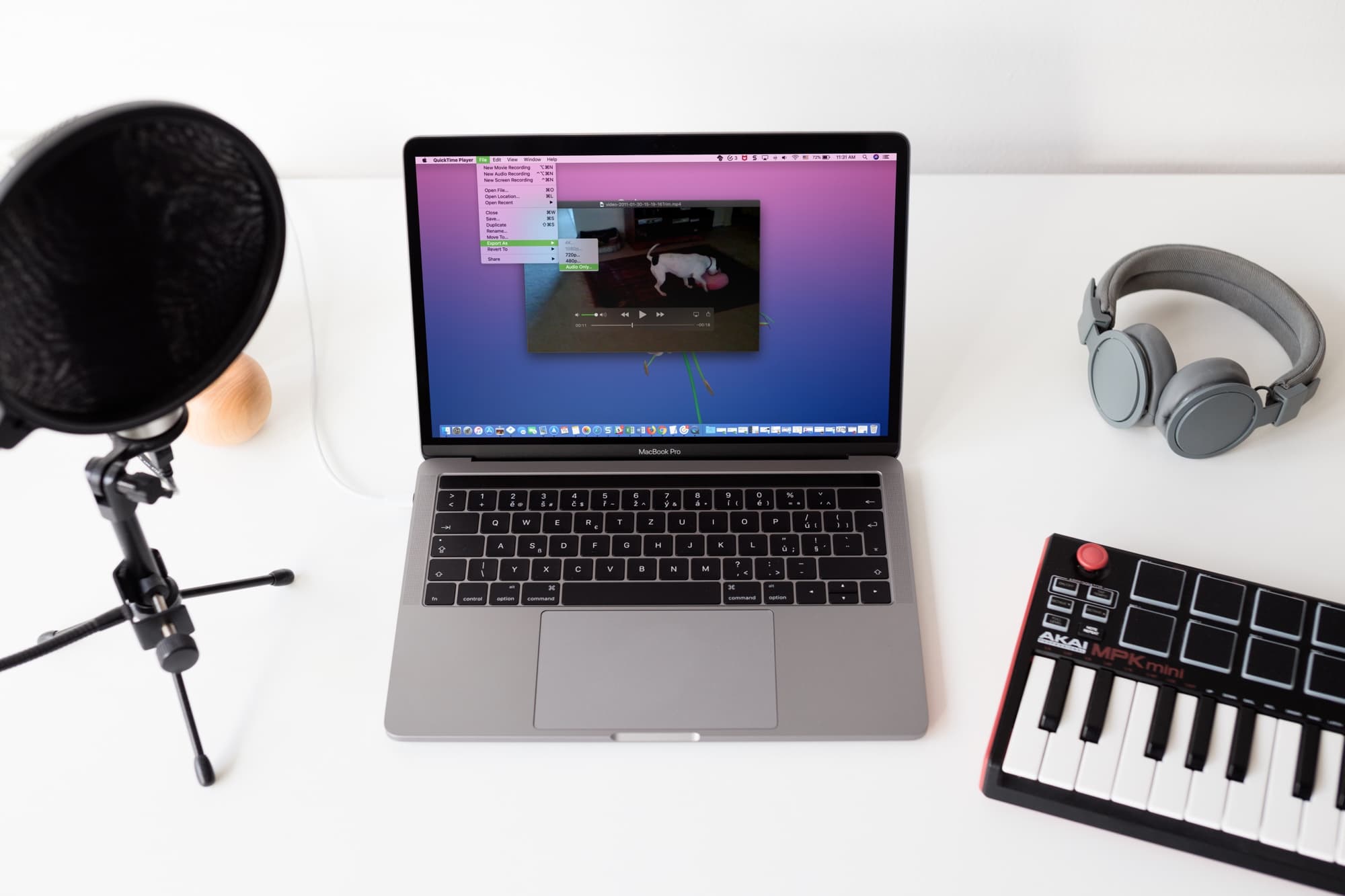
When recording a video with your iOS device, you may want to capture just the sound and disregard the video portion. Or, maybe you have a video of something where a specific audio segment is the most memorable part, and would like to save it as a separate audio file.
Pulling the audio track from a video sounds like a complicated task, but it really isn’t. If this is something you’ve been wondering how to do, our tutorial has you covered!
Extract audio from a video on a Mac
You have two built-in features to convert video to audio: Finder and the QuickTime Player app.
The Finder
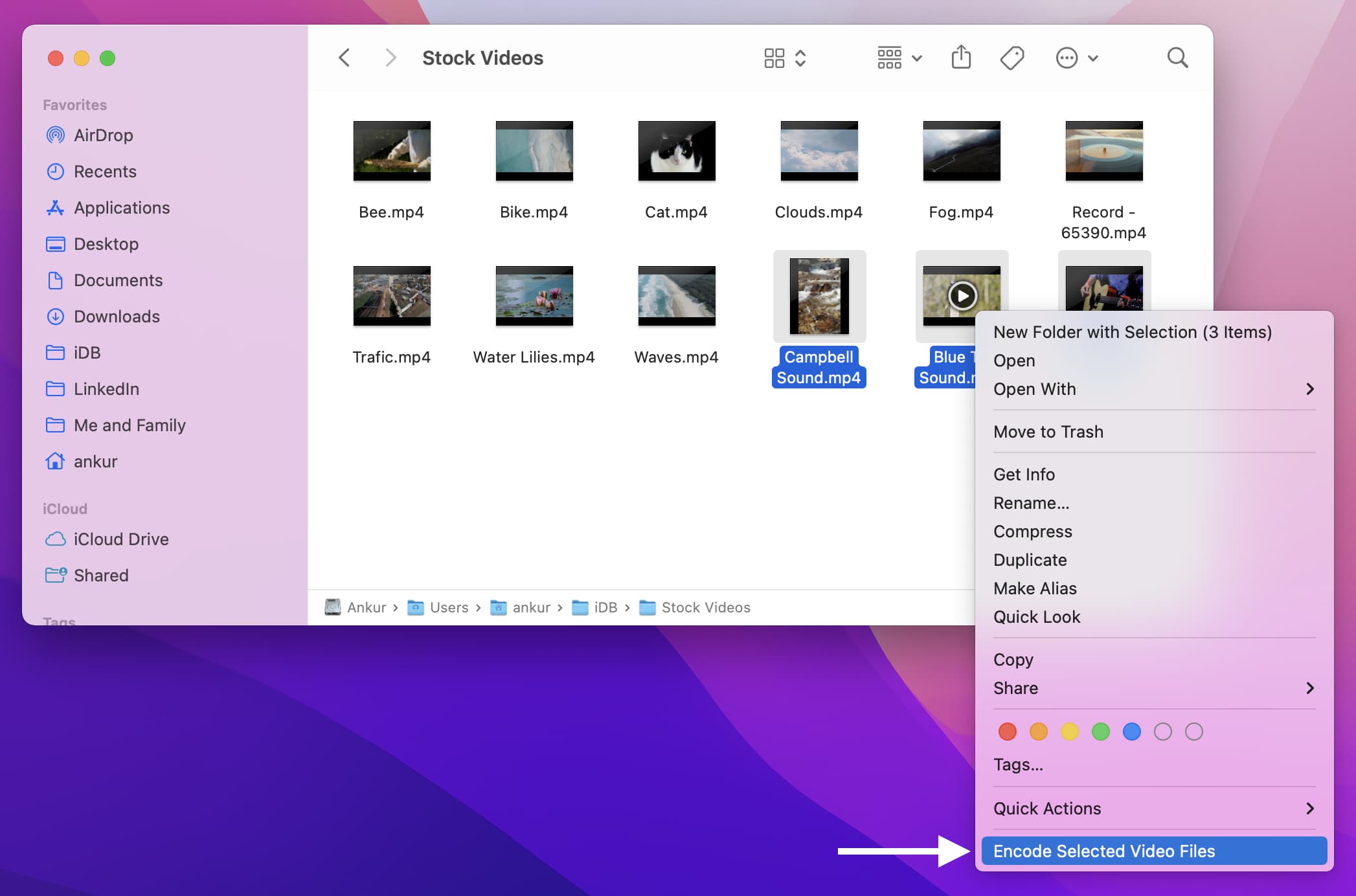
1) Navigate to a folder on your Mac containing the video file in a compatible format like MOV or MP4, then right-click on one or more selected files and choose Encode Selected Video Files from the menu.
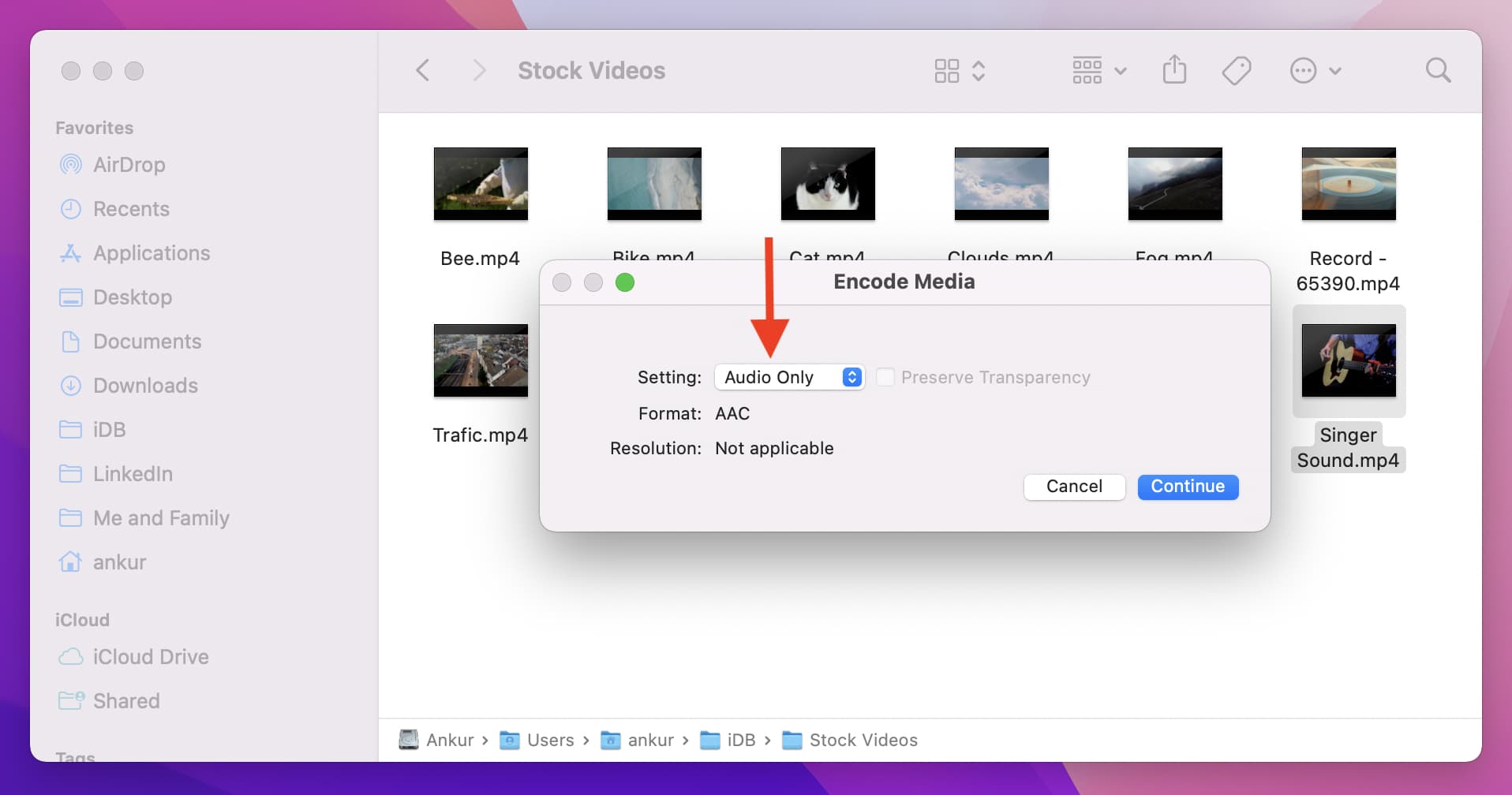
2) Click the menu next to “Setting” and choose the Audio Only option. Adjust other options as needed.
3) Click Continue to start the extraction process. The audio files will be saved with the M4A extension in the same folder as the source video files or another folder you selected in the above step.
QuickTime Player
You can also extract a video’s audio portion as a separate file in the built-in QuickTime Player app on your Mac.
1) Right-click or Control-click a video file in Finder and select Open With > QuickTime Player.
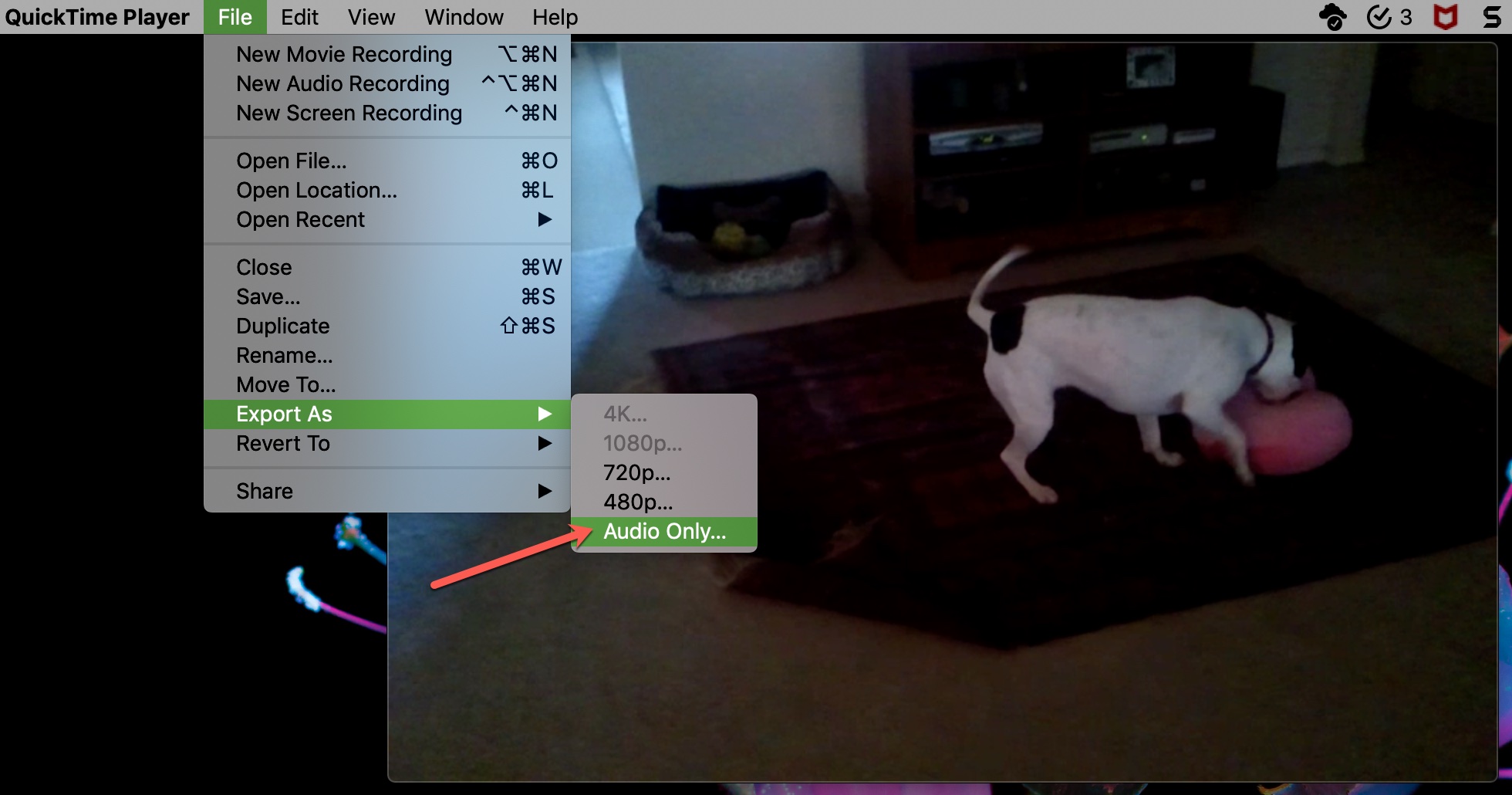
2) Click File > Export As > Audio Only in the menu, name your audio file, choose the location, and click Save.
Online audio extractors
For more flexibility, check out online audio extractors like Biteable or Restream that run in a browser on your phone or computer without installing anything. All you need to do is upload your video, wait for it to process, and then download the resulting audio file. Some sites let you choose audio quality (high, medium, low) and format (AAC, WAV, MP3, AIFF).
Extract audio from a video on an iPhone or iPad
Detaching audio from the video in iMovie is tougher than you think. The easiest audio extraction method on iOS and iPadOS is a third-party app or dedicated shortcut, and we show you both.
Audio extraction shortcut
We’ve created a free shortcut that saves a video’s audio track to the built-in Files app.
1) Open the iDB Video To Audio Converter page in Safari on your iPhone or iPad and add this shortcut to the Apple Shortcuts app on your iPhone or iPad. Then, tap the shortcut tile to run it.

2) All the videos in your iOS Photos app will show up; select one whose audio you want to extract. Remember to pick a video with audio; otherwise, the shortcut will throw an error.
3) Now the Files app picker will pop up. Navigate to the location where you’d like to save the audio file and tap the Open button.

4) Open the Files app and go to the same folder as step 3 to find the extracted audio file.

As you can see, the shortcut method is quick and effortless. For more flexibility, download third-party apps that provide additional options and settings.
MP3 Converter
There are many audio extractors on the App Store. If you don’t need to perform the video → audio conversion often, free ad-supported apps are the way to go. Having tested a handful of free choices, the one that stood out for me is the easy-to-use MP3 Converter – Audio Extractor app, available for both the iPhone and the iPad.
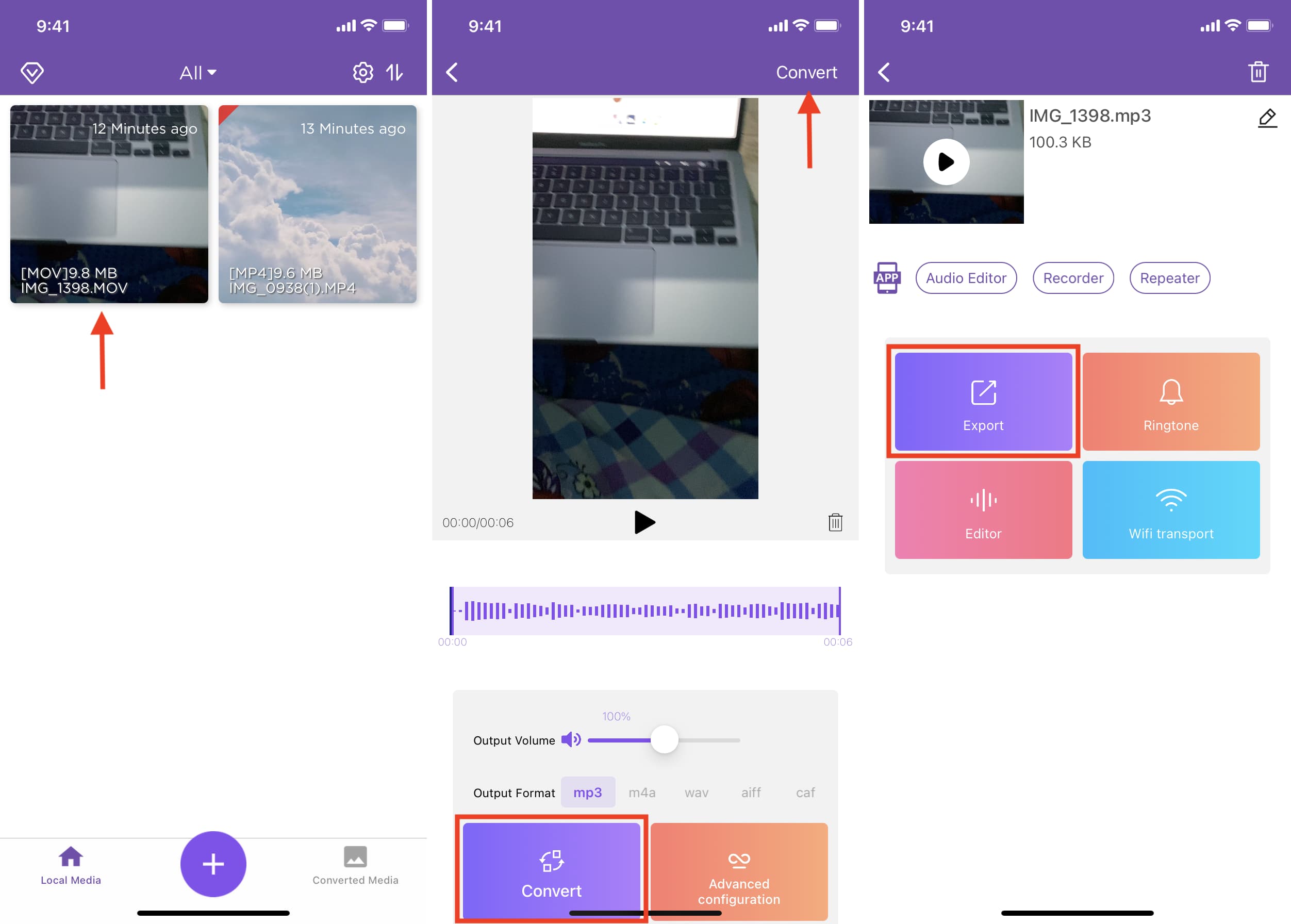
1) Download the MP3 Converter – Audio Extractor for free from the App Store, then open the app and hit the plus sign to import a video from the Camera Roll (Photos app), iCloud (Files app), or elsewhere.
2) With the video added to the app, tap Convert. MP3 is preselected as the default output format, but you can change it and adjust other conversion options to your liking on this screen.
3) Tap Export, then choose AirDrop, Save to Files, or another sharing option from the share sheet. To access the converted files in the future, tap Converted Media in the bottom-right corner.
MP3 Converter -Audio Extractor comes with pop-up ads, but they’re not as intrusive as some other apps. Upgrading to the full version will remove advertising, unlock all video and audio formats, and remove the time range limit.
These four audio extraction methods can be extremely handy. Your baby laughing, your fiancé proposing, your child singing, even your dog making silly noises; these are all moments you can appreciate with just the sound. Are you going to be saving the best audio bits from your videos? Let us know in the comments down below!
Also, check out: