Learn how to automatically download books purchased on your other devices so you can quickly and easily pick up reading where you left off for a streamlined experience across all your iPhones, iPads, and Macs.
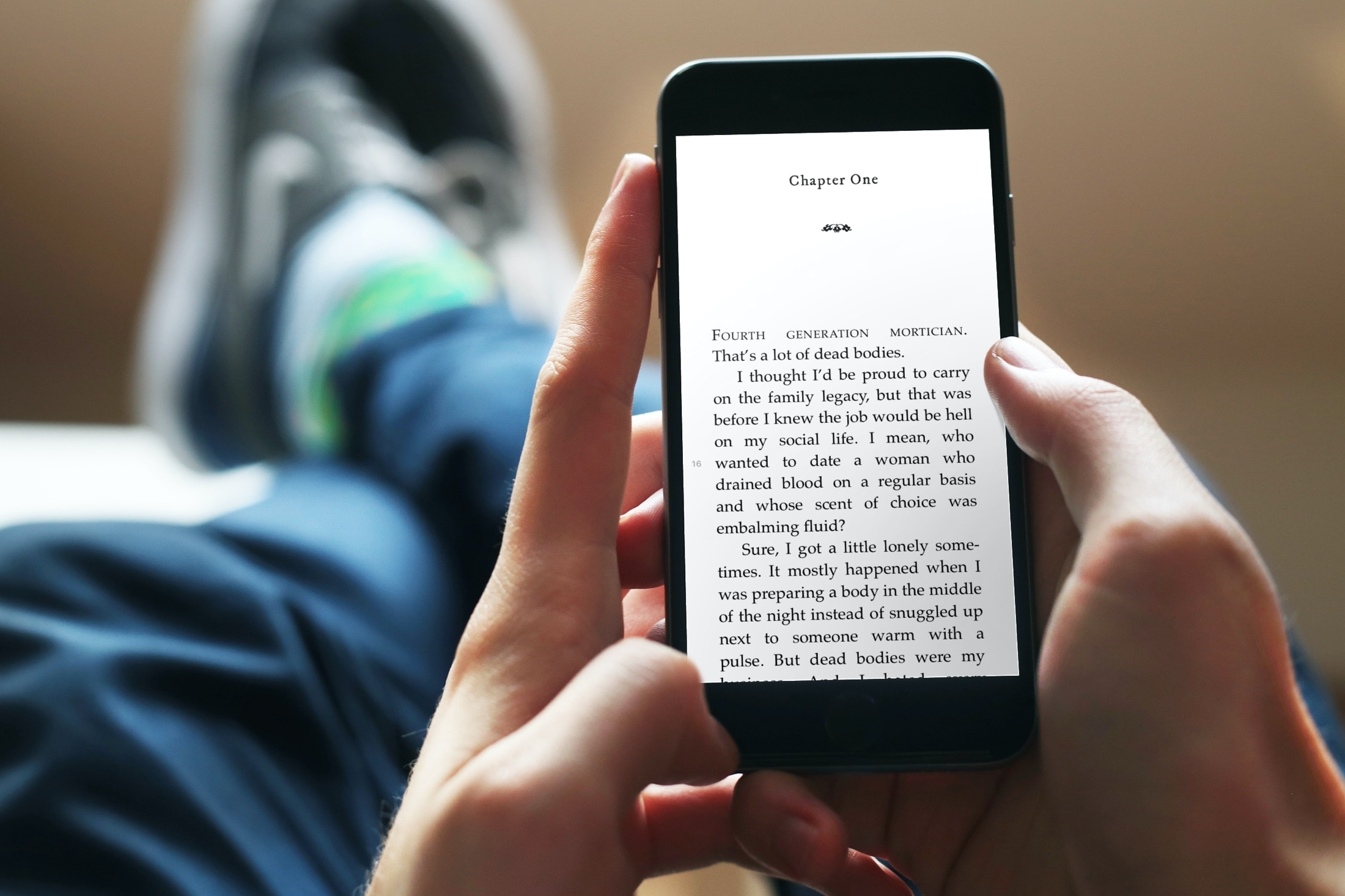
If Apple Books is your preferred tool for reading, then you know its advantages. You can start reading a book on your iPhone and pick up right where you left off on your iPad. The thing is, you still have to download it to that other device.
So if you want to open a book on Mac that you started on iPhone, you have to hit that cloud button and wait for it to download. This is extremely inconvenient if you’re without internet access! Having those books downloaded to multiple devices and ready for offline reading might just be what you need.
Here’s how to set up automatic downloads to, well, automatically download purchased Books to all your iOS and macOS devices.
On iPhone and iPad
- Open the iOS Settings app.
- Tap Apps from the bottom of the screen and select Books from the list of applications.
- Enable the toggle for “Purchases from Other Devices” that’s under the Automatic Downloads heading.

On Mac
This is a simple setting that you can enable from the Books app settings on your Mac.
- Open the Books app and click Books > Settings or Preferences from the top menu bar.
- Make sure you’re in the General tab.
- Check the box for “Download new purchases automatically.”

Note: If the above option gets unchecked automatically after a few seconds:
- Retry a couple of times.
- Wait for about 20 seconds before closing the Books app settings window.
- Quit the Books app, re-open it, and repeat the above steps.
- Restart your Mac and retry.
The downside to automatic downloads
If you read books often and switch between devices to do so frequently, then this is a great way to go. It’s especially useful if you purchase books for school, work, or reference.
But if you rarely pick up the same books on different devices and are concerned about storage space, this may not be the best option for you. Remember, books take up space just like apps, photos, and music.
The nice thing is that you can enable and disable the automatic download setting easily. So if you turn it on for a while and realize you don’t need it or are running out of storage space on a particular device, just turn it off!
Check out next: