In this tutorial, we’ll show you how to set up emergency contacts on your iPhone. Since it only takes a minute or two, it’s worth your time. Hopefully, you’ll never need to use them, but if you do, they’ll be ready.
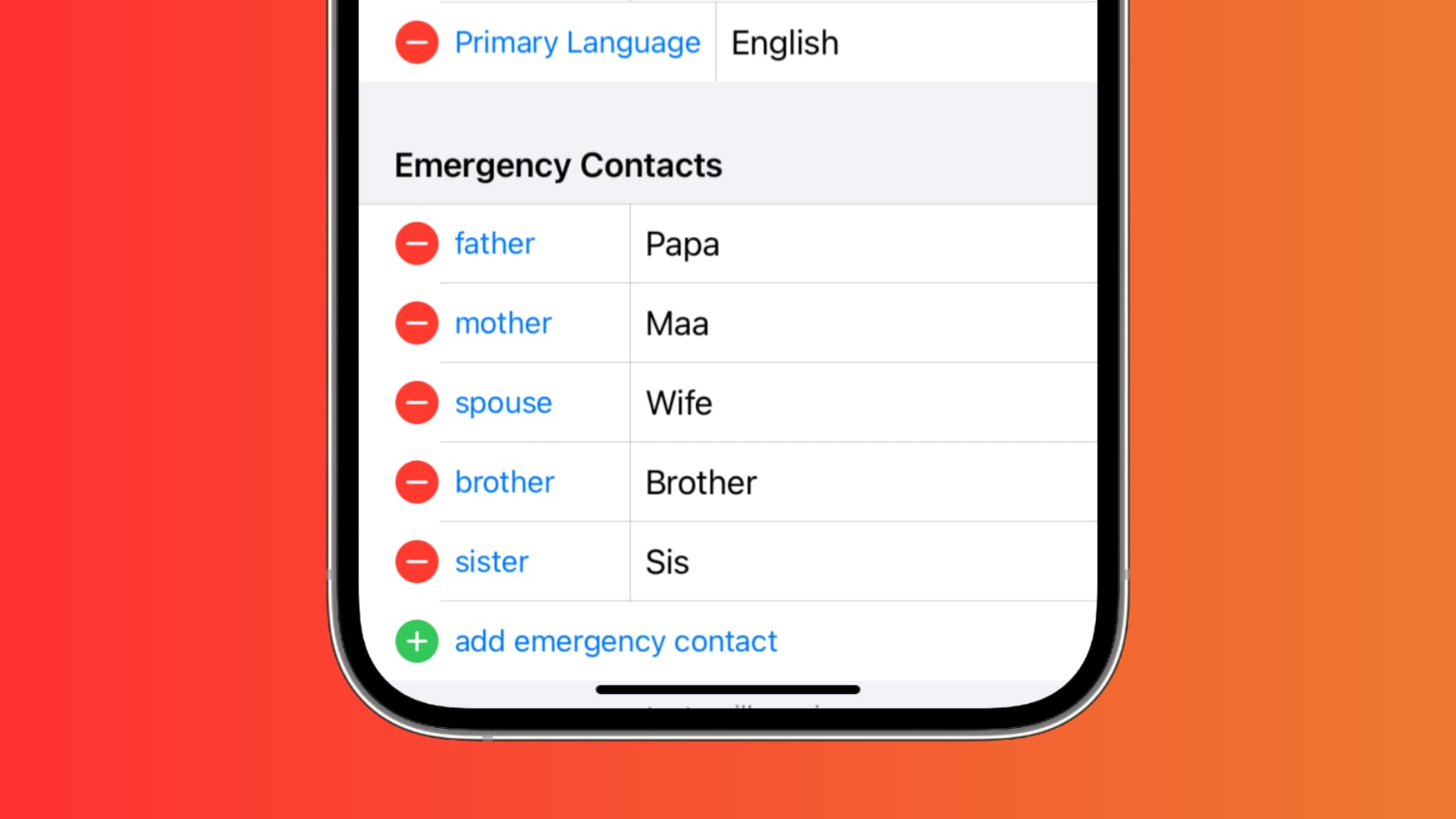
We get used to handing out our emergency contacts at doctors’ offices, hospitals, and the like. But how many of us take the time to set them up on our devices?
Having your emergency contacts set and ready on your iPhone can be an enormous help when you need them. Emergency contacts are also listed on the Medical ID screen for quick help.
So, whether you’ve a health condition that can put you in danger or not, it doesn’t really matter. It’s about having that insurance at your fingertips.
Here are 4 ways to set up emergency contacts on your iPhone.
1. From the Contacts app
Setting up emergency contacts right in the Contacts app is the obvious spot for most.
- Open the Contacts app and select the contact you want to add.
- Scroll to the bottom of that contact’s details and tap Add to Emergency Contacts.
- Pick the phone number to use if they have more than one.
- Select their relationship with you (mother, father, brother, son, spouse, etc.), and you’re done.

2. From the Phone app
If you have recently spoken with a close person, you can add them as your emergency contact.
- Open the Phone app and head to the Calls or Recents tab.
- For the Calls tab, tap a recent call from the person you want to add. And for the Recents tab, tap the info button ⓘ next to the call.
- Scroll to the bottom of that mobile number/contact’s details, tap Add to Emergency Contacts, select their relationship with you, and you’re set.

3. From the Health app
If you’ve a health condition that may put you in a situation where you need immediate help, you can take advantage of a few features in the Health app, like creating your Medical ID. And with that, you can set up your emergency contacts.
- Open the iPhone Health app and tap your profile picture from the top right of the Summary tab.
- Select Medical ID. If you have not yet set up your Medical ID, you’ll be asked to do so.
- Assuming you have set up Medical ID, tap Edit next to Emergency Contacts.
- Tap Add Emergency Contact.
- Choose a contact, then pick their relationship to you.

4. From the Settings app
If you happen to have your Settings app open, you can also add emergency contacts there. However, this will simply direct you to the Health app. Go to Settings > Emergency SOS and tap Edit Emergency Contacts in Health.

Add, remove, or change an emergency contact
If you want to add, remove, or change an emergency contact, you can do so in any of the locations above where you added them. Also, anyone that you add will display a red asterisk in the iPhone Contacts app, so you can easily spot those important people.
For that added sense of security, having your emergency contacts at your fingertips on your iPhone is important. And be sure to check out how you can add emergency contacts on your Apple Watch, too.
Also, remember to make sure calls from your emergency contacts come through if you have Do Not Disturb enabled.