Just like on your iPhone, iPad, and Mac, your Apple TV lets you customize certain settings for the Music, TV, and Podcasts apps. Whether you want specific playback options, certain views on the main screen, or want to turn on or off syncing, you can do it on Apple TV.
If you’re ready to take a few minutes to use these apps exactly as you’d like, here’s how to customize the TV, Music, and Podcasts apps on Apple TV, along with iTunes show settings.
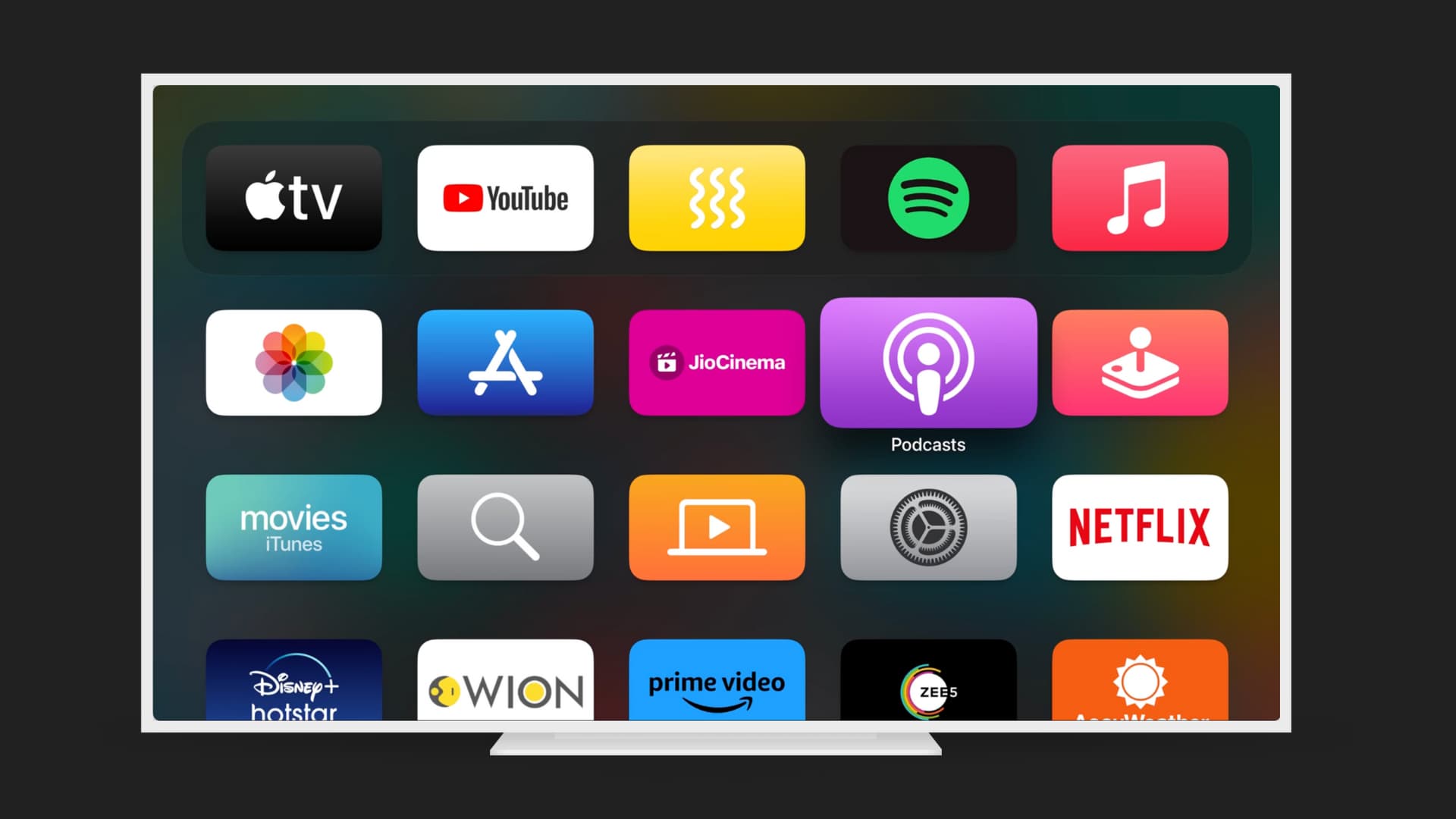
To get started with making changes to any or all of these apps, you’ll need to open the Settings on your Apple TV and click Apps. So, do that and then follow the steps below for each app and its options.
Change TV settings

Select the TV app to change the following settings:
- Use Play History: On or Off. This is used to provide you with recommendations based on what you watch.
- Show Sports Scores: On or Off. Get live sports scores in the TV app.
- Sync My Sports: Sync your sports data across various Apple apps.
- Play Next Episode: Have the next TV show episode play automatically after the current one ends.
- Play a Recommendation: Have the next recommended show or movie play automatically after the current one ends.
- Top Shelf: For the Top Shelf in the TV app’s Home screen. Pick What to Watch for featured shows or Up Next for what’s next in your queue.
- Games in Continue Watching: On or Off. Get game start and close notifications for your games and teams.
- Streaming Video Quality: Choose the video streaming quality: Good (Standard Definition), Better (High Definition), or Best (4K or the best available quality)
- Autoplay Video Sound: Choose to enable or disable sound for videos that play automatically in the background inside the TV app.
- Video Definition: Choose HD or SD for movie and TV show purchases and rentals.
- Connect to TV: Allow third-party apps to show their content inside the Apple TV app.
- Clear Search History and Clear Play History: You can remove what you have recently searched as well as get rid of what you have recently watched.
Change Music settings

Select the Music app to change the following settings:
- Add Playlist Songs to Library: On or Off. Automatically add songs to your Library when you add them to a playlist.
- Add Favorite Songs to Library: Automatically add a song to your music library if you mark it as a favorite.
- Top Shelf: Choose what appears at the top of the Home Screen from the Music app or when the Music app is highlighted.
- Apple Music Sing: Choose to show or hide the Sing app on the tvOS Home Screen. Even if you choose to hide it, you can still use Apple Music Sing in the Apple Music app.
- Dolby Atmos: Choose to set it to automatic or turn it off.
- Audio Quality: Set your Apple TV to stream Apple Music in High Quality or even higher Lossless quality.
- Sound Check: On or Off. Have all songs played at the same volume automatically.
- Larger Text: When both lyrics and pronunciation are displayed, choose which one appears in larger text.
- Use Listening History: Choose whether you want your Apple Music experience to be affected by the music you listen to on your Apple TV.
Change Podcasts settings

Select the Podcasts app to change the following settings:
- Background App Refresh: On or Off. Refresh the app when running in the background.
- Sync Podcasts: On or Off. Sync your podcasts with your other devices.
- Continuous Playback: On or Off. Have the next episode in your Up Next queue automatically play.
- Remove Played Episodes: On or Off. Automatically delete episodes you listen to.
- Custom Colors: On or Off. For accessibility, you can use custom colors based on the podcast’s artwork.
- Refresh Every (on old tvOS versions): 1 hour, 6 hours, Day, Week, or Manually. Choose how often to refresh the podcasts.
- Reset Identifier: Use it to reset the identifier included in playback data sent to Apple.
Change iTunes Movies and TV Shows settings

Select iTunes Movies and TV Shows to change the following settings:
- Sort Movies in Wish List: By Date or Alphabetically. Choose how to show recently added Movies first.
- Sort TV Shows in Favorites: By Date or Alphabetically. Choose how to show recent TV Show episodes first.
- iTunes Movies and iTunes TV Shows: Choose to show or hide these apps on the tvOS Home Screen.
On older versions of tvOS:
- Video Quality: Choose the Best Available for the best quality; Better to watch shows and movies in high definition (HD); or Good to watch them in standard definition (SD) and use the least data.
- Quick Start: On or Off. Have videos instantly play in the best resolution or pick Off if you have a slow internet connection.
- Limit Purchases and Rentals to SD: On or Off. Get videos in standard definition (SD) if you have slow internet or want to use less data.
Also, check out: