Learn how to turn off auto-play video previews on Apple TV and enjoy a more peaceful browsing experience in just a few simple steps.
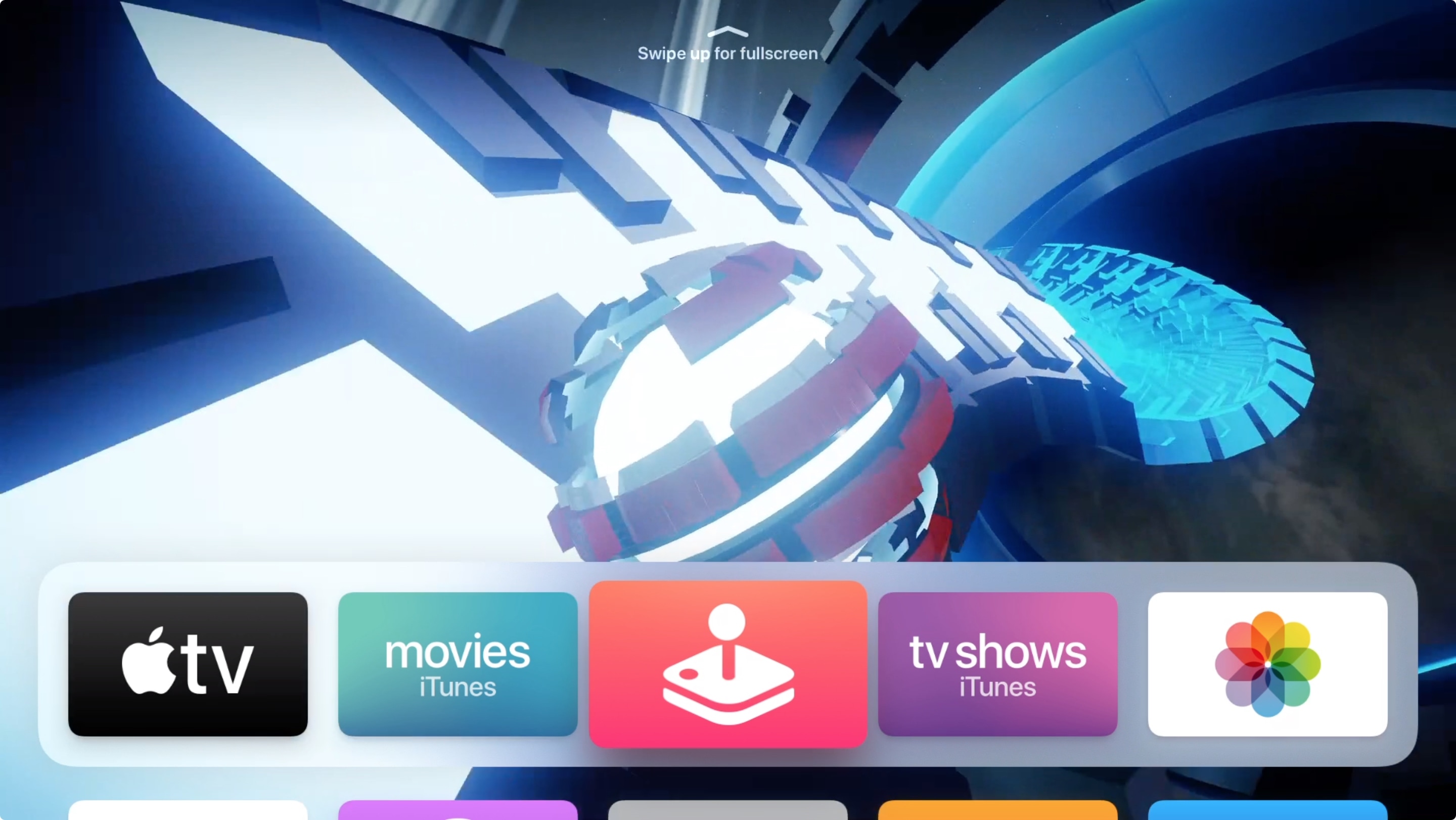
Having videos automatically play previews on your Apple TV can be helpful if you’re looking for something new. For instance, you might see a trailer for a show from the TV app or a video for a game from the Apple Arcade app as you move your remote over those apps on your Home Screen.
While this can be helpful in some cases, it can be distracting in others. For those in the “others” category, here’s how to disable auto-play video previews on Apple TV.
Turn off video previews on Apple TV
- Open the Settings app on your Apple TV.
- Select Accessibility > Motion.
- Click Auto-Play Video Preview to turn it Off.

Now, when you head back to your Home Screen and move over apps like TV or Apple Arcade, you won’t see trailers and previews play automatically.
Of course, if you change your mind down the road, it’s just as simple to re-enable that auto-play option by following those steps above and turning it back On.
What are your thoughts on the auto-play video preview feature on Apple TV? Is it something you find useful or distracting? Let us know in the comments below!
Also, check out: How to take screenshots and make screen recordings of your Apple TV screen