Learn to set precise times in 1-minute increments in the iPhone Calendar app to ensure accurate scheduling for your events.
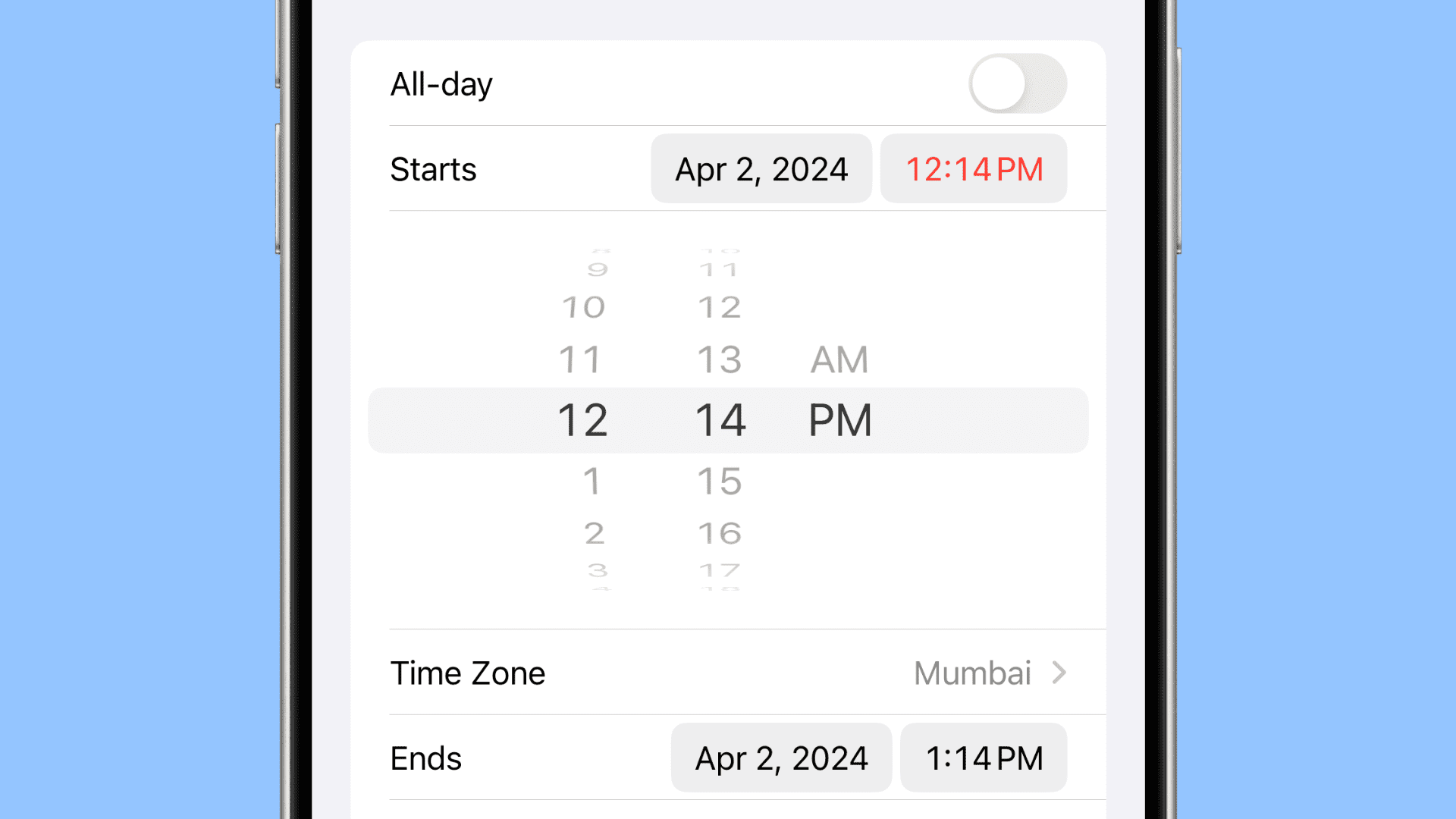
If you thought you knew everything there’s to know about the Apple Calendar app, then think again.
By the look of it, setting appointment times in the iOS Calendar app seems to work in 5-minute increments only. But you can actually schedule events in 1-minute increments.
Set precise event times in iOS Calendar
1) Open the Calendar app on your iPhone or iPad and tap the plus button to create a new event.
2) Fill in all the relevant details and then tap the digital time field next to the date in the Starts or Ends section.
3) You’ll notice that the minute slider increases or decreases in 5-minute chunks. Now, tap the minute slider, and a keyboard will pop out.
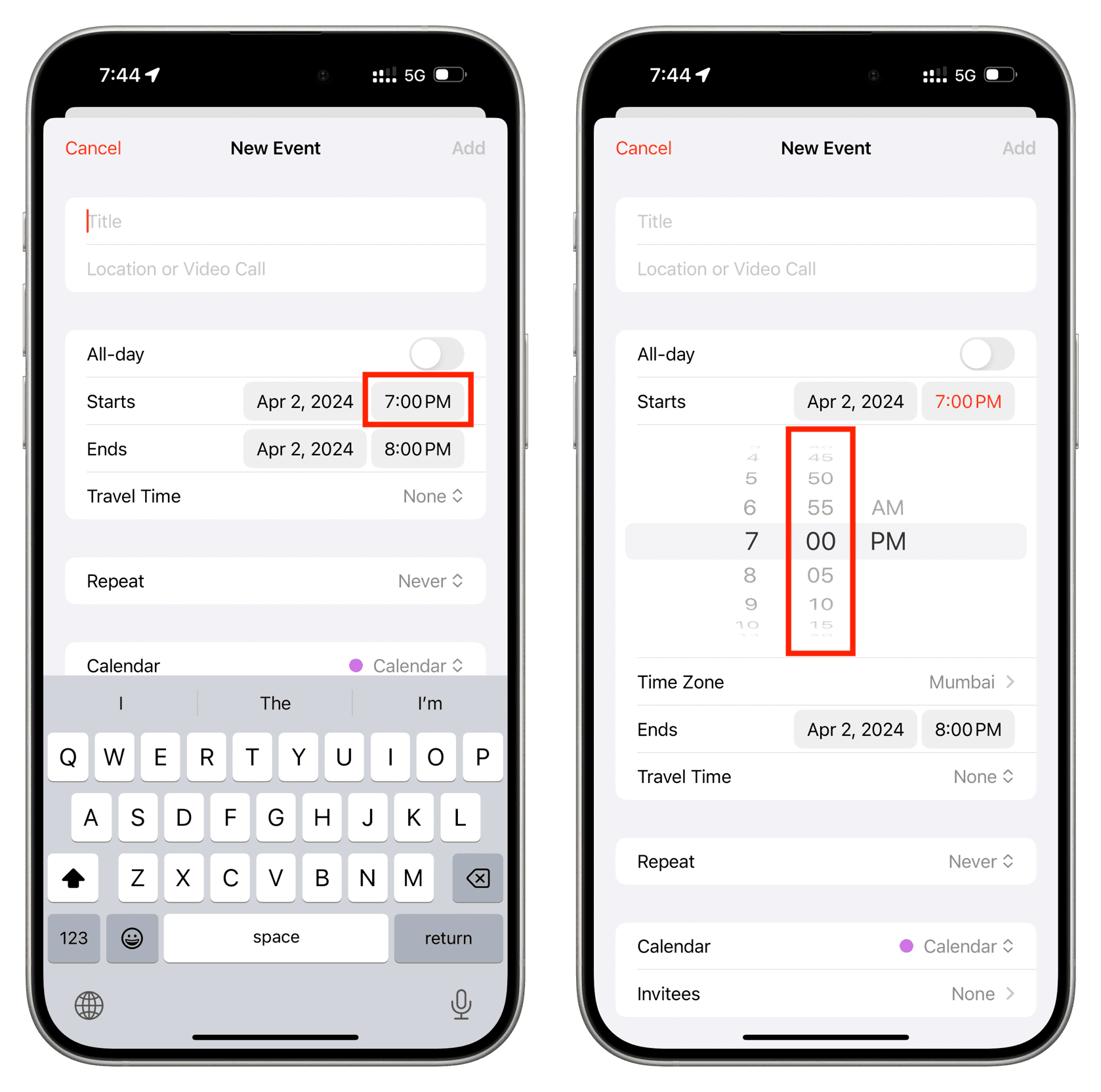
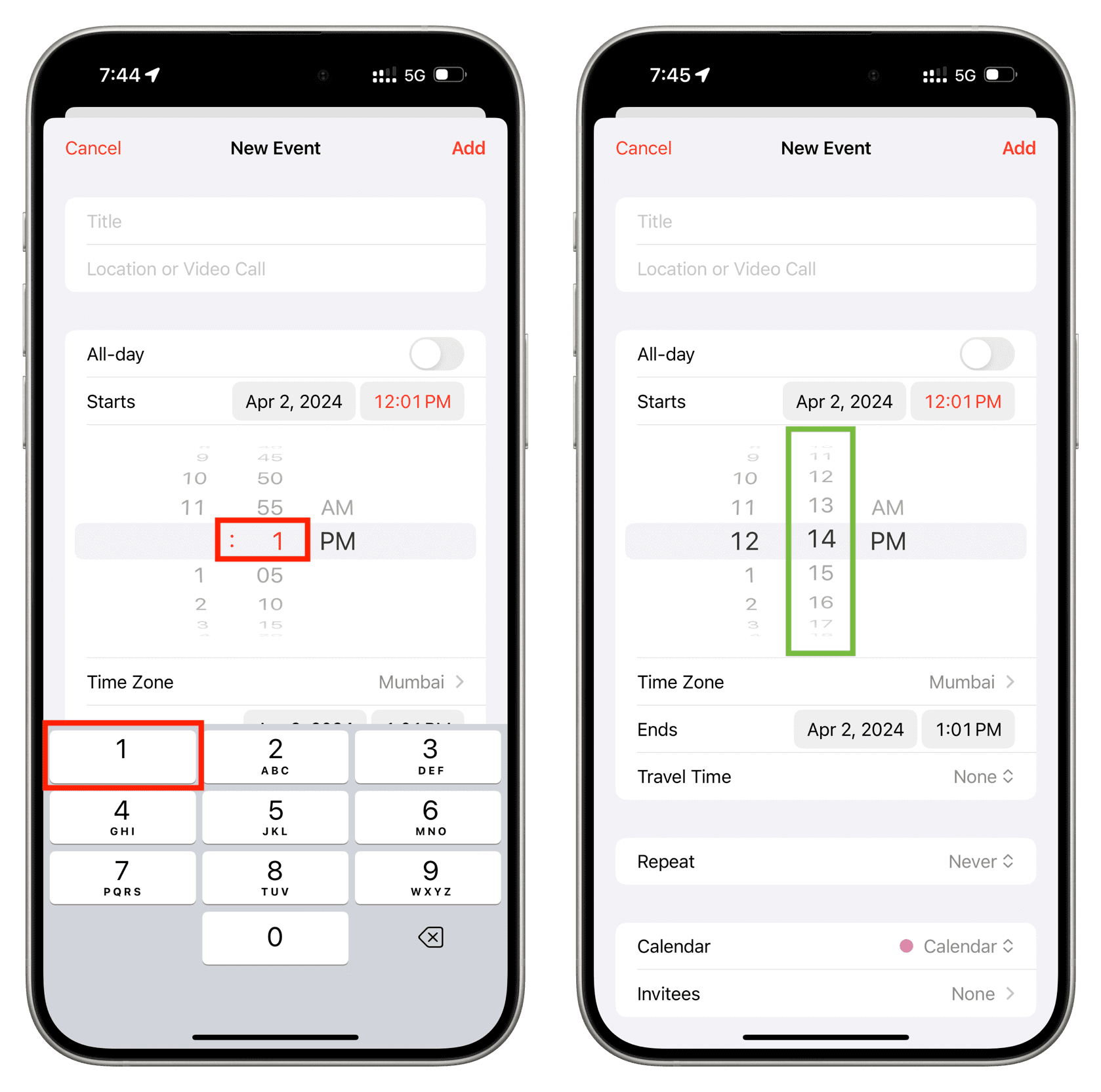
4) Tap one of the numbers from 1 to 9 (except 0).
5) Now, put your finger over the minute slider, and it will change from five to one-minute increments. Spin your time selector in 1-minute increments to pick a precise time, rather than in 5-minute increments like it usually does.
Note that this tip also works in other apps like Reminders and third-party apps that use Apple’s default time picker.
Use the keypad
In addition to revealing the hidden one-minute spinning picker, you can enter a precise time in hours and minutes using the keypad that shows up after you tap the time picker.
Ask Siri
If you don’t want to go through all the manual hassle of typing the calendar entry and setting a date and time, simply invoke Siri on your device and ask it something like, “Set a calendar event for tomorrow at 11:32 AM about a video call with Sebastien and team.”
Other Calendar tips for you: