Adjust the sound level of Siri responses on your iPhone, iPad, Mac, Apple Watch, HomePod, and CarPlay, so it’s easy to hear Siri’s answer, or tone it down when you’re in a quiet place.

Ask Siri to change the volume
You can simply ask Siri on your iPhone, iPad, Apple Watch, Mac, and HomePod to “speak louder” or “speak quieter.” You can also ask it something like, “Set your volume to 45%.”
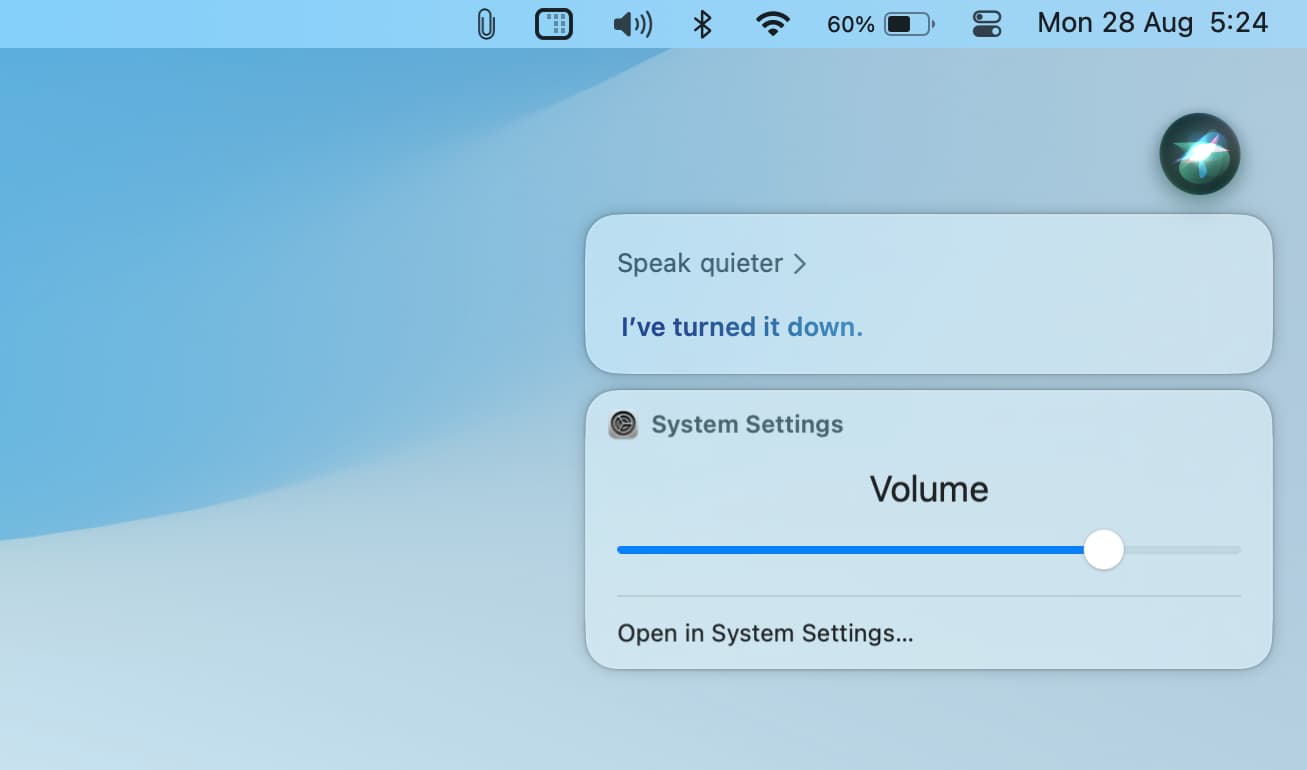
You can also adjust Siri’s volume in other ways, as mentioned below.
On iPhone and iPad
When you’re receiving Siri voice feedback on your iPhone or iPad, use the volume buttons on the side of your device to raise or lower Siri’s sound level. Or, open Control Center and use the volume slider there to increase or decrease Siri’s volume.

If you’re using headphones with your iOS device or Mac, simply adjust the volume on those as you normally would.
On Mac
When you’re receiving Siri voice feedback on your Mac, adjust the volume using one of these methods:
- Use the volume keys on your keyboard to adjust the sound.
- Click the sound icon on the menu bar or Control Center and use the slider to raise or lower the volume.
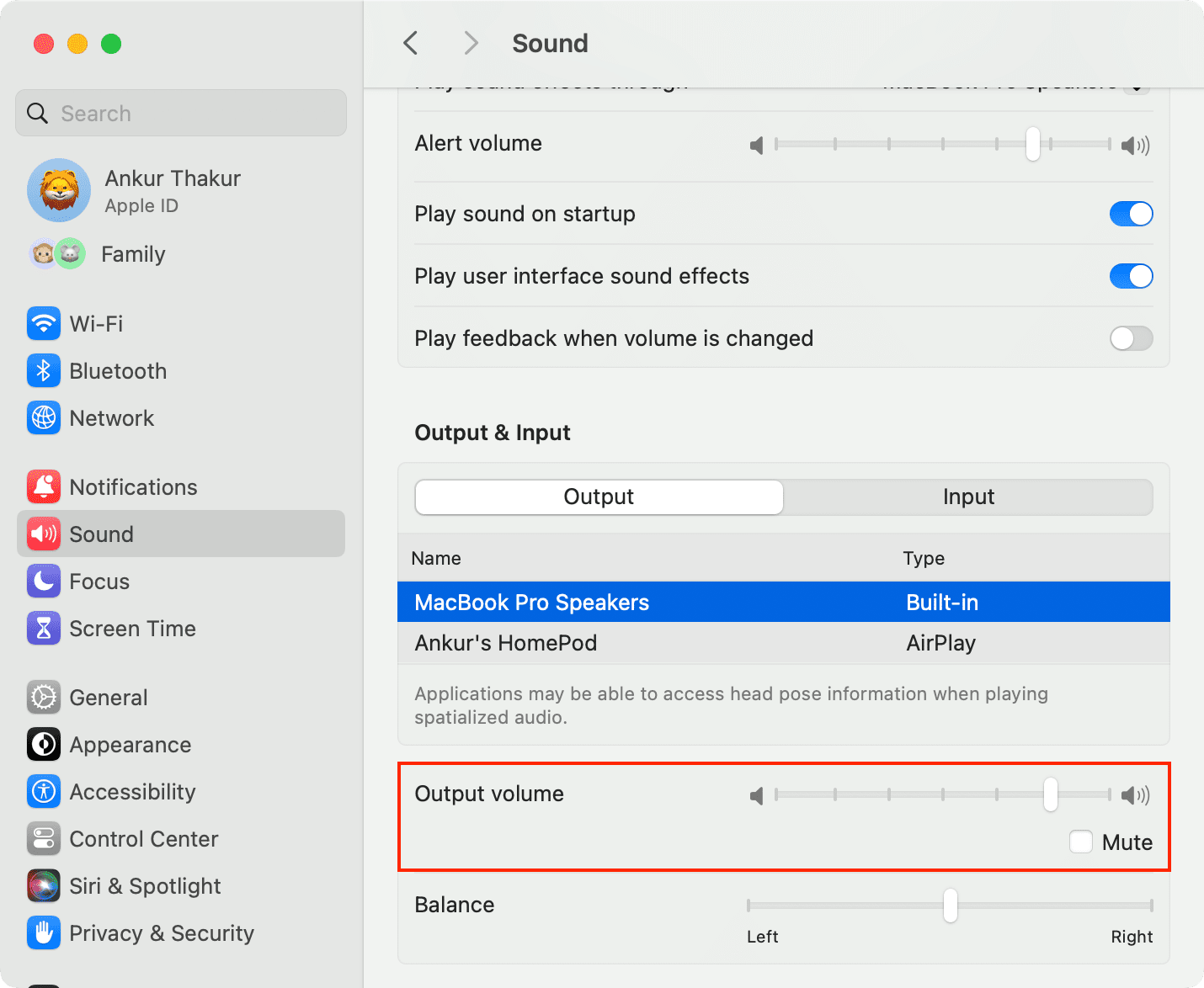
- Go to System Settings/System Preferences > Sound, make sure your Mac’s speakers are selected, and move the Output volume to raise or lower the volume.
On Apple Watch
Siri has a dedicated volume level setting on the Apple Watch. Here’s how to adjust it on the watch itself or in the iOS Watch app.
- Open the Settings app on your Apple Watch or the Watch app on your iPhone.
- Select Siri.
- Tap Siri Responses.
- Leave Automatically Adjust Volume enabled and set its level to quieter or louder. Or, turn off Automatically Adjust Volume and then drag the volume slider to change the Siri volume.

On HomePod
You can use the volume buttons (plus and minus) on the top of your HomePod to adjust the volume.
But keep in mind that your HomePod’s volume adjusts per the sound level in the room. Your HomePod is smart enough to adjust its Siri answer volume depending on your distance from the HomePod, the noise in the room, and how loudly or softly you speak to it. Still, you can use the volume buttons or ask Siri to tone the response volume up or down as needed.
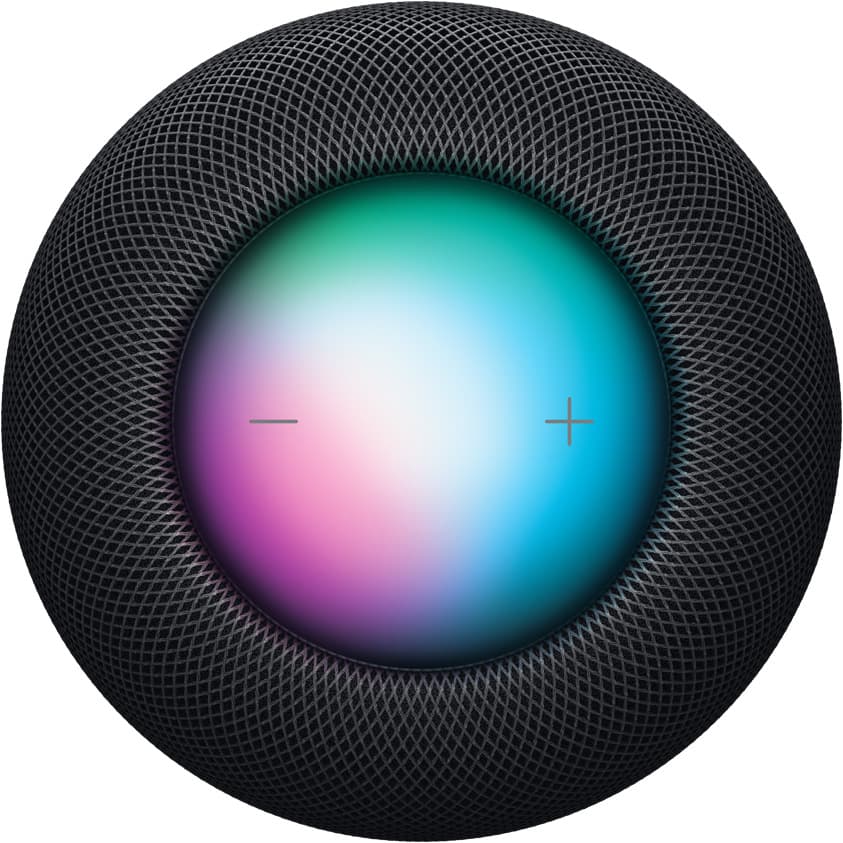
If you’re using AirPlay from your iPhone, iPad, or Mac, you can adjust the HomePod sound level using your device’s volume controls.
In your car
Use the volume buttons on the steering wheel or the infotainment system to adjust the Siri volume in your supported car.
Also, check out: How to type to Siri instead of speaking to it