Learn how to manually connect your Apple Watch to an open or password-protected Wi-Fi network when your iPhone isn’t around.
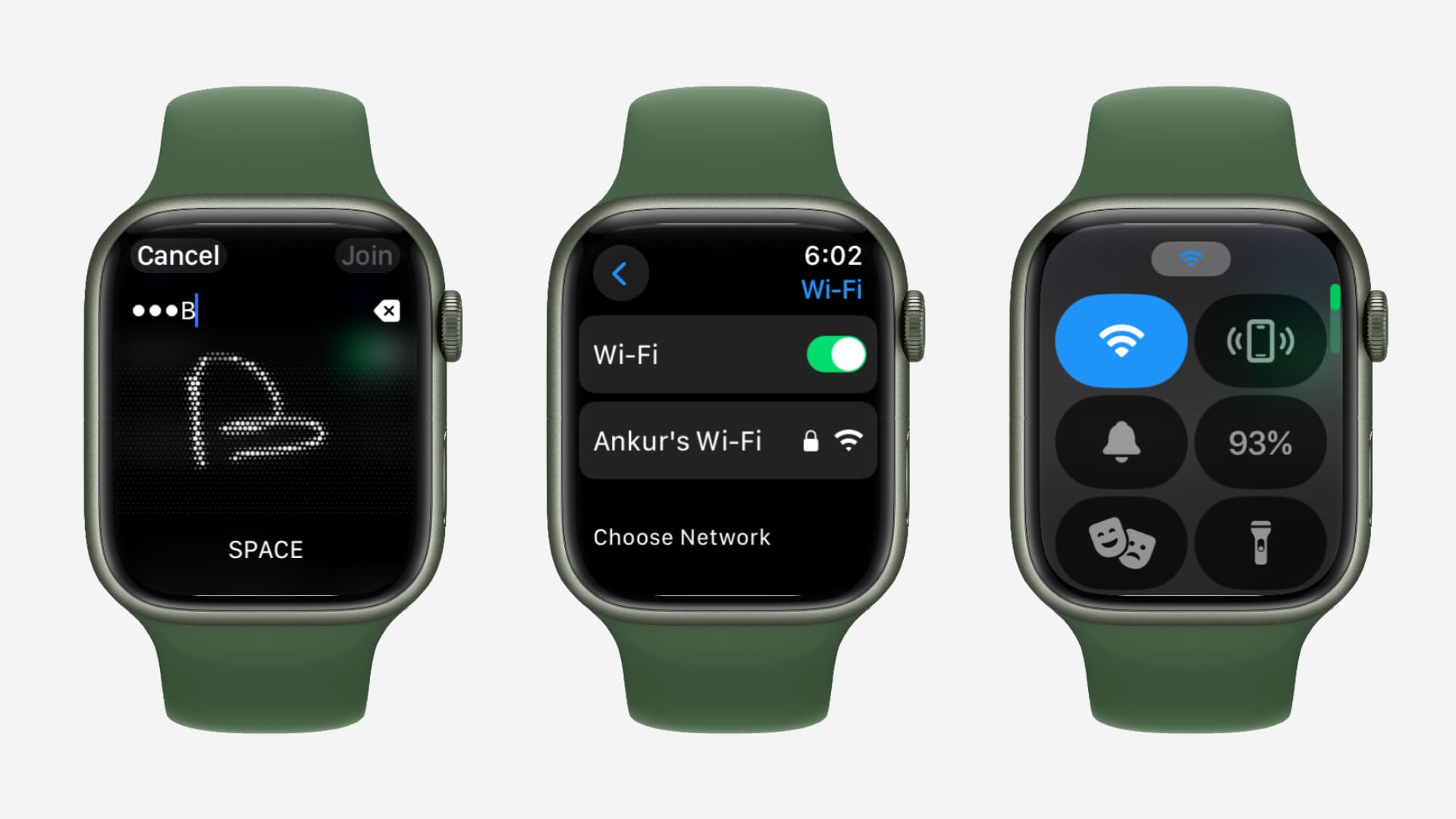
You rarely have to worry about connecting your Apple Watch directly to a Wi-Fi network. This is because, as long as you have your iPhone with you, you can connect it to the new Wi-Fi, and your watch piggybacks the connection through the phone.
In other words, when your iPhone and Apple Watch are connected via Bluetooth, your watch can use your iPhone’s Wi-Fi or cellular connection to access the Internet.
However, if you’re somewhere without your iPhone, you can connect your watch directly to a Wi-Fi network like any other smartphone, computer, or TV.
But there are a few things to keep in mind:
- Apple Watch must be on watchOS 5 or later.
- Apple Watch Series 6 and later can connect to both the 2.4 GHz and 5 GHz 802.11b/g/n Wi-Fi networks.
- Apple Watch Series 5 and earlier, and all versions of Apple Watch SE (1, 2, and 3) can only connect to 2.4 GHz Wi-Fi networks.
- Apple Watch cannot connect to captive Wi-Fi networks found in public places like hotels, libraries, schools, airports, and so on. These Wi-Fi networks load a login or payment page after connection, and that’s not yet supported on the watch (even though it has a hidden web browser).
Connect Apple Watch to Wi-Fi
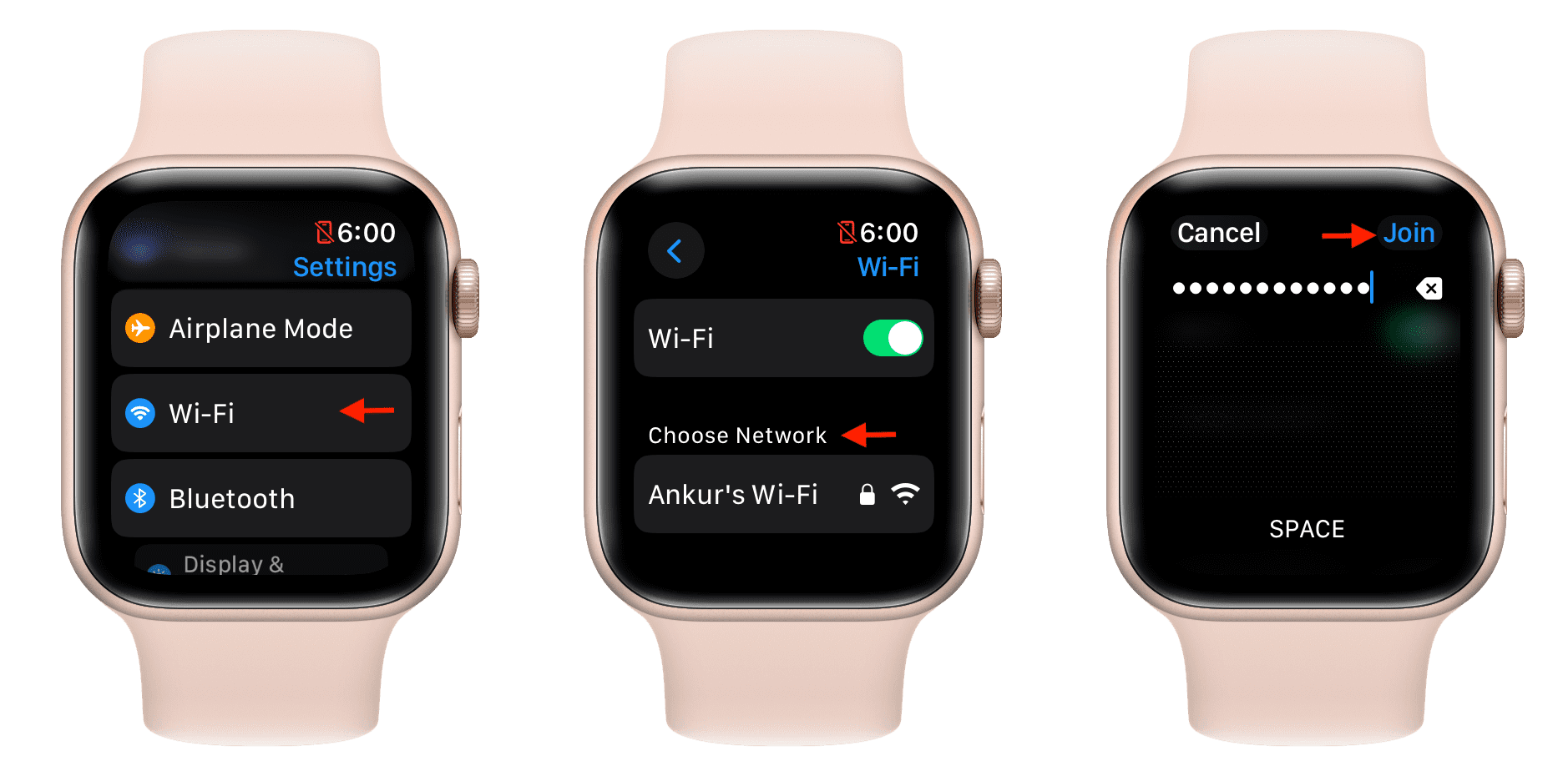
- Open the Settings app on your Apple Watch.
- Select Wi-Fi from the list of options.
- Wait a few seconds for your Apple Watch to finish scanning nearby Wi-Fi networks, then tap one from the list under the Choose Network heading.
- If the selected wireless network is password-protected, you’ll be prompted to type in the Wi-Fi password using the Qwerty keyboard or Scribble. Enter the correct Wi-Fi passcode, then tap Join.
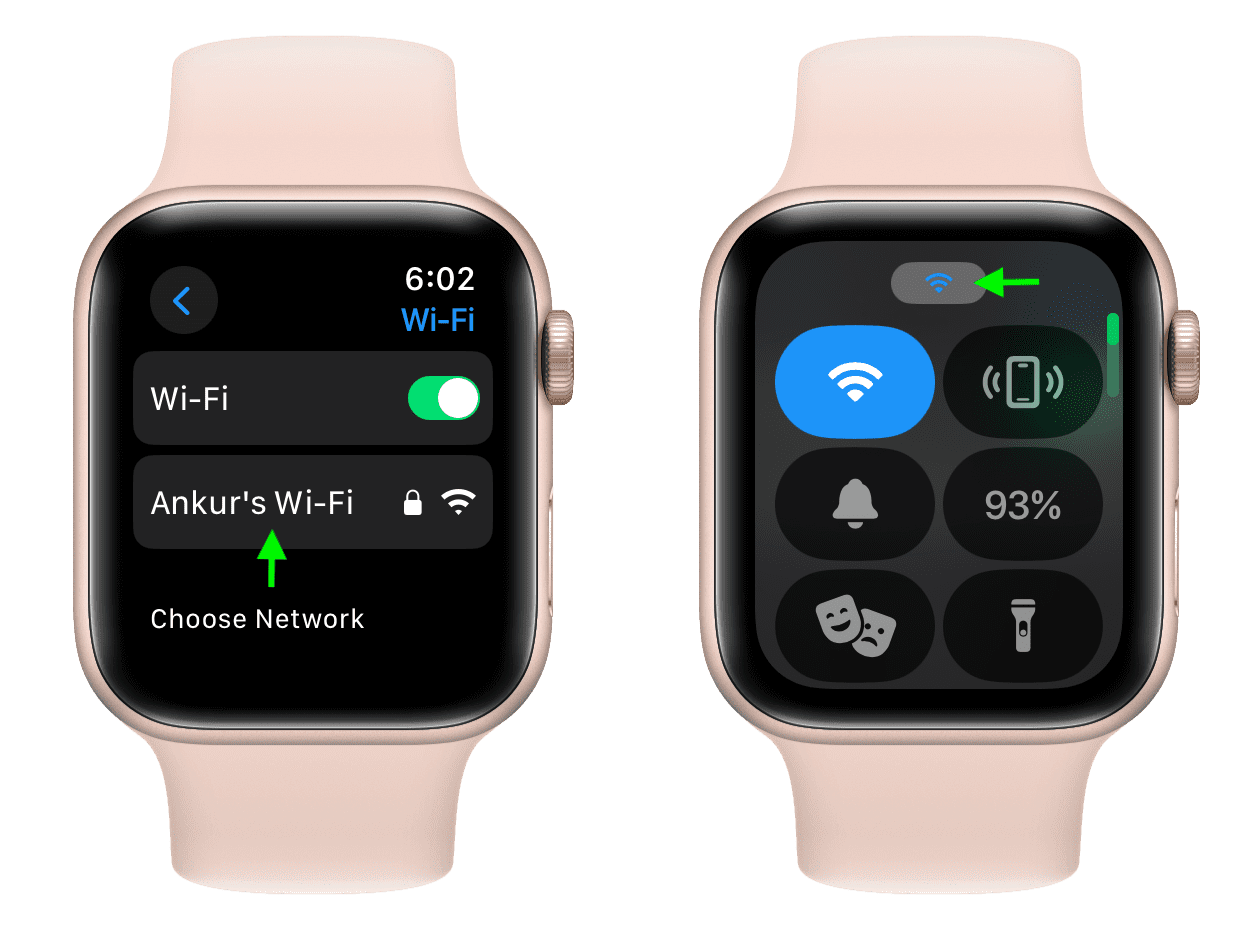
When the watch joins the selected network, it moves from the Choose Network section to just under the Wi-Fi option. Additionally, you’ll see the tiny Wi-Fi icon at the top of Control Center.
Any Wi-Fi networks your iPhone has previously joined continue to be shared with the watch, too. Additionally, your watch maintains its own list of known Wi-Fi SSIDs and saved passwords.
The watchOS software still attempts to prioritize known networks: if you have previously joined a Wi-Fi network on your iPhone while the handset was connected to the watch with Bluetooth, watchOS will continue to use those saved credentials when switching its Wi-Fi connection.
Furthermore, according to Apple, the watch will only attempt to join a Wi-Fi network when not in proximity of the companion iPhone.
On a related note: