Learn how to set your Apple TV interface to Light Mode or Dark Mode, or to automatically switch between the two based on the time of day.
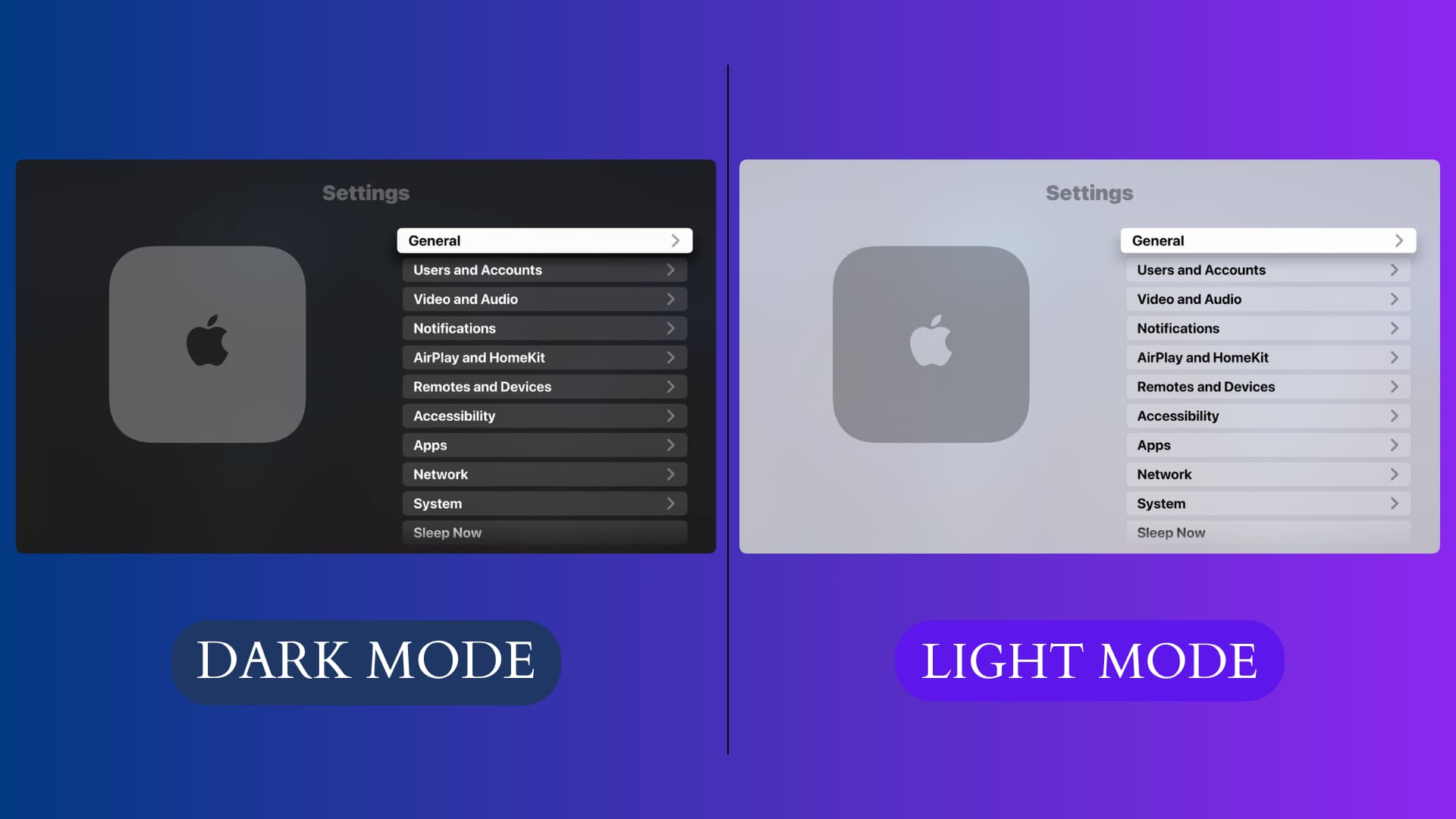
Note that your Apple TV must be on tvOS 10 or later to toggle on the dark interface. And if you want to take it further and have it automatically switch between Light and Dark Modes based on the time of day, your Apple TV must be on tvOS 11 or later.
Use Light Mode or Dark Mode on your Apple TV
1) Open the tvOS Settings app and navigate to General > Appearance.
2) Choose the appearance of the user interface:
- Light: It uses a light background with everything else in the dark, like black text on a whitish background.
- Dark: Use a darker Home Screen background and menus to make movie posters, icons, and other information easier to read at night. You’ll love a dark UI if you watch movies or play games mostly at night or in a dark room.
- Automatic: Set your Apple TV to shift its appearance from Light Mode during daytime hours to Dark Mode during nighttime hours.

For “Automatic” settings to work properly…
The “Automatic” setting switches between Light and Dark mode according to the time of day. Follow these steps to ensure it activates Light and Dark modes at the right time:
- Go to Apple TV Settings > General > Date & Time.
- Make sure the correct Time Zone reflects here.

- Next, go to Apple TV Settings > General > Privacy & Security > Location Services, and turn on Location Services.
- Click System Services and set the Time Zone option to Always so your Apple TV can determine your local time.

Ask Siri to enable Light or Dark Mode
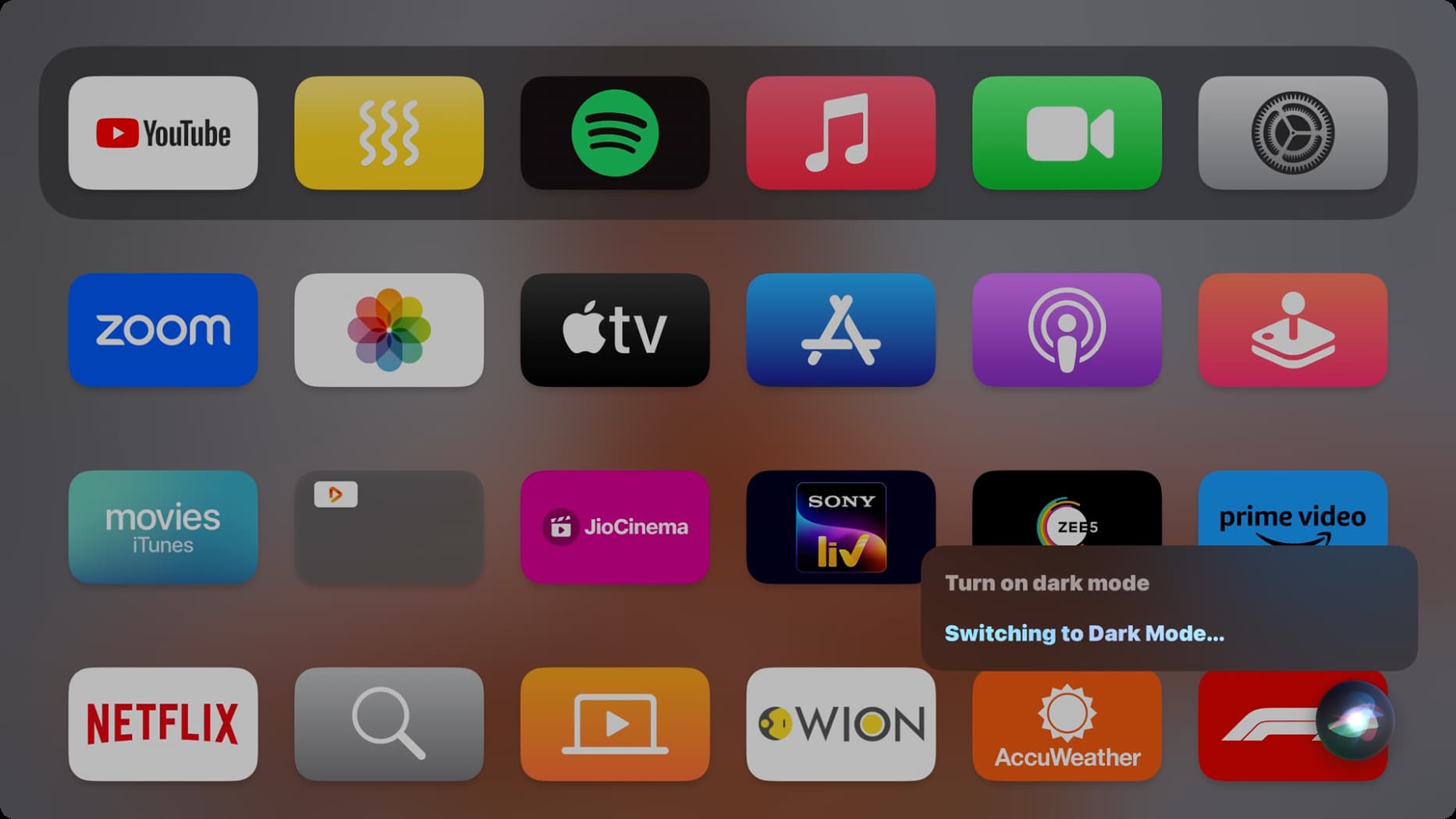
You can use Siri to quickly toggle Dark and Light Modes, so you don’t have to poke around the Settings app. Simply invoke Siri on your Apple TV and ask it to “Turn on Dark Mode” or “Turn on Light Mode.”
Other Apple TV tips for you: