In this step-by-step tutorial, we’ll show you how to manually install new firmware for your earbuds and check the version number of the firmware currently running on your AirPods, AirPods Pro, or AirPods Max.
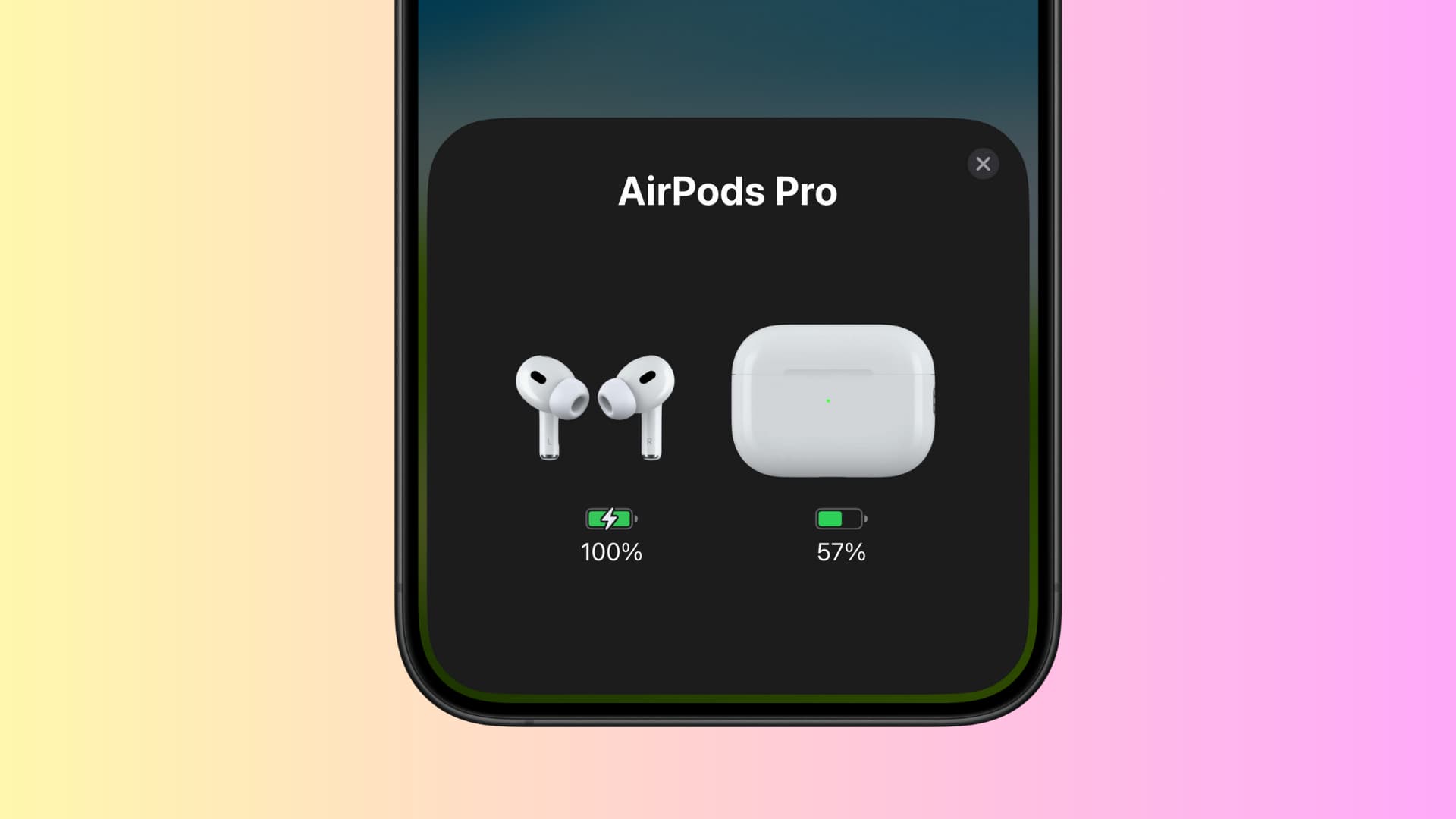
A new AirPods firmware should install silently in the background without the user ever realizing it. Should the process fail, you can manually deploy an update on your AirPods as soon as Apple releases a new version.
Updating the AirPods firmware happens through your iPhone, iPad, or Mac. That’s because your earbuds cannot retrieve software updates on their own, as they don’t have built-in Wi-Fi circuitry.
In most cases, any available update will install automatically without requiring any action on your part. If the firmware update doesn’t eventually happen in the background, here’s how you can manually update the software on your AirPods, AirPods Pro, or AirPods Max.
How to update your AirPods firmware
1) Connect your AirPods to your iPhone, iPad, or Mac. One way to do this is to open the AirPods charging case lid, tap the AirPlay icon in iOS Control Center, and then select your AirPods. On Mac, connect it by clicking the Bluetooth or speaker icon in the menu bar.

2) Go to iOS Settings or macOS System Settings and select your AirPods. Scroll down to the About section and tap Version to view the current firmware version. Take a screenshot for remembrance.

3) Now, connect your iPhone, iPad, or Mac to Wi-Fi.
4) Put both AirPods in their charging case and close the case lid if not already.
5) Plug your AirPods charging case or AirPods Max into power to charge via an adapter or computer. Make sure it’s near your iPhone, iPad, or Mac.

6) Wait for at least 30 minutes to give your iPhone, iPad, or Mac enough time to download the firmware, verify it, and send the update wirelessly to your AirPods or AirPods Pro. You can use your iOS or macOS device during the process. But leave your AirPods untouched and plugged into charging.
7) Once the software update has been installed, return to the AirPods Version page in iOS or macOS Settings to check your AirPods firmware version. You’ll see the new version number if the update was installed.

What to do if your AirPods fail to update
- Try updating with another device. I waited for 4 hours, but my iPhone failed to update my new AirPods Pro 3. However, the new firmware update was installed in less than 30 minutes using my iPad.
- Do this process overnight.
- Reset your AirPods and try updating their firmware again.
- If you still can’t update your AirPods, Apple Stores can update your AirPods firmware for you, as they have tools that let service technicians manually force AirPods firmware updates.
You can check the Apple Support page to know the latest firmware version number available for your AirPods.