In this post, we’ll show you how to find out which firmware version your AirPods and charging case are currently on.
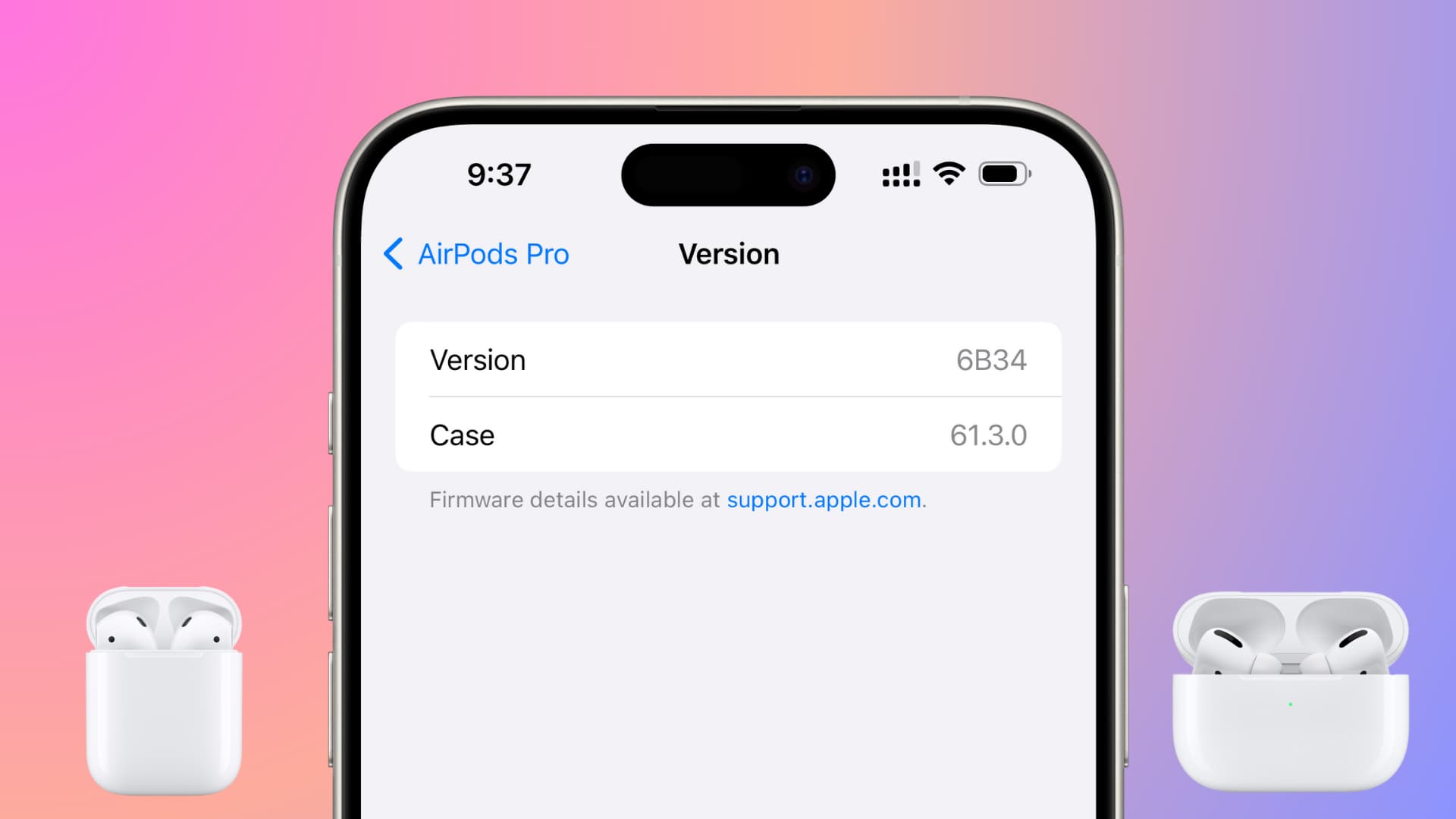
Most Bluetooth headphones have firmware that can be periodically updated, and AirPods are no different. These firmware updates are usually very small and typically include bug fixes and stability improvements to address issues users may encounter, such as rapid battery drain.
What is firmware
Firmware is a piece of software programmed into engineered products and systems. The firmware contained in these devices provides a low-level control program for the device. Think of it as the software for the hardware.
Most electronics manufactured in recent years contain firmware. Your TV remote is the perfect example of a simple product that contains firmware. In that case, the firmware controls what happens when you press a button, for instance.
Similarly, your AirPods have firmware installed that enables them to operate; when you press the AirPods stem to invoke Siri, the firmware is controlling that.
Why would you want to know your firmware version?
While this information will be useless to the vast majority of people, nerds like us just like to know the nitty-gritty details about their electronics.
Personally, as an AirPods user who has had minor issues with the earphones in the past, I just want to keep track of the firmware version to see if Apple has made any changes that could improve my user experience.
For instance, my AirPods frequently have trouble connecting to my Apple Watch. Will a future firmware update change this? I want to know.
How is the AirPods firmware updated?
Your AirPods firmware updates automatically when both buds are in the charging case, the case is charging, and it’s near your iPhone, iPad, or Mac, which is connected to Wi-Fi. The iPhone can receive an over-the-air software update for the AirPods, and when that happens, the iPhone will eventually push it to the AirPods. All this is completely invisible to the user.
By following these instructions, you can manually install a software update for your AirPods (however, you cannot prevent an update from happening).
To know what’s included in an AirPods firmware update, you can follow these simple steps, which will take you to the relevant Apple Support page outlining the new improvements.
How to find out your AirPods firmware version
- Connect your AirPods to your iPhone, iPad, or Mac.
- Open the iOS Settings app or macOS System Settings.
- Select your AirPods at the top of the Settings app or from the bottom-left of System Settings.
- Scroll down to the bottom and tap Version on iOS to see the firmware version for both the AirPods and their charging case.

On Mac, both the AirPods and charging case firmware versions are displayed right there, as shown in the screenshot below:

Another method
- Connect your AirPods to your iPhone or iPad.
- Open iOS Settings and tap General > About.
- Tap your connected AirPods name to see the Firmware Version.

Also, check out: How to install AirPods beta firmware updates