Learn how to show icons for the internal startup drive, external storage devices, volumes, and partitions on your Mac’s desktop for quick access to the files within.
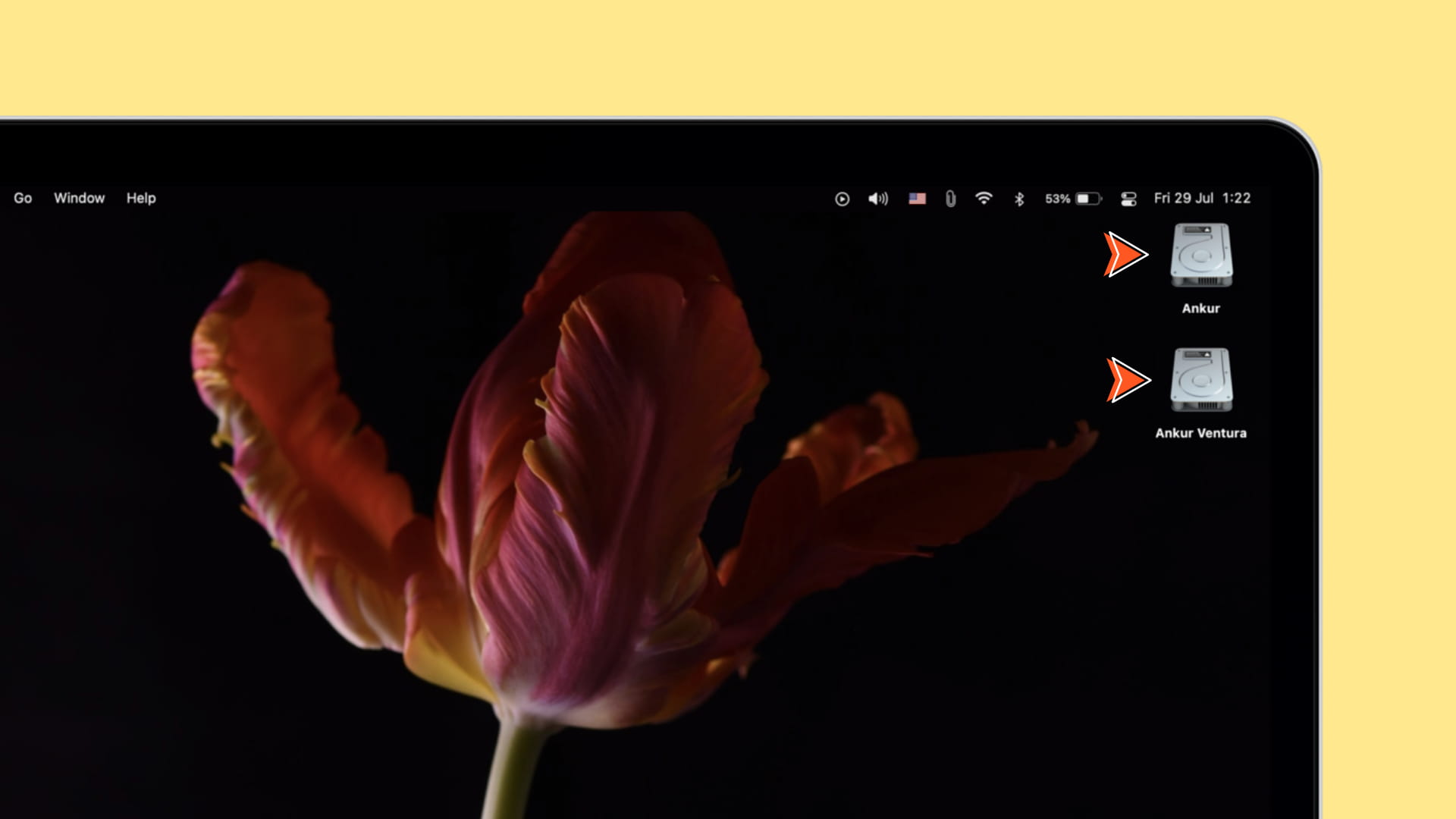
If you frequently open and use files on a specific storage device connected to your Mac, do yourself a favor and turn on the display of drive icons on the desktop. You can do so easily in the Finder preferences by following the steps below.
Show storage drive icons on Mac desktop
1) Click anywhere on the desktop so you see ‘Finder’ next to the Apple menu .
2) Click Finder > Settings (or Preferences) from the top menu bar. Or press the Command + , (comma) keys.

3) Make sure you’re in the General tab. Tick the box next to Hard disks under “Show these items on the desktop.” Icons representing your Mac’s startup drive and internal storage devices will instantly appear on the desktop.
You can also turn on drive icons separately for external disks (hard drives, SSDs, USB thumb drives), CDs, DVDs, iPods, and connected servers.

With that done, double-click an icon on the desktop to open a Finder window to browse files on that drive.
Note that even though modern Macs are equipped with flash storage (Solid State Drive or SSD), Apple continues to use the term “Hard disks” in the Finder settings.
Keep in mind that a single physical disk can have multiple logical volumes. For example, you can create a separate volume to install other macOS builds or other operating systems alongside the current macOS version, and each volume will have its own drive icon. Or, if you own an Intel-based Mac rocking a Bootcamp partition with Windows installed on it, you’ll see another disk on the desktop below “Macintosh HD,” named “BOOTCAMP.”
Tip: You can rename the Macintosh HD startup disk by right-clicking its icon and choosing Rename.
Remember to quit apps that hide desktop icons
Menu bar apps like SecretDesktop and HiddenMe may prevent drive icons from being displayed on the desktop. This is because these apps let you hide all icons on the desktop for a cleaner look. If these or similar apps are running on your Mac, quit them before toggling the Finder option to show drive icons on the desktop.

Also, check out: How to create Windows-like app icons on your Mac desktop