Learn how to close all open Safari tabs at once on your iPhone or iPad to save time, declutter your browsing, boost performance, and even save battery.
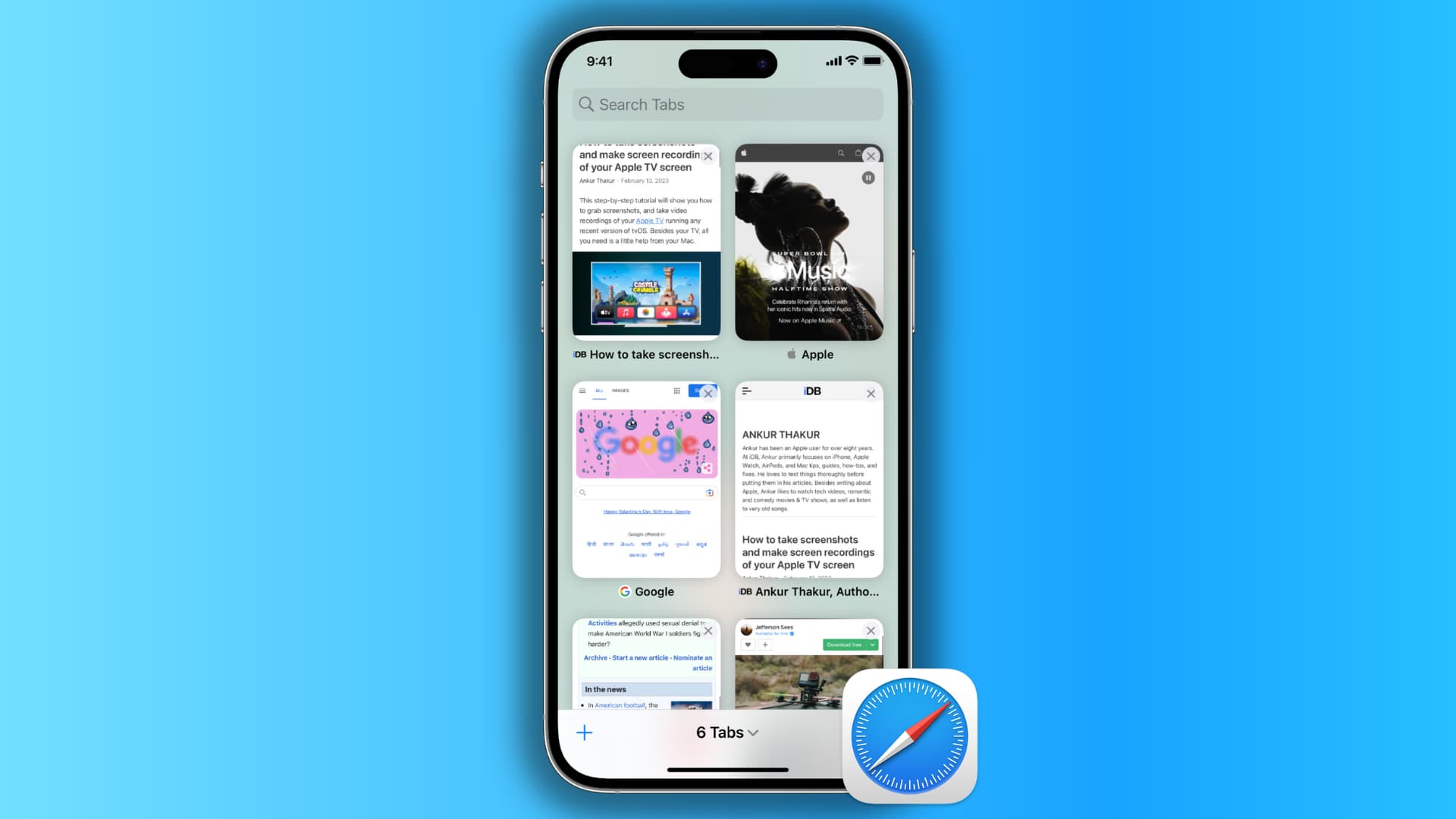
Many Safari users keep multiple tabs open on their iPhone or iPad. And if you’re like those folks, you’ll occasionally want to start anew and clear all open tabs.
Instead of closing tabs one by one, Safari gives you four ways to close open tabs in one fell swoop, and we’ll walk you through them all.
1. Hold the URL bar
If you have a website open in Safari, touch and hold the address bar, then choose the option to close any number of tabs you have open. In this case, it’s 14, so we tap the red “Close All 14 Tabs” button.

If your iPhone is running an older version of iOS, touch and hold the tabs button instead to get to this menu.

2. Tab-switching interface
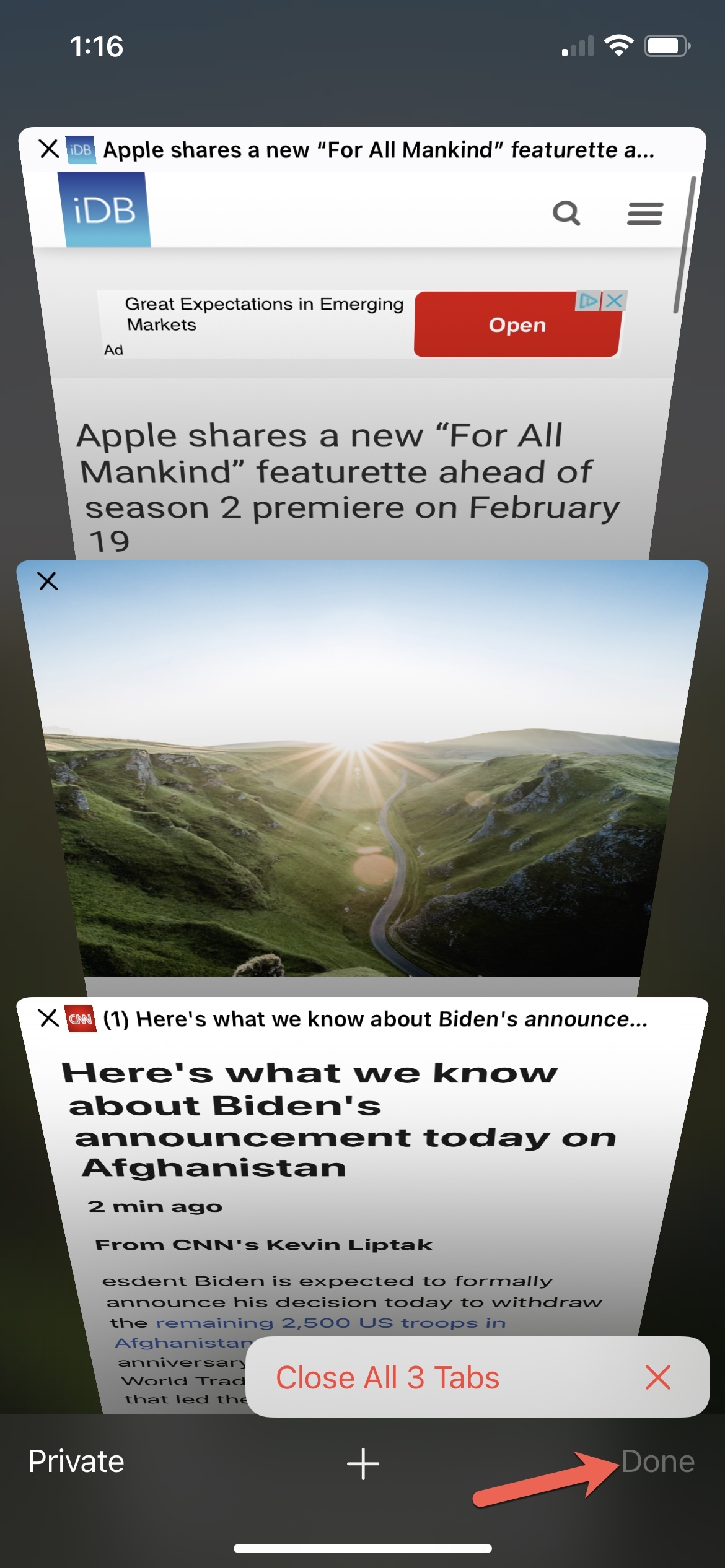
You can also open the All Tabs view that shows all your open tabs as scrollable thumbnails, and then touch and hold the checkmark icon to reveal this option.

For older iOS versions, tap and hold the Done button in the bottom-right corner.
3. Close all Safari tabs except the current one
You can also close all open tabs except for the current one. In the All Tabs view, touch and hold the thumbnail of the website you’d like to keep open and choose Close Other Tabs from the menu. Mac owners can even close all open Safari tabs except the current one in four different ways.

4. Clear Safari history to nuke all open tabs
If you venture into Settings > Apps > Safari and choose the option to clear your Safari browsing history, you’ll get a Close All Tabs switch under Additional Options. Turn it on and then hit the Clear History button. Doing so will delete your browsing history and cached website data, log you out of all websites you’re signed in to, and close any open tabs that aren’t in tab groups.

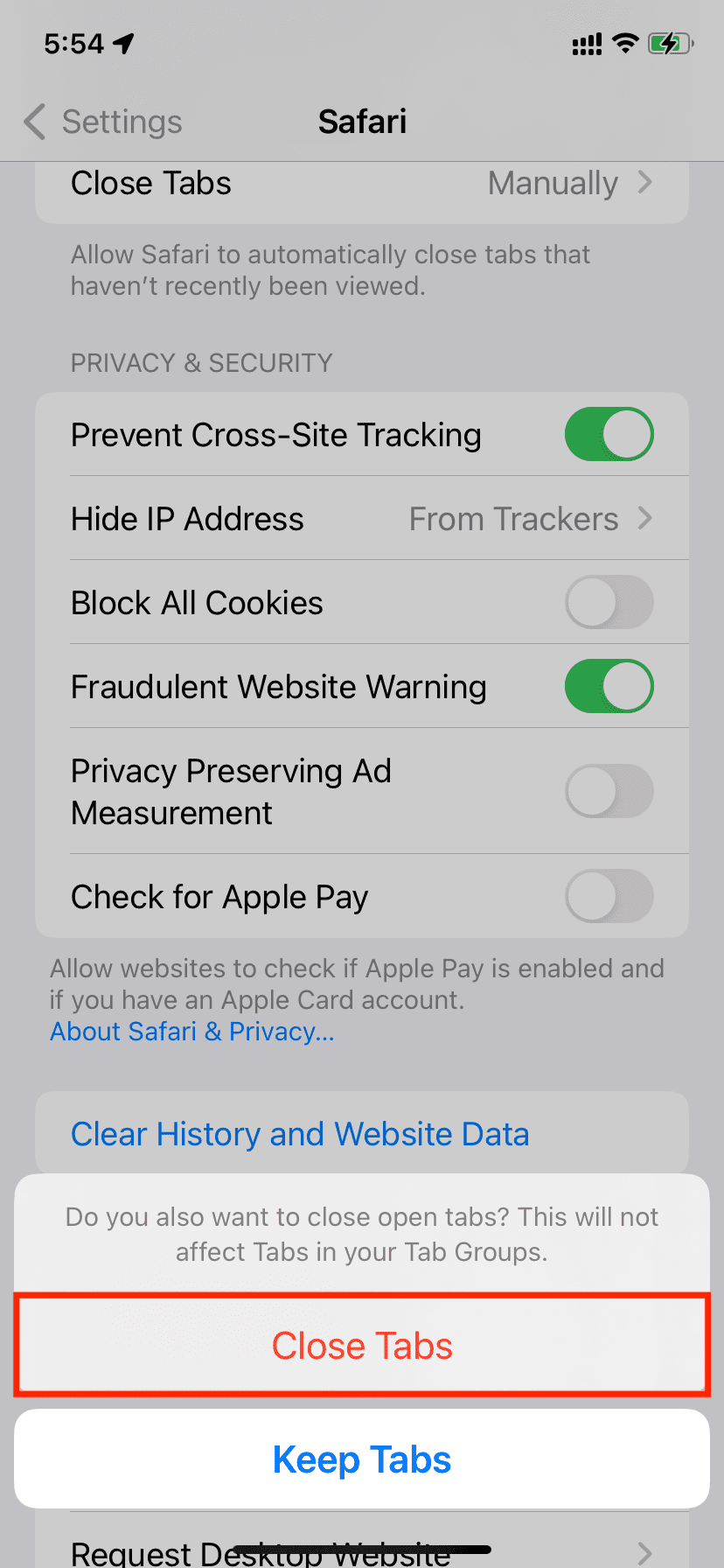
On older iOS versions, you’ll see a confirmation dialog, so tap Close Tabs to confirm the action and clear all open tabs except for those that are in tab groups.
Things to keep in mind
The first three methods won’t close pinned tabs and any websites in your tab groups or other Safari profiles.
And as mentioned, if you clear your browsing history using the fourth method, your pinned tabs and tab groups won’t be affected, but any websites open in other Safari profiles will be cleared.
In addition to the above methods, you can also configure Safari to automatically close old open tabs. You can also close only tabs surfaced in Safari’s tab search.
Which method do you prefer for closing all of your Safari tabs?