Create a contact group on iCloud Web so you can bundle similar contacts in one list or use them for group messaging and email.

What is a contact group?
A contact group is exactly what it sounds like; it’s a group that you create, consisting of many of your contacts. They’re useful for work, school, or even for conversations between you and your friends.
You’ll make a contact group whenever you need to get in touch with a high volume of people at once. They come in handy when you don’t want to message each and every person individually, because when you go to start a new email, you can just input the name of the group, and it will automatically fill the names into the To field of everyone who is in the group you made.
A contact group is also a great way to organize your address book like a pro.
Make a contact group on iCloud Web
1) Visit iCloud.com/contacts in Safari, Google Chrome, or other web browser and sign in with your Apple Account.
2) Click the sidebar icon from the top left if Lists are not shown.

3) Now click the plus button next to Lists to create a new one.

4) Give your list a desired name and press the return/enter key.

5) Click All Contacts at the top. Now, select one contact and drag it to the new contact group/list you just created. Or, select multiple contacts while holding the command key on your Mac and then move them all to the group in one go. Note that you can also select contacts directly and then use the “Create New List” option to make a new list.
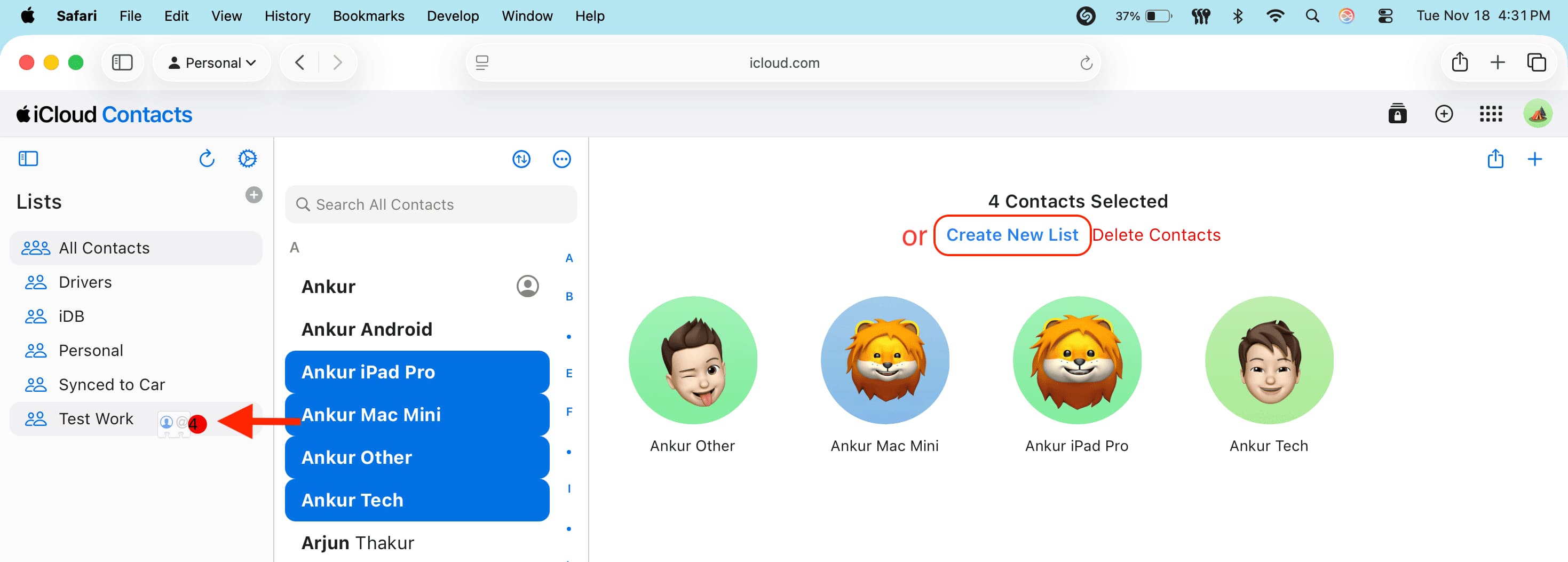
The iCloud Lists will sync to your iPhone, iPad, and Mac. Open the iOS Phone app or Contacts app and tap the arrow icon in the upper left corner to access all contact lists.

Now, you can enter the name of your new contact group into the To field of your Mail app on your Mac or iOS devices, and the contact information of the people you’ve added will be filled into the field automatically to send a group email.

Do you use Contacts Groups? Share in the comments!
On the same note: