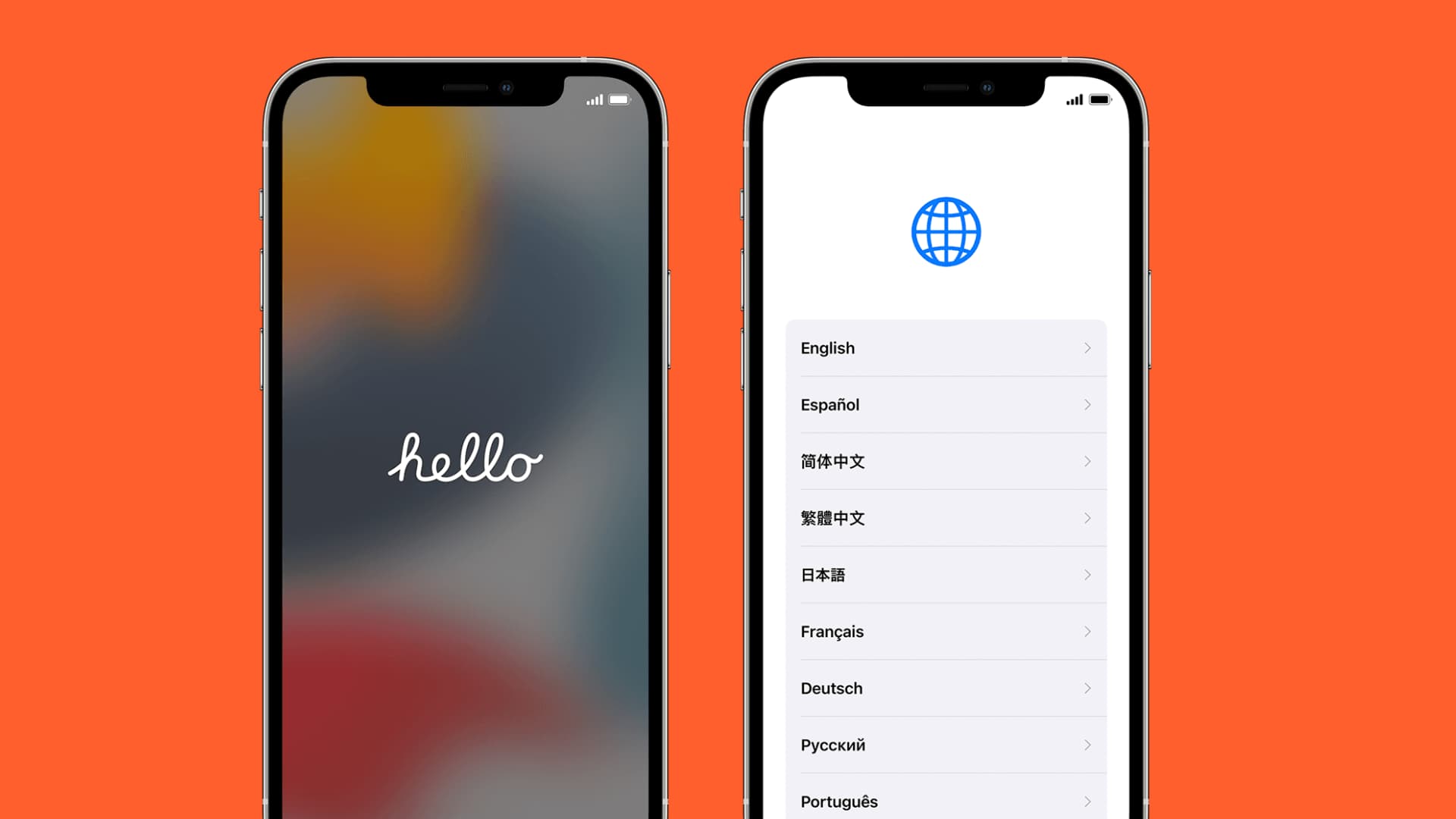
Learn what to do if your iPhone or iPad won’t activate after being erased, preventing you from finishing iOS setup and configuring the device for everyday use.
Why won’t your iPhone activate
Activation is one of the steps when setting up an iPhone or iPad from scratch; it authorizes the device for use by verifying it with Apple. Sometimes the process doesn’t go smoothly, leading to error messages such as:
- The activation server is unavailable: Apple’s activation server is experiencing an outage, technical issues, or overwhelming traffic, which is typical for new iPhone launches when many early adopters rush to activate their device.
- Activation couldn’t be completed: Your internet connection may be glitchy, or the phone itself may be plagued with issues. You’ll need to troubleshoot by looking into what could have gone wrong.
- The SIM card is unsupported: The SIM card you’re using is not compatible with your iPhone. On recent versions of iOS, you no longer need a SIM card to activate an iPhone.
Here are tips for fixing iPhone activation issues.
Restart the device
In some cases, the problem is a software bug, and restarting your iPhone or iPad and starting over can resolve the issue.
Use your Apple account
Your Apple ID may be needed to activate your iPhone or iPad because of an anti-theft feature called Activation Lock, which prevents the device from being set up as new without the previous owner’s Apple ID password.
Activation Lock is turned off on brand-new devices. If you see it, someone sold you an old device as new; contact your nearest Apple store immediately and report this to the platform where you purchased the device.
Used iPhones offered on places like eBay and through resellers may still have Activation Lock enabled and tied to the previous owner’s account. Ask for the password, or meet them in person so they can enter their account password. Only after that can Activation Lock be disabled.
And beware of online sellers who scam buyers with iPhones that have Activation Lock turned on and later ask for a fee to unlock the phone with the previous owner’s password.
Also see: How to check if the second-hand iPhone you bought is original or counterfeit
Check Apple’s System Status page
High volumes of activation traffic can cause Apple’s servers to fold. In such cases, your iPhone may take a long time to activate or won’t activate at all. Visit Apple’s System Status page to check if services like iOS Device Activation, iCloud Account & Sign In, and Apple Account are undergoing an outage. If so, try again later.
Connect to a Wi-Fi network
Activation won’t work with a poor cellular signal. An active internet connection is required to reach Apple’s activation servers, so switch to a Wi-Fi network instead. If activation keeps failing, restart your Wi-Fi router. If a VPN is running on the router, turn it off. Also, try a different Wi-Fi network, but avoid public networks like Starbucks or airport hotspots.
Make sure the cellular connection is reliable
If no Wi-Fi networks are available, you can use cellular data, but first check that your SIM card has an active internet plan. You may need to contact your carrier and inquire whether your account needs a recharge or pending bill clearance.
Connect your iPhone to a Mac or Windows PC
If no Wi-Fi or cellular networks are available, connect to a Mac or Windows PC and activate your iPhone using the Finder (macOS) or the Apple Devices app (Windows).
Make sure your computer is up to date
If activation through a computer isn’t working:
- Make sure your Mac is running the latest version of the operating system
- Update the Apple Devices app on Windows PC
Check that a SIM card is installed
Old iPhone models and iOS versions won’t activate without a valid SIM card installed in the tray. Using a supported SIM card should resolve activation errors that say you need a SIM card to proceed.
Reseat the SIM card
A NO SIM message appearing when a SIM card is installed indicates the card isn’t sitting in the tray correctly. Reseat it so your iPhone can read it. Eject the tray with a paperclip or the included SIM-eject tool in your iPhone box, then reseat the card and re-insert the tray. If your SIM card has a PIN, use another device to remove the PIN.
Restore your iPhone
Restore and update your iPhone to the latest version using Recovery Mode if you suspect the problem may have something to do with outdated firmware. I would only suggest this option if the above tips didn’t work.
Contact your carrier
It is possible, and not too uncommon, that your SIM card arrived damaged or malfunctioning. Contact your carrier and ask them for a replacement. You typically have to pay a minimal fee for a new SIM card, but some carriers may not charge anything.
Contact Apple
If nothing works, contact Apple directly or schedule a Genius Bar appointment at your nearest Apple Store. Service technicians will determine whether a faulty component is preventing activation.
Also, check out: