Make a word, phrase, or passage of text in your WhatsApp conversations bold, italic, strikethrough, or monospaced to give your writing more clarity or format them for aesthetic purposes.
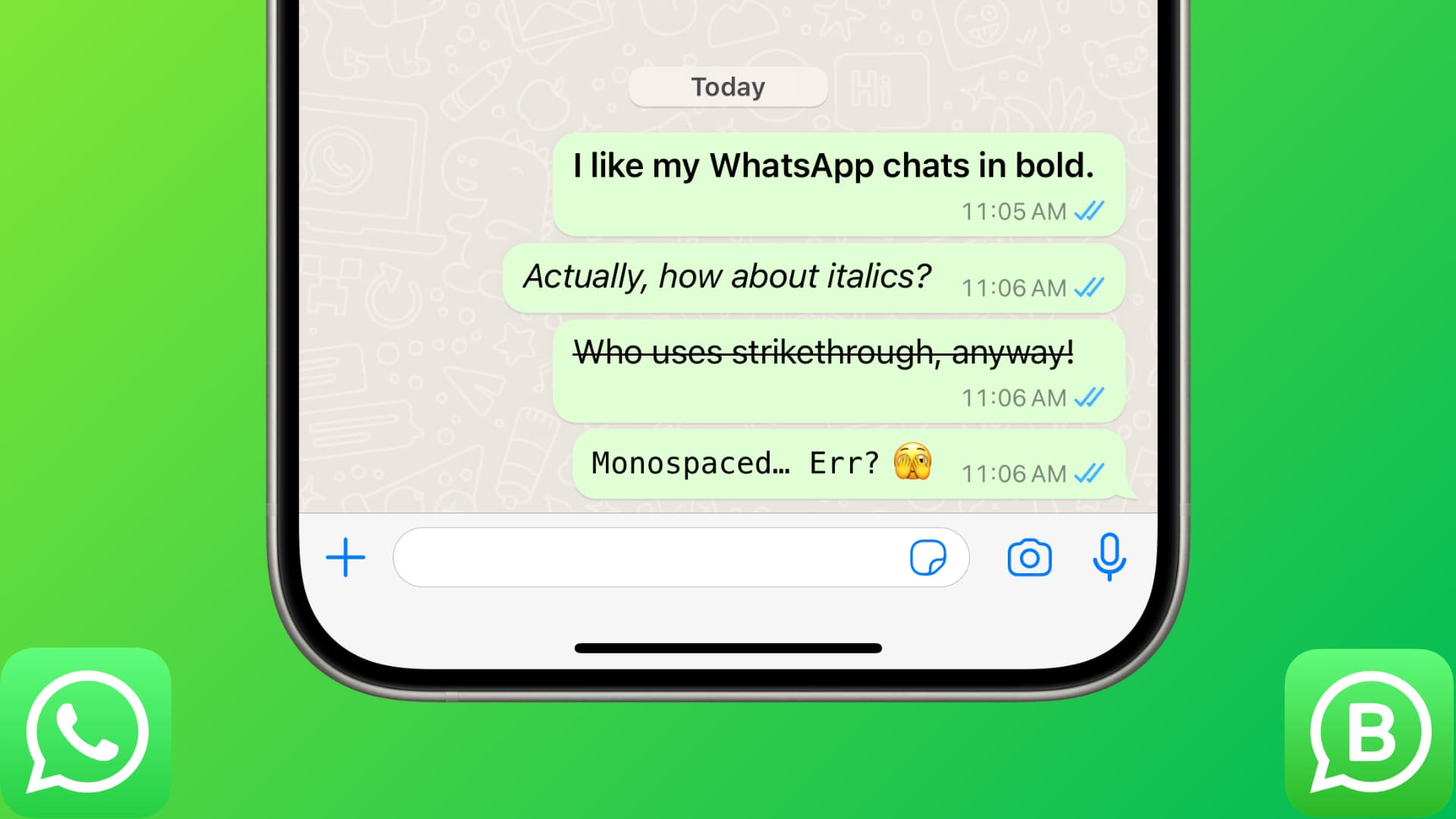
WhatsApp allows you to format your chats with four styling options — bold, italics, strikethrough, and monospaced.
You can add these styles to your text with the handy format option or by enclosing parts of text inside special formatting codes. We’ll share both methods below.
These tips work for both regular WhatsApp and WhatsApp Business.
Add text formatting in your WhatsApp chat
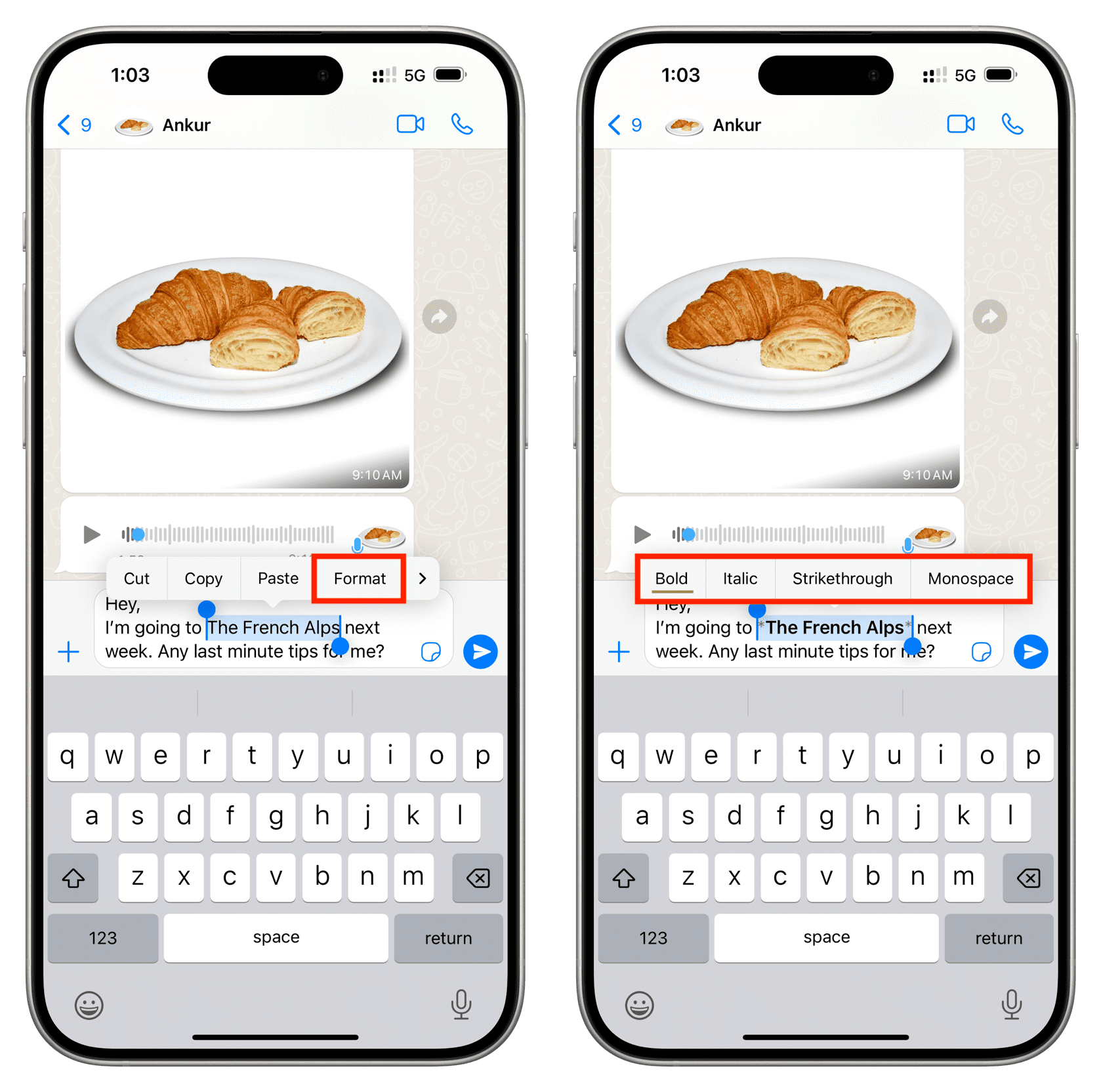
- Open WhatsApp on your iPhone, go into a chat, and type your message.
- Select one or more words or sentences where you want to add the formatting. Note that if there is no red correction line under a word, you can also double-tap to select it.
- Tap Format. If you don’t see it, tap the arrow (>) first.
- Choose Bold, Italic, Strikethrough, or Monospace.
Tip: You can even merge two styles. For instance, first, you can make the text italic and then make it bold.
Note that the above steps also work when you use WhatsApp in a web browser.
Use formatting codes on WhatsApp
This second method can be quicker for some people, as it just involves entering special characters from the same keyboard with which you’re typing. You don’t have to wait for touch & hold or rely on the operating system’s formatting menu.
Follow these tips to add bold, italics, strikethrough, and monospaced styles to text on WhatsApp on iPhone, Android phone, Mac, Windows PC, or the web browser:
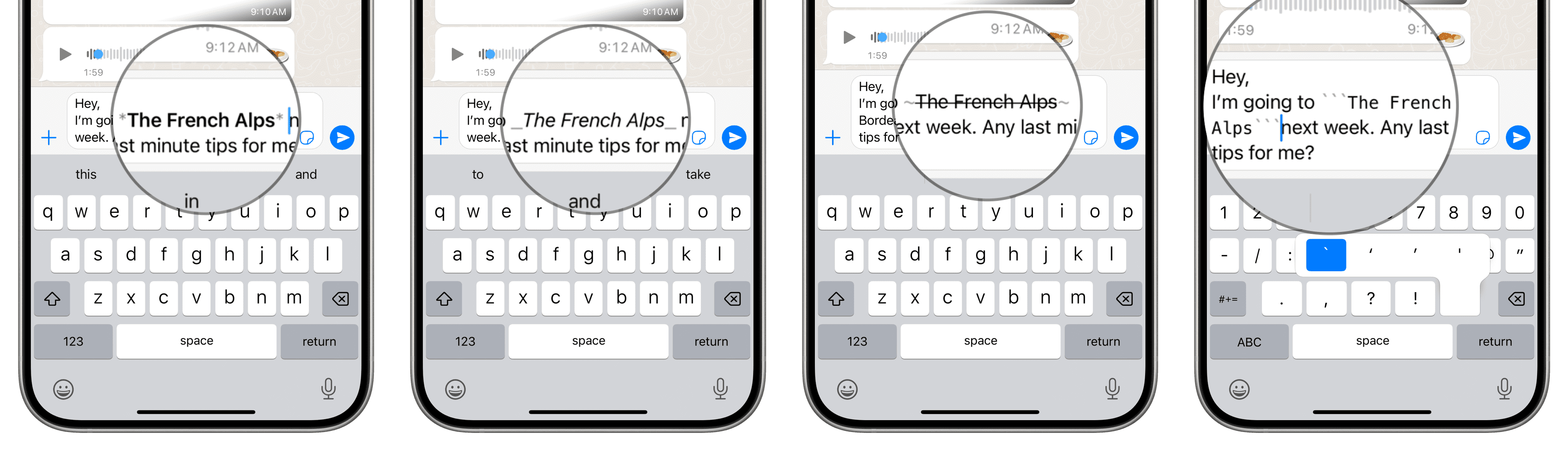
- Bold: Add an asterisk character ( * ) before and after the specific words or passages of text to make them bold.
- Italics: Add an underscore character ( _ ) before and after the specific words or passages of text to make them italic.
- Strikethrough: Add a tilde character ( ~ ) before and after the specific words or passages of text to make them
strikethrough. - Monospace: Add three backticks ( ` ` ` ) before and after the words or sentences to make them monospaced. To add a backtick, touch and hold the tick key (‘) on your iPhone keyboard.
Other WhatsApp tips: