Add emojis to your favorites list in Mac’s emoji picker to make your most-used emojis readily accessible.

Not too long ago, we showed you a keyboard shortcut you could use to bring up the emoji picker from almost anywhere a text field could be accessed in the macOS operating system.
Being familiar with how to access your emojis is one thing, but it’s also possible to add emojis to a dedicated favorites list in the emoji picker. This makes it easier for you to access your favorite emojis at a later date without having to search too hard for them.
Why add emojis to your favorites list
Although your Mac automatically keeps track of the emojis that you use the most frequently, any time your emoji habits change, this list will change along with it. The favorites list is one that remains static over time, so no matter how much your emoji habits change, you’ll be able to access your favorite emojis from the Favorites list at any time.
Because of this, we recommend you add the emojis you like the most to it. This will save you the trouble of having to search through all of the categories when an emoji you want to use is suddenly no longer available under the frequently used section on your Mac.
Set your favorite emojis on Mac
1) Open an emoji-supportive app like Messages or Notes on your Mac.
2) Use the keyboard shortcut Control + Command + Space Bar to bring up the emoji picker.
3) From the small emoji picker, click the arrow in the bottom right, followed by the character viewer button, as shown below. In older versions of macOS, click the small character viewer button at the top right of the interface to expand it.

4) As the window expands, select an emoji from the window that you’d like in your favorites list and click the Add to Favorites button on the right side of the window.

5) Once you’ve added a few favorites, click the Favorites option in the window’s sidebar to confirm the emojis were added.

Congratulations, you’ve just added emojis to your favorites list on your Mac!
Now, when you use the keyboard shortcut or emoji button via the text field in the Messages app or any other emoji-supported Mac app, you’ll see a section labeled Favorites in the emoji picker, as shown in the screenshot below.
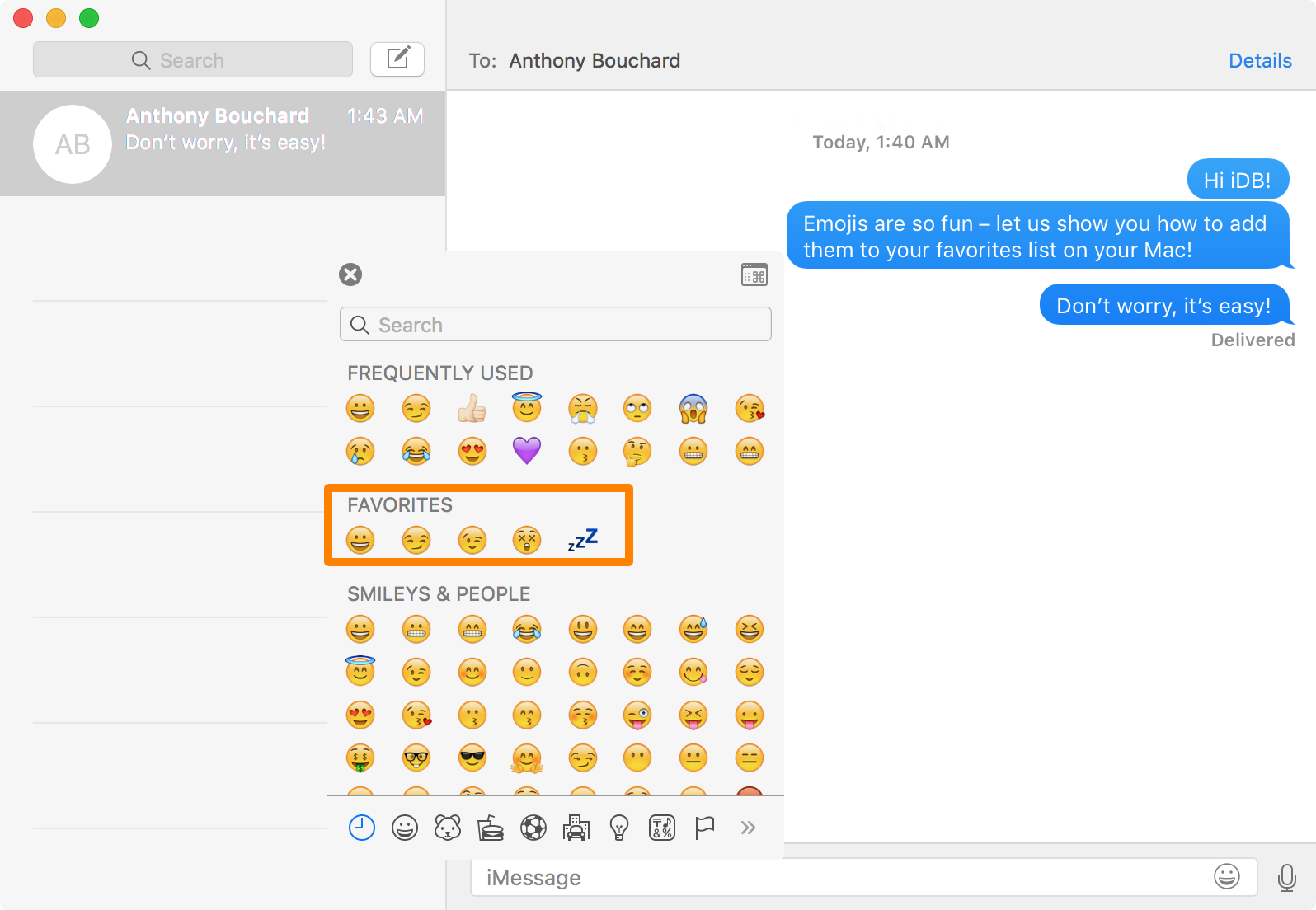
The contents of the favorites list in your emoji picker will never change unless you manually delete existing emojis or add new ones to the list. The frequently used emojis section will continue to update in real time depending on your emoji-using habits.
Note: If you don’t see your favorites, try restarting your Mac or updating it.
Remove an emoji from the favorites list
If you ever end up changing your mind about what emojis are your favorites, or you add one by mistake, removing them from the favorites list is also simple. Just follow the initial steps mentioned above, select the favorite emoji you want to remove from the list, and click Remove from Favorites.
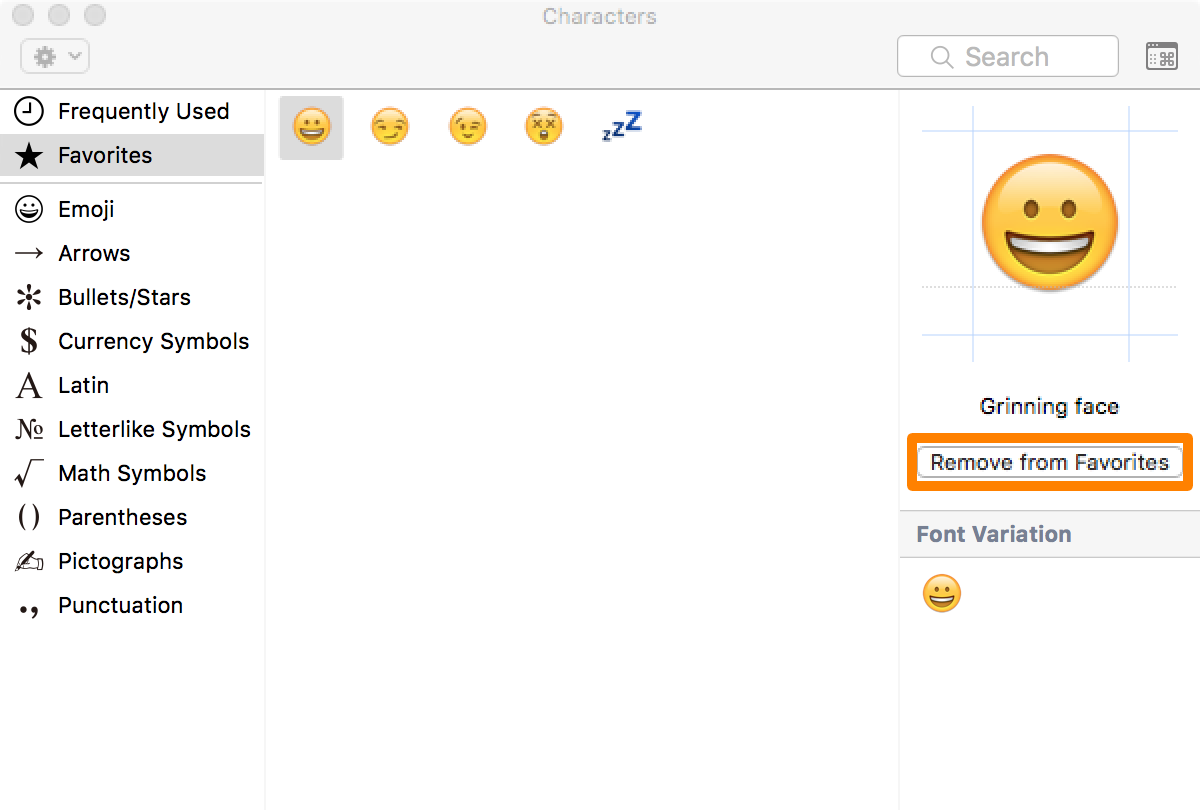
Piece of cake!
Other emoji tips: