When your iPhone is buried under sheets, left in another room, or out of sight, the obvious way to find it is to call it from another phone. However, this may not help if your iPhone is in silent mode, Do Not Disturb, or an active Focus mode.
In these situations, or if you don’t have a second phone around, you can use your Apple Watch to play a loud alarm sound on your iPhone or trigger its camera LED to blink.

Here are four ways to use your Apple Watch to locate your missing iPhone.
Use Precision Finding
You can use Precision Finding on the Apple Watch Series 9, Apple Watch Ultra 2, and later models to get pinpoint directions to your nearby iPhone. This works the same way you use Precision Finding in the Find My app to locate your AirTag or AirPods Pro case.
- Press the Side button on your Apple Watch to open Control Center.
- Tap the Ping button. Now, move around until your watch and iPhone are nearby and can establish a connection.
- After that, move as you’re instructed on your watch screen. Tap the Ping button on the screen to make your iPhone play a sound.

Play a sound on iPhone via your Apple Watch
- Open Apple Watch Control Center by pressing the side button once. On watchOS 9 or earlier, swipe up from the bottom of the watch face to open Control Center.
- Tap the ping button. Your iPhone will start playing a loud, high-pitched sound if it’s nearby and in range of your Apple Watch. You can tap the ping button repeatedly if needed.
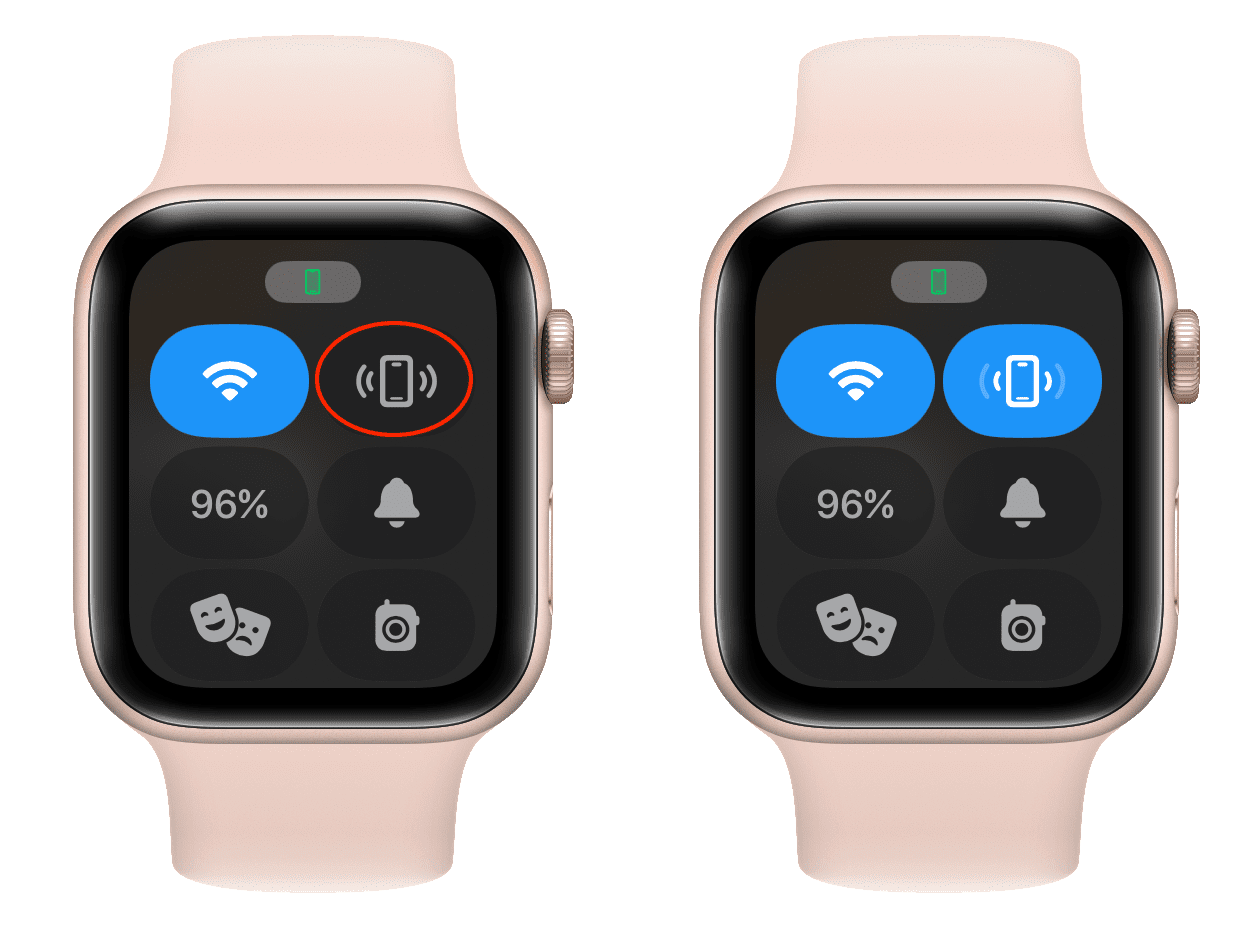
Make your iPhone’s LED light up using Apple Watch
You can make your iPhone’s LED flash light up when pinging your iPhone from your Apple Watch. To do this, touch and hold the ping button in watchOS Control Center instead of just tapping it.
You should notice the LED flash along with the audible sound on your iPhone. This is useful if you’re trying to find your iPhone in a dark location.
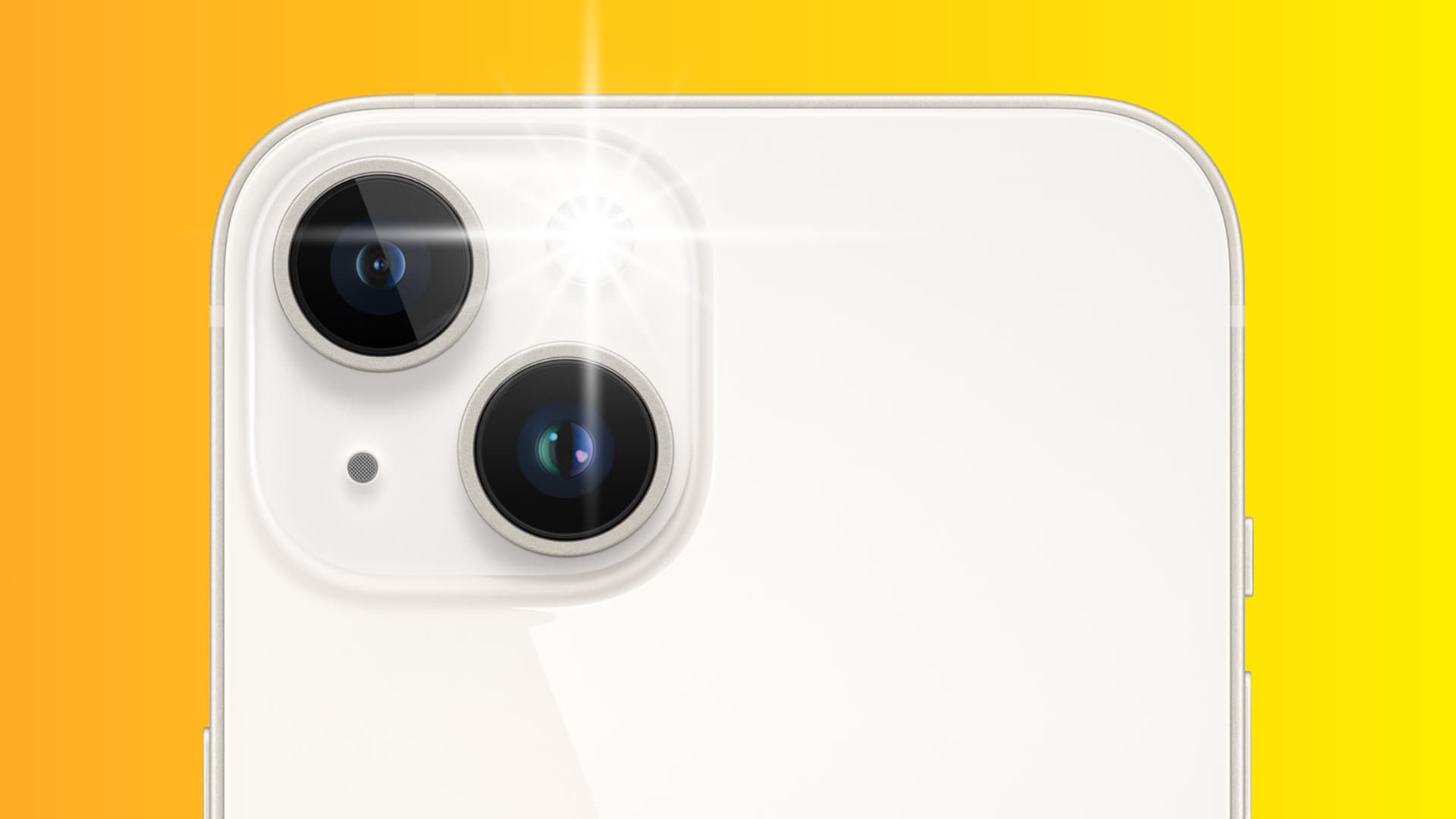
Learn what to do if your iPhone’s LED doesn’t flash.
Use Find My on Apple Watch to alert your iPhone
The benefit of using this method is that it will trigger your iPhone to play the sound even if both devices are outside their Bluetooth range but connected to the internet. For example, your Apple Watch is connected to your home Wi-Fi, while your iPhone is connected to cellular data.
- Open the Find My app on your Apple Watch running watchOS 26 or watchOS 27.
- Tap the icon in the upper left corner and select Devices.
- Swipe to your iPhone’s card and tap the speaker icon to play a sound on your missing phone.

Apple Watch running older versions of watchOS has the Find Devices app, which shows the location of your Apple devices, lets you play a sound, get directions, and activate Lost Mode. Here’s how to play a sound remotely on your iPhone using your Apple Watch:
- Open Apple’s Find Devices app on your Apple Watch.
- Select your iPhone from the list of devices.
- Scroll down and tap Play Sound.

Your iPhone will now show the Find My iPhone Alert notification and emit a sound. Hopefully, it’s nearby, and you can locate it easily.

On the same note: