Reviving or restoring a Mac in DFU mode no longer requires the Apple Configurator app, as the feature is now built into macOS Sonoma's Finder.
macOS Sonoma let you restore a Mac stuck in DFU mode without Apple Configurator
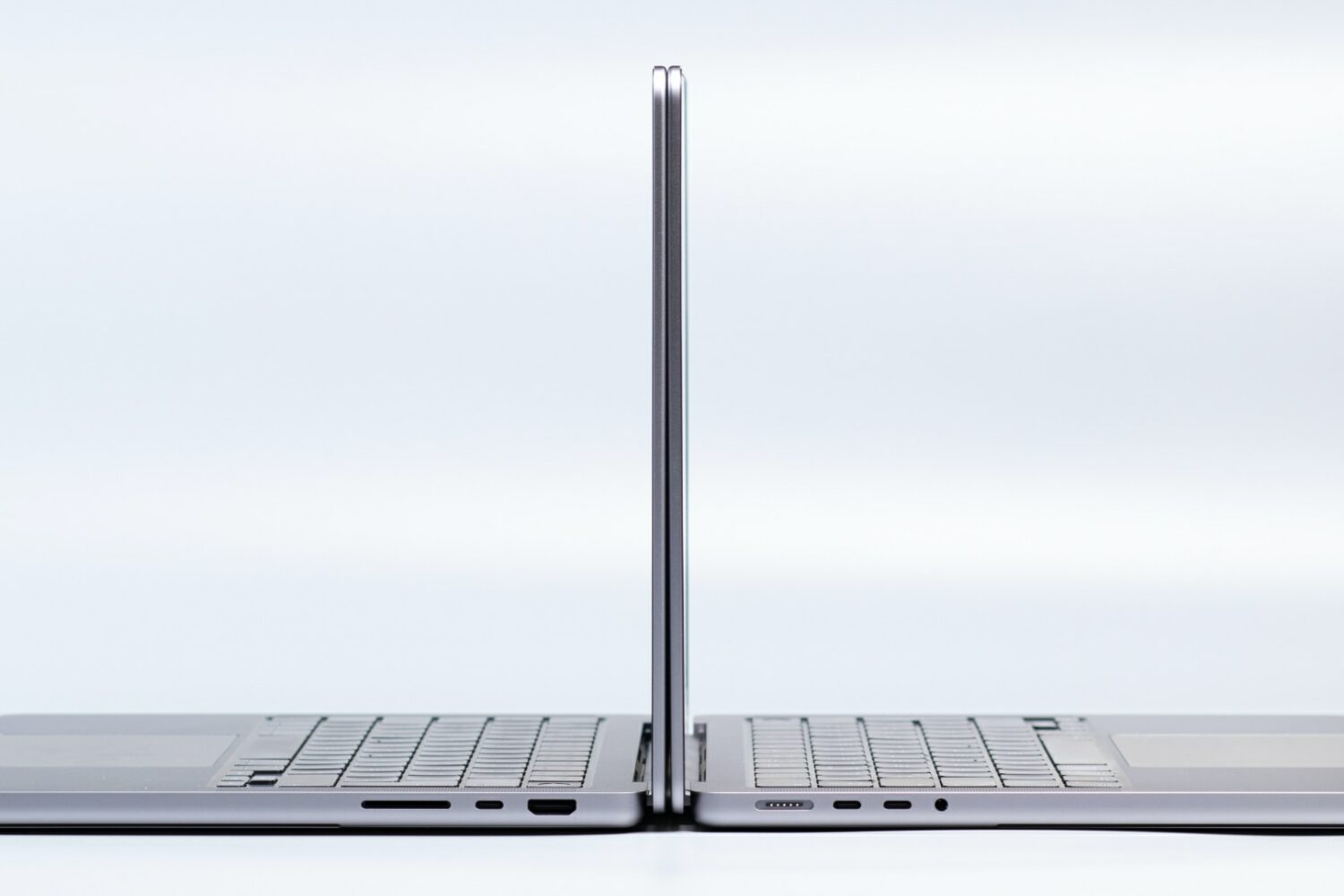
Reviving or restoring a Mac in DFU mode no longer requires the Apple Configurator app, as the feature is now built into macOS Sonoma's Finder.
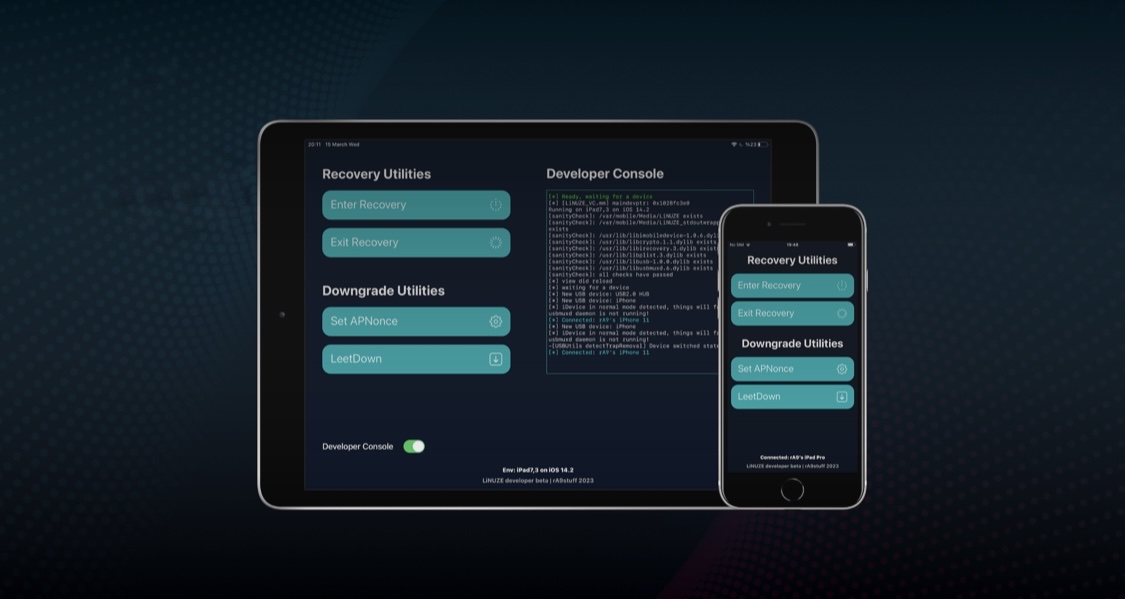
If you’re looking for an interesting new way to manage iPhones and iPads while on the go, then you may want to turn your attention to the likes of a newly released toolkit called LiNUZE by iOS developer rA9stuff.
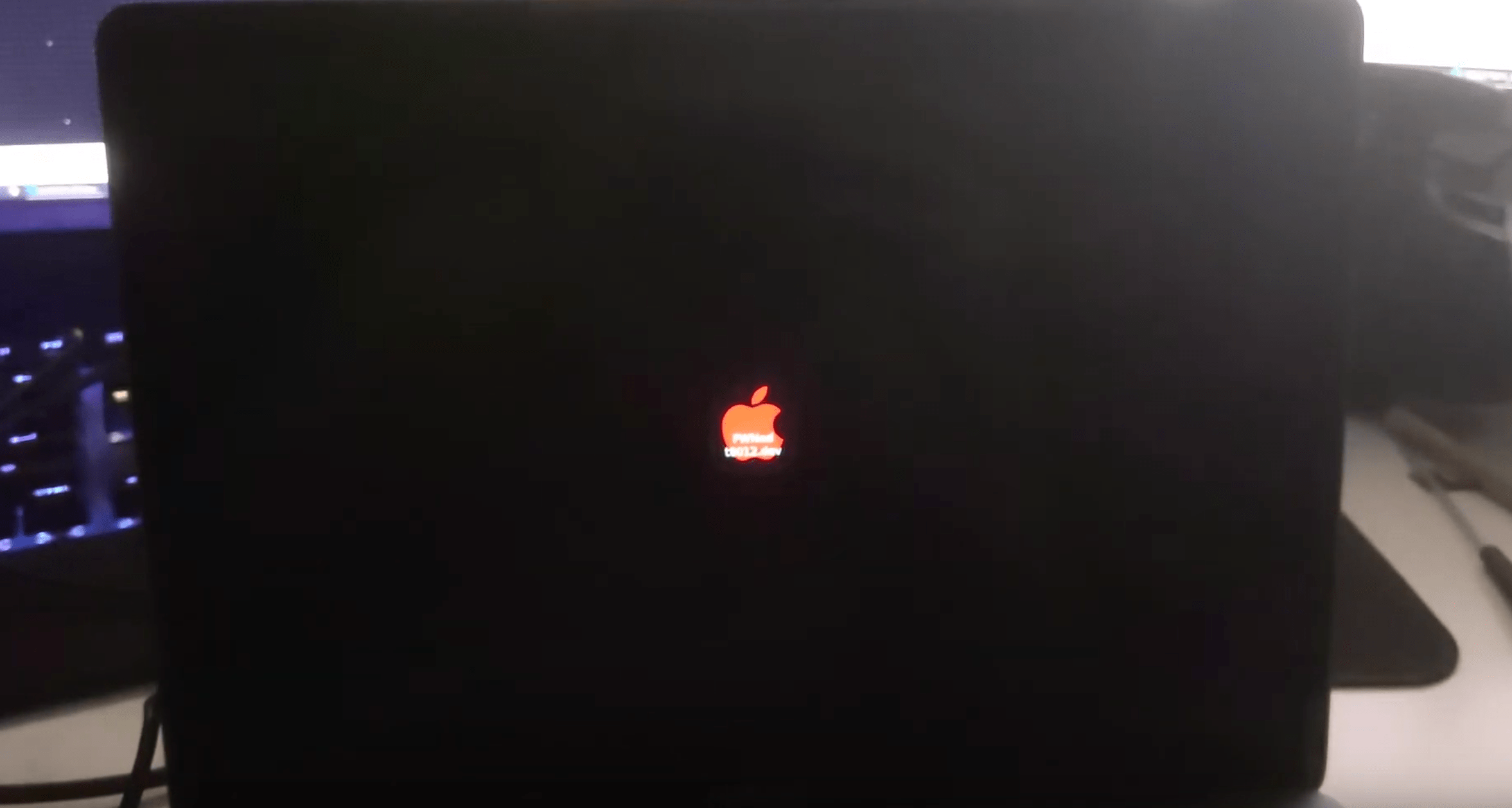
It wasn’t long after the checkm8 bootrom exploit gave rise to the checkra1n jailbreak tool that clever hackers learned how they could use the same exploit (along with other hacks) to tamper with the proprietary T2 chip embedded in a bevy of modern Macs. In fact, the checkra1n jailbreak tool’s most recent update even added support for the T2 chip in Macs for interested tinkerers.
Despite how incredible the aforementioned circumstances sounded to jailbreak enthusiasts at first glance, those on the other side of the fence quickly began wondering about the implications this might have for the security of Apple’s most popular computers. Now, we may finally have some idea thanks to information published by the t8012 Development Team.
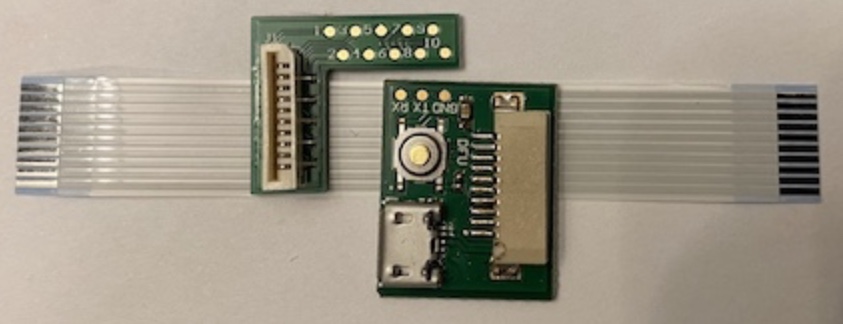
One of the most substantial things to happen in the jailbreak community in the past decade was the release of @axi0mX’s hardware-based checkm8 bootrom exploit. This exploit can’t be patched by Apple in a software update, and it essentially guarantees the jailbreakability of several of Apple’s devices using the A5-A11 SoC for life.
While checkm8 is already being used in the checkra1n jailbreak for handsets ranging from the iPhone 5s to the iPhone X, it’s also true that the same exploit can be used to jailbreak compatible Apple TV units. The newest Apple TV, on the other hand, purportedly sports a hidden Lightning port that would necessitate a special adapter to utilize for such an exploit.
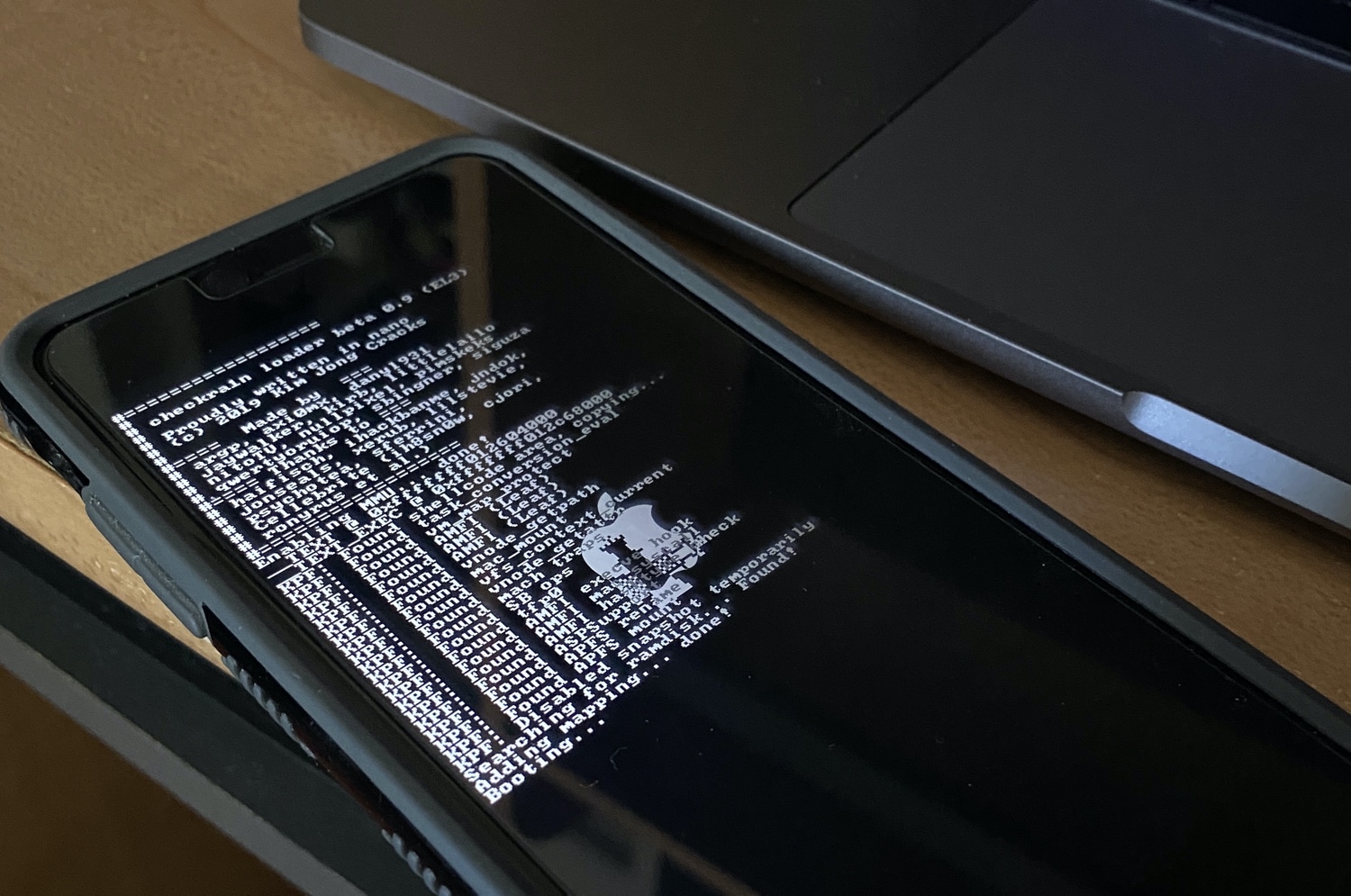
If you’re anything like me, then you’re ecstatic about the release of the checkra1n jailbreak. It’s an exciting development that utilizes @axi0mX’s checkm8 bootrom exploit to facilitate software liberation on handsets ranging from the iPhone 5s to the iPhone X. Moreover, it’s the first public jailbreak to support iOS 13.
But it’s difficult to ignore the elephant in the room here, and that’s the sheer number of public beta testers that have reported challenges getting into DFU mode and jailbreaking, citing common issues such as Error-20 and failure to boot jailbroken.
The checkra1n team officially released the checkm8 bootrom exploit-based checkra1n jailbreak tool this weekend as a public beta to the masses, and while we’d seriously recommend holding off until the tool comes out of beta, we’d totally understand if you’re a bit antsy to go hands-on with things right now.
In this tutorial, we’ll be showing you how to use the checkra1n jailbreak tool to liberate a supported iPhone, iPad, or iPod touch.
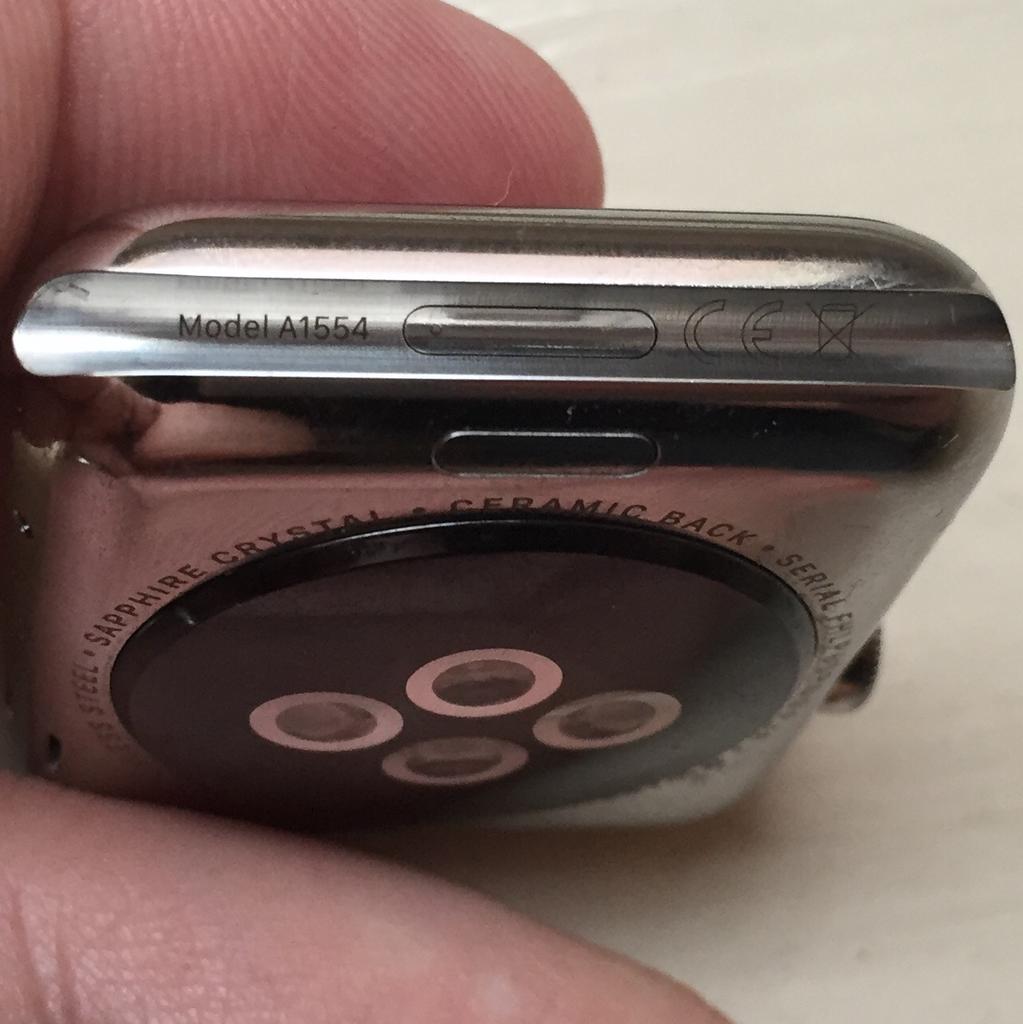
With the right dongle to connect your Apple Watch to iTunes through its diagnostics port, you can easily enter Apple Watch DFU mode.

If your Apple TV won't start up properly, or you are a developer who wants to install a tvOS beta, you must first put your set-top box in recovery (DFU) mode. As is the case with iPhone, iPod touch and iPad devices, entering DFU mode makes a malfunctioning Apple TV discoverable in desktop iTunes so you can restore it to factory settings, downgrade to an earlier version of the software or side-load a beta firmware onto it.
The method to put an Apple TV into DFU mode differs from that for other iOS devices. In this post, you'll learn how to put an Apple TV into recovery mode so you can restore it to factory settings if it's acting up.

We've been stressing how many new features were packed into the new RedSn0w, and we weren't kidding. Another under the radar feature that's been added to the new RedSn0w is the ability to jailbreak iOS 5.1.1 untethered on Pre-A5 devices in A5 Non DFU style.
This is accomplished using the same method used for jailbreak tools like Absinthe, which utilizes backup and restore instead of the typical DFU ramdisk method. This is a great feature that speeds up the jailbreak process on Pre-A5 devices running iOS 5.1.1. Check inside as we give you a video demonstration and tutorial showing how it works.
Have an iPhone 4, iPod touch, or below running iOS 6, and would like to downgrade back to iOS 5.1.1? Doing so is easy is you have your SHSH blobs saved for iOS 5.1.1 and can follow the steps inside. Unlike the beta period of iOS 6, you must have your SHSH blobs for iOS 5.1.1 save for you device now, because Apple has stopped signing iOS 5.1.1.
To downgrade, you will need the latest public version of RedSn0w. We will use the SHSH Stitching feature to combine the appropriate IPSW file for 5.1.1 and your corresponding SHSH blob for the device you wish to downgrade. It may sound a bit confusing, but it's extremely easy if you follow along carefully.
Take a look inside for the full walkthrough and video how-to.
Although there have been methods in the past geared towards skirting around a broken Home button in order to jailbreak an iPhone, I don't remember any of them being as easy as this.
If your Home button is on the fritz, then chances are you have problems getting into DFU mode, which is a prerequisite to using most jailbreak software. Fortunately, the iPhone Dev Team has come up with a simple, yet ingenious method for easily pushing your device into DFU mode using their latest update to the RedSn0w jailbreak tool.
RedSn0w 0.9.14b2 allows you to create a firmware file that will push your device into DFU mode once a normal restore through iTunes is completed. Check out our full tutorial inside for the step-by-step video walkthrough...
As we told you yesterday, iFaith — the Windows based tool that allows you to manage SHSH blobs on all devices sans the iPhone 4S — has been updated with the ability to save iOS 5.x blobs, and create custom firmware that you can use to downgrade your iOS 5 device.
It works very similar to RedSn0w's stitching feature, except the big difference here is that it encompasses Apple's APTicket and features iOS 5 compatibility.
Up until now it was impossible to downgrade an iOS 5.x device to a previous version of iOS 5. That's no longer the case, as our video tutorial shows you inside...