Clean up your Mac and regain valuable storage space by mastering these 10 ways to delete all or selected items from the Trash folder.
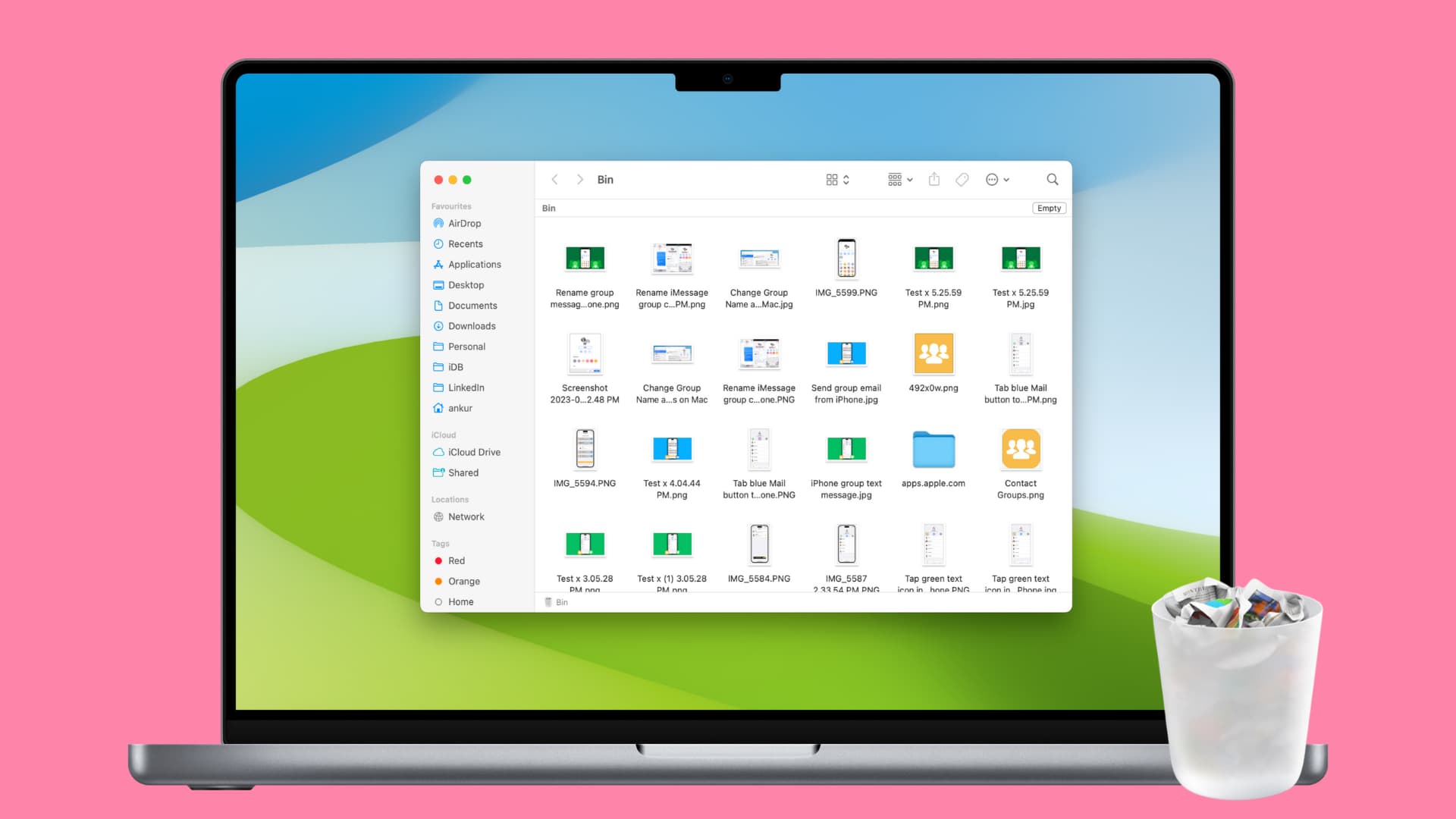
When you delete a file on your Mac, it’s moved to the Trash. And just like the Recycle Bin on a Windows PC needs to be emptied from time to time, so does the Trash.
You can empty all of your Trash or just certain items from it. Plus, you can have the Trash emptied automatically, so you don’t have to worry about doing it yourself.
Note: The Trash is called Bin if your Mac’s region and language are set to Europe, India, or other countries.
Empty the entire Trash
We’ve listed six methods you can use to empty your Trash folder. This gives you plenty of options, depending on what you’re doing on your Mac at the time.
Method 1. Right-click on the trash can
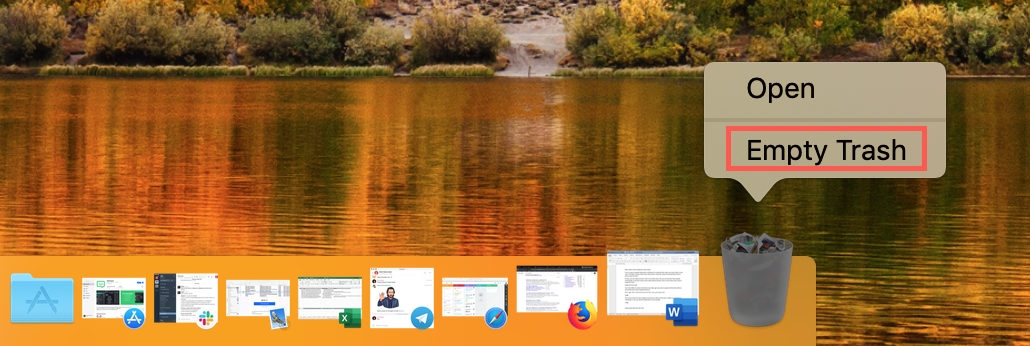
Your Trash folder sits nicely in the Dock on your Mac. So, if you want to empty all of the items within it quickly, this is the easiest way. Either right-click or hold the Control key and click the Trash icon. Then, pick Empty Trash.
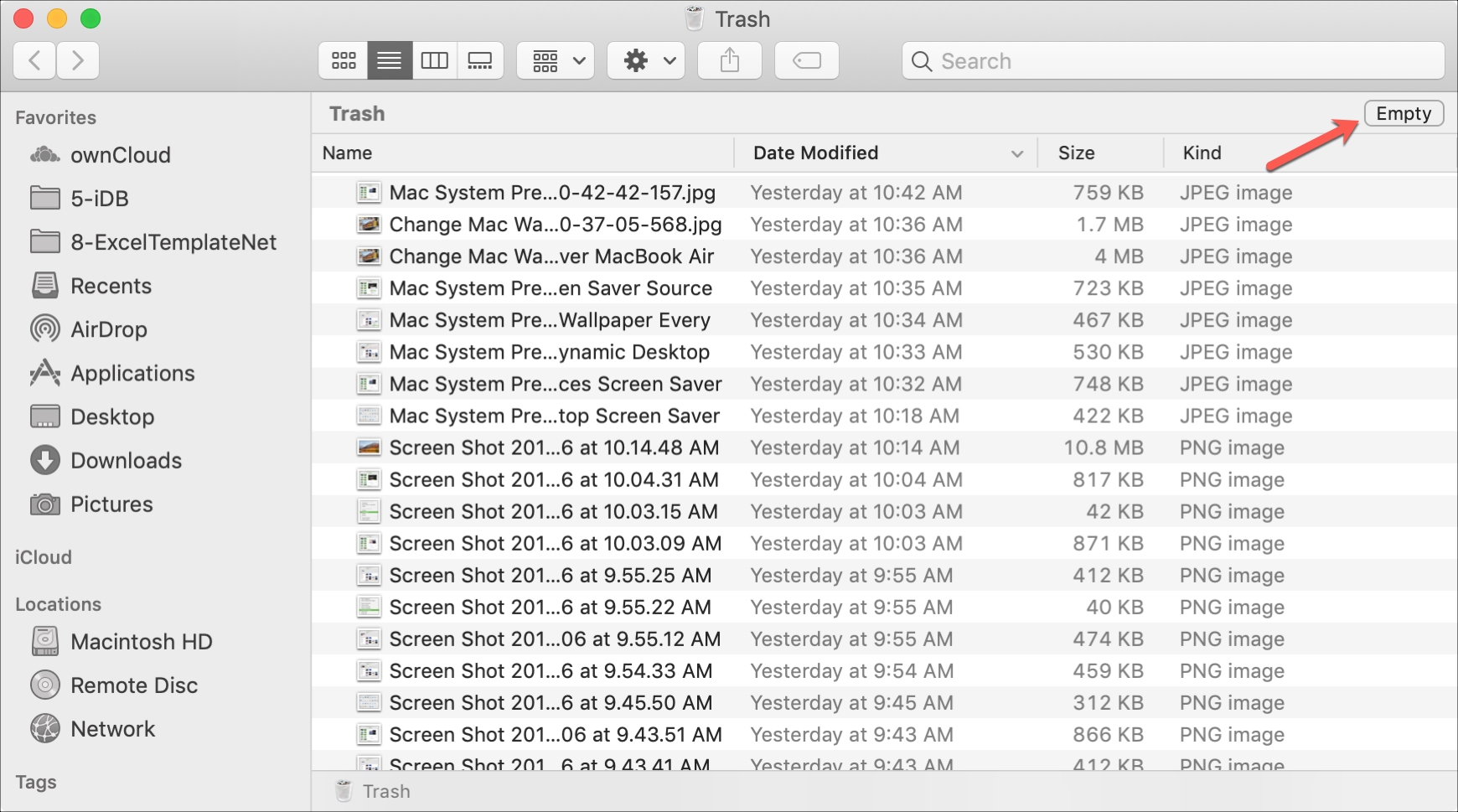
If you decide to click and open the Trash to make sure that you’re ready to say goodbye to everything in it, you can click the Empty button on the top right and confirm by clicking Empty Trash.
Method 3. Right-click inside the Trash
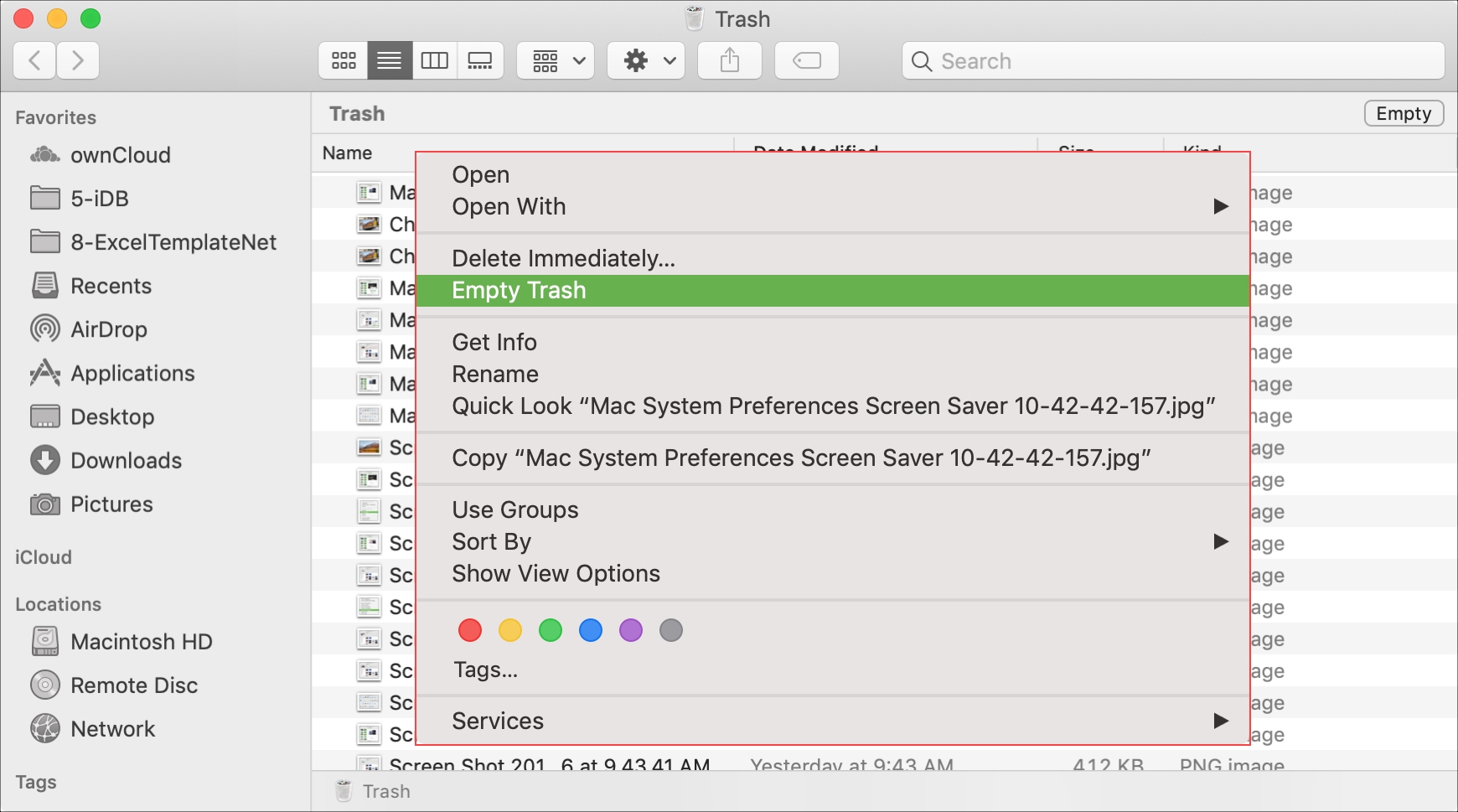
Alternatively, with your Trash open, you can right-click or Control-click within the Trash window, and pick Empty Trash from the context menu.
One other way to empty all of the Trash is using the menu bar. Click Finder > Empty Trash.
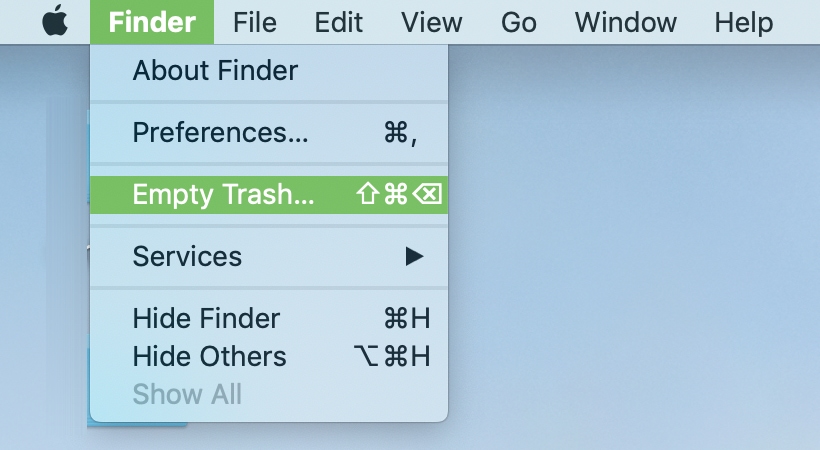
Method 5: Use a keyboard shortcut
You can also empty your Mac’s Trash using a keyboard shortcut. Simply press together Shift + Command + Delete keys when in Finder and confirm from the popup that appears on the screen.
Method 6. From System Settings
Open System Settings on your Mac and go to General > Storage. Now, click the info button ⓘ next to Trash and hit the Empty Trash button from the subsequent screen.

Empty certain files from the Trash
Maybe while doing your Mac spring cleaning, you find some files in the Trash that you’re not quite ready to part with or just aren’t sure about. But there are others you know you never want to see again.
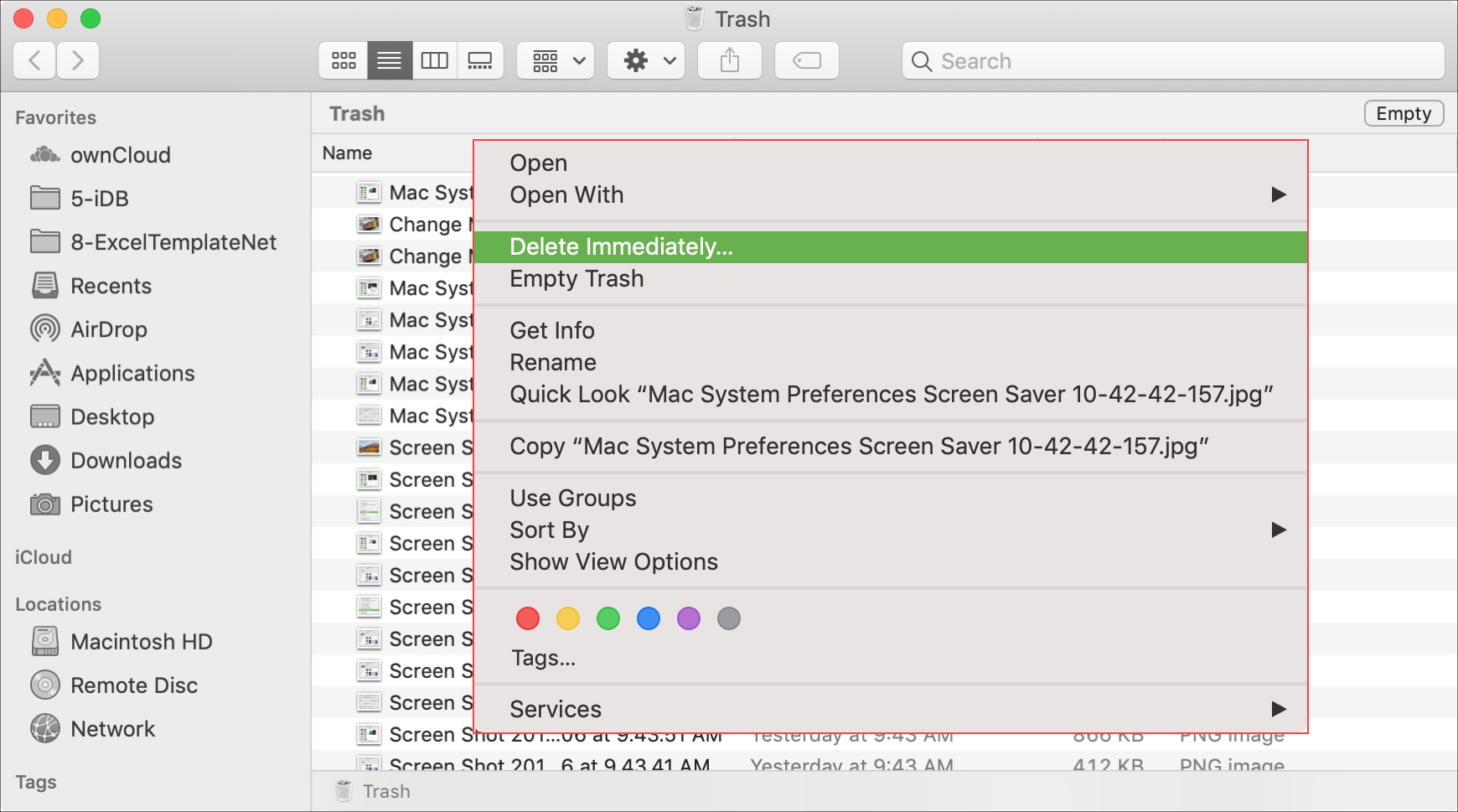
You can remove certain files from the Trash easily. Right-click or Control-click on the item that you want gone for good, and select Delete Immediately from the context menu.
Empty the Trash automatically
Maybe you’re really bad about remembering to take out the trash. If so, you can set it up to empty automatically (which would be wonderful for our physical trash, right?).
- Open Finder and click Finder > Settings or Preferences from the menu bar.
- Go to the Advanced tab.
- Mark the checkbox for ‘Remove items from the Trash after 30 days.’
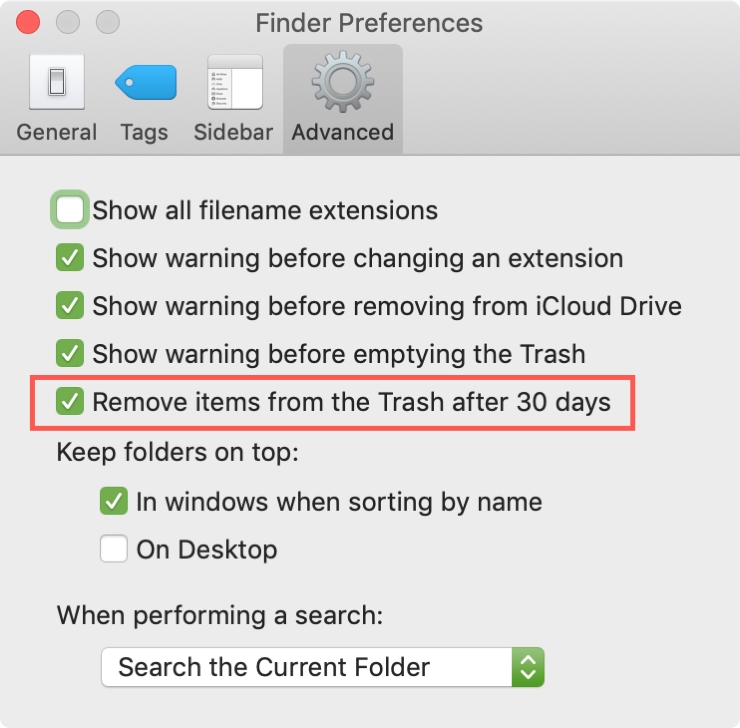
You can then close the Finder Settings window.
Method 2. From System Settings
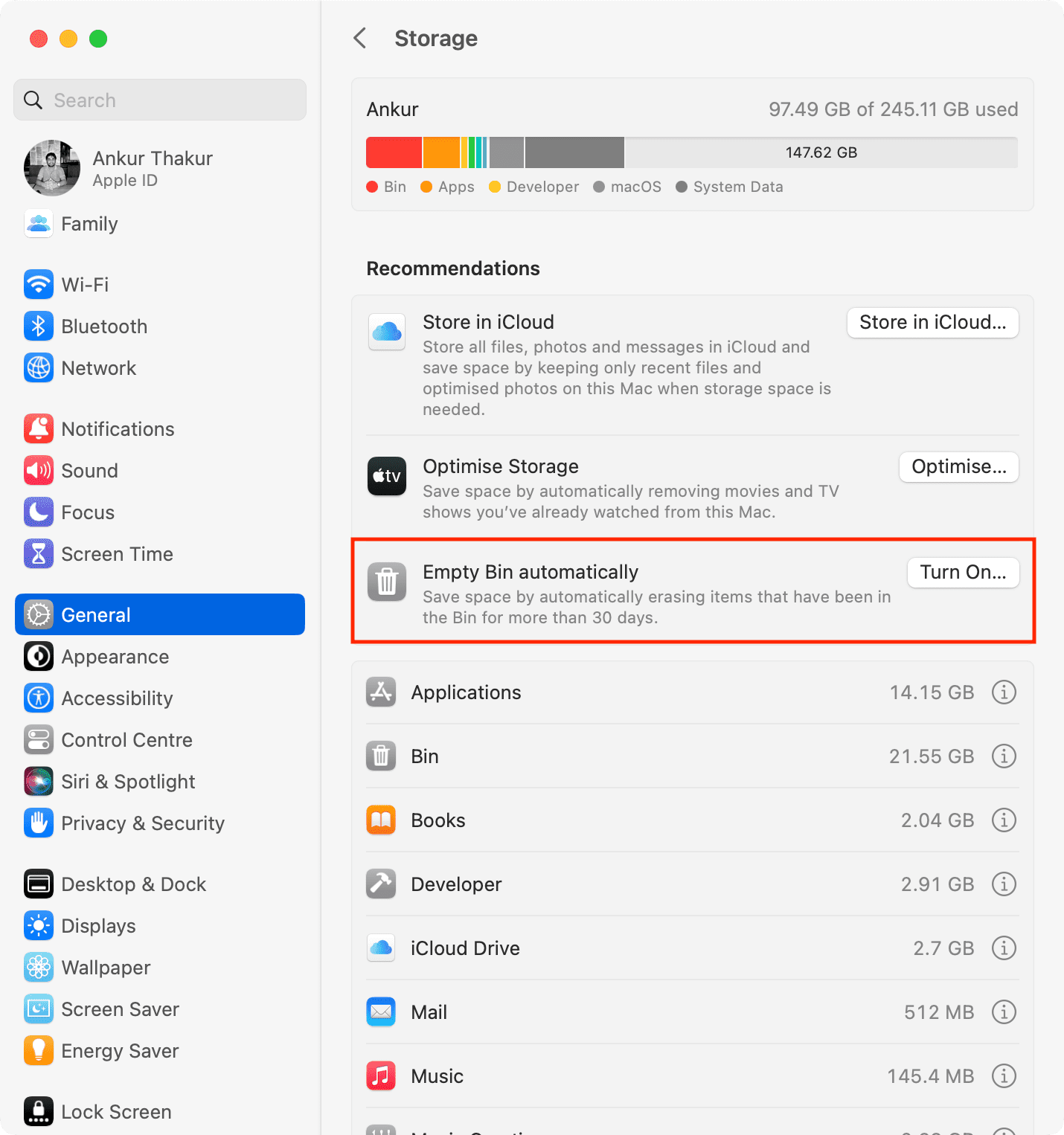
- Open the System Settings app.
- Go to General > Storage.
- Click Turn On next to Empty Trash automatically.
Empty the Trash with Terminal
Even though you’re new to Mac, you may be familiar with using command prompts or are trying to get used to using Terminal for quick actions. If so, you can empty your Trash that way too.
2) Open your Trash folder by clicking its icon in the Dock.
3) Enter the command below into the Terminal window (make sure to add a space after the letter R):
sudo rm -R
Don’t hit the enter key yet.
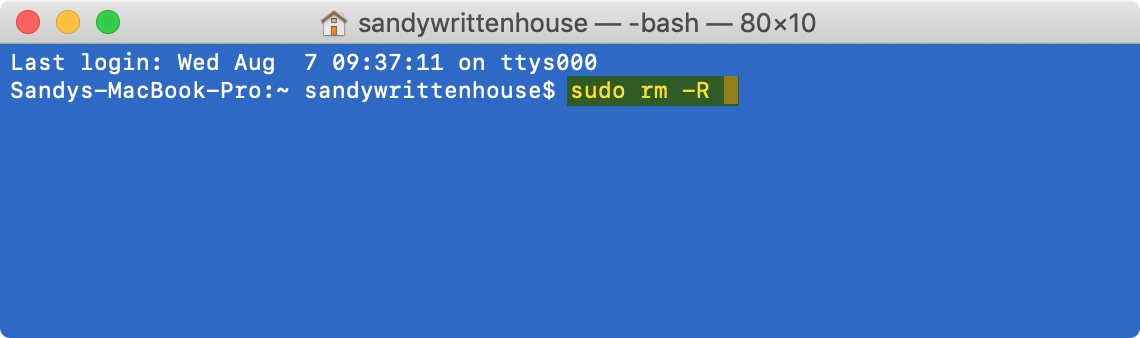
4) Select all, one, or several files from the Trash that you want to delete and drag them into the Terminal window. You’ll see the file name(s) displayed in the window when you release your finger.

5) Now, press the return / enter key.
6) Enter your Mac user password (which won’t be displayed on the screen) and press the return / enter key.
You’ll see the item(s) disappear from your Trash folder.
Bonus: Recover items from the Trash
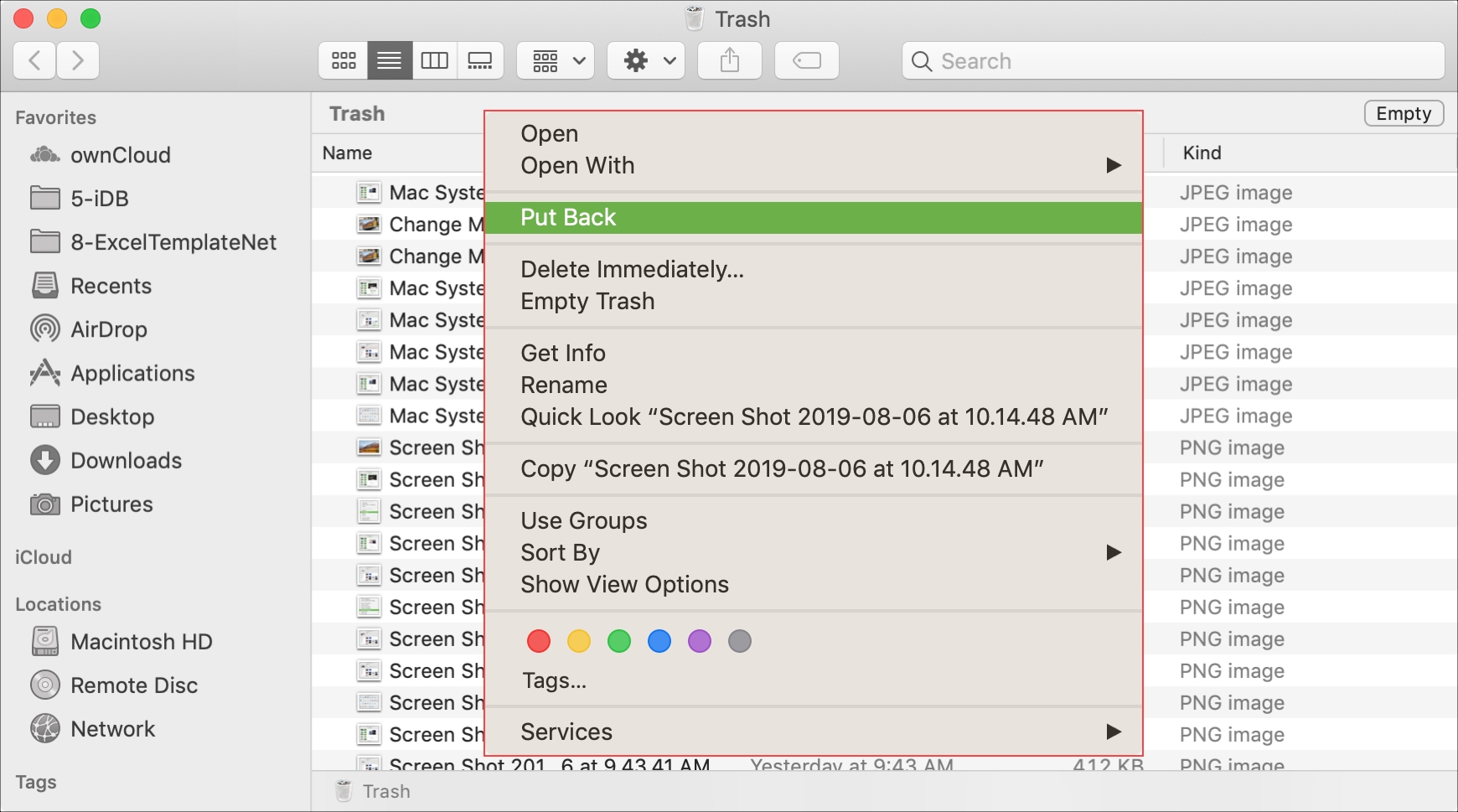
Just remember that once you empty the Trash, those items are gone forever. So, if you change your mind about a file and want to keep it, right-click or Control-click the item in Trash, and pick Put Back from the menu.
As you can see, macOS gives you plenty of ways to empty your Trash folder. So, use what’s most comfortable for you or most convenient at the time. Which method or methods do you think you’ll use?
On the same note: