In this tutorial, we’ll show you where your Apple Watch backups are stored and how to remove them if you no longer want them on your iPhone.
About Apple Watch backups
Your Apple Watch constantly backs up its data to your iPhone when both are near. For instance, imagine you go for a run, leaving your iPhone behind. Now, when you return, your running data will automatically sync to your iPhone, and you can view it in the iOS Fitness and Health apps. Similarly, if you take a screenshot on your Apple Watch, it will automatically show up in your iPhone’s Photos app.
Furthermore, if you back up your iPhone to iCloud or your computer, the phone backup also includes your Apple Watch data. So, if you restore that iPhone backup, you’ll get back your Apple Watch data as well.
However, when you unpair your Apple Watch from your iPhone, a backup of your Watch is created and stored on your iPhone. You can restore this backup file on the same watch or a new watch (even a different model) during setup.
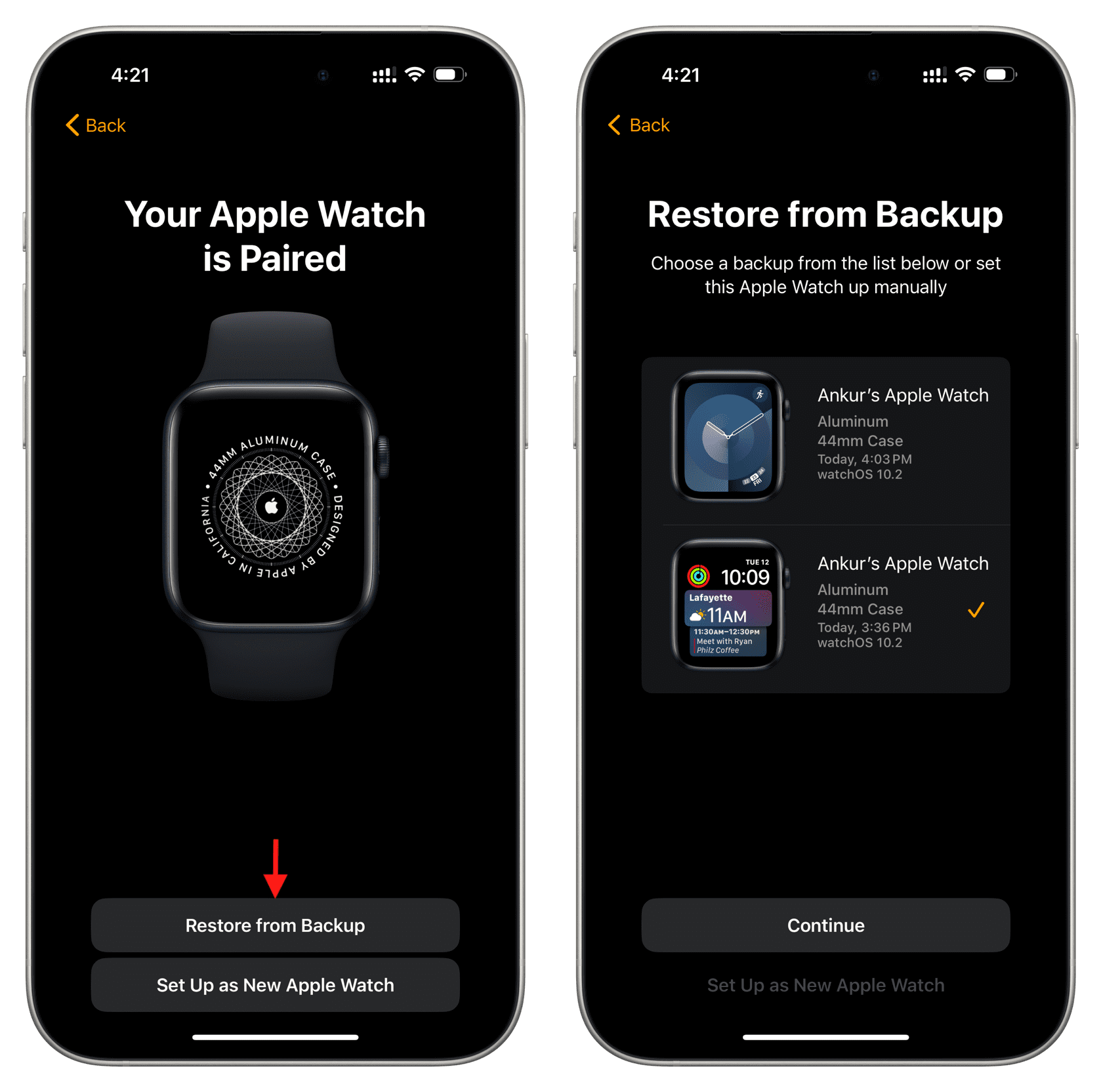
You can learn what’s included in an Apple Watch backup file and how to create one in our dedicated tutorial.
Note: Data from the Apple Watch you set up for your family member using your iPhone backs up directly to their iCloud and not your iPhone.
See all your Apple Watch backups
Follow these steps to see the backup files for your Apple Watch, provided you made one by unpairing the watch from the iPhone.
- Open the Settings app on the companion iPhone.
- Tap General > iPhone Storage.
- Go through the list and tap Watch if you see it.
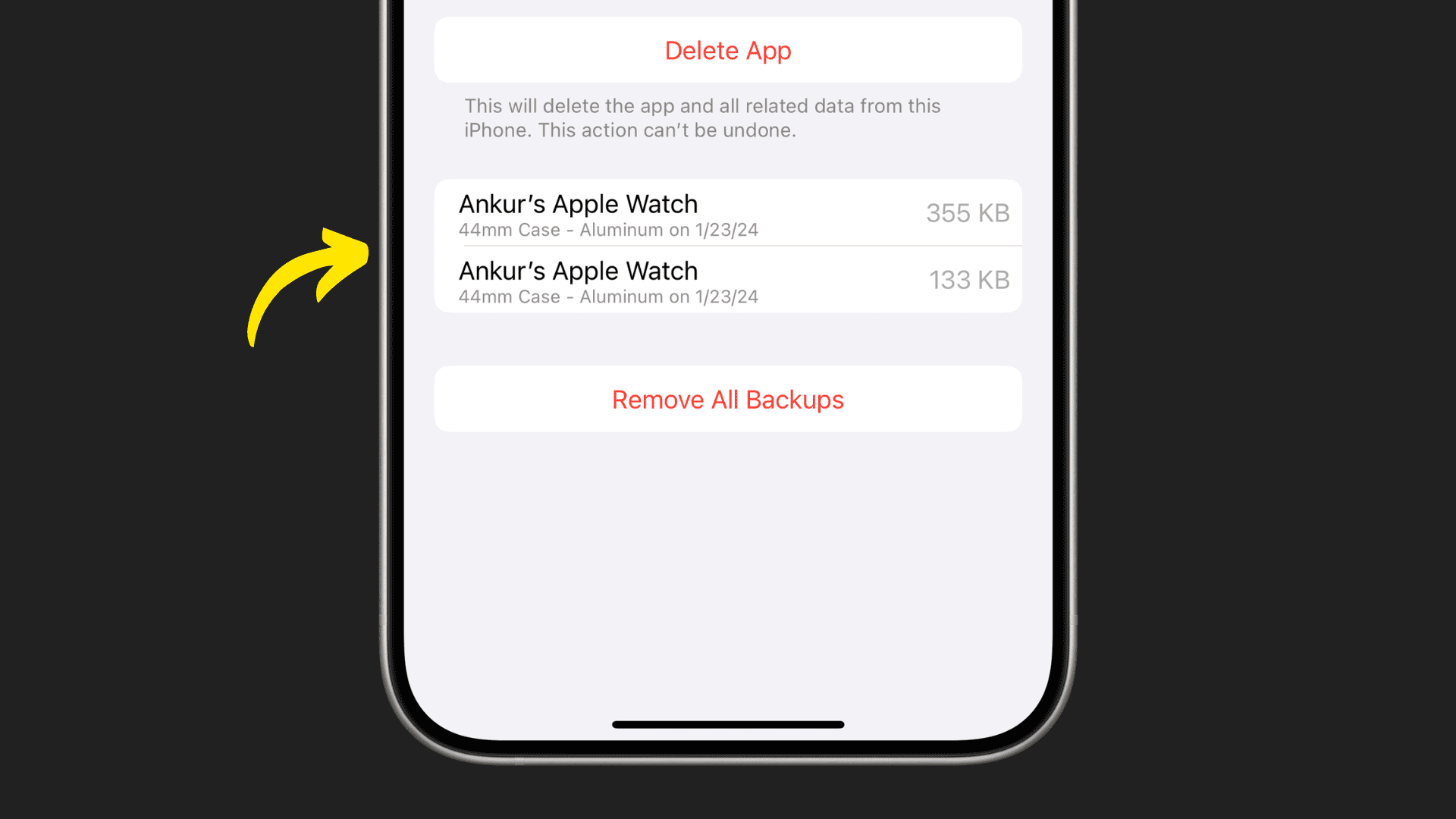
- You’ll find all Apple Watch backups here, with the watch model and backup date.

Delete your Apple Watch backups
Unless you sync music and photos to your Apple Watch, those backups usually don’t amount to much space. Typically, an Apple Watch backup takes a few hundred kilobytes on a device. It’s negligible, but for neat freaks like me, that might still be too much, and in that case, you can easily remove them.
I recently restored my Apple Watch several times in a row, which led to several backups being made. These backups contain roughly the same data, so they are redundant and unnecessary. I could very well leave them intact, but why keep old stuff that you don’t need and can also bring confusion?
- Go to your iPhone Settings app > General > iPhone Storage and select Watch in the list of items.
- Swipe left on a backup and tap Delete.
- Alternatively, tap Remove All Backups, then tap Remove Now to delete all backups in one swoop.

Note: If you unpair your Apple Watch and then uninstall the Watch app from your iPhone, it will delete all data and backups.
Check out next: