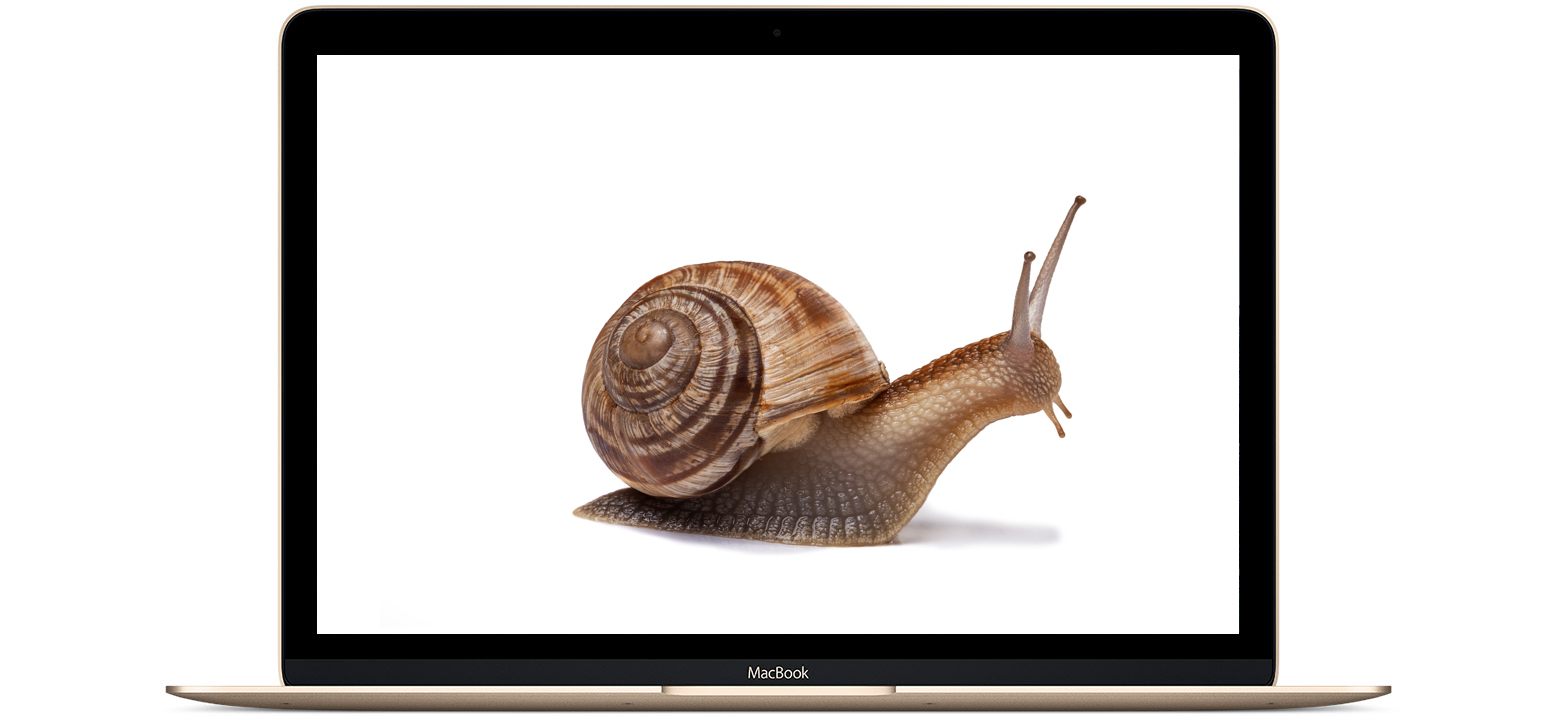
Find out why your Mac feels slow and explore potential solutions to help restore its speed and performance.
Why your Mac is slow and quick tips to fix it
Learn how to master your Apple devices with our comprehensive tutorials. From iPhone and iPad to Mac, Apple Watch, AirPods, and more, our expert guides will help you unlock the full potential of your Apple products. Discover new features, tips, and tricks each day to enhance your user experience.
Find out why your Mac feels slow and explore potential solutions to help restore its speed and performance.

Learn how to remove your recent FaceTime call history on your iPhone, iPad, or Mac to clean up the list or simply increase your privacy if you share your device with others.

Restoring your iPhone, iPod touch, or iPad can resolve a variety of issues, but sometimes you'll experience issues even when you try to restore your device(s) with iTunes.
You may have received a "This device cannot be restored Error XXX" message from iTunes before, and unfortunately, you may have been forced to do some research to even begin to understand why you're getting the error, which can cause tons of frustration.
In this piece, we'll talk about some of the most common iTunes restore errors and how to fix them so you don't have to spend hours researching for solutions by yourself.
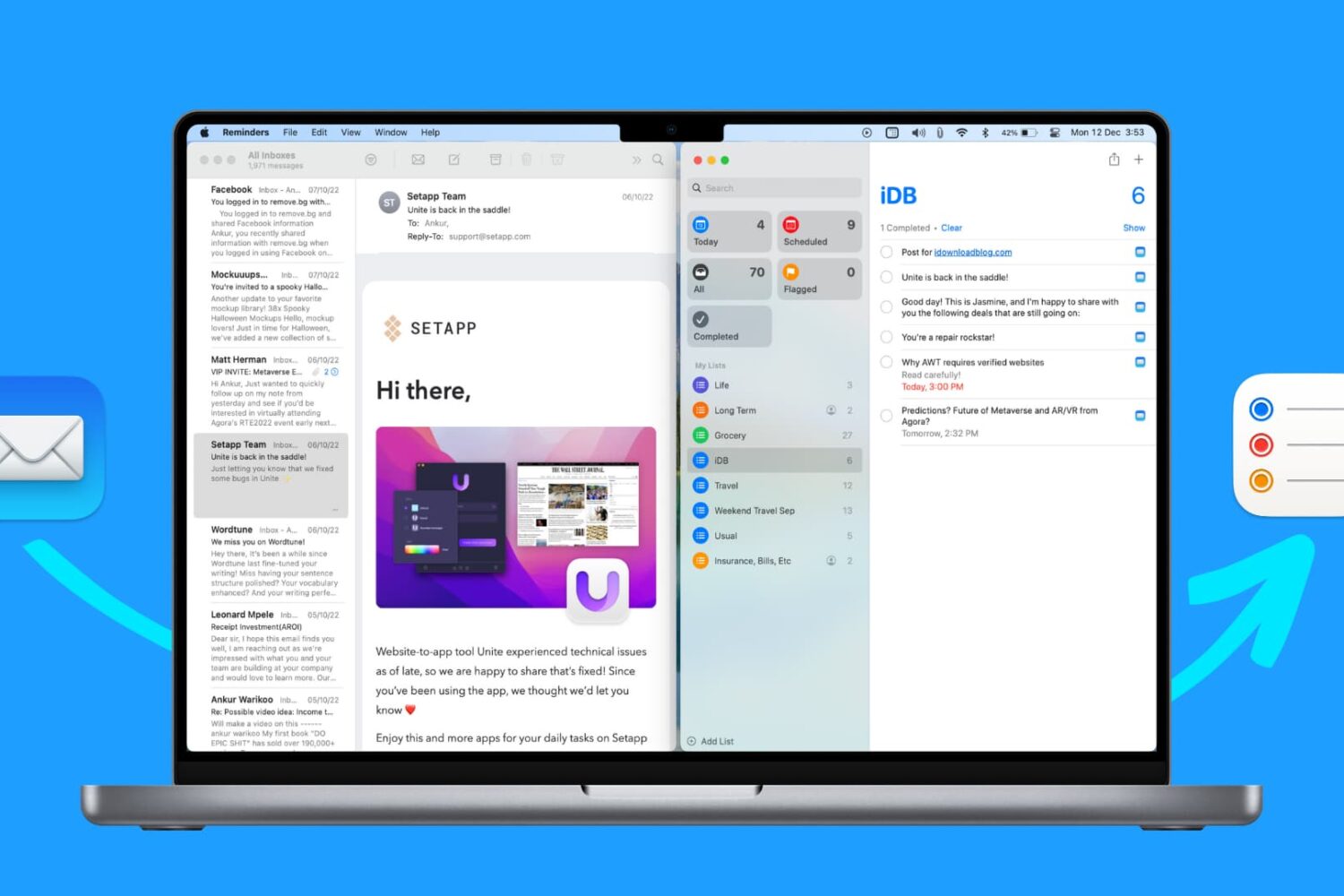
In this tutorial, we’ll show you how to use the Reminders app on your Mac to remind yourself about specific emails you receive in the Mail app.
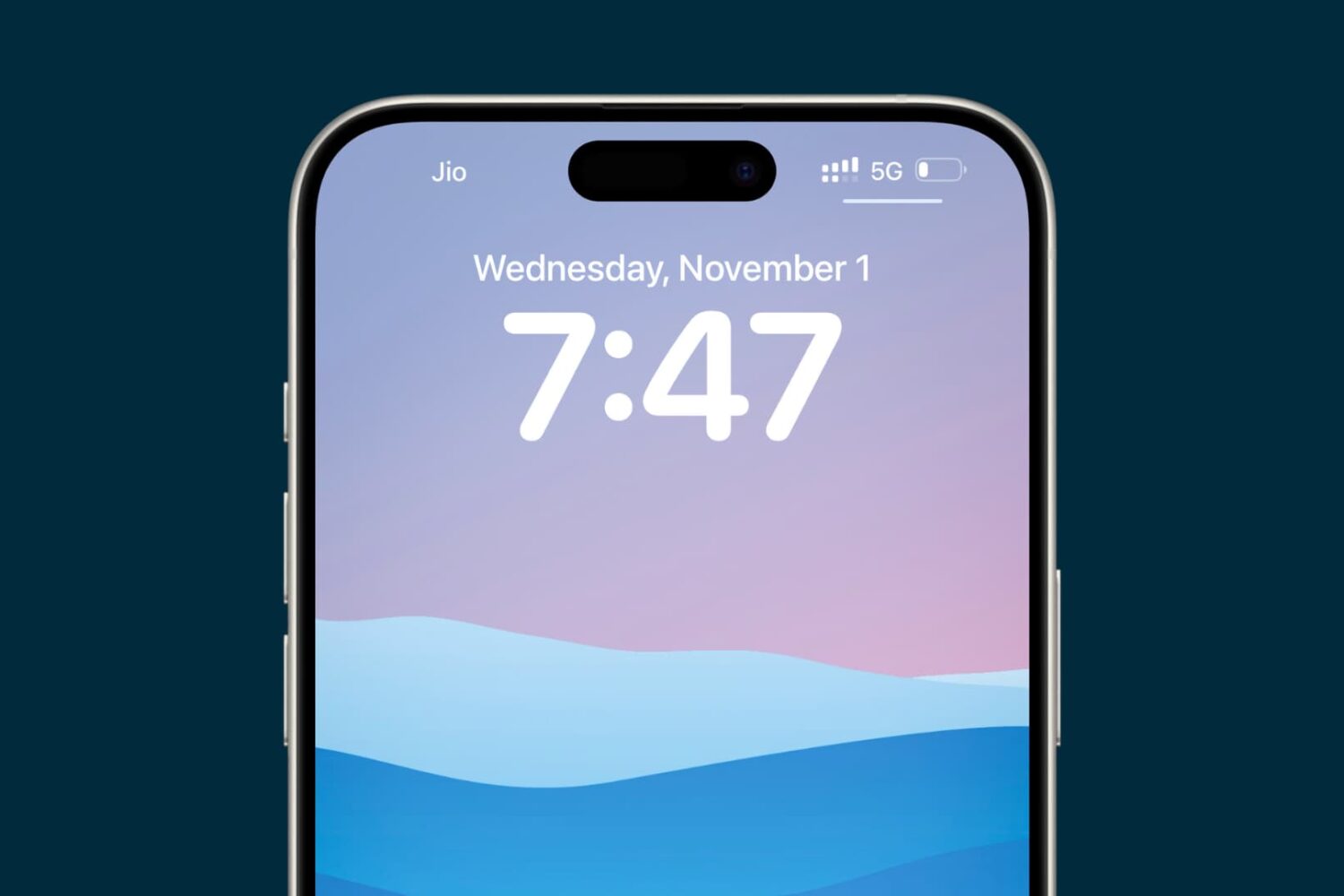
Figure out why your iPhone or iPad is displaying an incorrect date or time, and check out the solutions to resolve this issue.

Aside from major new features in Apple's new tvOS 9.2 firmware for the fourth-generation Apple TV, which released to the public on Monday, March 21, there're plenty of under-the-hood improvements to be excited about.
Among them are handy sorting options for the movies in your Wish List and TV shows in your Favorites. In this tutorial, we'll demonstrate how you can tell your Apple TV to show recent TV episodes first and change sorting options for movies in your Wish List.
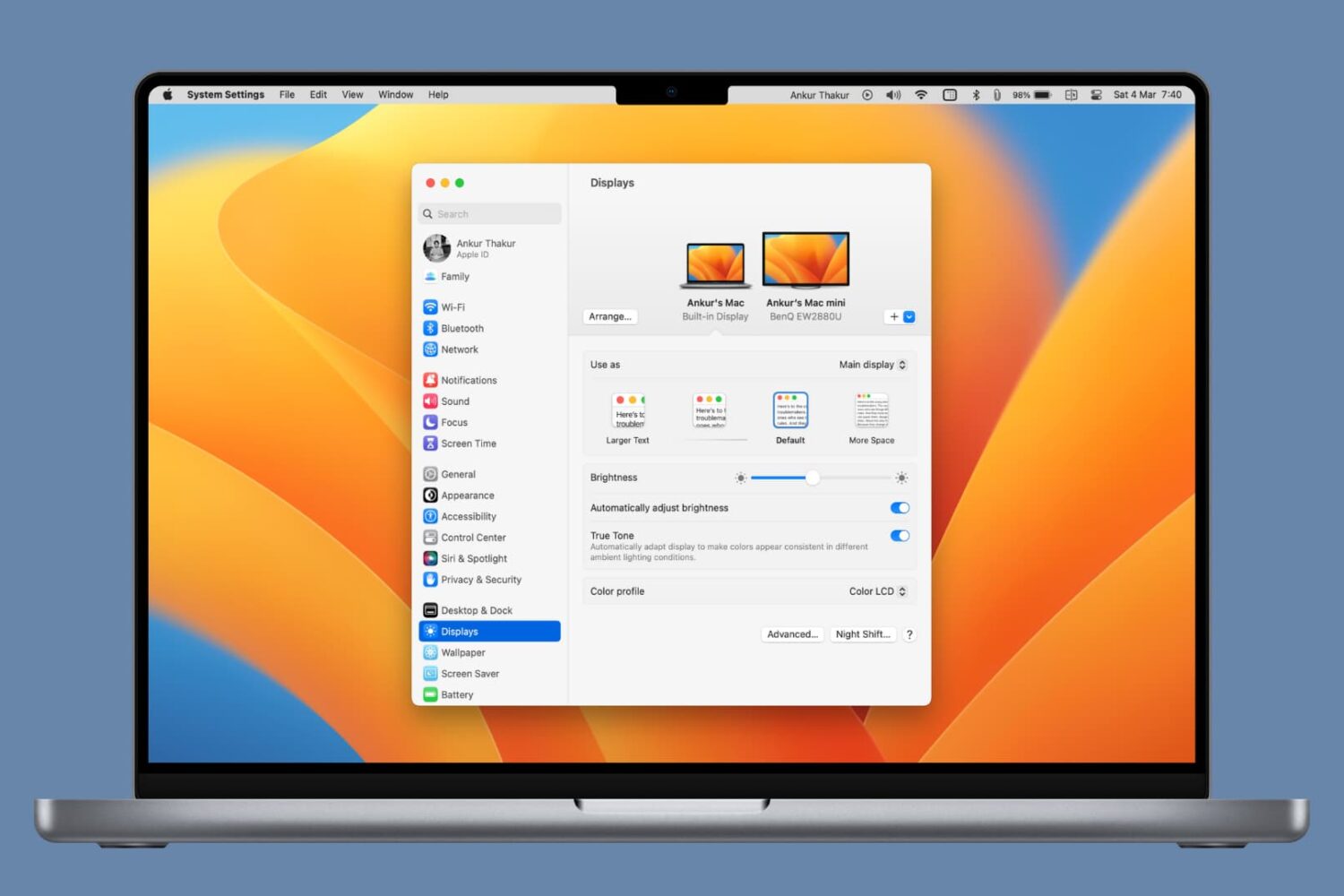
Reduce blue light emission and improve your sleep quality by learning how to use Night Shift on your iPhone, iPad, and Mac.
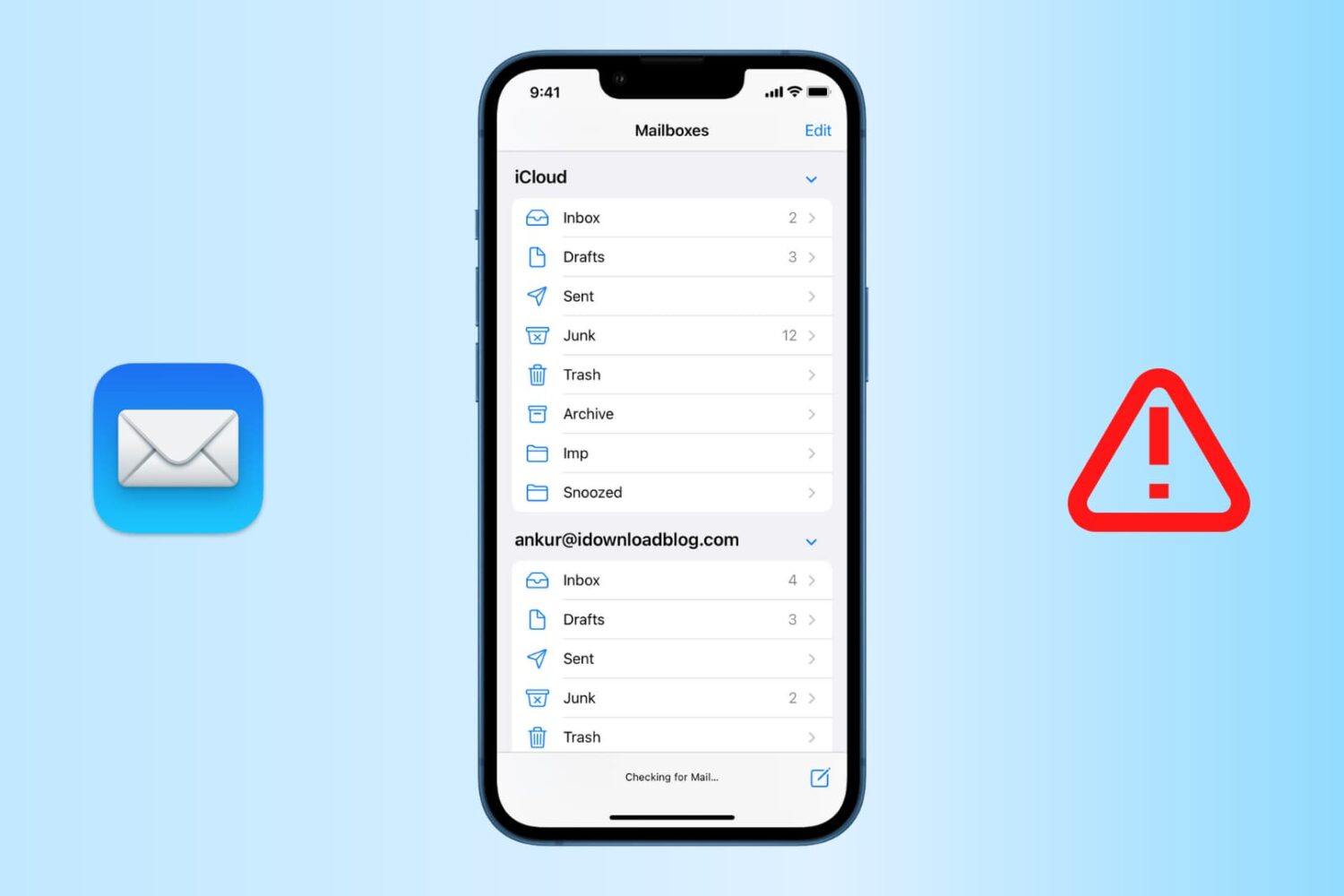
Find out how to fix the "Cannot Get Mail" errors in the Apple Mail app on your iPhone or iPad so you can get your emails loading properly again.
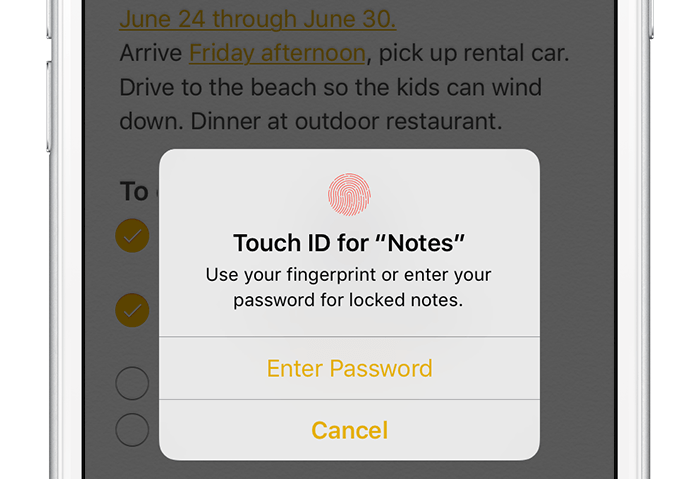
According to Apple, Notes is one of the most popular and most-frequently used stock applications on the iPhone, iPod touch and iPad.
People use Notes for everything from memorizing recipes to keeping track of errands, creating shopping lists, storing inspirational quotes and even passwords, codes and medical data.
Not all notes contain sensitive information, but many do. Beginning with iOS 9.3 and OS X El Capitan 10.11.4, you can protect your notes with a password or Touch ID.
In this tutorial, you'll learn how to set up Notes protection, secure items on a note-by-note basis so no one can view their contents and more.

Now that the Pangu Team has released their jailbreak for the new Apple TV, we have had some hands-on time with the tool and were successful in jailbreaking our own test device. In this post, we will share detailed step by step instructions on how to jailbreak the new Apple TV using Pangu. Before we get started, we must share a few words of caution.
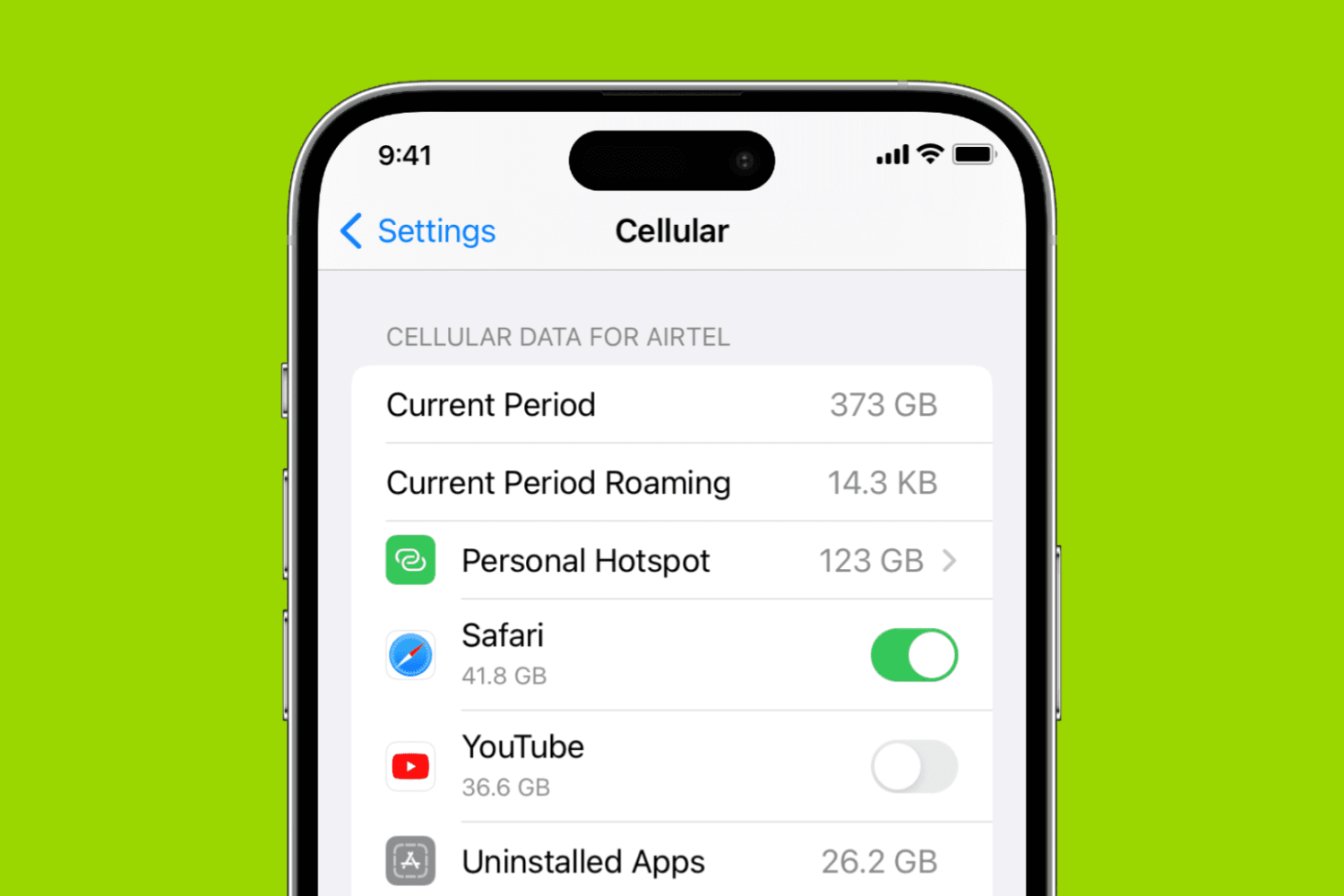
Learn how to turn off cellular data for specific apps on your iPhone or iPad to conserve bandwidth, especially if you're on a plan with a limited data allowance.
