Learn how to efficiently manage your Safari tabs with these four different techniques to close all tabs except the one you’re currently browsing.
4 ways to close all Safari tabs except for the current one
Learn how to master your Apple devices with our comprehensive tutorials. From iPhone and iPad to Mac, Apple Watch, AirPods, and more, our expert guides will help you unlock the full potential of your Apple products. Discover new features, tips, and tricks each day to enhance your user experience.
Learn how to efficiently manage your Safari tabs with these four different techniques to close all tabs except the one you’re currently browsing.
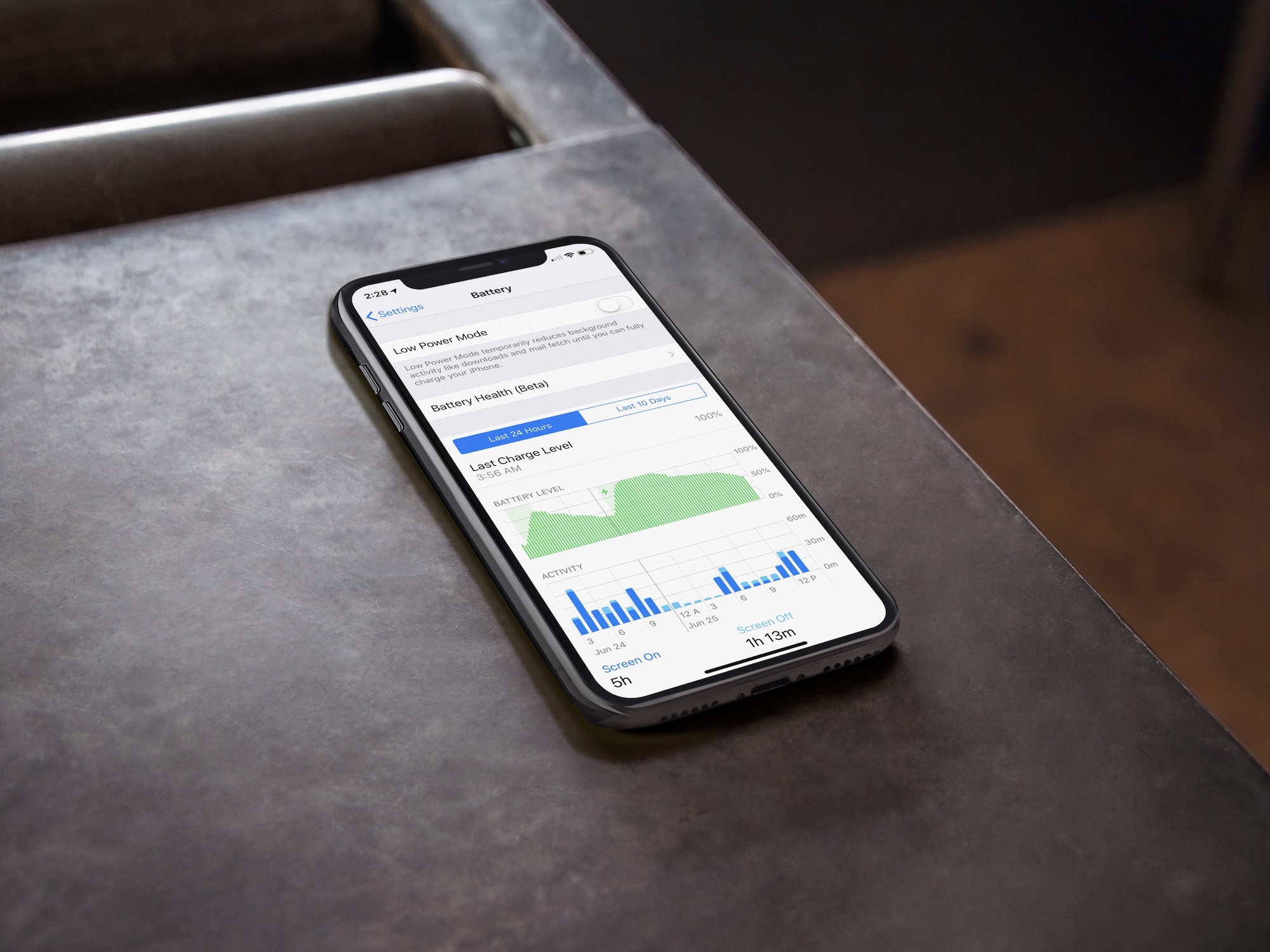
Learn more about your iPhone’s battery health, how it works, and what messages you may see in your battery settings if your performance is affected and you face unexpected shutdowns.
In this tutorial, we will show you how to find and delete all duplicate songs in your Apple Music or iTunes library on your Mac or Windows PC. Doing so will clean your media library and help reclaim local disk space.
Like other Apple devices, your HomePod permits you to set custom alarms.
You can create multiple alarms using just your voice, optionally add some context to them, if you like, and more. Your Siri speaker will signal you when one of your created alarms goes off.
Siri on HomePod allows you to create as many alarms as you want, manage them, remove ones you no longer need, turn specific alarms on or off, create recurring alarms, and more.
Alarms do not synchronize across multiple devices via iCloud. Any alarms created using your HomePod will not appear on your Mac, iPhone, or other devices, and vice versa.
Learn about 3 easy methods to reopen any recently closed tabs in the current browsing session on Safari for Mac without losing your current tab.
Learn how to turn your Mac on and off automatically on a schedule for enhanced productivity and energy efficiency.
Due to its lack of a screen, HomePod's means of expressing itself are limited to the pulsating, colorful dot on its slick top surface. The design and implementation of the expressive light undoubtedly make for a masterclass in giving an inanimate speaker an air of personality.
While we do have a detailed breakdown of which of HomePod's lights exactly mean what, what we have not done yet is call attention to the fact that the lights can also be shut down - and no, I'm not talking about pulling the plug from the power outlet.
Why would you want your HomePod to become a stale, expressionless object? Well, perhaps you don't want your HomePod to emit as much light in the dark or prefer the look of a sleek black or white speaker sans the play of colors on top! Whatever floats your boat, each to their own, you get the gist. Maybe you just appreciate knowing that there is the option without ever seriously contemplating depriving HomePod of its quirky LED.
Whatever the reason you might decide to neuter your HomePod, there is a simple switch to do (and undo) just that.
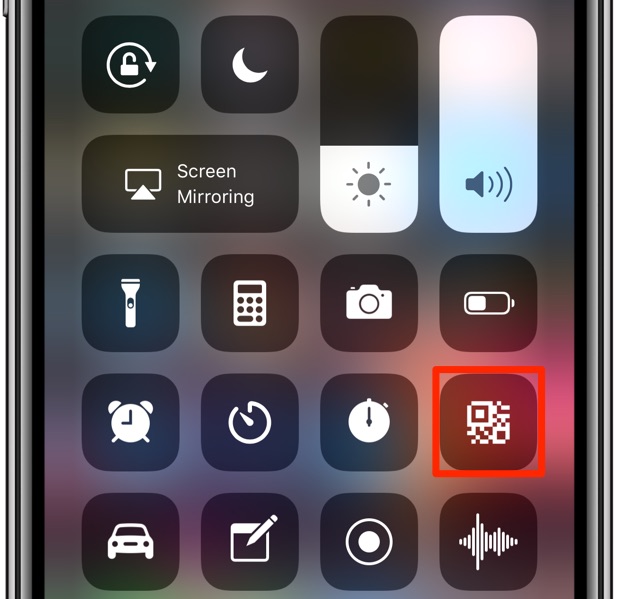
Learn how to quickly connect to a Wi-Fi network by scanning a QR code with an iPhone's camera without having to type long, complicated passwords.
In this step-by-step tutorial, we’ll show you how to split a panoramic picture into squares and post the entire image to an Instagram carousel from your iPhone or iPad.
Scrolling through long lists quickly becomes tiresome. With this secret iPhone gesture, however, you can jump to the most recent item in any list with a single tap.
Check out the quick steps to add hashtags and other Instagram account links to your profile bio section that lead to their corresponding pages.
Learn about all the different ways to pause and resume music playback on your HomePod using your voice, its top touch surface, or your iPhone.