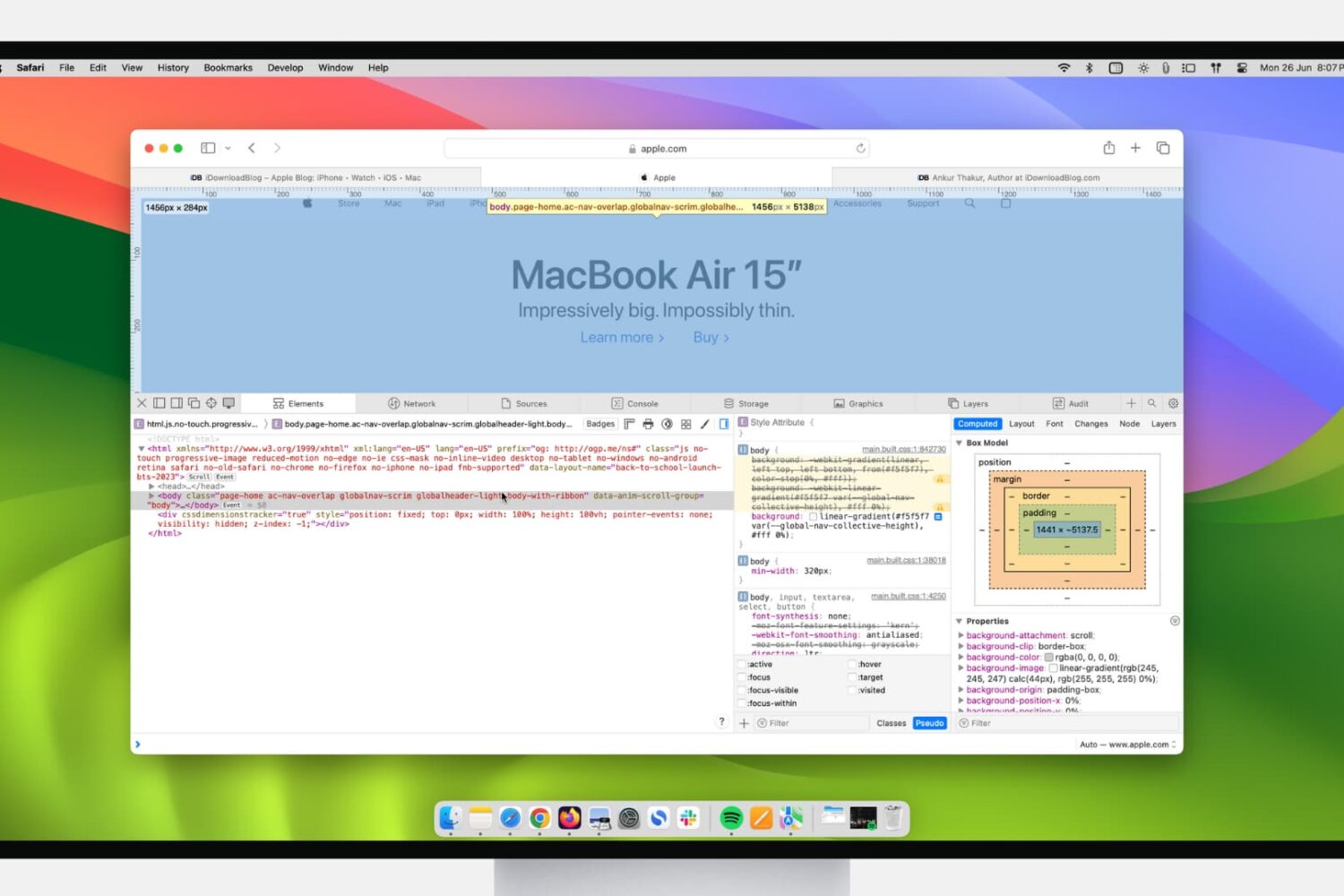
Whether the text of a webpage you’re visiting is too small to read or too big to handle, here’s how to use the Safari zoom feature on Mac to adjust it accordingly.
How to use Safari zoom to automatically make websites larger on Mac
Learn how to master your Apple devices with our comprehensive tutorials. From iPhone and iPad to Mac, Apple Watch, AirPods, and more, our expert guides will help you unlock the full potential of your Apple products. Discover new features, tips, and tricks each day to enhance your user experience.
Whether the text of a webpage you’re visiting is too small to read or too big to handle, here’s how to use the Safari zoom feature on Mac to adjust it accordingly.
The Launchpad on your Mac might remind you of the Home Screen on your iPhone or iPad. There’s a nice and neat grid of your apps. When you download an app from the App Store, it pops right into the Launchpad, and you can take action on your apps from there.
The thing is, you have to access the Launchpad, so it’s not right on your screen when you use your Mac like the Home Screen is on your mobile device. This might keep you from using it as much as you could. But the Launchpad can be a handy tool.
We’ve put together some tips for making the most of the Launchpad on Mac in case you decide to make more use of it.
Learn how to create, edit, and delete Smart Mailbox and Smart Mailbox folders in the Apple Mail app on Mac to collect and better organize your emails.
Learn how to automatically switch between your two or more Apple Watches if you wear them at different times for different occasions.
Learn how to prevent accidental trackpad touches by having your MacBook automatically disable it whenever a mouse or external trackpad is connected.
There are no external indicators on an iPhone or iPad that reveal whether it’s fresh out of the box, refurbished, or a replacement provided by Apple through a service request.
In this guide, we’ll show you how to distinguish between brand-new iPhones, refurbished models, replacement units, and even devices customized with Apple’s laser engraving.
Learn how to change the number of lines for message previews in your Apple Mail inbox on the iPhone, iPad, and Mac to display more or less information.
If there’s one thing that’s better than enjoying the music you love, it’s sharing it with others. And if you use Spotify, sharing your playlists is easy. You can quickly share them in a variety of ways from your devices. So, if you’re ready to brighten someone’s day with some cool new tunes, here’s how to share Spotify playlists on iPhone, iPad, and Mac.
Learn how to automatically delete junk messages and empty the Trash in the Mail app on Mac to save time and keep your mailboxes free of unwanted emails.
If you use your iPhone or iPad to listen to podcasts in the Podcasts app or audiobooks in the Books app, then you probably know about the skip feature. You can skip back a few seconds to catch something you missed or skip forward to move past something you have already heard.
The thing about this skip feature is you may not want it as low as 10 seconds because it might not be enough, and you have to keep tapping. At the same time, you may not want it to be as high as 60 seconds because you might skip way too much.
Here’s how to change the skip seconds for Podcasts and Books on iOS.
Do you feel like your mouse is moving too slow, your trackpad is moving too fast, or something in between? This tutorial shows you how to increase or decrease the mouse and trackpad pointer speed on Mac for the perfect experience.