In this piece, we’ll explain what a sysdiagnose is, what it contains, and how to create one so you can file a proper bug report to Apple when you have issues with your Mac.
How and why to get sysdiagnose system diagnostic files on Mac

Stay up-to-date on the latest Mac news, and tutorials. Get expert tips and tricks to optimize your Mac’s performance and learn about the latest Apple products and software updates. Discover the best Mac apps and accessories to enhance your user experience.
In this piece, we’ll explain what a sysdiagnose is, what it contains, and how to create one so you can file a proper bug report to Apple when you have issues with your Mac.

From accessing online resources to resolving network issues, this guide will show you how to use Safari when you enter macOS Recovery or Internet Recovery Mode on your Mac.
Check out ten simple commands you can perform with Terminal that could be of use to you now or in the future.
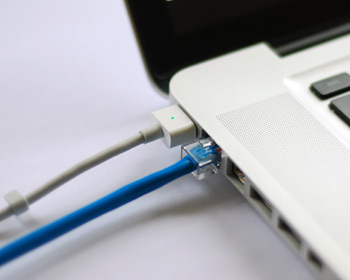
As my colleague Christian reported on Saturday, some Mac models have been plagued by non-working Ethernet ports after installing a new security update outed by Apple. Although a lot of modern Macs don't even have an Ethernet port, many models still carry it and many people still love using a wired internet connection because it's faster, more reliable, and more secure than a wireless network.
The security update, known as "031-51913 Incompatible Kernel Extension Configuration Data 3.28.1," reportedly blacklists the Broadcom BCM5701 driver used by the Ethernet port that comes standard on many Mac machines.
Fortunately, there's a light at the end of the tunnel for anyone experiencing issues with their Ethernet ports after installing this security update. Apple has issued a support document on Sunday that notes how to fix the problem. In this tutorial, we'll go over the steps to fix the problem yourself.
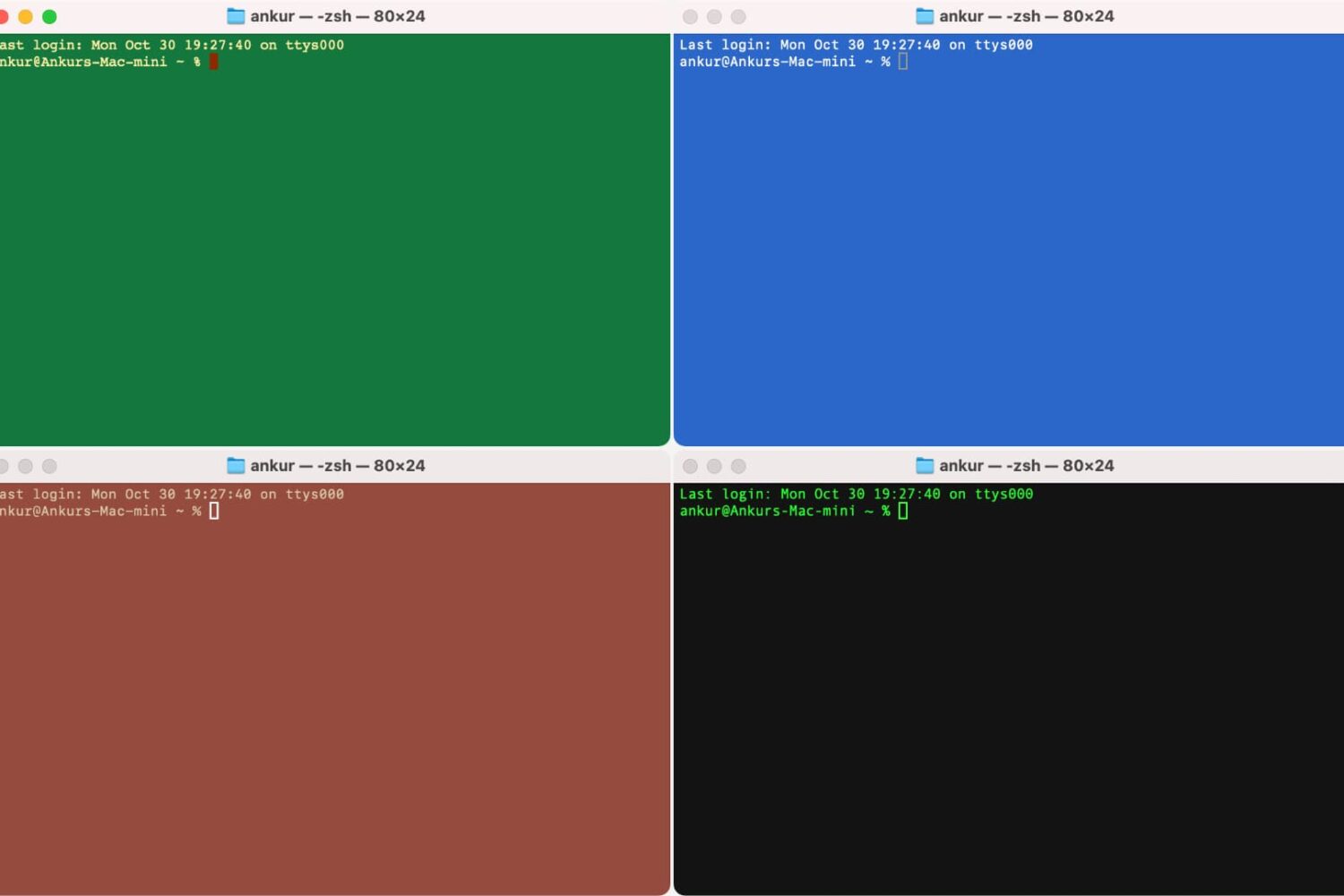
Many people use Terminal on their Mac to carry out the commands they want to use to make changes on their system, and by default, it’s a plain white interface with black text. Because this is simply boring, we’re going to show you in this tutorial how you can colorize the Terminal window to look exactly how you want it to.

macOS on your Mac includes a disk-repairing app, called Disk Utility, which you can use to scan your connected drives for errors, erase a disk, repair disk permissions, check the disk's structure for physical errors and more.
But what can you do, if anything, should your Mac experience issues preventing it from starting up properly? Not to worry, our friends, because macOS lets you launch a standalone version of Disk Utility from your Mac's built in recovery partition.
In other words, macOS' Recovery Mode gives you a chance to repair a malfunctioning startup disk that prevents your Mac from booting properly.
In this simple tutorial, we’ll show you how to view and clear the history of commands typed into the Terminal app of your Mac.

The infamous startup tone that the Mac is known for when you turn it on isn't just a sound, but is actually a very important part of your Mac's boot up process.
Unless your volume is turned all the way down, not hearing your startup tone at the time you power on your Mac may indicate a problem with your machine. Additionally, unusual startup tone sequences are also indicative of a problem with your Mac and will require troubleshooting to resolve.
In this piece, we'll attempt to outline what all the different scenarios of the Mac startup sounds mean to give you better understanding of what to do should you ever end up in a situation where your Mac's startup tone doesn't sound right.

If you're like me, then you probably have a hard time focusing on what needs to be done and you often multitask with fun activities when you should be focusing on homework or work. For example, instead of writing those essays due for your next class or finishing work, you might be playing around on Facebook with your friends or watching YouTube videos.
If you're the unproductive or procrastinating type, then a useful OS X app called Focus could be just what you need to stop getting distracted by social media and other fun websites.
Focus will help ensure that you only stick to the task at hand when you need to work or complete homework, and in this piece, we'll show you how it works.

Do you love your current screen saver on Mac and want to use it as the desktop wallpaper? This tutorial shows you how to do that using System Settings and Terminal.

It happens to the best of us – one day you're using an app that you really enjoy on your Mac, and the next, you start experiencing all kinds of problems with the same app. What's going on? Will it ever end?
Before you go calling support to resolve a problem for you, there are some easy troubleshooting steps you can take in macOS to quickly determine if the problem is going to require help or not.
We'll go through some of those troubleshooting steps with you right here in this tutorial.
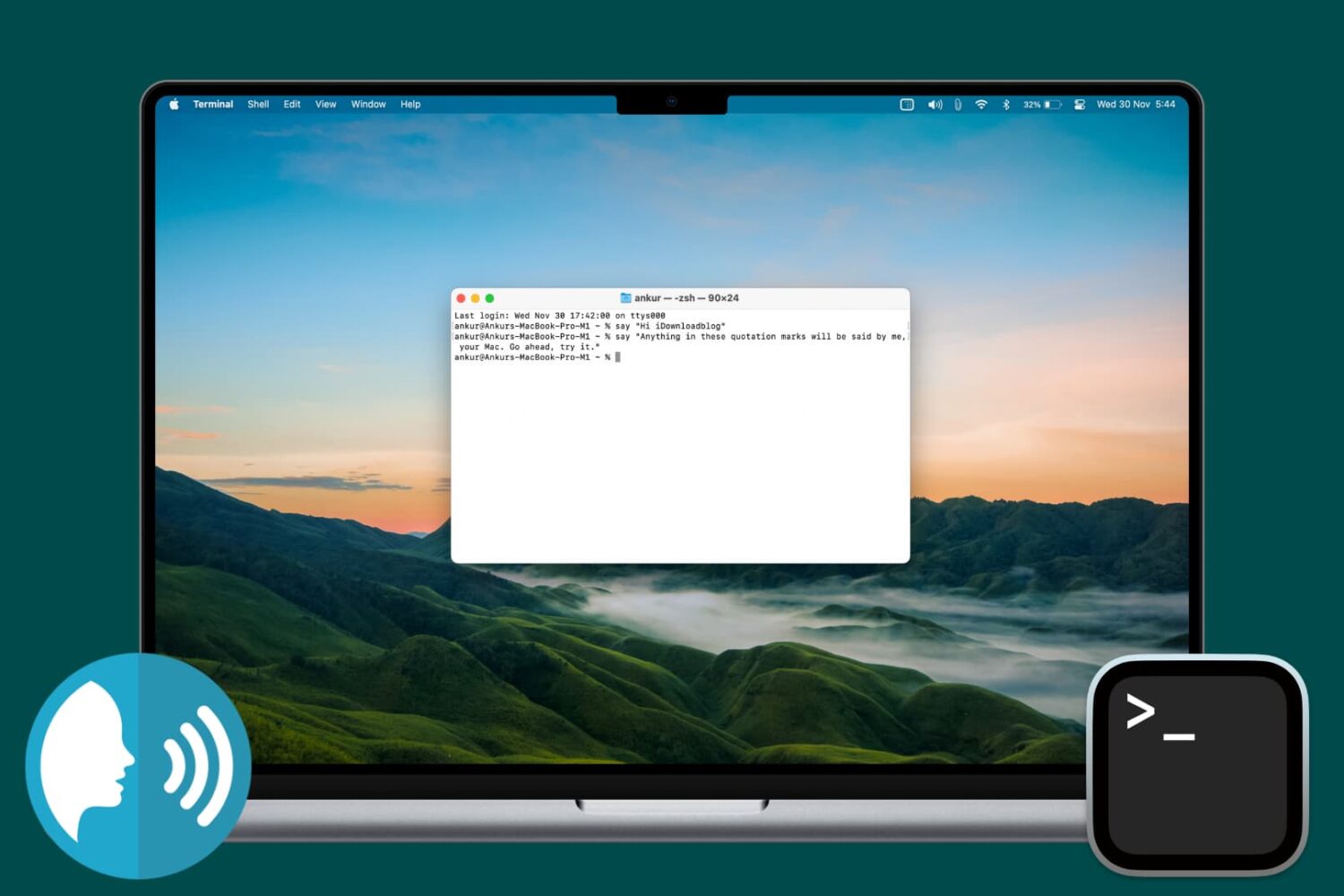
Find out how to make your Mac speak anything you want using the Terminal app that comes preinstalled on every macOS computer.