iPhone

Stay up-to-date on the latest iPhone news and learn new tips and tricks with our comprehensive tutorials. From software updates to new features, we’ve got you covered.

How to Manually Backup Your iDevice to iCloud

We love iCloud here at iDB, and we love backups, too. That said, it isn't really surprising that we're huge fans of the ability to backup our iDevices to iCloud.

It has been said before that the best backup strategy is the one you can set and forget. That's where iCloud comes into its own, with backups being done automatically each night, so long as the device is plugged in.

There are times when you might want to be absolutely sure that the backup in the cloud is up to date, and Apple has thought of that, too. Here is a quick guide that shows you just how to manually perform an iCloud backup...

How to Semi Untether Jailbreak iOS 5 [Video Tutorial]

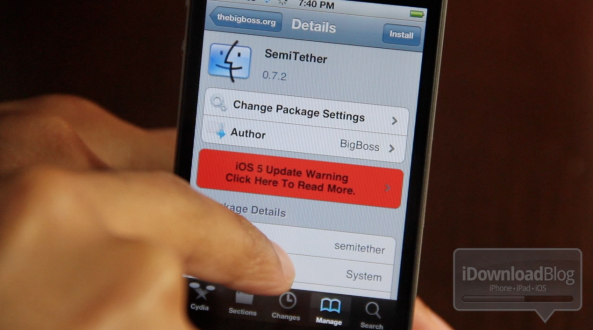
For those of you clamoring for an untethered jailbreak for iOS 5, you've now got a great compromise to hold you over — SemiTether.

As we reported, SemiTether is a new jailbreak tweak that will allow you to get closest to an iOS 5 untethered jailbreak without actually being an untethered jailbreak.

Inside, we'll show you exactly what you need to do to take advantage of this remarkable little tool. If your iOS 5 installation is jailbroken, you don't want to miss this!

How to Make Sure You Receive iMessages on All Your iDevices

iMessage is one of my favorite new features in iOS 5. It's simple, fast, and most importantly integrated right into the Messages app, which makes it even more compelling, assuming you have friends with iDevices as well.

If you have an iPhone your iMessages are sent to your phone number by default, which acts like your iMessage ID, if you will. If you have an iPad, you can only receive iMessages sent to your registered email address. But what happens if you want to receive all your iMessages on all of your iDevices?

How to Tweet and Update Facebook Using Siri

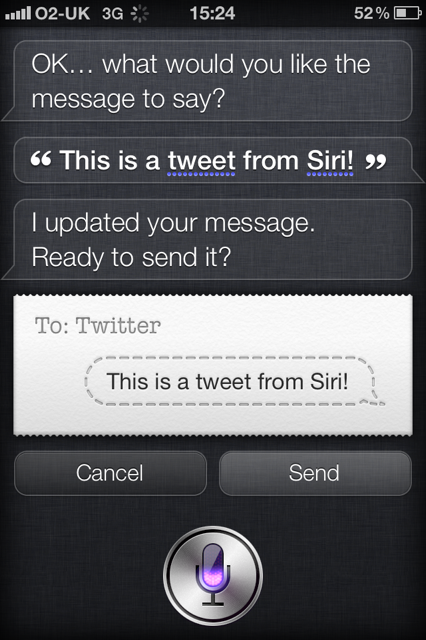
Apple's unique selling point for the iPhone 4S is Siri, a digital assistant that knows what you mean and how to answer your questions.

For all Siri's polish and ability to take real language and turn it into emails and text messages, there is one glaring omission from its repertoire, and that's the ability to tweet or update your Facebook status.

With Twitter now very much built into the fabric of iOS, it has been a surprise to many that Apple didn't give Siri any hooks into the world of 140 characters and less. But fear not, for those of us that are addicted to Twitter can now send messages using Siri, and it's super easy to set up...

How to Enable Swiping for SBSettings Toggles [Video]

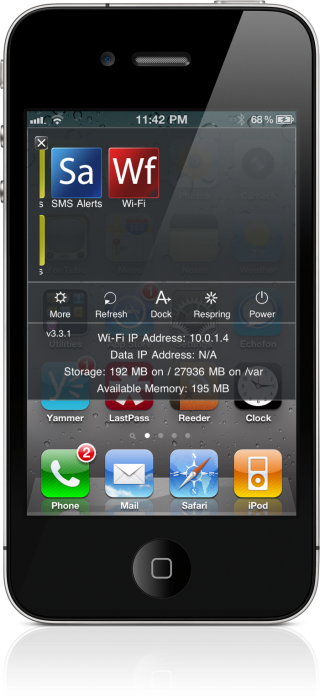
A few days ago, we received a question about SBSettings; specifically, how do you enable swiping for the toggle buttons in SBSettings?

By default, SBSettings will enable more than two rows if you have more than eight buttons in your list of toggles. Because of this, there's no need to have separate pages for toggles, due to everything fitting on a single page.

Ah, but there is a simple way to force a maximum of two rows of toggles, as this video tutorial shows you inside...

How to Save SHSH Blobs Using TinyUmbrella [Video]

There's no two ways around it, TinyUmbrella is just as much of a staple to jailbreakers, as the tools that actually perform the jailbreaks. For that reason, I figured it was only right to create a standalone TinyUmbrella tutorial, which shows you how to manage your SHSH blobs.

With TinyUmbrella, your blobs can be retrieved from either Apple, or Cydia. In this video tutorial, I show you the difference between both methods and how to save your SHSH blobs for possible firmware downgrades...

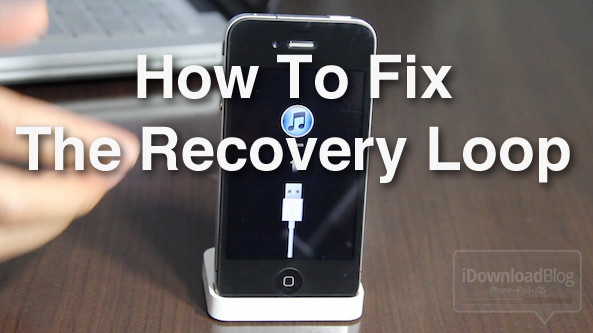
How to Fix the iPhone’s Dreaded Recovery Loop and Downgrade Back to iOS 4.3.3

If you're the type of person who likes to sell your current iPhone and use the funds to upgrade to the latest and greatest iPhone, then you've been there before. Restoring your iPhone to stock, and cleaning it up, is essential if you want to ensure you get top dollar for your device.

Thankfully, Cody already covered quite a few bases in his article, here. But what if you're still having issues downgrading your iPhone, or getting it back to stock after jailbreaking? I know a lot of you have personally told me about your struggles with the iPhone's dreaded recovery loop.

If you're having issues downgrading your iPhone back to iOS 4.3.3, issues with iTunes Error (1), and/or you're stuck in the recovery loop, and can't get out, this video tutorial should fix what ails you...

Jailbreak Dynamic Duo: PasswordPilot and StayOpened

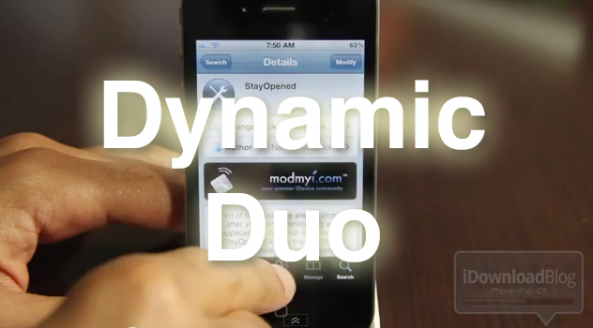
Two is always better than one, right? Well, in the case of PasswordPilot and StayOpened, two is indeed, most definitely better than one.

StayOpened is the Robin to PasswordPilot's Batman. Their mission? To make App Store purchases easier!

Inside, I'll show you why you should consider this Lebron James + Dwyane Wade type of combo to conquer what ails you about the App Store...

How to Jailbreak Your iPhone, iPad, and iPod Touch with JailbreakMe

After weeks of anticipation, the long awaited JailbreakMe jailbreak by Comex is now out and available for everyone to use. As always, JailbreakMe is dead simple to use and doesn't even require a tutorial but we'll do it anyway for those that are new to jailbreaking and need to be reassured.

As noted before, JailbreakMe Saffron (its code name) will only be compatible with iOS 4.3 devices and newer, including the iPhone 3GS, iPhone 4, iPad 1, iPad 2, and iPod Touch. Support for older firmwares will come later.

In this guide, we will show you how to jailbreak your iPhone, iPad or iPod Touch using JailbreakMe...

Improving Apps: How You Can Help

There are few things more frustrating than discovering a bug or a crash in an app or tweak you just downloaded. But instead of writing a poor review or swearing off the iPhone altogether, you can actually do something to help fix the problem.

Most developers encourage feedback and would like to pinpoint the exact problem so that they can increase their sales. Here are a few steps you can take to help developers quickly fix their apps so that you can use your apps in the way they are described to work.

How to Downgrade iPhone 4.0.2 to 4.0.1

This step by step guide will show you how to downgrade your iPhone iOS 4.0.2 to iOS 4.0.1. These steps are pretty simple but there is one major requirement: you must have your SHSH files saved on Saurik's server. There is absolutely no way around it. If you don't have your SHSH, you won't be able to downgrade your iPhone.

In this tutorial, we will see how to downgrade the iPhone from 4.0.2 to 4.0.1 but the steps are the same if you want to downgrade to iOS 4 or even 3.1.3.

There are several methods used to downgrade the iPhone. We will learn the method that uses TinyUmbrella. No file editing will be necessary.

How to Downgrade from iOS 4.0.2 to 4.0.1

Step 1: Let's download your SHSH blobs from Saurik's server to your computer. To do so, download TinyUmbrella and plug your iPhone in. Select the "Advanced Options" box. Also select the firmware version to which you wish to downgrade. Finally, select "Cydia" under "Request From". Then hit "Save My SHSH". This will grab your SHSH files from Saurik's servers and save them on your computer.

Step 2: Download the firmware to which you wish to downgrade to from our iPhone downloads section. Save it to your desktop.

Step 3: Put your iPhone in DFU Mode. To do so, launch iTunes and plug your iPhone in. Press and hold the Home and Power button together for 10 seconds. After 10 seconds, release the Power button while still holding the Home button until iTunes pops up and says it has found an iPhone in recovery Mode.

Step 4: Run TinyUmbrellaand click the "Display SHSHs" button to make sure your SHSH blobs were downloaded to your computer. Once done, click "Start TSS Server".

Step 5: Now we're going to restore to the firmware you want. To do so, launch iTunes and plug your iPhone in. Hold to SHIFT key (Windows only) or ALT/Option key (Mac only) while clicking on Restore. Make sure you hold the key while clicking Restore. A window will open. Simply select the firmware you downloaded in step 2.

Step 6: Your iPhone will start the restore process. You will most likely get several errors (error 1011, 1013, and 1015) but that's ok, don't worry about those.

Step 7: Finally, we need to get your iPhone out of recovery mode. To do so, simply click "Kick Device Out of Recovery" in TinyUmbrella.

Done!

You should now be back on a previous iOS, giving you the ability to jailbreak and unlock.