Check out these 7 easy tools to compress images on your Mac to save space without compromising quality.
7 free ways to compress images on Mac
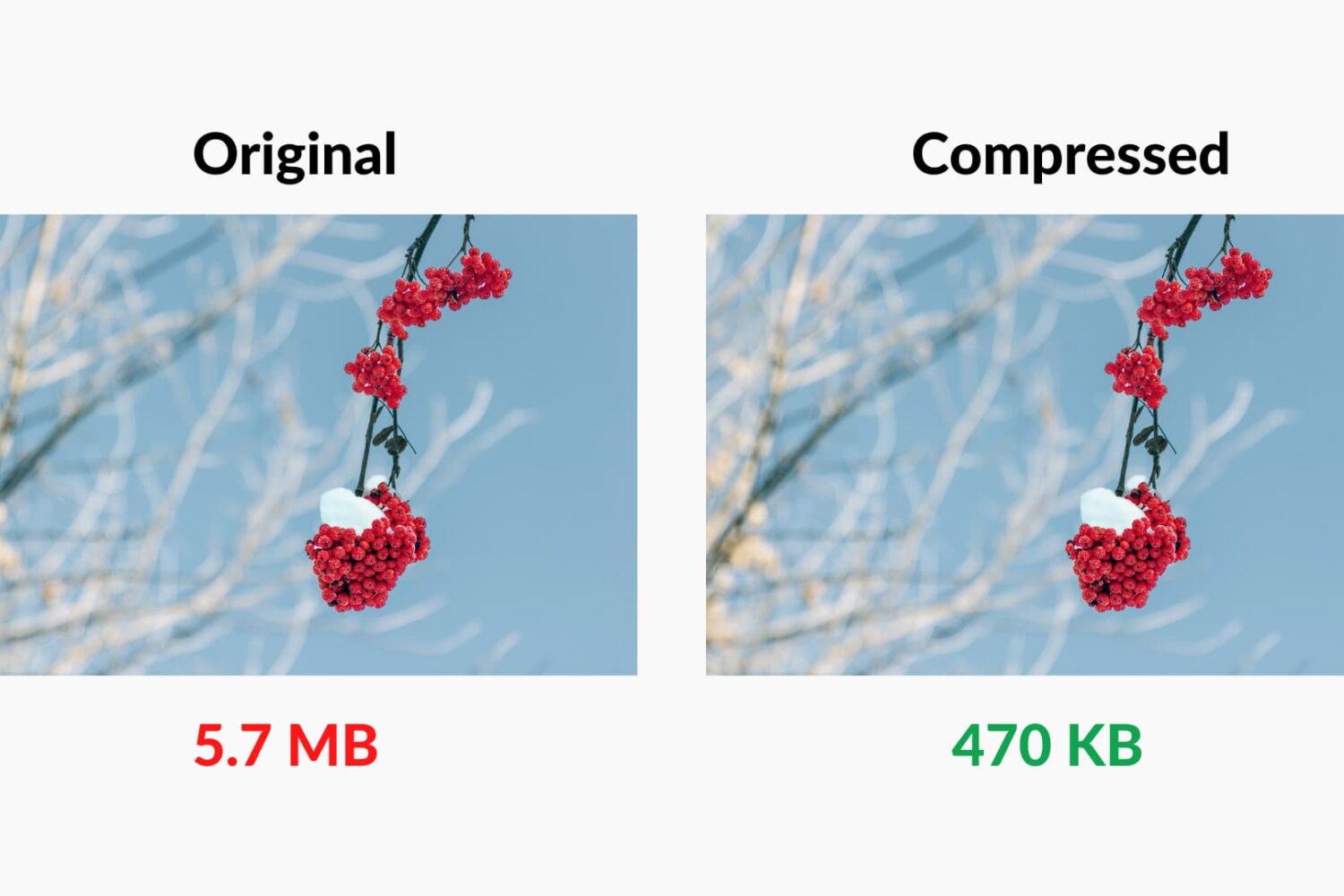
Check out these 7 easy tools to compress images on your Mac to save space without compromising quality.

Don't like the current cover image of a photo album? Check out these quick steps to use any other picture or video as the cover photo or "Key Photo" for an album on your iPhone, iPad, or Mac.

Find out how to know which app created or saved a photo or video to the iOS Photos app on your iPhone to trace media origins.

Learn how to easily hide, blur, or pixelate sensitive parts of a photo or screenshot on your Mac using built-in and third-party tools.
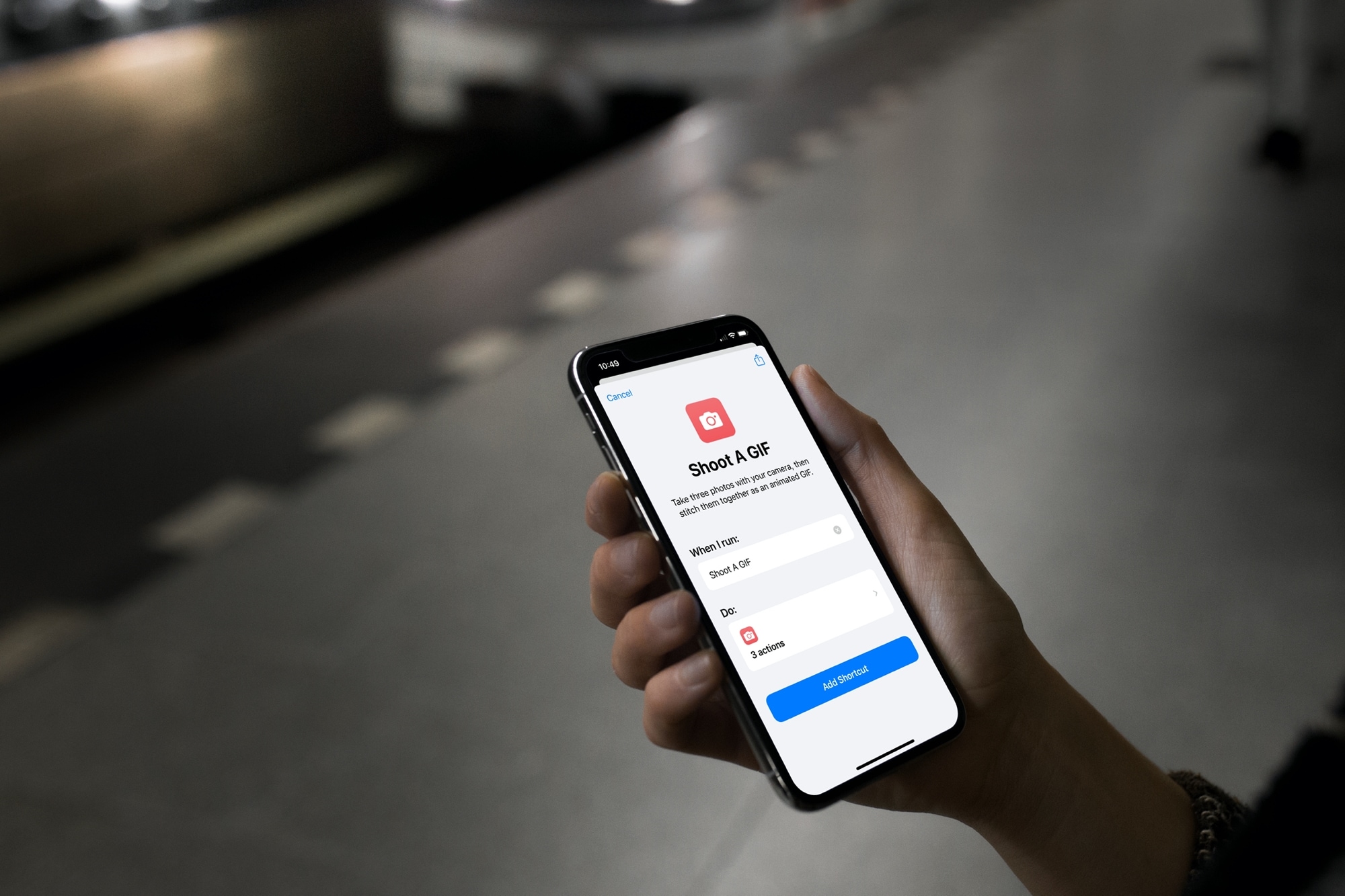
Check out this list of handy Shortcuts for creating GIFs, sharing your last photo, mapping a picture’s location, and more on your iPhone or iPad.

Learn how to hide photos and videos on your iPhone, iPad, and Mac if you’d like to keep them private or simply want to declutter your camera roll.
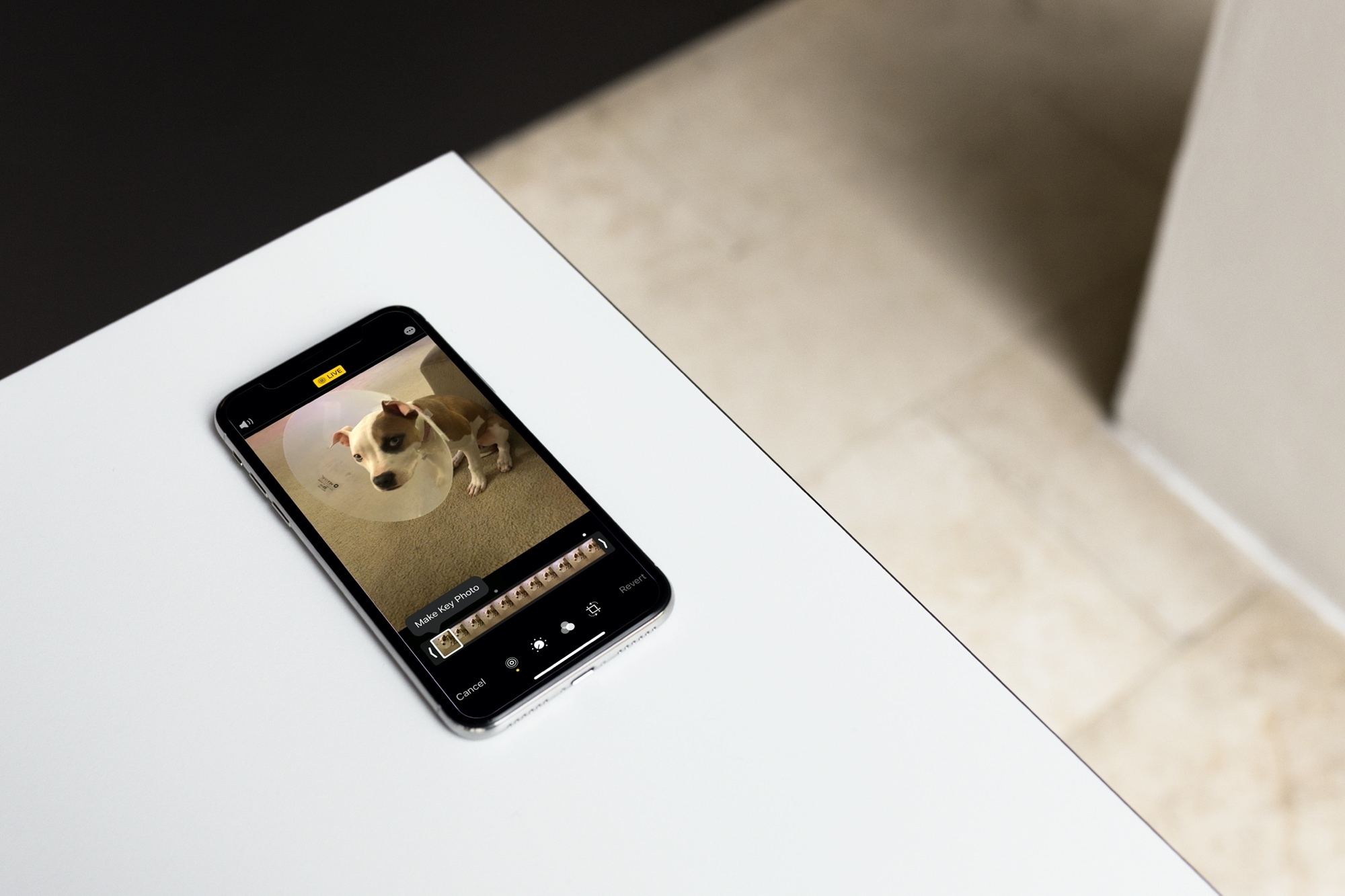
Learn how to change the key photo for a Live Photo on iPhone, iPad, and Mac by selecting the most compelling and visually appealing moment of the photo.
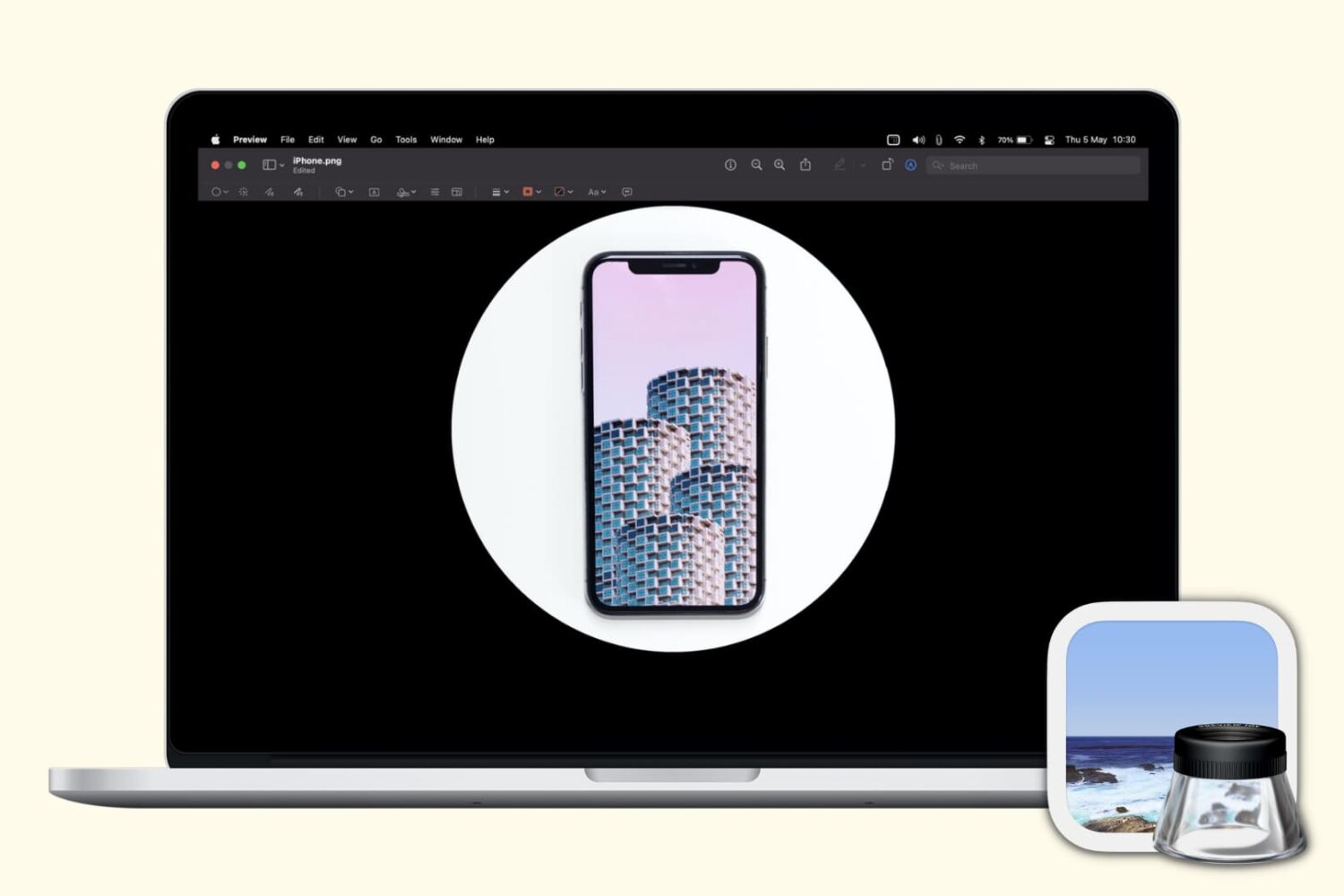
Check out these free techniques to crop photos on your Mac without downloading third-party image editors or using app extensions.

Check out the top photo printing apps for iPhone and iPad to turn your digital memories into actual printouts to frame or gift to someone else.

Learn how to compress photos without using the internet on your iPhone or iPad to make their file sizes smaller so they’re easier to share, upload, and store.

Learn how to change or delete the date, time, location, and other metadata of a photo on your iPhone, iPad, and Mac.

Learn how to add a photo widgets to your iPhone or iPad Home Screen so you can get a glimpse of memorable pictures without going inside the Photos app.