Music

Apple seeking to reduce record label revenue share from streaming

Apple is looking to reduce record label's share of revenue from streaming, reports Bloomberg. Citing people familiar with the matter, the outlet says the negotiations are part of a larger plan to revise the company's overall relationship with the music industry.

The record labels's current deals regarding Apple Music expire at the end of June, although they are likely to be extended if new terms can't be reached. Apple is trying to negotiate new deals that would bring their rates closer to what Spotify pays out.

Under Apple’s current deal, record labels at first received about 58 percent of revenue from Apple Music subscribers, a higher cut than from other major streaming services including Spotify, the largest paid music-streaming service in the world. Spotify reduced its rate to 52 percent from 55 percent in recent negotiations with labels, tied to certain guarantees on subscriber growth. The labels are open to a reduction in Apple’s rate -- provided it’s also able to expand subscriber rolls and meet other requirements, the people said.

Initially, Apple overpaid a bit to appease the labels, who were concerned its entry into the streaming space would cannibalize iTunes sales—a major source of their revenue. But as it turns out, Apple Music hasn't been as damaging to iTunes as originally feared.

Bloomberg adds that labels have asked Apple to commit to promoting iTunes, and music in general, in countries where streaming isn't as prevalent. Apple announced earlier this month that Apple Music now has 27 million paid subscribers.

Source: Bloomberg

Apple Music gains new $99 annual subscription option

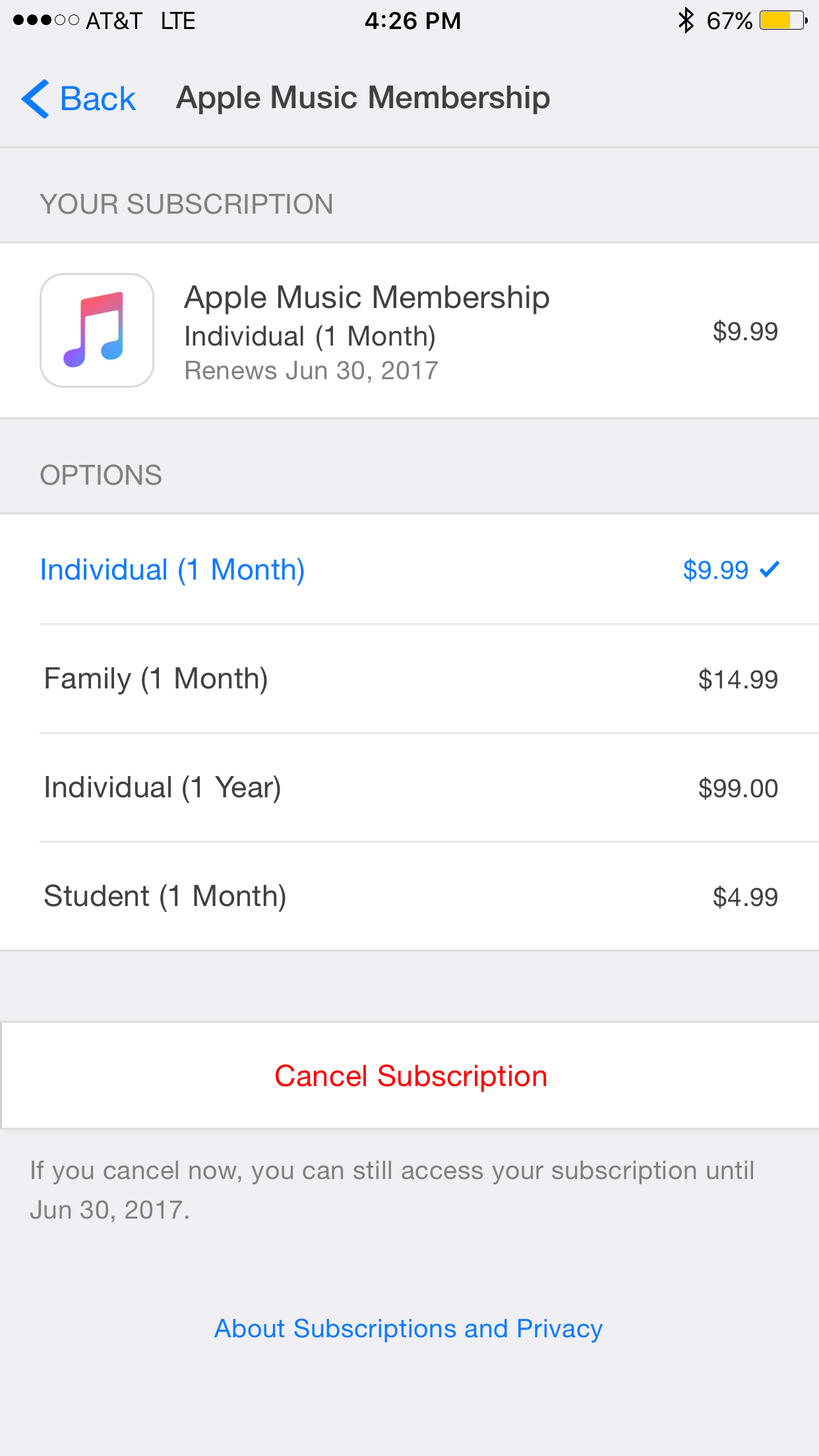
It appears Apple has quietly added a new annual subscription option for its Apple Music service. TechCrunch points to the new plan, which costs just $99 for 12-months of access to the 20 million+ track library and loads of exclusive content.

This is good for a $20 savings over the standard $9.99/month plan, but Apple doesn't make it easy to find. You have to go into iTunes or the App Store and tap on Apple ID > Subscriptions > Apple Music. It also looks like the price is only available to current users.

Of course Apple has long offered 12-month Apple Music gift cards for $99, and the $4.99/month student plan is still the cheapest. Apple Music offers on-demand access to all of your favorite songs, albums, custom playlists, exclusive videos and much more.

Source: TechCrunch

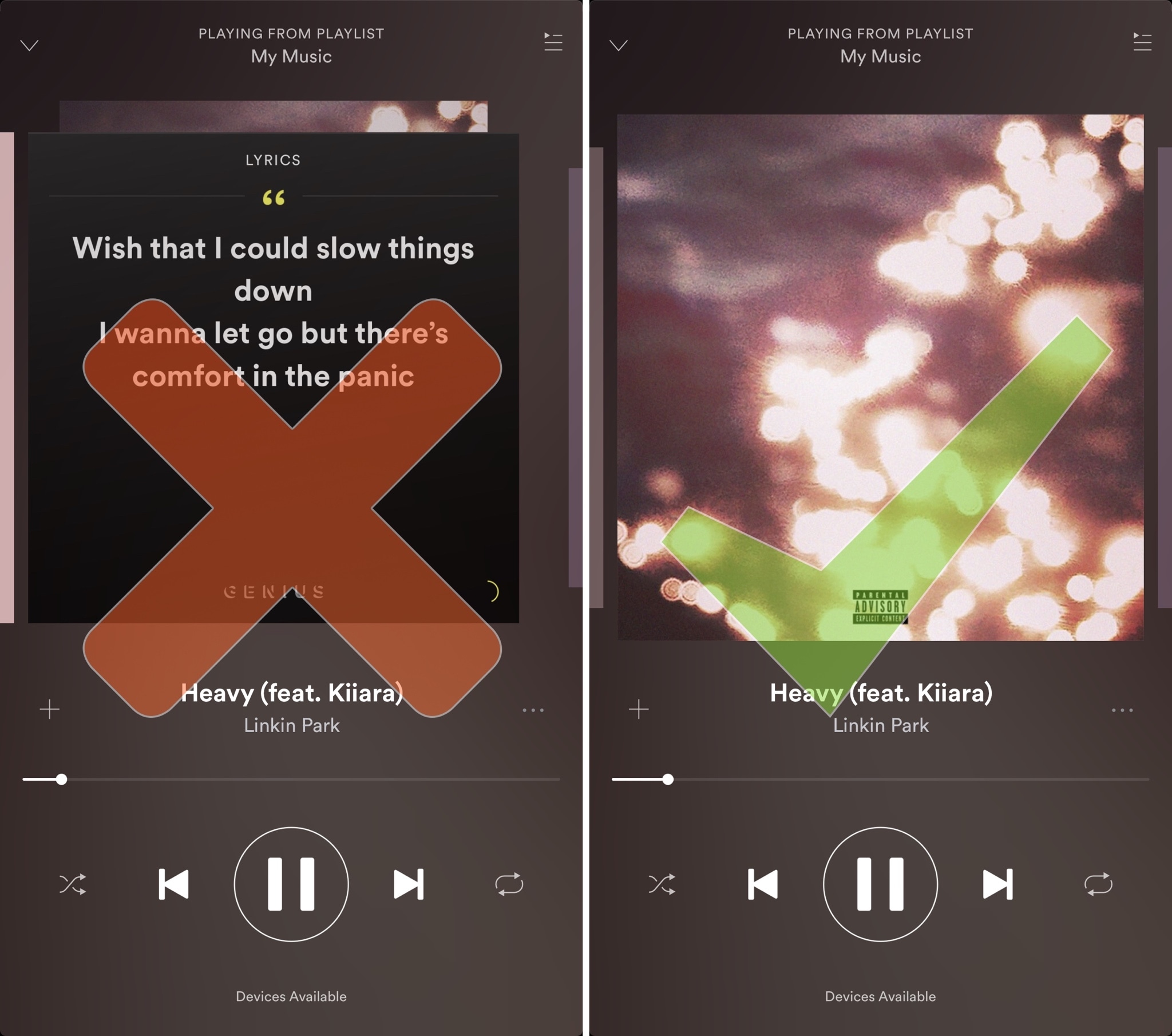
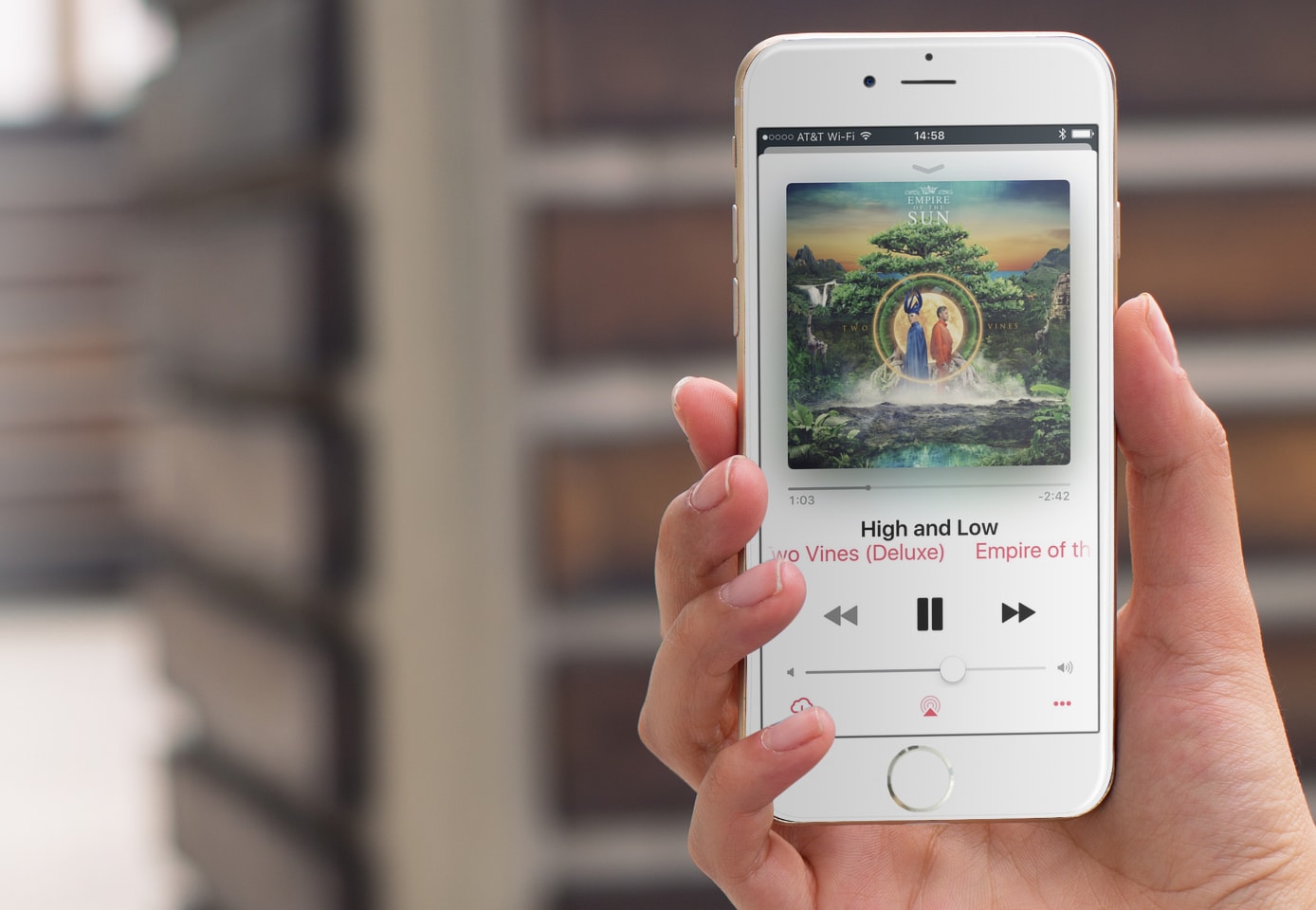
How to disable ‘Behind the Lyrics’ pop-ups in Spotify

Spotify is perhaps one of the largest names in the music-streaming industry, and while Apple Music is indeed catching up, a large number of iPhone users are still using the third-party alternative.

Despite its popularity, many Spotify users aren’t fond of the persistent Behind the Lyrics feature that interrupts your view of the album artwork whenever music is playing.

This tweak makes Spotify album artwork display in full screen mode

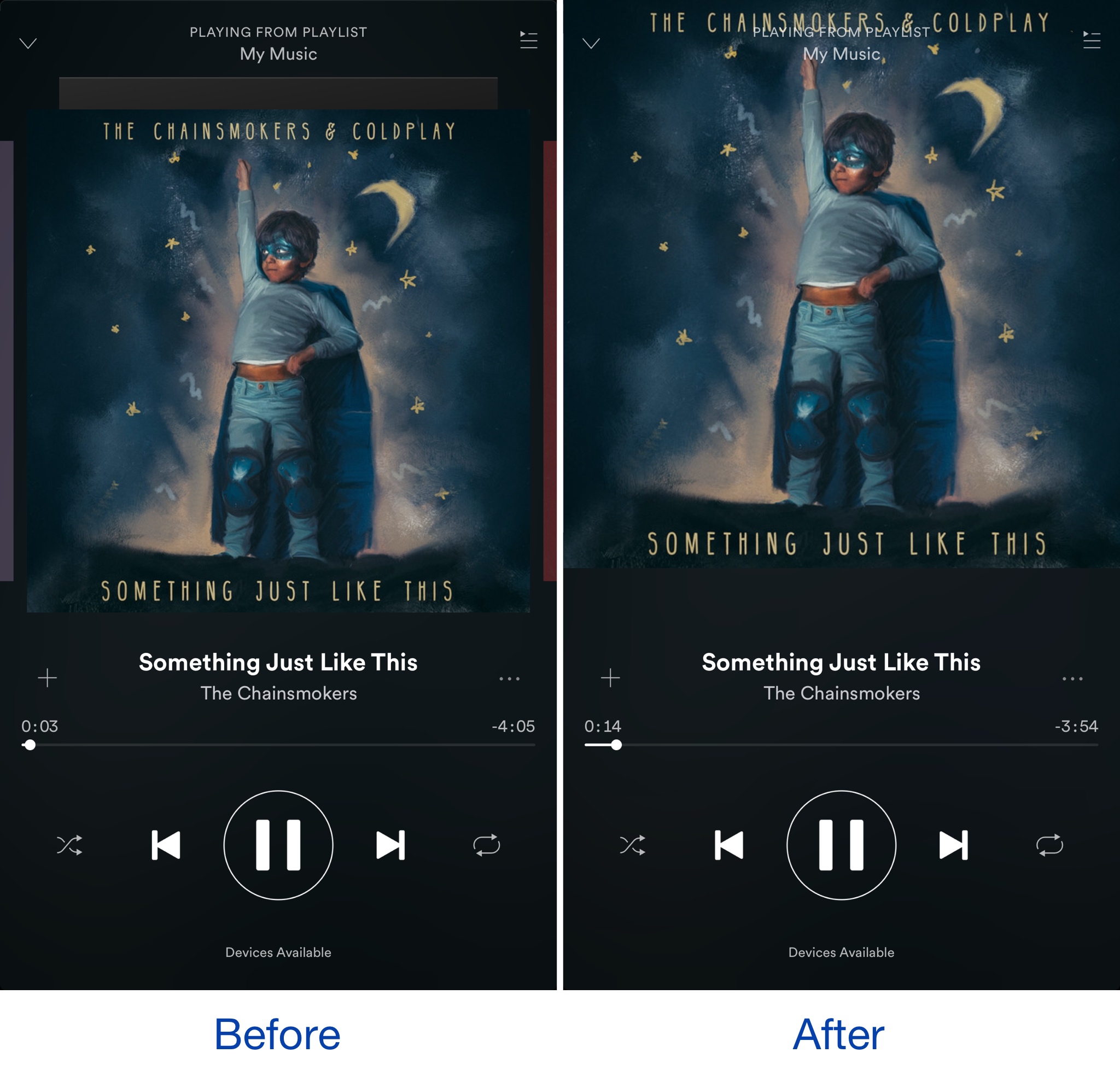
When listening to your songs in the Spotify Music app, the album artwork is typically scaled down slightly so that there’s a bit of empty space in between it and the edge of the display.

A new free jailbreak tweak dubbed SpotifyFullScreenArtworkUI by iOS developer theo78825 scales up the album artwork a little bit more so it fills the whole top half of the screen.

iOS 11 brings lossless FLAC audio playback to iPhone and iPad

iOS 11 reportedly brings native support for lossless audio encoded in the popular FLAC format to iPhone, iPad and iPod touch. As discovered by Reddit users, Apple has included full playback support for FLAC audio files on iOS 11. iTunes and iOS 10 currently lack built-in support for the FLAC codec, though people can use a third-party app to enjoy FLAC audio.

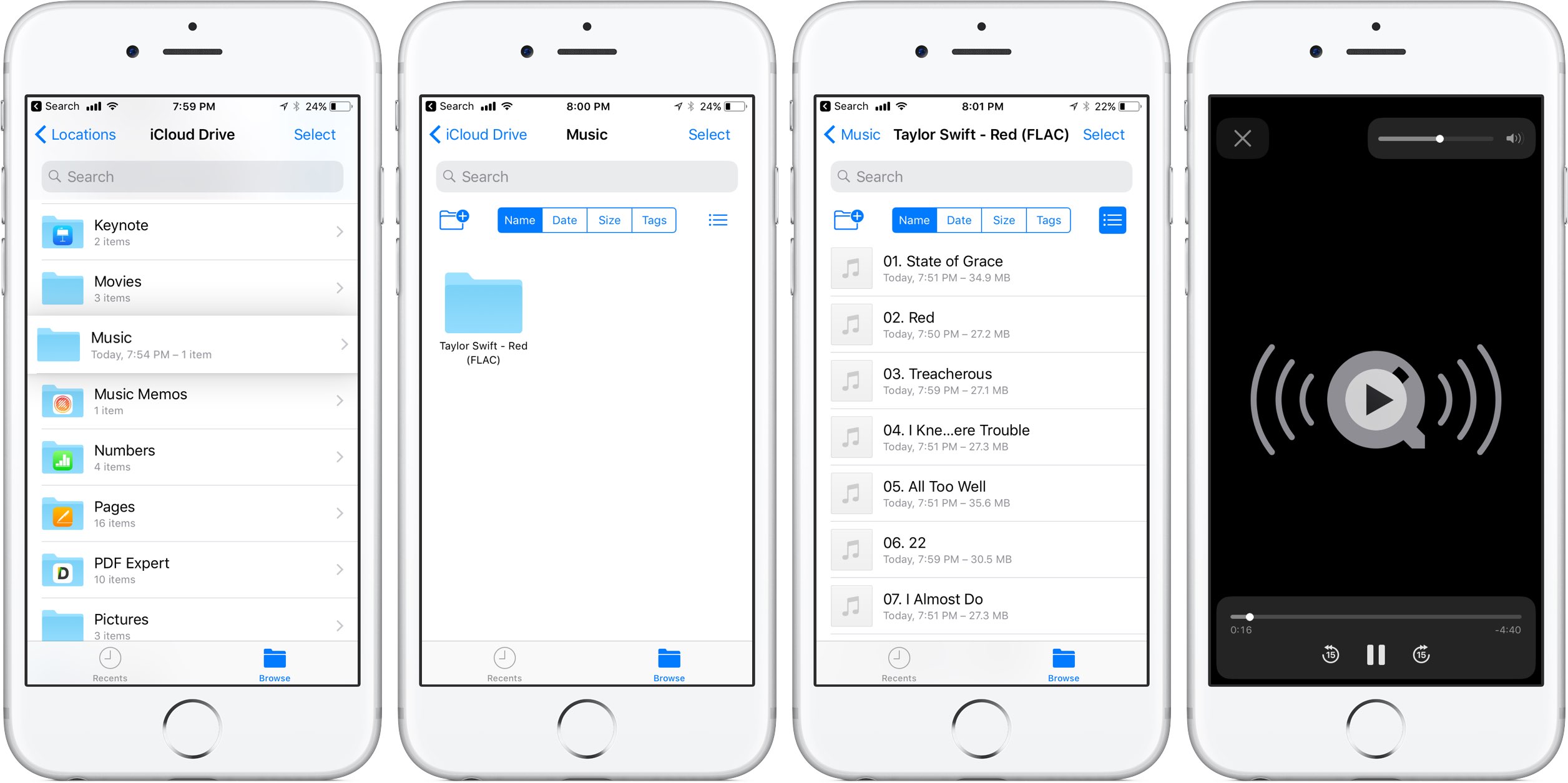
At this stage, only the new Files app has support for lossless playback of FLAC-encoded audio files. Of course, things could change in subsequent beats as Apple continues to refine iOS 11 ahead of its fall release, at which point iTunes could be updated with full playback support for the popular format.

As things currently stand, any FLAC files synced to an iOS device through iCloud Drive, Dropbox or Box can be played from within the Files app. FLAC files are currently unsupported via the Music app on iOS 11.

For what it's worth, I tried sending an FLAC audio file to my iOS 11-enabled iPhone through AirDrop, to no avail. My iPhone didn't know what to do with the file, putting up the standard prompt offering to download an app from App Store.

No matter how you look at it, this is a big win for music lovers and audiophiles.

The FLAC format bring the full quality of the original recording. FLAC, or Free Lossless Audio Codec, features lossless compression of digital audio which can reduce the size of the audio file to between 50 percent and 60 percent of its original size, without degrading audio quality of the original.

iOS 10 currently supports the AAC, Protected AAC, HE-AAC, MP3, MP3 VBR, Dolby Digital (AC-3), Dolby Digital Plus (E-AC-3), Audible (formats 2, 3, 4, Audible Enhanced Audio, AAX and AAX+), Apple Lossless, AIFF and WAV audio formats.

The ability to play lossless FLAC audio on an iPhone, iPad or iPod touch with iOS 11 could also signify that HomePod, Apple's upcoming smart speaker, may support high-quality FLAC audio.

AirPods Next/Previous track controls also work on iOS 10

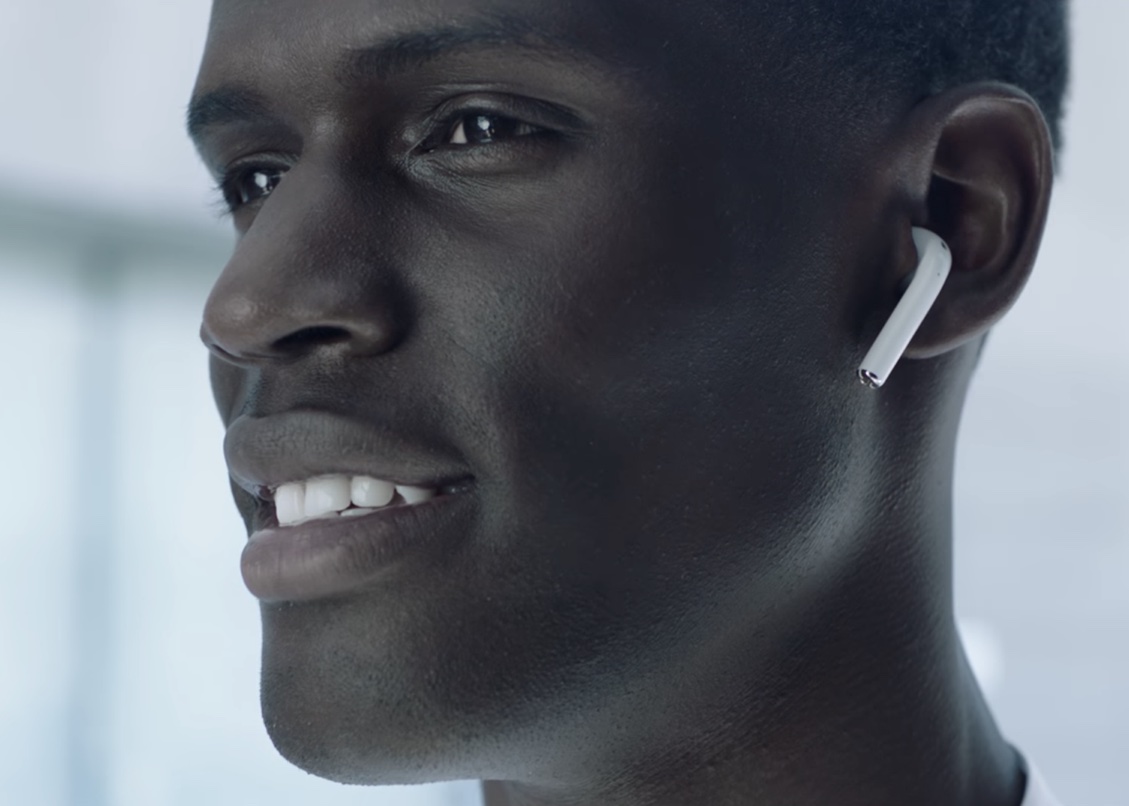
One of the little things in iOS 11 includes the ability to set up the AirPods double-tap action to skip forwards and backwards between tracks, cancelling the need to invoke Siri to change songs. As iDownloadBlog reader Harshit Yadav has discovered and shared with us, you can also get this next/previous track control functionality to work on your iPhone, iPad or iPod touch with iOS 10, here's how.

First of all, your AirPods must be running the firmware version 3.7.2 or later, which enables you to customize double taps independently for both the earbuds. To find out your AirPods current firmware version, go to Settings → General → About → AirPods on your iPhone.

Your AirPods must be connected to your iPhone to appear there.

TUTORIAL: How to install software updates for your AirPods

To ensure your AirPods have the latest available firmware, put both the earbuds inside their charging case, then close the case and connect it to a charger or a USB port on your computer. Your iPhone must be paired with your AirPods and connected to Wi-Fi in order for the firmware to download and install.

With the 3.7.2 firmware installed on your AirPods, do the following:

1) Connect your AirPods to an iOS device running iOS 11. This is very important that your AirPods be connected to an iOS 11 device. If not, the option to customize Left and Right ear will not appear.

2) Go to Settings → Bluetooth on your iOS 11 device.

3) Tap the “i” next to your AirPods.

4) Tap Left underneath the Double Tap on AirPod heading, then choose Previous Track from the list of double-tap actions for your left earbud.

5) Tap Right underneath the Double Tap on AirPod heading, then choose Next Track from the list of double-tap actions for your right earbud.

6) Close out the Settings app and play some music to verify that double-tapping either AirPod takes you to the next or previous track.

7) You're done.

With your AirPods updated to the firmware version 3.7.2 and the double-tap action set to next/previous track, you can now pair them back to an iOS 10 device and they will continue to work.

It's important to note that attempting to change your AirPods settings on iOS 10 will overwrite any changes made on your iOS 11 device, meaning you'll loose the next/previous track functionality.

Let us know in the comment section below how it went for you.
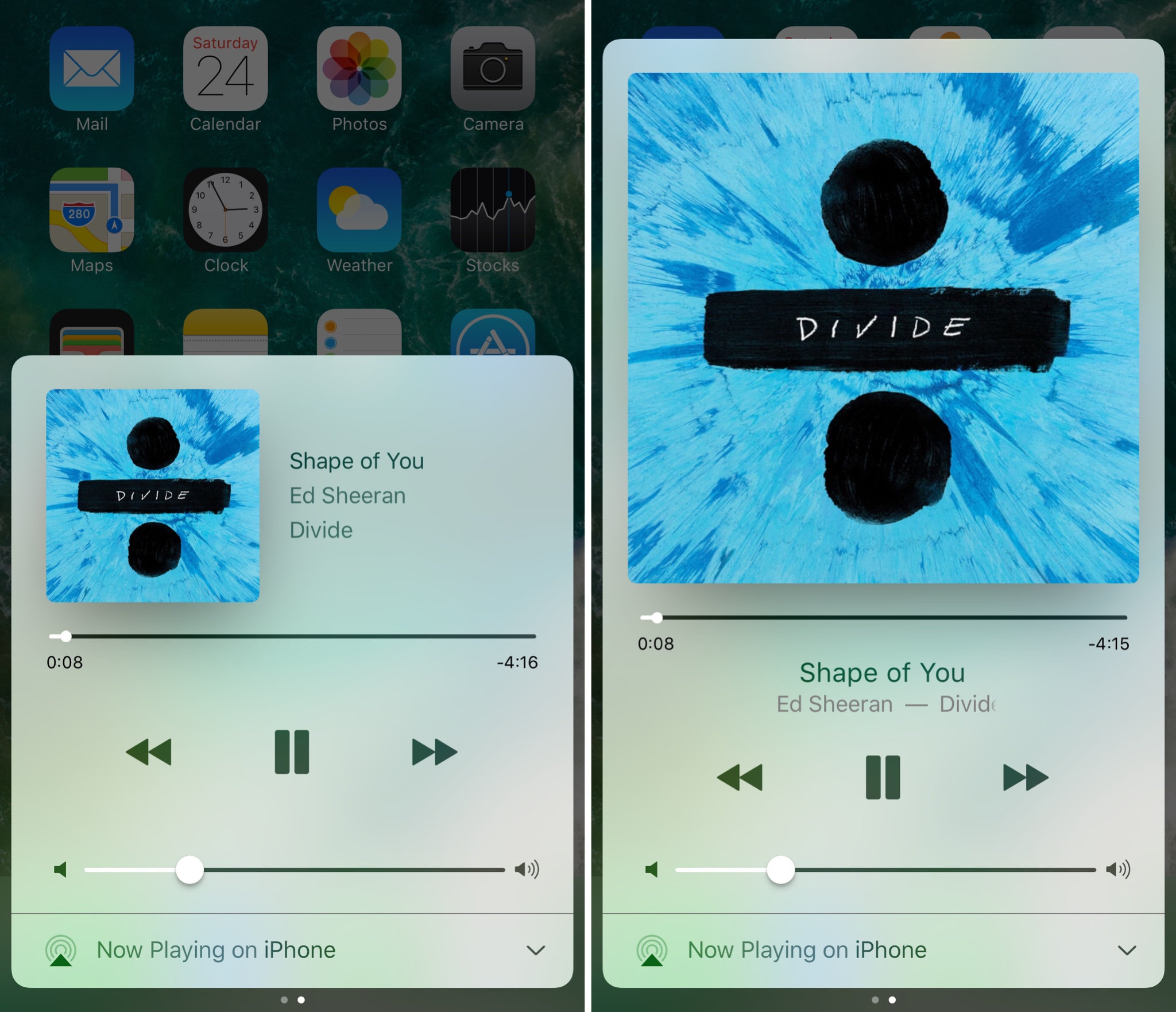
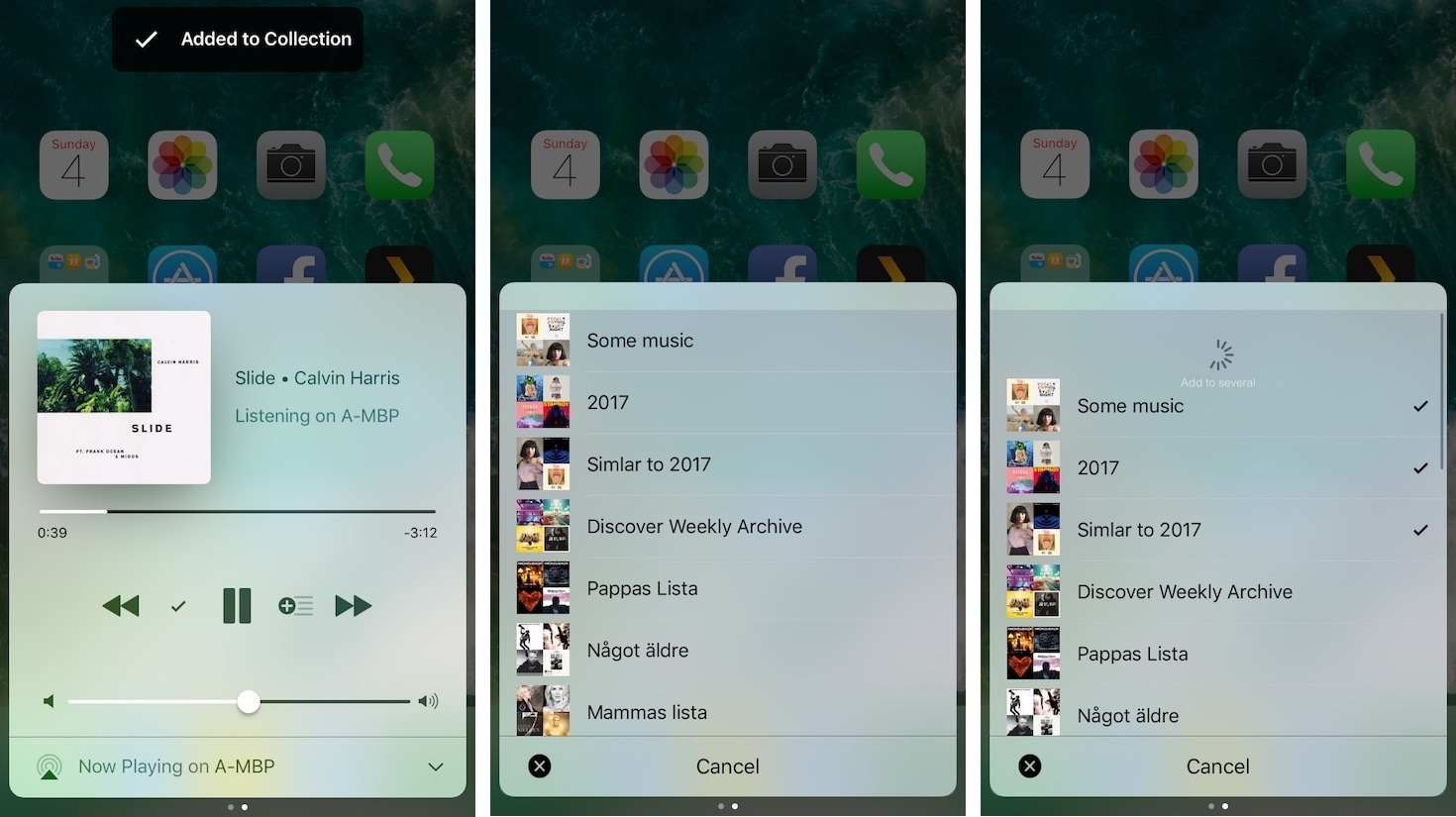
Add powerful Spotify features to the Now Playing interface with Apace

Spotify users rocking jailbroken iOS 10 devices are going to feel right at home with a new jailbreak tweak release dubbed Apace by iOS developer Andreas Henriksson.

This tweak is a replacement for the popular iOS 9-only tweak dubbed Quickify and lets you add Now Playing music to existing Spotify music playlists or collections right from Control Center or the Lock screen.

SkipME provides useful auto-skipping features for your music

Have you ever tried to play a music collection or playlist from your iPhone or iPad only to find that some of the music wouldn’t be appropriate for the current circumstances?

A new free jailbreak tweak dubbed SkipME by iOS developer candoizo lets you filter certain music from your listening experience to tune your entertainment for certain moods or for sensitive audiences.

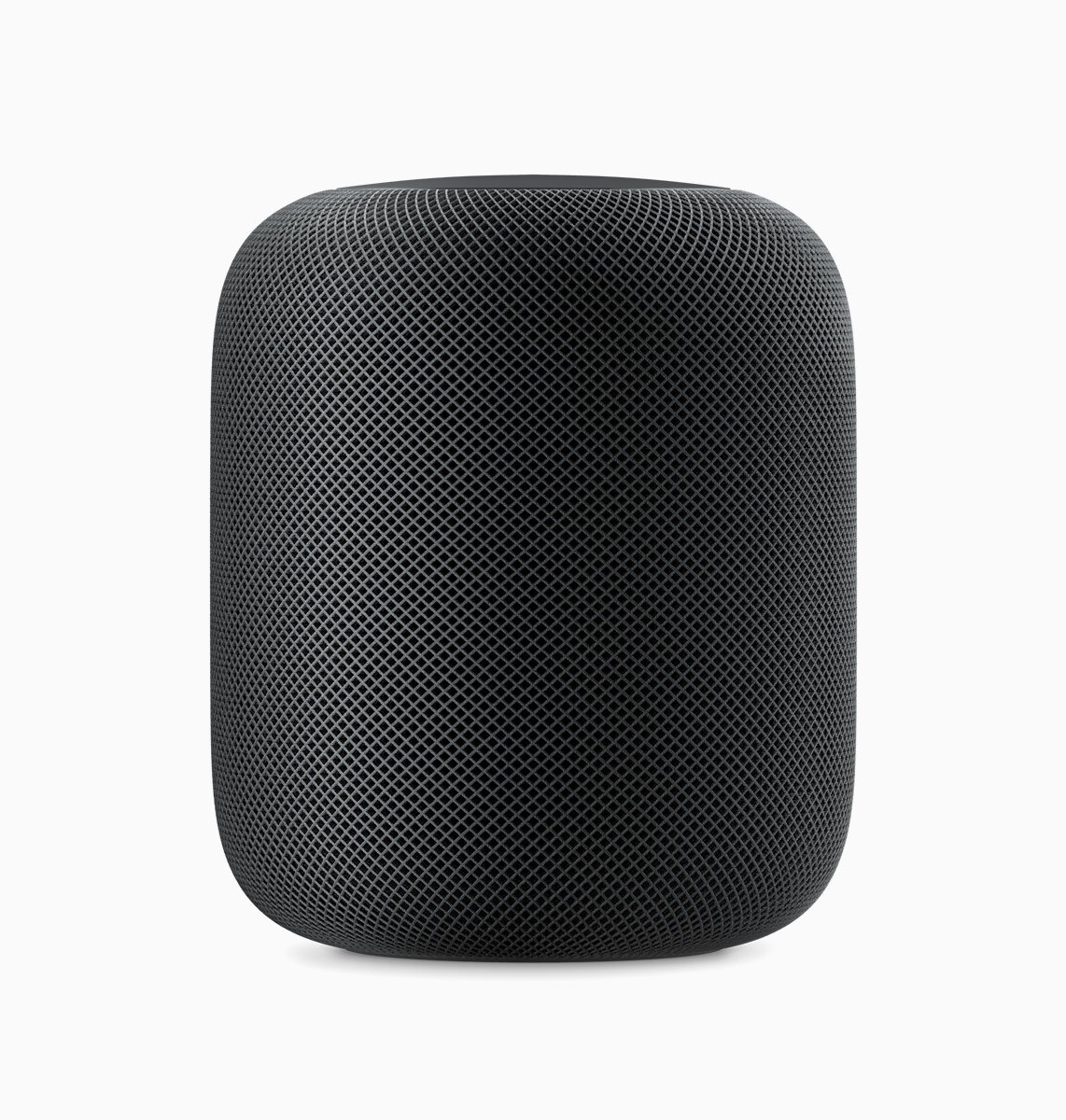
Meet HomePod, the new Apple speaker

Apple is taking a new responsibility in the world of delivering music to your home by unveiling the HomePod, a new wireless speaker and assistant for your house.

This intelligent new wireless speaker uses similar technology to what’s available in the AirPods, except it’s incredibly more advanced on both the software and hardware ends of things.

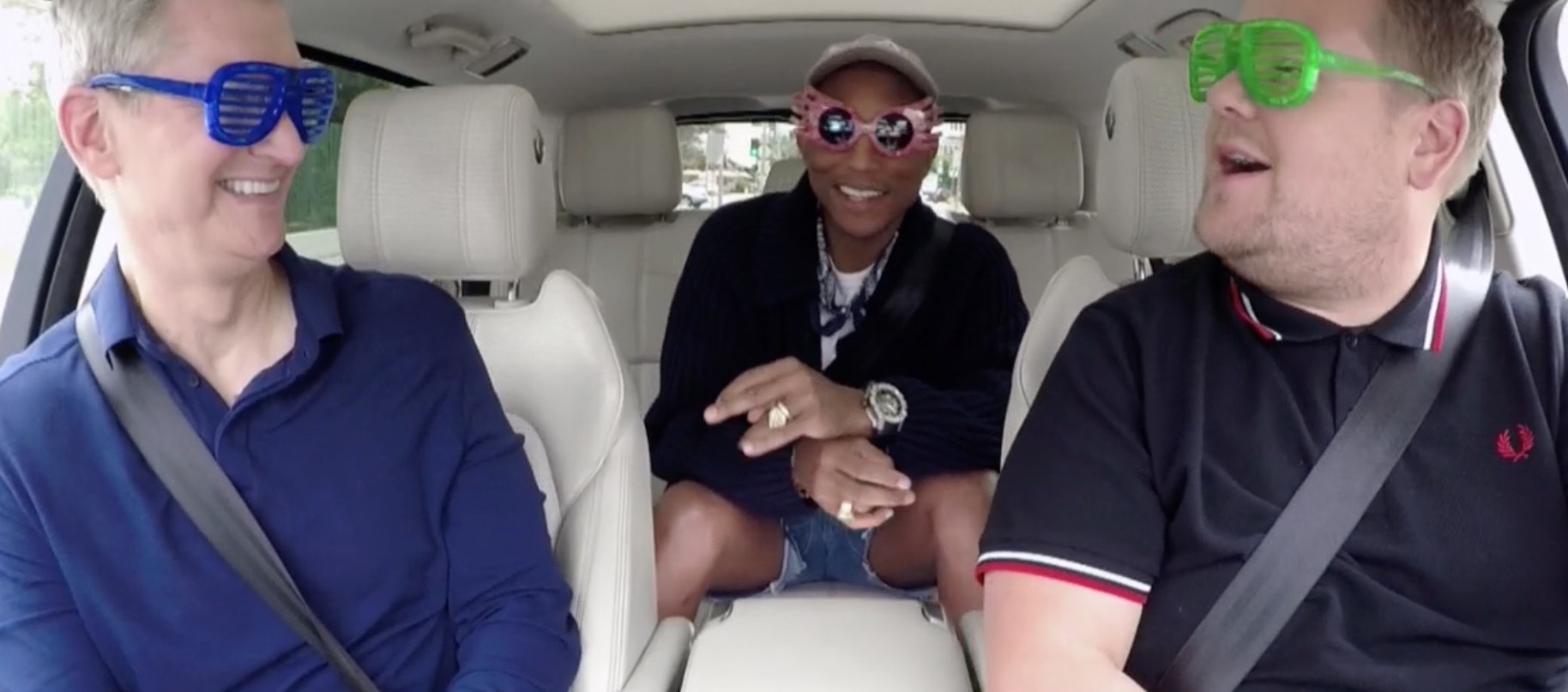
Apple’s original show “Carpool Karaoke” will debut August 8 on Apple Music

“Carpool Karaoke: The Series,” Apple's first original show based on the popular segment on “The Late Late Show” with James Corden, will premiere August 8 on Apple Music. The news was revealed in today's tweet by Eddy Cue, Apple's chief of Internet Software and Services.

The show was originally supposed to air on Apple Music beginning April 2017, but the iPhone maker was forced to postpone its arrival due to tight production schedule.

All sixteen episodes will debut on Tuesdays, available only to Apple Music members.

https://www.youtube.com/watch?v=n2fipKCrV3I

Featuring a different host every episode, Apple's version of “Carpool Karaoke” replaces the show's regular host James Corden with actors, comedians, athletes and other celebrities, who will be seen riding along in a car together as they're singing different tunes.

Some of the confirmed celebrities that will appear on the show include Will Smith, Billy Eichner, Metallica, Alicia Keys, John Legend, Ariana Grande, Seth MacFarlane, Chelsea Handler, Blake Shelton, Michael Strahan, John Cena and Shaquille O’Neal.

“Planet of the Apps,” Apple's show about apps and their creators, is coming this year. Apple wrapped up filming of that one back in February 2017, but it's unclear when exactly the company might release it on Apple Music.

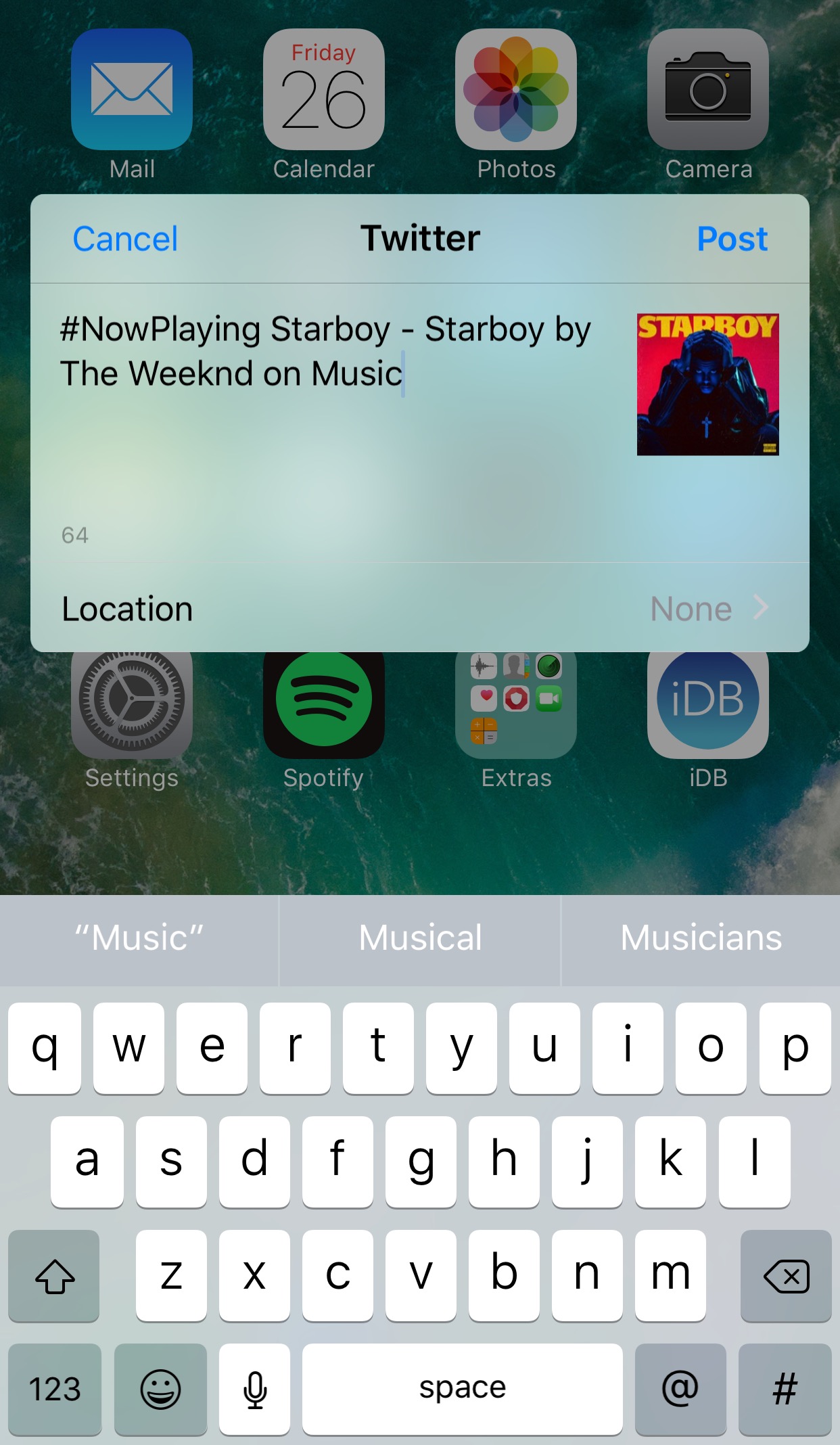
Tweet your Now Playing music from anywhere with NPTweet

The rhythmic souls out there who listen to their songs on a daily basis generally like to talk about and share their music with other connoisseurs.

Fortunately, a new free jailbreak tweak dubbed NPTweet by iOS developer ichitaso is now available that makes it super easy to Tweet a Now Playing track from anywhere in iOS by calling upon the help of Flipswitch.

How to redeem iTunes or Apple Music gift cards

If you don't set up one of the supported payment methods for your Apple ID, you won't be able to upgrade your iCloud storage or buy music, movies and TV shows from iTunes Store, apps from App Store and Mac App Store, books and audiobooks from iBooks Store and more.

That's where an iTunes or Apple Music gift card should come in handy.

Upon redeeming, the amount shown on the card is added to your Apple ID in the form of good-as-cash credit that can be used for each purchase you make in Apple's content stores.

In this tutorial, you'll learn about the types of gift cards Apple supports, how they should be used, as well as how to redeem your iTunes or Apple Music gift card and apply the credit toward an individual Apple Music membership or to top up your Apple ID balance.

About iTunes and Apple Music gift cards

iTunes gift cards and Apple Music gift cards can be purchased from Apple, PayPal, Amazon, eBay, Best Buy and a number of other retailers. iTunes gift cards typically come in $25, $50 and $100 denominations. Apple Music gift cards are currently available in $30 and $100 denominations for three or twelve months of service, respectively.

You can buy them in physical form for delivery via mail or opt for a digital gift card, in which case your redemption code will be delivered straight to your inbox.

The 16-digit redemption code is hidden underneath the label on the card's back.

The redemption code always starts with an “X”.

The redemption code may appear in different places on the back of your card.

Redeeming an iTunes gift card adds store credit to your Apple ID.

Store credit is used for each purchase you make in iTunes Store, App Store or iBooks Store until it's gone. iTunes billing system always uses your store credit first, as long as the value of the item that you're buying is less than or equal to the value of your credit balance.

If you don't have any store credit left, the payment method that you designate when you sign up for an Apple ID is charged for the entire purchase.

You can use your store credit to buy the following items:

Apps from App Store and Mac App Store In-App Purchases Songs, albums, movies, TV shows and more from iTunes Store Books and audiobooks from iBooks Store iCloud storage

Store credit cannot be used to purchase more gift cards or iTunes Gifts.

NOTE: Some purchases might require that you have a credit card on file, even if you're using your credit balance to make the purchase. For instance, you must have a credit card on file in order to use store credit to pay for your iCloud storage upgrades.

You cannot use store credits for:

App gifting—When you gift an app or media item to someone else the payment method on file is always billed for the entire purchase, not the store credit. Family Sharing—You cannot share your store credit with other family members.

Even if a Family Sharing member buys something and the family organizer has store credit on their account, the item cost is still billed to the organizer's payment method on file rather than being deducted from their store credit.

TUTORIAL: How to gift apps

If a Family Sharing member with a credit on their account buys something from Apple's content stores, the amount is billed to their own account unless there's a remainder, in which case it bills to the family organizer's payment method.

You can use the credit from your Apple Music gift card to:

Sign up for a new Apple Music membership Extend your Apple Music membership by the number of months shown on the card Credit the amount to your Apple ID, like an iTunes gift card

Read Apple's support document for more on how iTunes Store purchases are billed.

How to redeem iTunes or Apple Music gift cards on iPhone and iPad

1) Open iTunes Store, App Store or iBooks on your iOS device.

2) In iTunes Store, App Store or iBooks, tap the Featured tab, then scroll to the very bottom of the screen and tap the Redeem option.

3) Sign in with the Apple ID that you use for iTunes Store or Apple Music purchases.

Tip: You can quickly get to the redeem feature by visiting the link below on your Apple device:

To redeem an iTunes gift card, follow this link To redeem an Apple Music gift card, follow this link

TIP: If your device has 3D Touch, you can press the iTunes Store or App Store icon and select the Redeem option from the Quick Actions menu on your Home screen.

4) Choose whether you'd like to type in your code manually or have the card scanned:

Scan the redemption code—If you have a physical gift card with a box around the code, use this option to redeem it via your built-in camera. Tap Use Camera, then hold the back of the card up to your iPhone's camera until it scans the code. Only gift cards with a focus box around the redemption code are redeemable via a camera. This feature is not available in all countries and regions. Type in the redemption code manually—Tap the field labeled ”You can also enter your code manually”, then peel off the label on the back of the card and type in the redemption code or paste the code from your purchase confirmation email.

When you redeem an iTunes gift card, your updated store balance appears onscreen. An error message appears if you try to redeem a gift card that's already been used.

Upon redeeming an Apple Music gift card, you're given the choice between topping up your iTunes store credit or using the code toward an individual Apple Music membership.

This is what happens if you choose to use the code for your Apple Music membership:

Apple Music members—Applying the credit to your ongoing membership extends your date of renewal by the number of months shown on the card. Apple Music non-members—Applying the credit signs you up for a membership.

If you've never been an Apple Music member, you can still get your free three-month trial in addition to the number of months your Apple Music gift card card is worth.

5) In the upper-right corner, tap Done to finish the process.

If you'd like to redeem another iTunes or Apple Music gift card, tap Redeem Another Code.

TIP: If you received your gift card via email, click the Redeem Now link in the email.

To get information about your iTunes Store or Apple Music balance:

iTunes Store balance—You can find your store balance underneath your Apple ID at the bottom of the Featured tab in iTunes Store, App Store or iBooks on your iOS device. Apple Music balance—To view your Apple Music membership, go to Settings → [your name] → iTunes & App Store and tap your Apple ID at the top of the screen. Tap View Apple ID, then Subscriptions. From the list, choose the subscription that you want to see more information about.

Your account balance automatically updates in iTunes Store, App Store and iBooks Store after redeeming the card. If your store credit does not update automatically, sign out and back in on all of your devices for it to refresh properly.

How to redeem Apple Music gift card in iOS Music app

1) Open the Music app on your iOS device.

2) Switch to the For You tab at the bottom of the screen.

3) Tap your profile image in the upper-right corner.

4) Tap the Redeem option.

5) Use your iPhone to scan the redemption code on the back of the card or enter it manually, then tap Redeem to continue.

7) Tap Done when finished redeeming the code.

How to redeem Apple Music gift card on Android

1) Open the Apple Music app on your Android device.

You can download Apple Music for Android free from Google's Play Store.

2) Tap tap the Menu icon in the upper-left corner.

3) Tap your Apple ID.

4) Tap Redeem.

5) Enter the code from the back of the card, then tap Redeem again.

An error message will appear if you try to redeem a card that's already been used.

How to redeem iTunes or Apple Music gifts card on Mac and Windows PCs

1) Open iTunes on your Mac or Windows PC.

2) Choose Music, Movies, TV Shows or Apps from the popup menu near the top-left corner, then click the Store tab near the top of the screen.

3) Click the Redeem link under the Quick Links heading on the right side.

Tip: Alternatively, choose the Redeem option from iTunes' Account menu.

To get to the Redeem feature faster, visit the link below on your computer:

To redeem an iTunes gift card, follow this link To redeem an Apple Music gift card, follow this link

4) Enter the password for the Apple ID you use for iTunes Store purchases or your Apple Music membership, then press the Return or Enter key on your keyboard, or click the Sign In button.

5) Choose how you'd like to redeem the code on the card:

Scan the redemption code—Use this option to redeem a physical card via your Mac's built-in camera. Click the Use Camera button, then hold the back of the card up to the FaceTime camera until it scans and redeems the code. Only gift cards with a focus box around the code are redeemable via a camera. This feature is not available in all countries and regions. Type in the redemption code manually—Click inside the field labeled ”You can also enter your code manually,” then type in the redemption code from the back of the card or paste it from your purchase confirmation email.

6) Click Redeem to continue.

You'll be asked if you'd like to apply the credit toward your individual Apple Music membership.

If not, select the option Use Credit for iTunes or App Store to add the amount shown on the card to your Apple ID store balance like a regular iTunes gift card.

Your updated store balance appears onscreen.

7) Click Done to finish redeeming the card.

To redeem an iTunes gift card in iBooks or App Store on your Mac:

iBooks—Open the iBooks app from your Dock, Launcher, Spotlight or the Applications folder. In the upper-left corner, click the iBooks Store button, then click the Redeem link underneath the Quick Links heading on the right side. App Store—Open the App Store app from your Dock, Launcher, Spotlight or the Applications folder. Click the Featured tab at the top, then click the Redeem link underneath the Quick Links heading on the right side.

An error message appears if you try to redeem a card that's already been used.

Related tutorials

You may find the following how-tos useful:

How to gift iTunes or App Store credit on iPhone and iPad How to redeem iOS app promo codes How to redeem Apple TV app promo codes Redeeming iTunes gift cards with iPhone's camera Redeeming iTunes gift cards with Mac's camera That's all, folks!

If you have a question, post a comment below and we'll do our best to answer it. Please share this tutorial on social media and pass it along to the folks you support.

Submit your ideas regarding future coverage via tips@iDownloadBlog.com.