Music

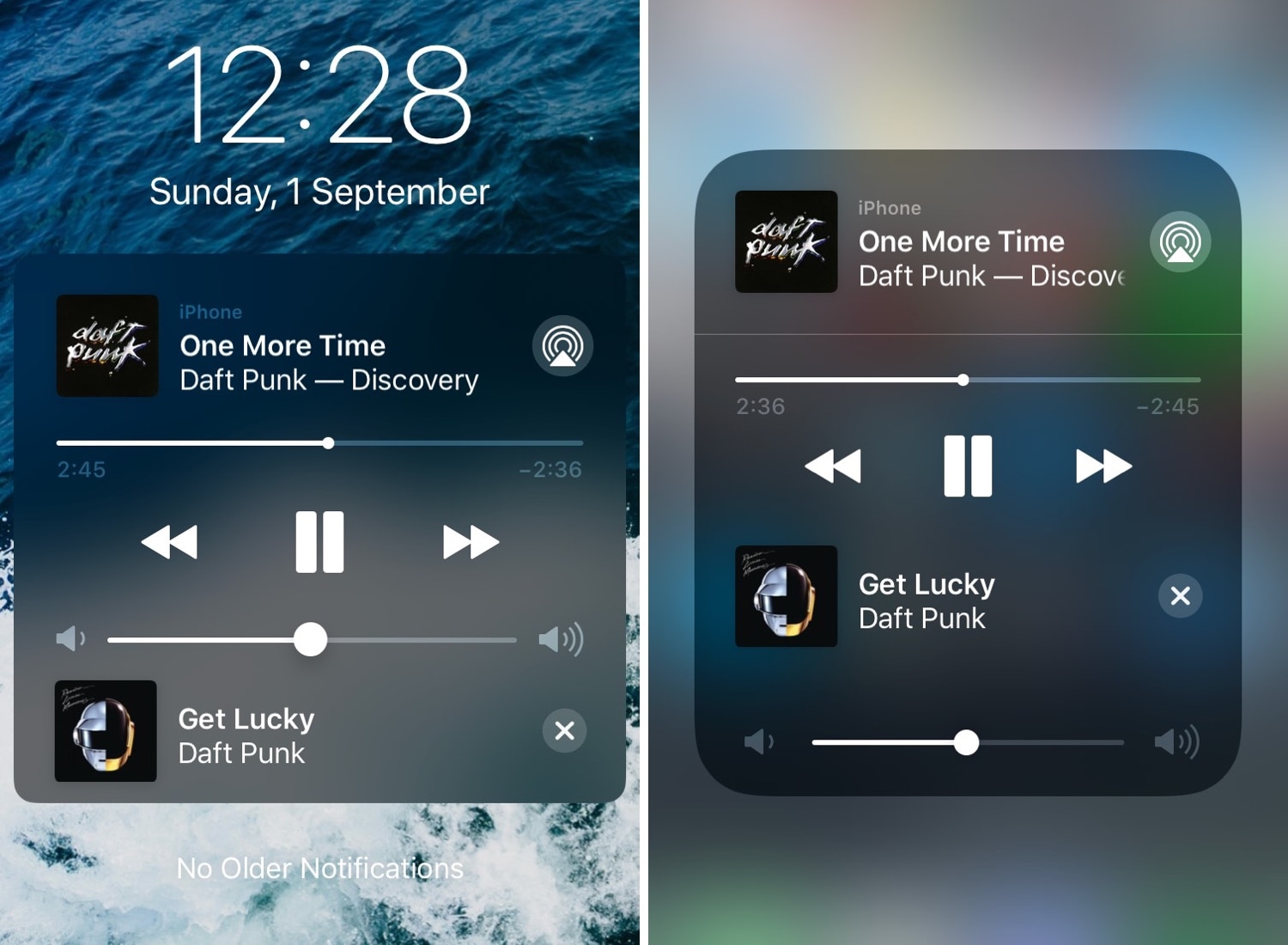
NextUp 2 upgrades iOS’ Now Playing widget with an interactive song queue


We absolutely love how Now Playing media information is accessible from virtually anywhere in iOS, but one thing we don’t adore is just how useless the Now Playing interface can seem at times.

Given the circumstances, we’re particularly excited to show you a jailbreak tweak called NextUp 2 (iOS 12) by iOS developer Andreas Henriksson, as it upgrades iOS’ native Now Playing interface with useful new controls pertaining to upcoming tracks.

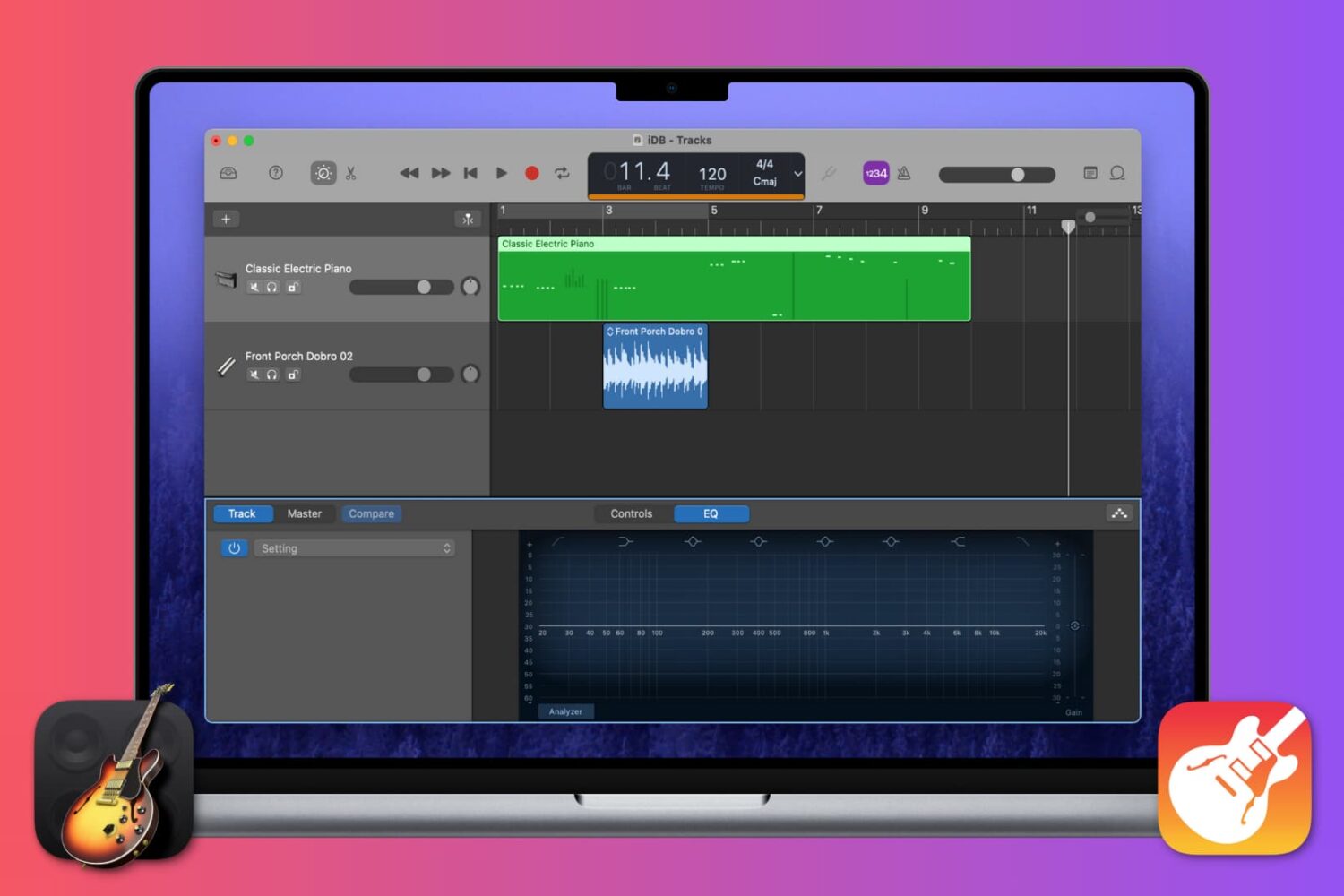
How to show, add and edit musical notes in GarageBand

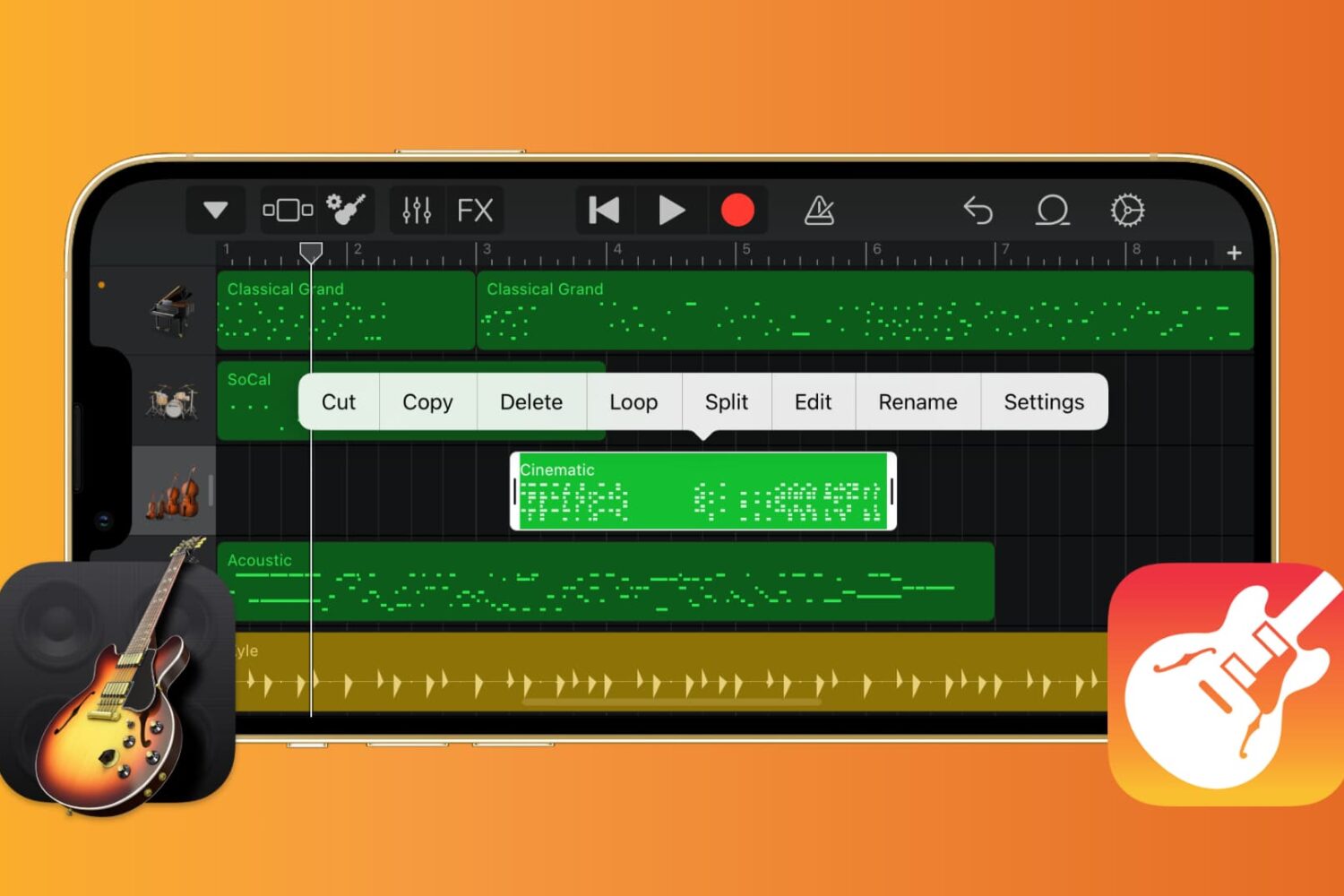
GarageBand editing screen on iPhone

If you want to work with the musical notes in GarageBand for your song, you can show, add, and edit notes. In GarageBand on Mac, you can work with notes for MIDI regions, and on iOS, you can work with them for green touch instrument regions.

Here’s how to show, add, and edit musical notes in GarageBand on Mac, iPad, and iPhone.

How to adjust track volume in GarageBand on Mac, iPad, and iPhone

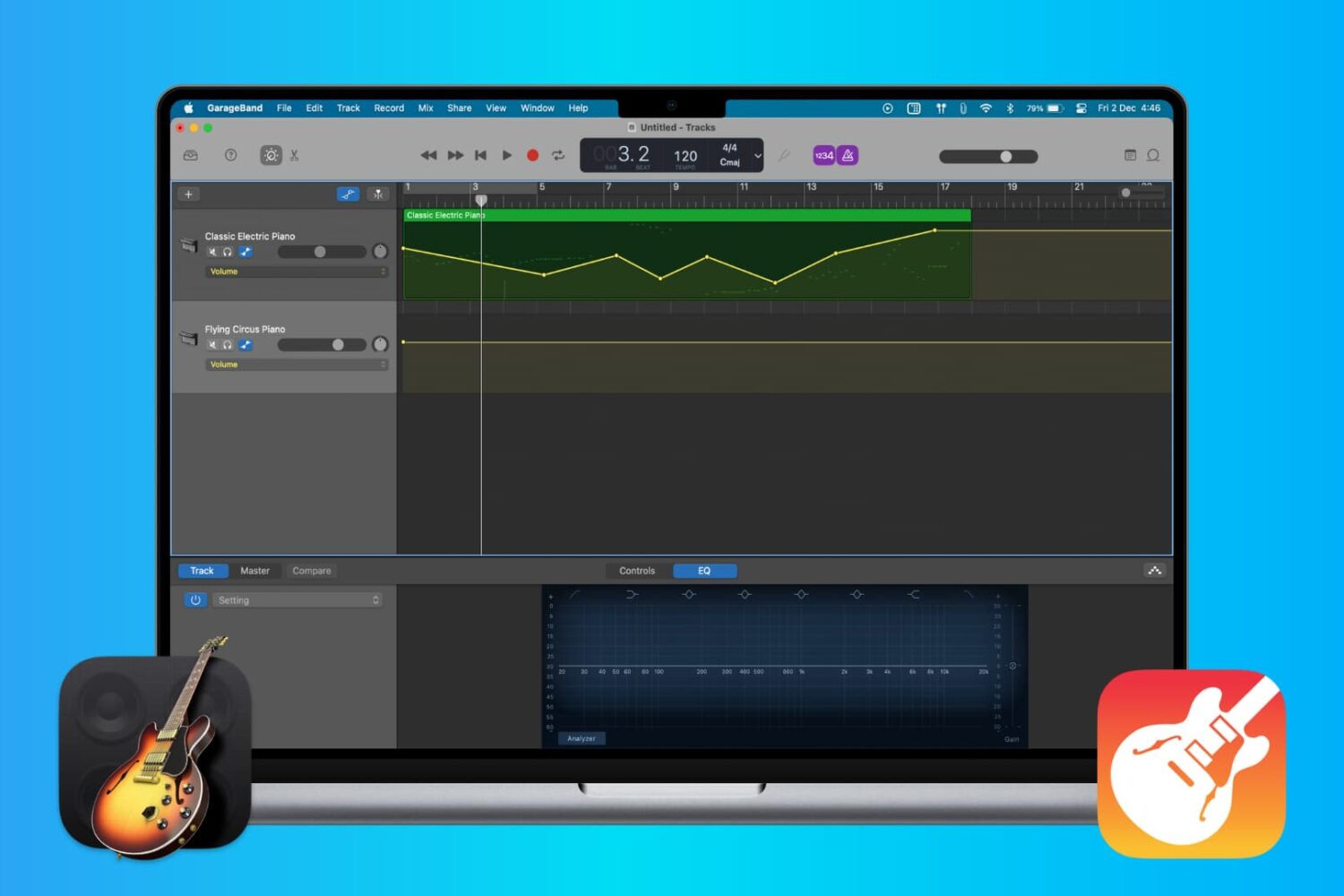
Adjust track volume in GarageBand

When you’re making music in GarageBand, you’re mixing regions and tracks to create your song. Whether you’re using vocals or instruments, not every track needs to have the same volume. You might want an instrument to play subtly in the background while emphasizing vocals, for example. Or you may want the volume of a track to increase and decrease at certain points.

Here’s how to adjust the track volume in GarageBand on Mac, iPhone, and iPad.

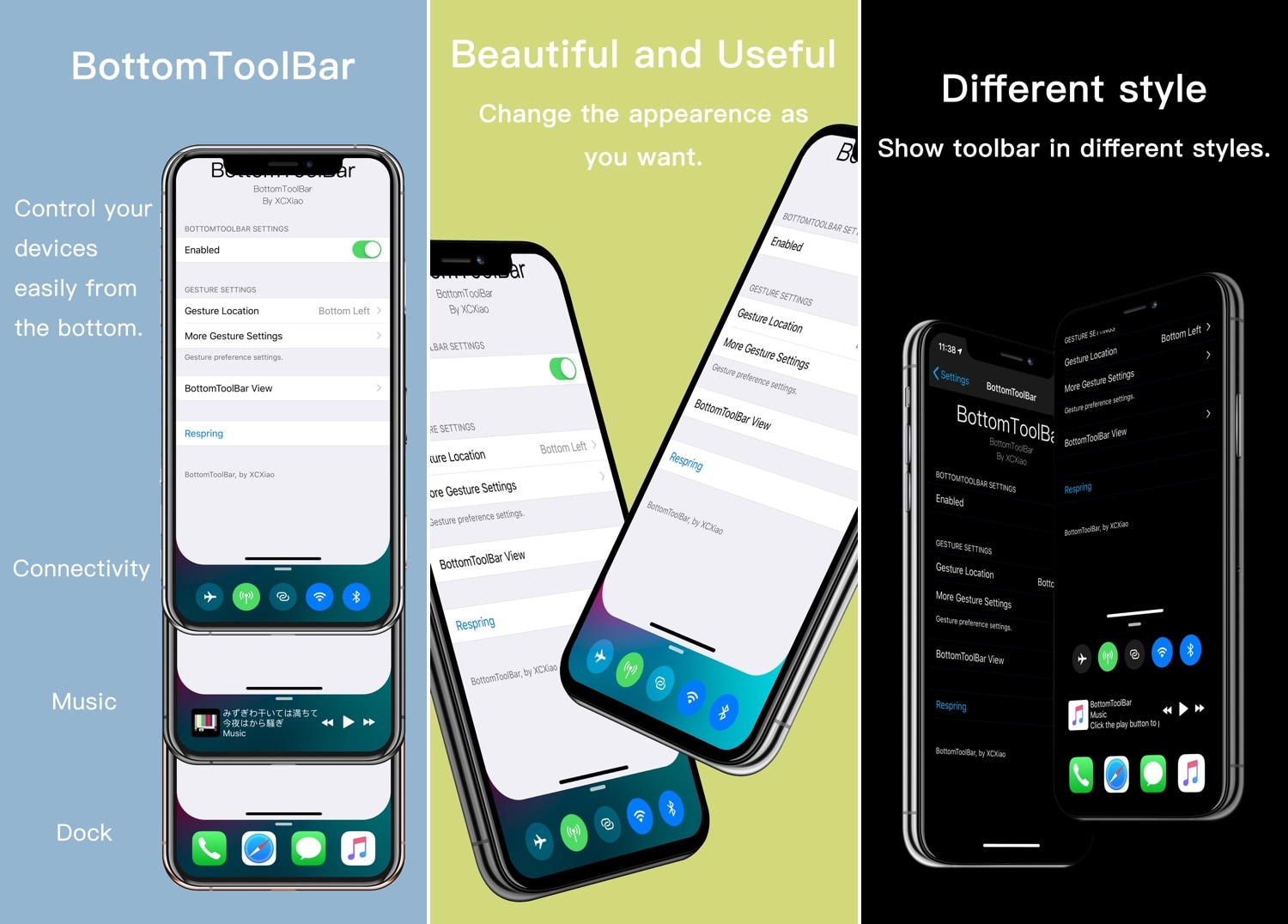
BottomToolBar makes it easier to access your iPhone’s most important features

Those sporting jailbroken iOS devices understand what those without jailbroken iOS devices don’t: the seemingly endless itch to customize and improve your device’s software beyond what Apple designed it to be. Fortunately, we’ve got a tweak that fits this necessity quite well.

Enter BottomToolBar, a newly released jailbreak tweak by iOS developer XCXiao that puts an easy-to-summon shortcut bar at the bottom of your display with fast access to useful shortcuts and information.

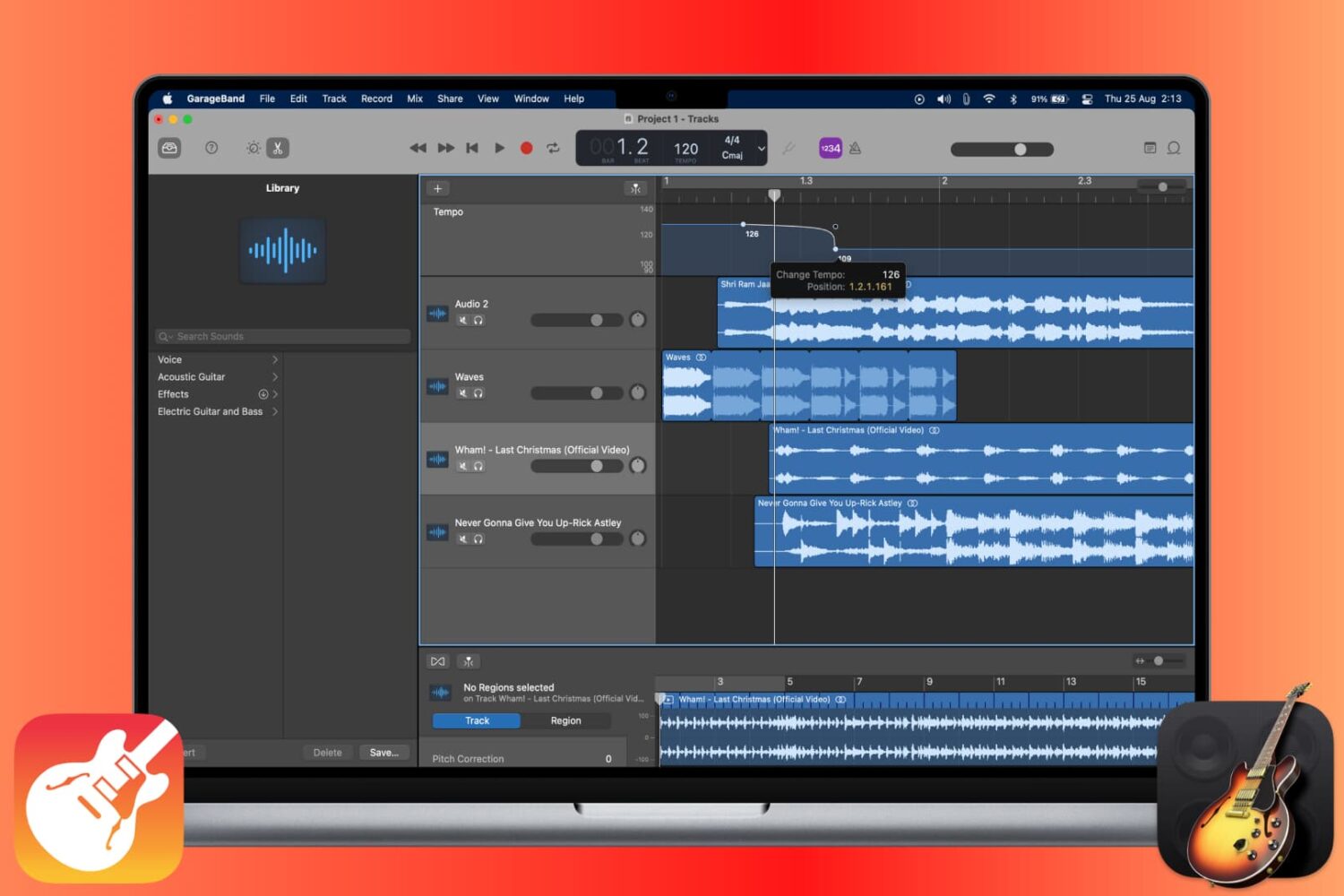
How to change the tempo in GarageBand on Mac and iOS

Change Tempo in GarageBand

The tempo in GarageBand is expressed in beats per minute and is set to 120 by default. But you can change it to match the tempo you need for your song. On iOS, you can change the tempo for your song to a specific value. And on Mac, you also adjust it for the entire song or add tempo points to the Tempo Track so that the tempo changes throughout the song.

This tutorial shows you how to change the tempo for a song in GarageBand.

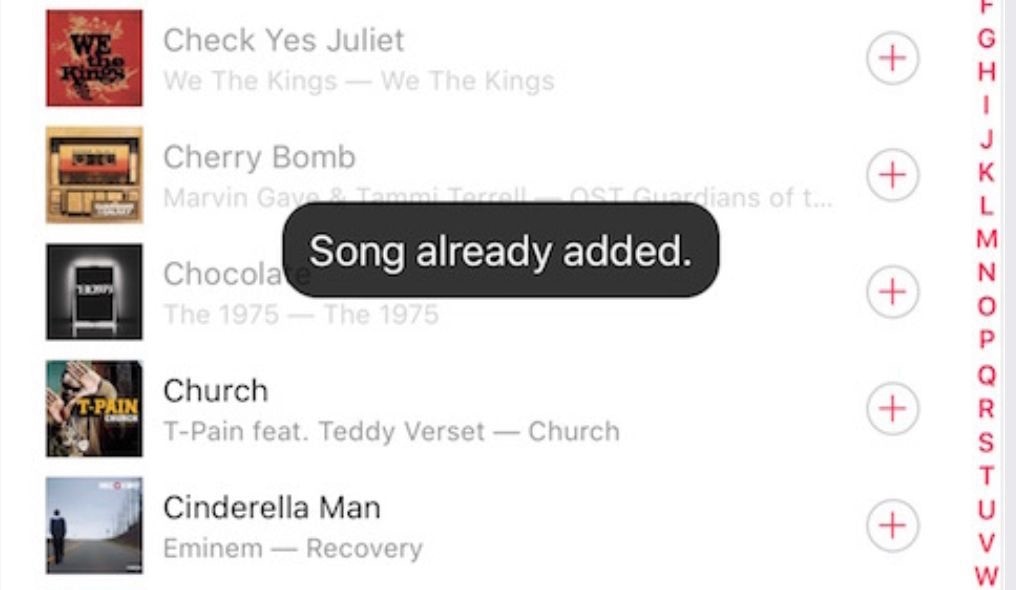
This tweak prevents you from adding duplicate tracks to Music playlists

If you take advantage of Apple’s native Music app to enjoy songs from your favorite artists, then you probably already know just how easy it is to add the same song to a playlist more than once.

Although Apple hasn’t integrated any safeguards against duplicate songs in your playlists, iOS developer Frozen Penguin is here with a solution in the form of a new and free jailbreak tweak called Dejavu2.

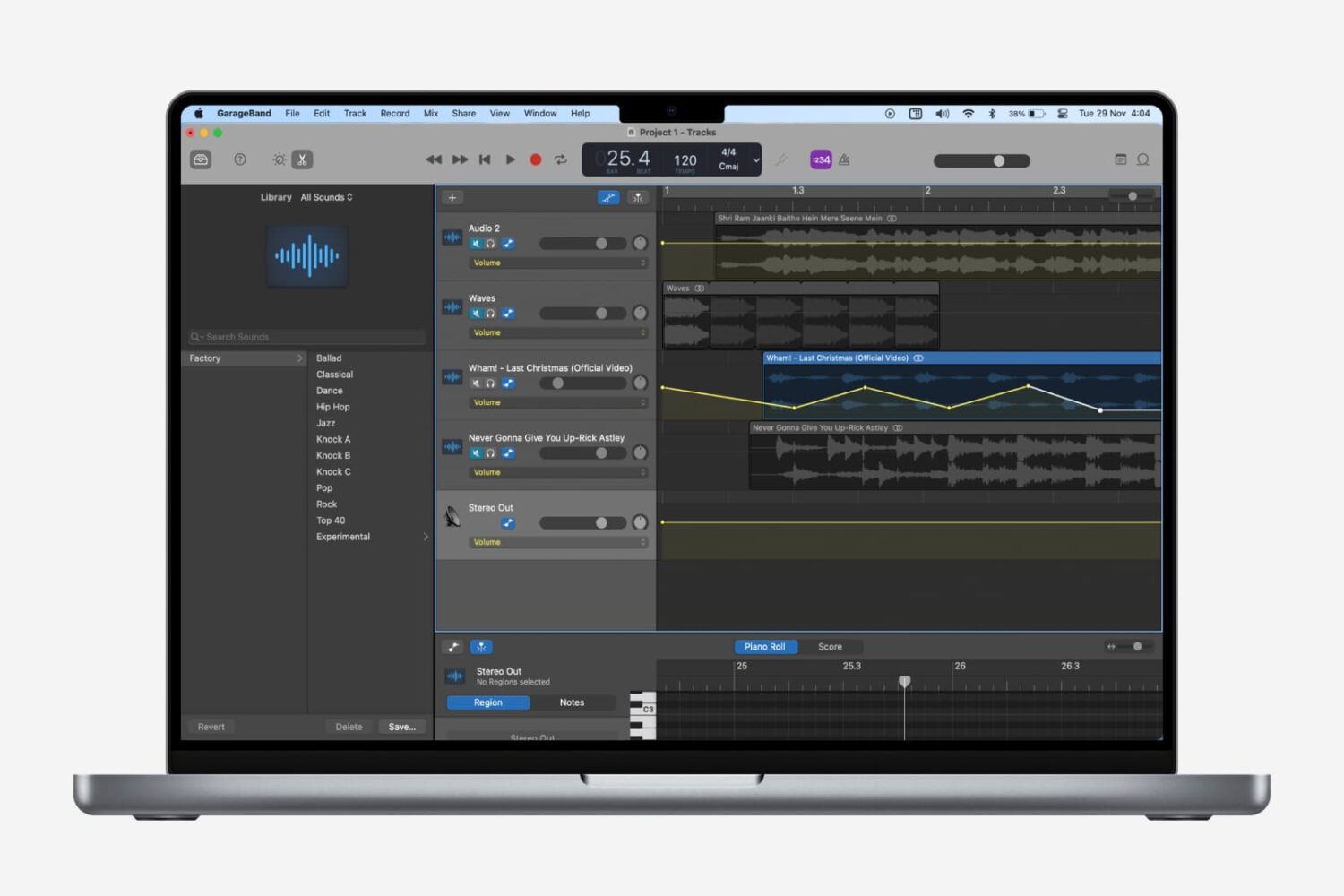
How to add fade in and fade out to songs in GarageBand

Fade songs in and out in GarageBand on Mac

Fading out of a song is something that we hear all the time when listening to our favorite tunes. As the song begins to come to an end, you’ll hear it slowly fade away to silence. If you’re creating your own music in GarageBand, you can add this effect as well.

While fading into a song isn’t as widely used, we’ll show you how to do that on Mac as well. So open up GarageBand on Mac or iOS and then follow our tutorial to add fade out to your songs.

How to use or turn off the Metronome in GarageBand on Mac and iOS

Metronome

The Metronome in GarageBand offers a steady beat that helps you keep time when you’re recording or just listening to your song. The feature also uses a one-measure Count-in so that you can get ready when you’re recording a song, just like you hear live bands do when performing.

You can turn the Metronome and Count-in on and off as well as adjust the Count-in bars on both Mac and iOS, and this tutorial shows you how.