Messages

Tip: use Messages low quality image mode to conserve precious cellular data

Apple's Messages app provides an optional iOS-only mode which cuts down your cellular data consumption to a bare minimum when sending image attachments. I don't know about you, but I worry about sharing high-resolution images when cellular data is on. In my experience, most normals are oblivious to the fact that sending a single shot-on-iPhone photograph through iMessage burns through one to five megabytes of data, sometimes even more.

In low quality mode, Messages uses only 100KB per image attachment. Another way to think about it: you can send 30 to 50 images for the same amount of data required to share a full-resolution attachment in Messages. In this brief tutorial, we'll teach you how to tell Messages to send lower quality images in order to optimize your cellular data consumption and prevent unwanted overage fees.

New low quality mode in iOS 10 Messages uses circa 100KB per sent image

As you know, iMessage overcomes many of the limitations of standard MMS. Every time you attach an image taken on your iPhone and iPad to an iMessage, it's delivered in its original size and resolution. Some downscaling may occur, but only for very high resolution images: those taken with an iOS device are always delivered in their original form without any resizing taking place.

And herein lies a problem for those of you who send a lot of images via a cellular data connection.

Knowing a typical photo taken on an iPhone 6s weighs in at between three to five megabytes (or even more), it does add up pretty quickly. If you're concerned about cellular data consumption (as you should be), pay attention as Messages on iOS 10 offers a brand new low quality mode.

We've determined it downscales images sent through iMessage to circa 100 kilobytes each. In other words, for the amount of data you'd normally spend to shoot someone a single photo via iMessage you get to send 30 to 50 images in low quality mode.

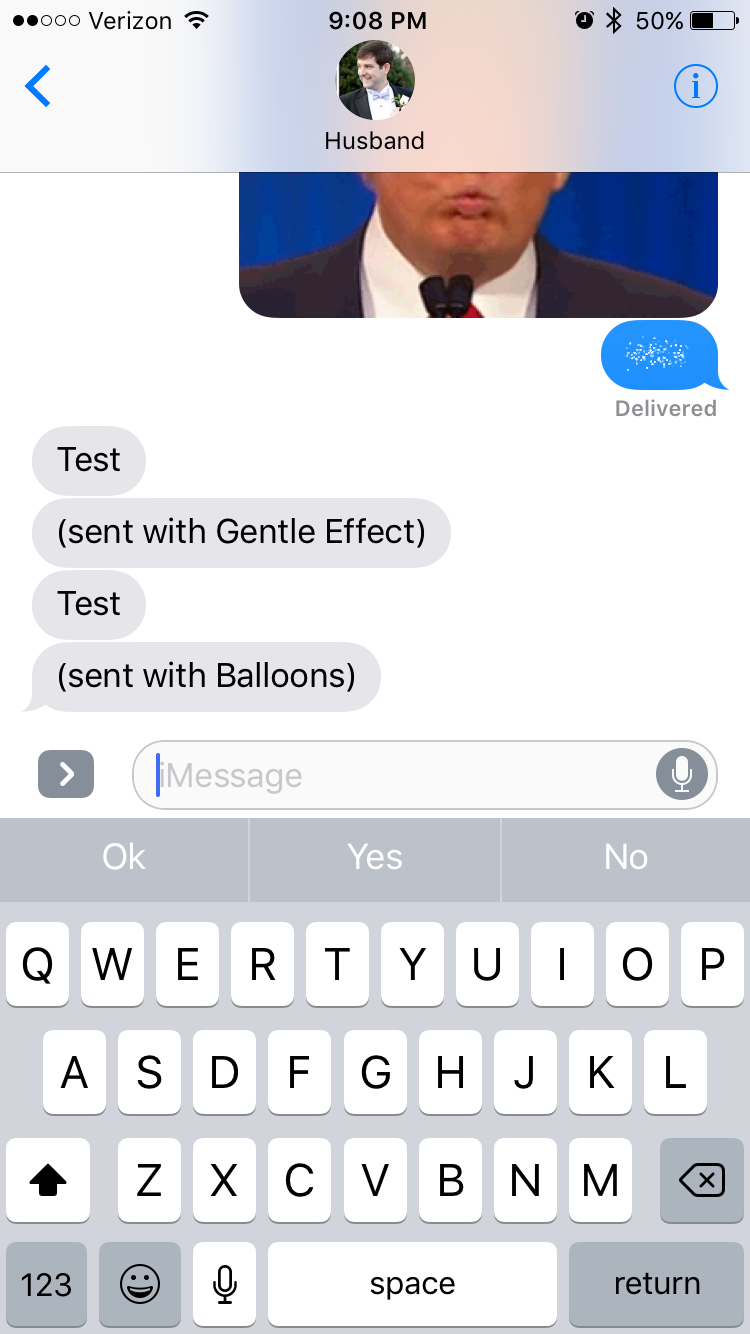
iMessage bubble and screen effects not working in iOS 10? Try this

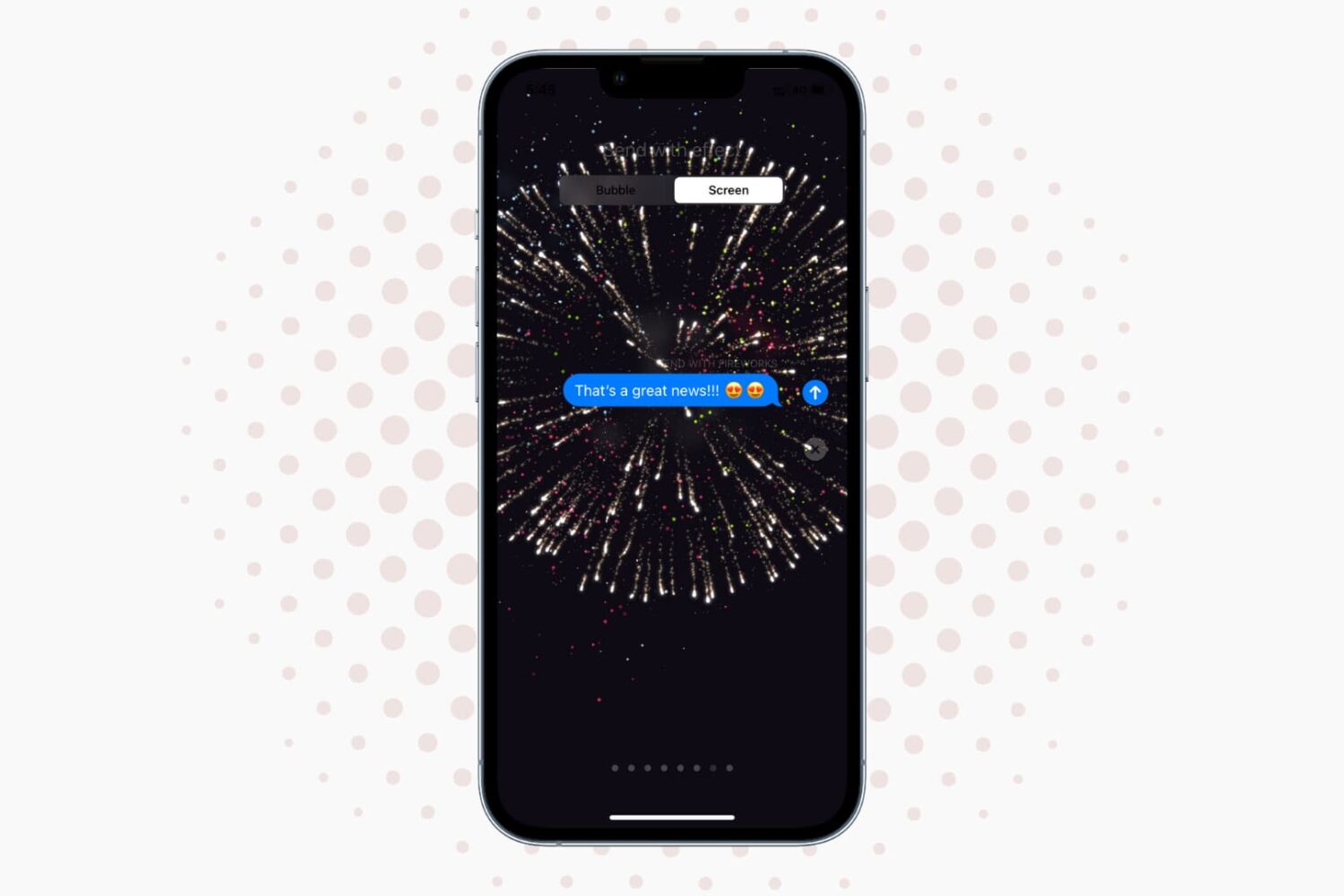
One of the flagship features of iOS 10 is the new pack of bubble and screen effects you can use to give some pop to your messages. If you're anything like me and my wife, this is the first thing you tried after installing iOS 10. But if you're anything like me and my wife, you might have also ran into some problems where one of the devices was able to send effects, but not receive them.

How to disable Direct Message read receipts on Twitter

Twitter has made some new changes to the Direct Message system that lets its users communicate with one another privately. Among those changes is the addition of sending and receiving read receipts.

In this tutorial, we'll show you how you can disable those read receipts so you're not letting everyone know when you see their Direct Messages.

Super VoiceMail: A slick new way to handle your iPhone’s voicemail

Just last week, we showed you a jailbreak tweak called AnsweringMachine that took the jailbreak community by surprise and showed us that the iPhone's voicemail system has a lot to be desired. On the other hand, another new release called Super VoiceMail also looks very promising.

In this review, we'll show you what Super VoiceMail has to offer and help you decide which of the two jailbreak tweaks you should go with.

AutoPaste makes using GIF keyboards easier on jailbroken iPhones

There are a lot of people out there who love using GIF images as a way of expressing their feelings, and it would seem that jailbreak developer Ryan Petrich is no different.

With a new beta jailbreak tweak release he's calling AutoPaste, he aims to make sharing GIF images in your favorite messaging apps with third-party GIF keyboards from the App Store faster and easier than before.

iOS 10 tidbit: sending fireballs via Digital Touch

The Digital Touch interface made its debut on the Apple Watch in April 2015. With iOS 10, Apple is bringing Digital Touch features to the Messages app and it does so much more than its wrist counterpart was capable of at launch.

With Digital Touch, you can doodle over live video, adorn your messages with animated kisses, digital taps and auto-dissapearing drawings and even send animated hearts and broken hearts to other people.

Today, we're taking a closer look at another nifty feature in iOS 10 Messages: the ability to express your angst or anger by shooting virtual fireballs at your recipient(s).

iOS 10 tidbit: auto-playing full-screen effects in Messages for texts like “Happy Birthday”

iOS 10's Messages app offers a number of new features and meaningful improvements, such as bubble effects, smarter emoji, full-screen animations and so forth. Moreover, iOS 10 turns Messages into a software platform of its own with support for third-party iMessage Apps, stickers and other downloadable items via the App Store.

We previously covered various Messages capabilities on iOS 10, like Spotlight Suggestions in chats, using Digital Touch to send animated kisses and broken hearts, managing read-receipts on a per-chat basis, to mention just a few. Today, we take a look at another cool Messages feature: the ability to automatically play appropriate full-screen effects based on certain messages.