Messages

How to stop audio messages from disappearing on iPhone and iPad

Stop Audio Messages from Expiring on iPhone

Audio messages in the Messages app are cool little ways of communicating without text. You can tell someone you love them, send them a song clip, or just ask what’s up, all with your own voice.

The thing about audio messages, however, is that they don’t hang around forever. By default, they expire after two minutes of sending or listening to them, not to be heard again. This might be fine for some but not for others.

If you fall into the “others” category and want to hang onto those clips, here’s how to stop audio messages from expiring in the Messages app on iPhone and iPad.

MessageColors lets you add color gradients to the Messages app

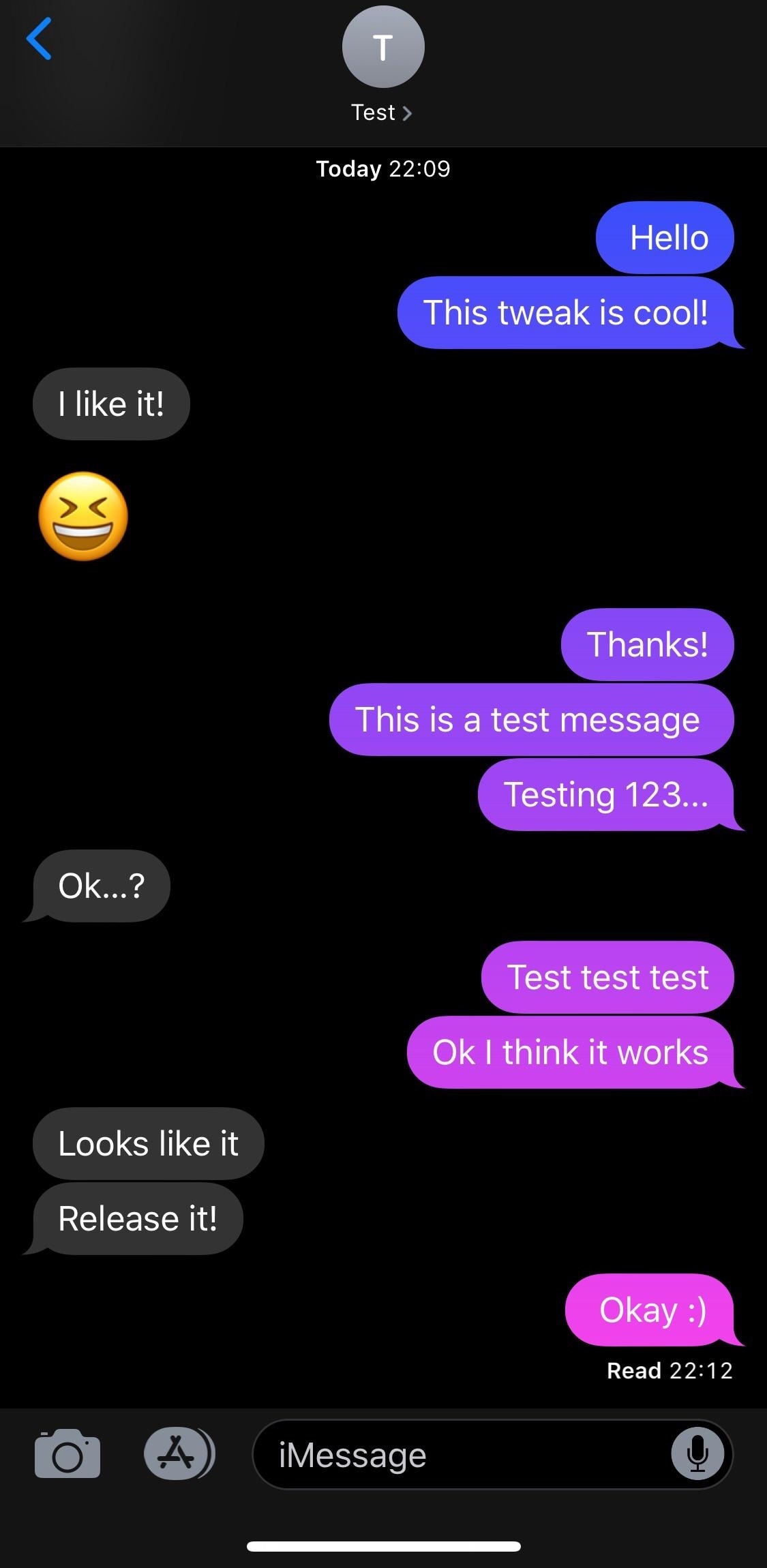
If you have an iPhone, then chances are you spend a lot of time in the Messages app text messaging other people. With that in mind, wouldn’t it be great if you could colorize the Messages app to match your individual personality?

If you like what you’re hearing so far, then you’ll probably enjoy a new free jailbreak tweak called MessageColors by iOS developer RestiveConch. This tweak lets you apply custom color gradients to your Messages app, making it possible to achieve the result you see in the screenshot example above.

How to hide alerts for group texts on iPhone, iPad and Mac

Mute Group Text Notifications iPhone

Group text messages can often get out of control, with several participants sending messages in quick succession. In such situations, you can either leave the group text or hide group text alerts and see them later.

This brief tutorial will show you how to turn off notifications for group iMessage or SMS conversations on your iPhone, iPad, and Mac. We will also share a pro tip that ensures you're instantly notified of the group message with you in it, even if that group conversation is muted!

Attach root filesystem files to any iMessage or SMS on a jailbroken device with MessageFile

Your iPhone’s native Messages app incorporates a button for attaching photos and videos from your Photo Library, but wouldn’t it be nice if you could also attach general filetypes from your jailbroken handset’s filesystem much like you already can on macOS?

If you answered yes to the aforementioned question, then you’ll be ecstatic to learn about a free jailbreak tweak called MessageFile by iOS developer Julio Verne. Just as the name implies, MesseageFile lets you choose and send any file from your iPhone or iPad’s root filesystem over iMessage or SMS directly from the native Messages app.

How to forward a text message on iPhone, iPad, Mac, and Apple Watch

Two messages selected on iPhone and ready to be sent forward

There are all sorts of reasons that you may want to forward a text message. Maybe it’s directions to a location, a confirmation, a receipt you need to share, or maybe it’s simply something funny someone sent you or vice versa.

Whatever your reason, here’s how to forward a text message on iPhone, iPad, Mac, and Apple Watch. And it works the same with both SMS and iMessage texts.

MessageBubbles brings a new look and feel to your messaging notifications

If you own an iPhone, then a significant percentage of your usage likely comprises of text messaging. Notifications for incoming messages typically stack up on the Lock screen until you acknowledge them, but if you fancy something that looks nicer, then you might appreciate a new jailbreak tweak called MessageBubbles by iOS developer Kurrt.

As the name implies, MessageBubbles replaces the Lock screen’s standard notification system with a unique message bubble-centric animation. In the screenshot example above, you’ll see how the background stays black as message bubbles from various apps roll into view. You’ll also notice how the message bubbles are color-matched to the app they originate from. This particular combination looks great on OLED displays, but also works on LCD displays.