Mac Tip

How to pair Android Wear without an Android Phone using a virtual machine on Mac

I know, it may sound fairly niche, but hear me out. Recently, there's been a lot of buzz about using Android Wear devices with the iPhone, and that's the reason why I started exploring this topic to begin with.

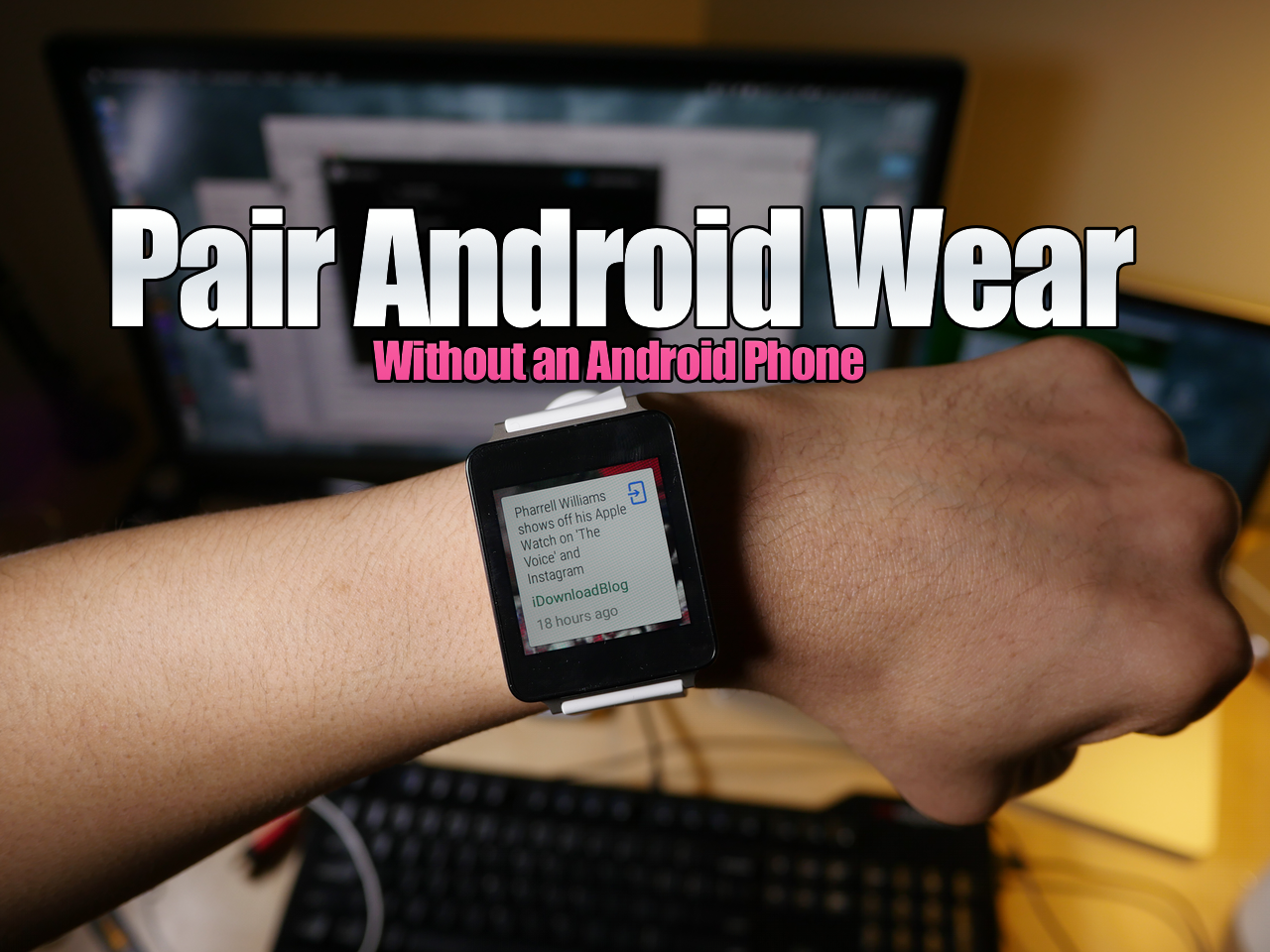
As it turns out, when you buy an Android Wear device, you need an Android device to "activate" the smartwatch (go figure). Since I don't currently own an Android phone, my LG G Watch was stuck at the pairing screen.

Yes, there are more "in-depth" ways to go about getting passed this screen, but not everyone is up to that task. With this in mind, I've created a video tutorial that shows you how to run an Android virtual machine on your Mac with Parallels, and how to then pair an Android Wear device with the virtual machine.

How to run Android apps like WhatsApp and Instagram on Mac

ARC, or App Runtime for Chrome, is a tool that allows you to run many Android apps right on a desktop machine. For the most part, the apps look and function like they do on an Android phone or tablet.

Why is this so cool? Well, it means that you can now have access to whole variety of new apps. Some apps, like WhatsApp, have no native desktop counterpart, so it's especially nice for apps like these.

While it isn't a perfect 1:1 solution, and some apps outright don't work, it's worth trying if there's an app that you want that isn't otherwise available on the desktop. In this post and video, we'll walk you through the steps of configuring Google's ARC Welder tool, and show you how to run multiple applications as well.

How to get a 3D dock on OS X Yosemite

Do you miss OS X's 3D dock? OS X Yosemite finally did away with the 3D dock that's been present since the release of OS X Leopard, but you can get it back by using a simple application called cDock.

cDock includes, among a host of other features, the ability to theme the dock with over a dozen built-in themes. There are night themes, fullscreen themes, pink themes, and, of course, 3D themes. If you've been reminiscing about the "good ol' days", then you can easily relive the past with this handy little application.

How to use window snapping with HyperDock on Mac

As many of you guys know, I'm a huge HyperDock ($9.99 on the Mac App Store) proponent. I use it primarily to have access to window previews of running apps in the OS X dock, but the tweak has additional features as well.

The biggest side benefit to using HyperDock is its window snapping capabilities. It's not the deepest window snapping feature-set out there, but if you need basic Windows-like functionality, it's should have more than enough to win you over.

How to create folder shortcuts on Mac

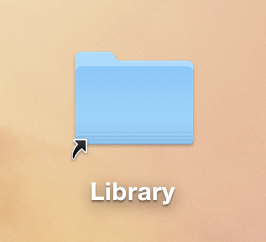
On Windows, you create shortcuts. On Mac? There's this little thing called aliases. Aliases are shortcuts that make it easier to find a file, folder, disk, or application. You can place aliases on your desktop, in the Dock, or anywhere else that's easy to find. In this tutorial, I'll show you two easy ways to create aliases on your Mac.

How to extract images from apps with the Preview app on Mac

Applications on the Mac are really just directory structures containing files, images, assets, executables, and the like. If you've ever right-clicked on an application and selected Show Package Contents, then you know exactly what I mean.

While right-clicking is a reasonable solution for extracting image, font, and other visible assets from an application, the Preview app makes doing so even easier. By simply dragging and dropping an app on the Preview app icon in the dock, you're presented with a easy navigable thumbnail view of all of the app's various assets.

How to tab between dialogue box buttons on Mac

Tab key on Mac's keyboard

The tabbing experience on Mac might feel a little gimped if you're coming from a Windows machine. That's because, by default, macOS makes it so that the option to move keyboard focus between all controls with the Tab key is disabled. Instead, tabbing is only possible between text boxes and lists using the default setting. In this tutorial, I'll show you two quick and easy ways to change this setting and enable a much-improved tabbing experience on your Mac.