Mac Tip

How to sort notifications by arrival time in Notification Center on Mac

I have to admit that I'm not a huge user of Notification Center, and this applies to both iOS and the Mac. One of the reasons that I'm turned off by Notification Center is the disarray that I see when viewing it.

By default, Notification Center is set to sort manually, which means that you can go into its preferences, and sort each app by hand. That's fine and all, but it makes for a less than ideal experience when trying to find the most relevant notifications based on time of arrival.

For me, this results in a less than ideal experience when opening Notification Center. If you have a lot of apps enabled for Notifications, it can be overwhelming, because there's no real logical order to the way they're sorted. To remedy this issue, try this simple tip, and sort your notifications by time of arrival instead.

How to use TextExpander to quickly insert keyboard symbols on Mac

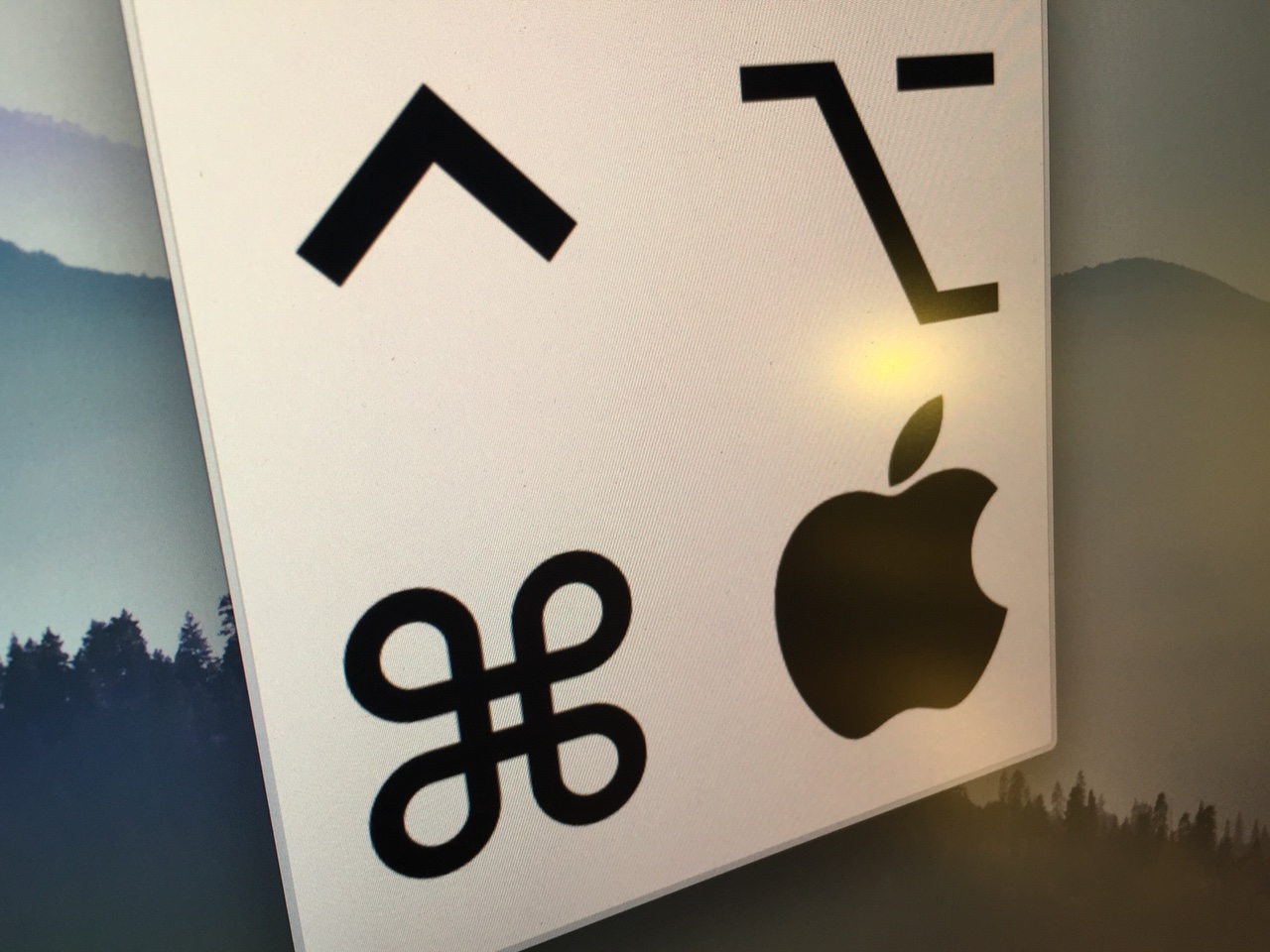
You may have noticed how I like to use keyboard symbols in my posts. You know, things like ⇧, or ⌃, or ⌘, or even ⌥. I use → a lot too, which is helpful when laying out a certain order of steps in my tutorials.

Some of you may think that I've memorized the code for these symbols (I haven't), or that I copy and paste them from a document or keep them on my clipboard somehow (I don't). Instead, I use the venerable TextExpander utility to make inserting these symbols a totally effortless affair.

How to assign a keyboard shortcut to Notification Center on Mac

It might seem fairly obvious, but it might be a good idea to assign a keyboard shortcut to Notification Center on the Mac. Perhaps you already have, or maybe you still haven't. I hadn't, at least not up until a few days ago when a reader suggested that I do so, and I honestly can't come up with a reason as to why I waited so long. I think it's because I just never thought about doing it.

Assigning Notification Center to a keyboard shortcut just makes sense. It especially makes sense if you use a keyboard and mouse combination on your Mac, instead of a trackpad. Granted, MacBook users might not be so easily convinced, because invoking Notification Center can be accomplished via an effortless two-finger swipe on the trackpad.

But if you're working on an iMac, or if you're using a traditional mouse and keyboard combination with your MacBook, as I am, then I definitely recommend that you follow this uber-simple tip.

How to add more Notification Center widgets on Mac

Like its iOS counterpart, Notification Center for Mac comes bundled with several stock Today widgets to get you started. However, it's possible to add third-party widgets to Notification Center's Today View by means of the Mac App Store and via direct download. Inside, we'll highlight how to add new widgets to Notification Center along with several widget recommendations.

How to quickly toggle dark mode using a keyboard shortcut on Mac

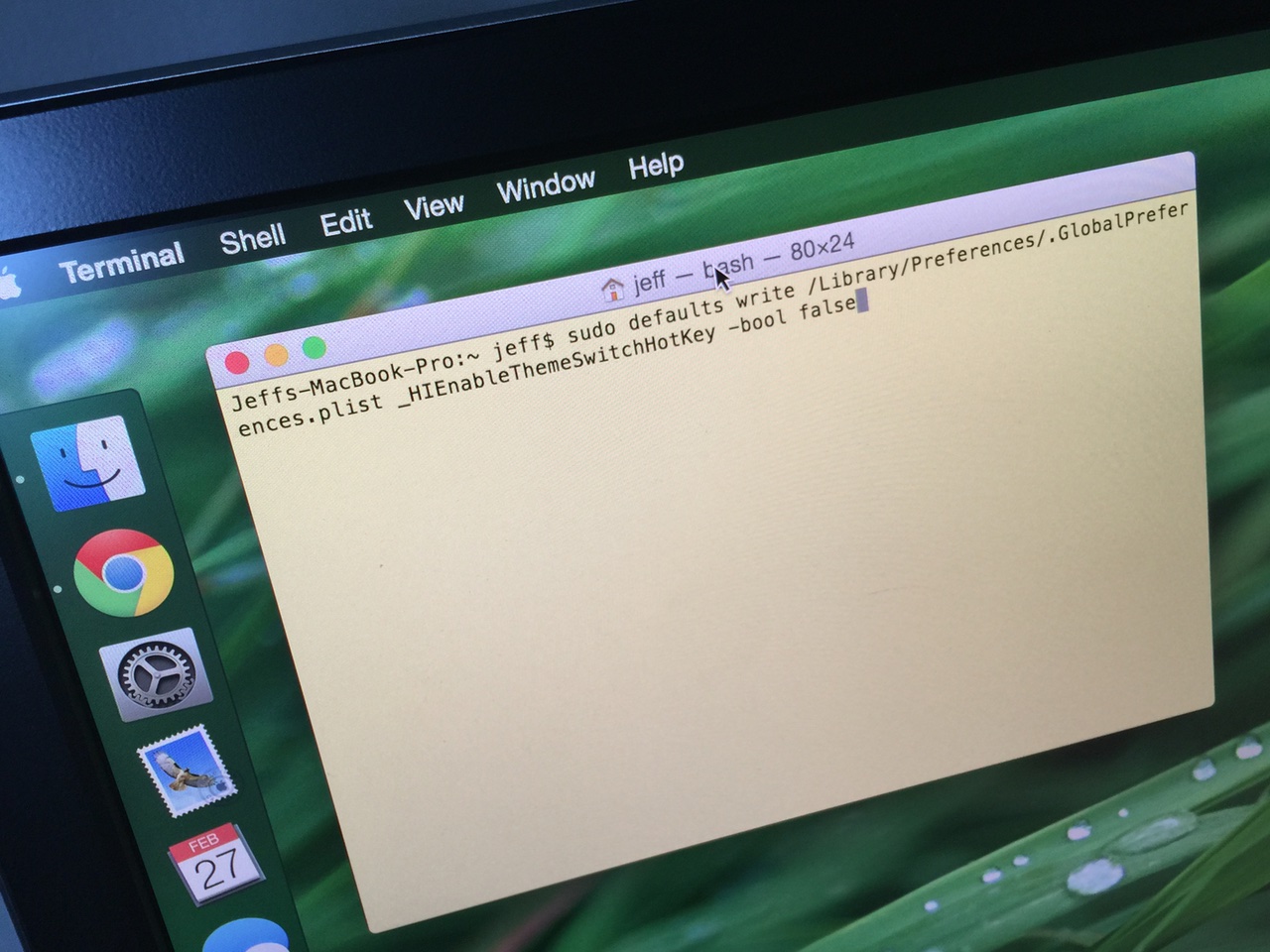
Dark mode is one of the more popular features of OS X Yosemite, because it allows you to add a dark tint to both the dock and the menu bar on Mac. The standard way to enable dark mode involves venturing to System Preferences, opening the General section, and clicking on the enable dark mode option. But wouldn't it be cool if you could toggle dark mode using a simple keyboard shortcut?

How to make third-party menu bar icons look better with dark mode on Mac

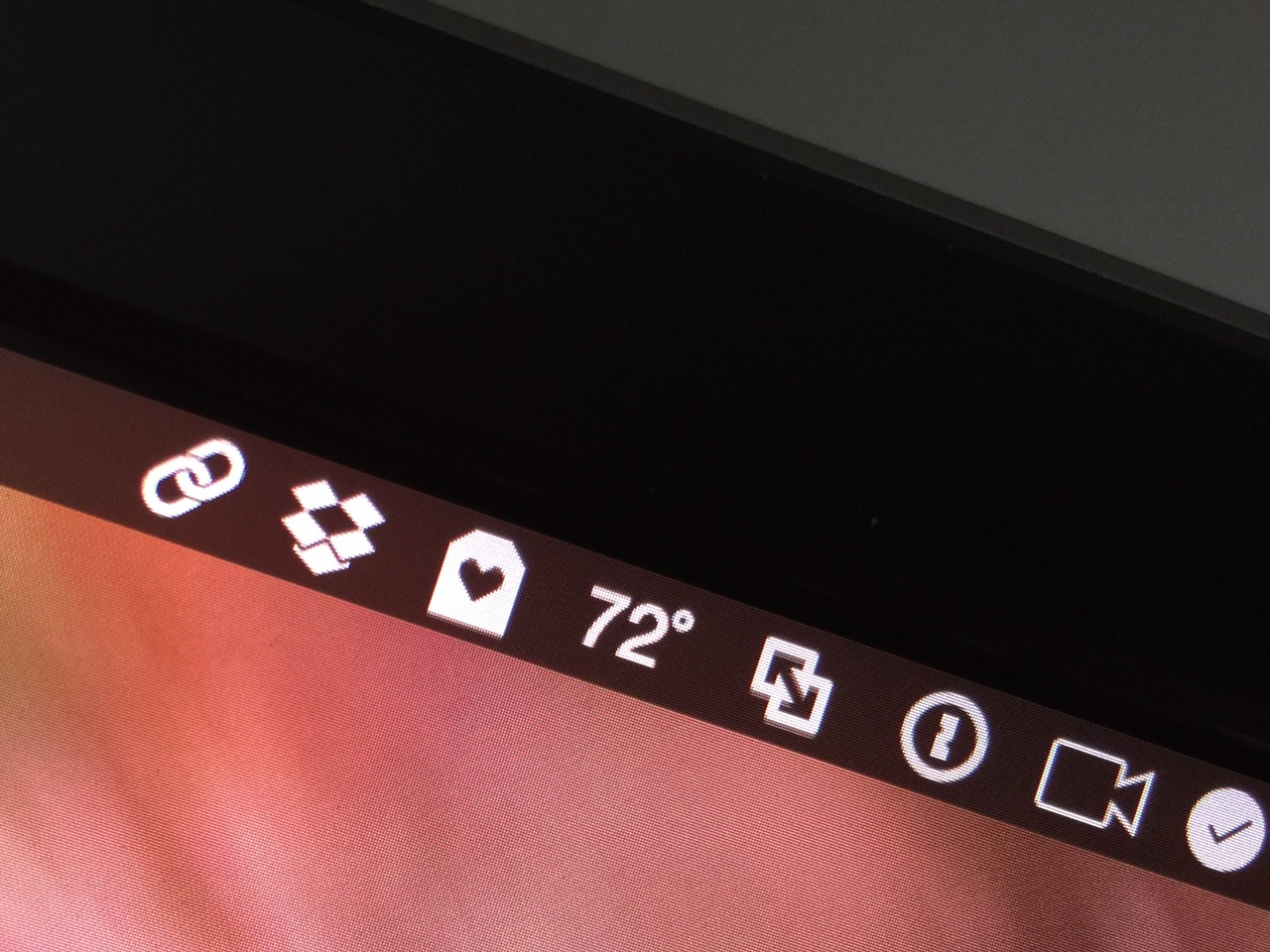
OS X Yosemite introduced a new dark mode option to change the tint color of both the menu bar and the dock in OS X. While I'm a big fan of dark mode, some of the third-party apps that I use have not been updated to play nice with dark mode. This results in menu bar icons that look weird with dark mode enabled, because they don't invert after toggling dark mode on.

If you're someone who always uses dark mode and never switches to regular mode, there is a way to force these menu bar icons to look better with dark mode enabled...

Empty Trash versus Secure Empty Trash – what’s the difference?

Did you know that there are actually two ways to empty the trash on your Mac? Perhaps you've seen both options before, but never gave it much thought. Just what is the deal with Empty Trash versus Secure Empty Trash? Which one should you use? By knowing what each empty trash command is capable of doing, you'll be able to make more informed future decisions with regard to handling your Mac's sanitation needs.