Learn how to remove the security lock from your Hidden and Recently Deleted folders in the Photos app on your iPhone, iPad, and Mac.
Permanently unlock Hidden and Recently Deleted in Apple Photos

Stay up-to-date on the latest Mac news, and tutorials. Get expert tips and tricks to optimize your Mac’s performance and learn about the latest Apple products and software updates. Discover the best Mac apps and accessories to enhance your user experience.
Learn how to remove the security lock from your Hidden and Recently Deleted folders in the Photos app on your iPhone, iPad, and Mac.
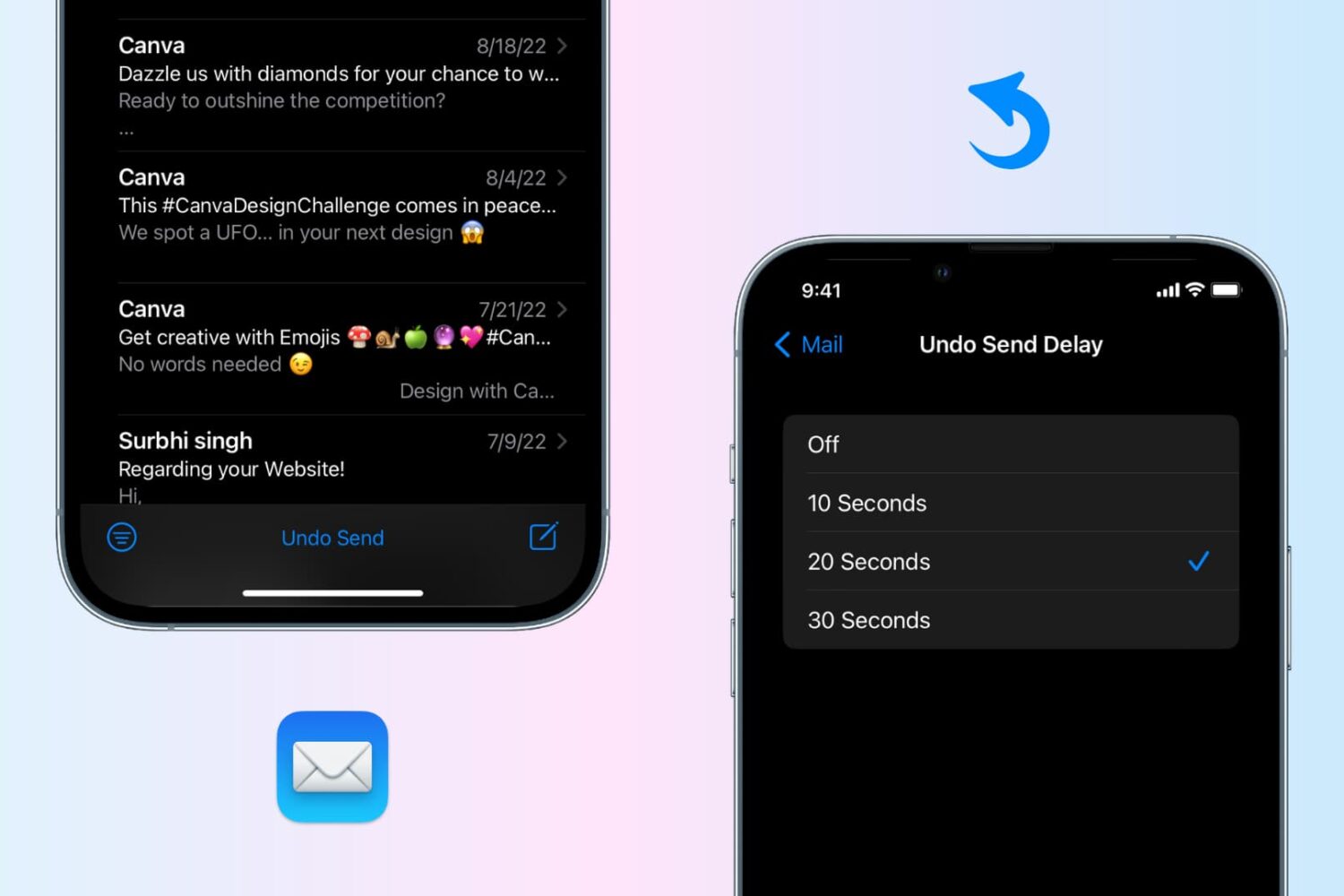
Undo send an email in the Apple Mail app on your iPhone, iPad, or Mac to recall the sent email before it reaches the recipient’s inbox.
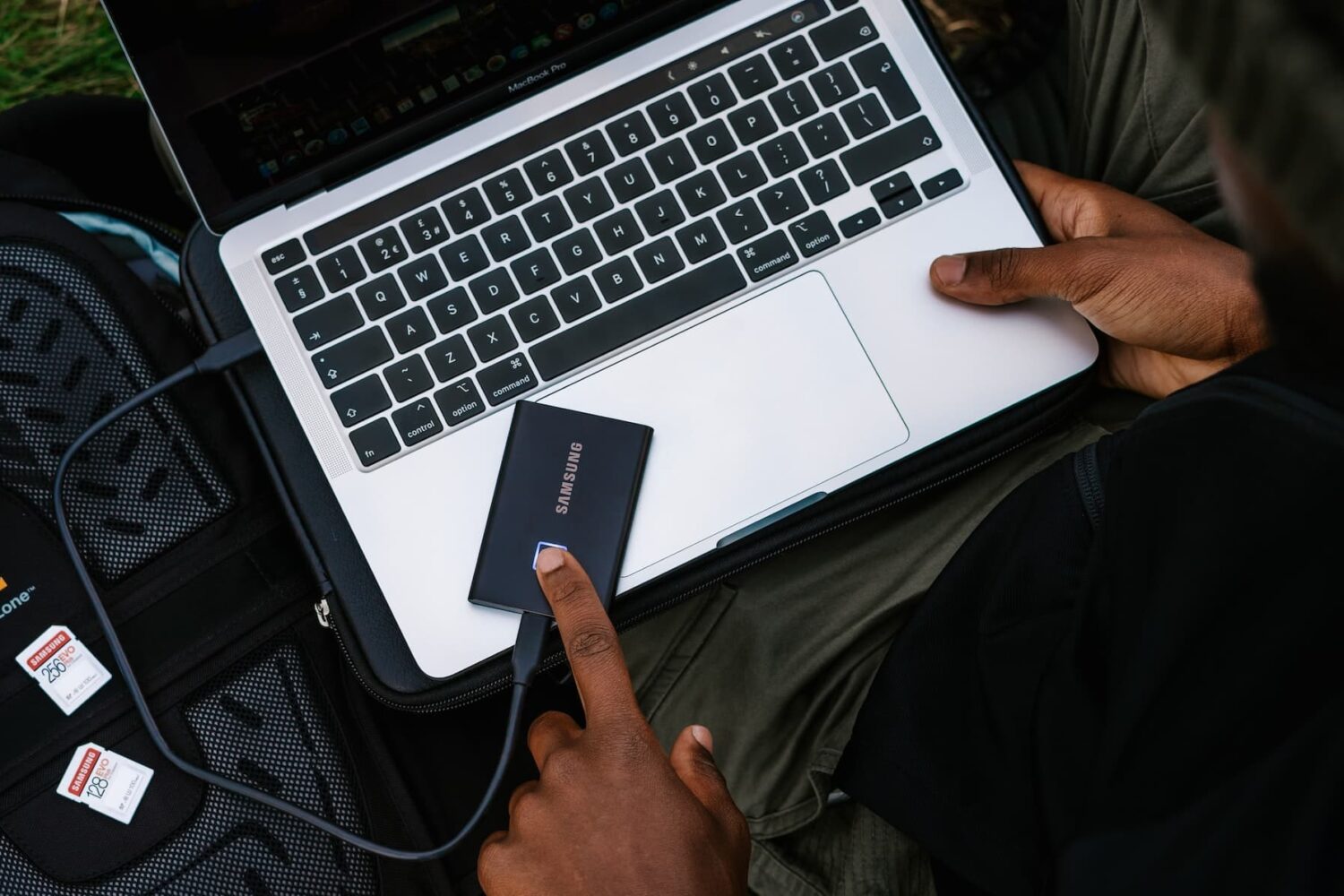
Learn what to do if your external hard disk, SSD, thumb drive, or other USB device is not connecting to your Mac and you can’t use it as expected.
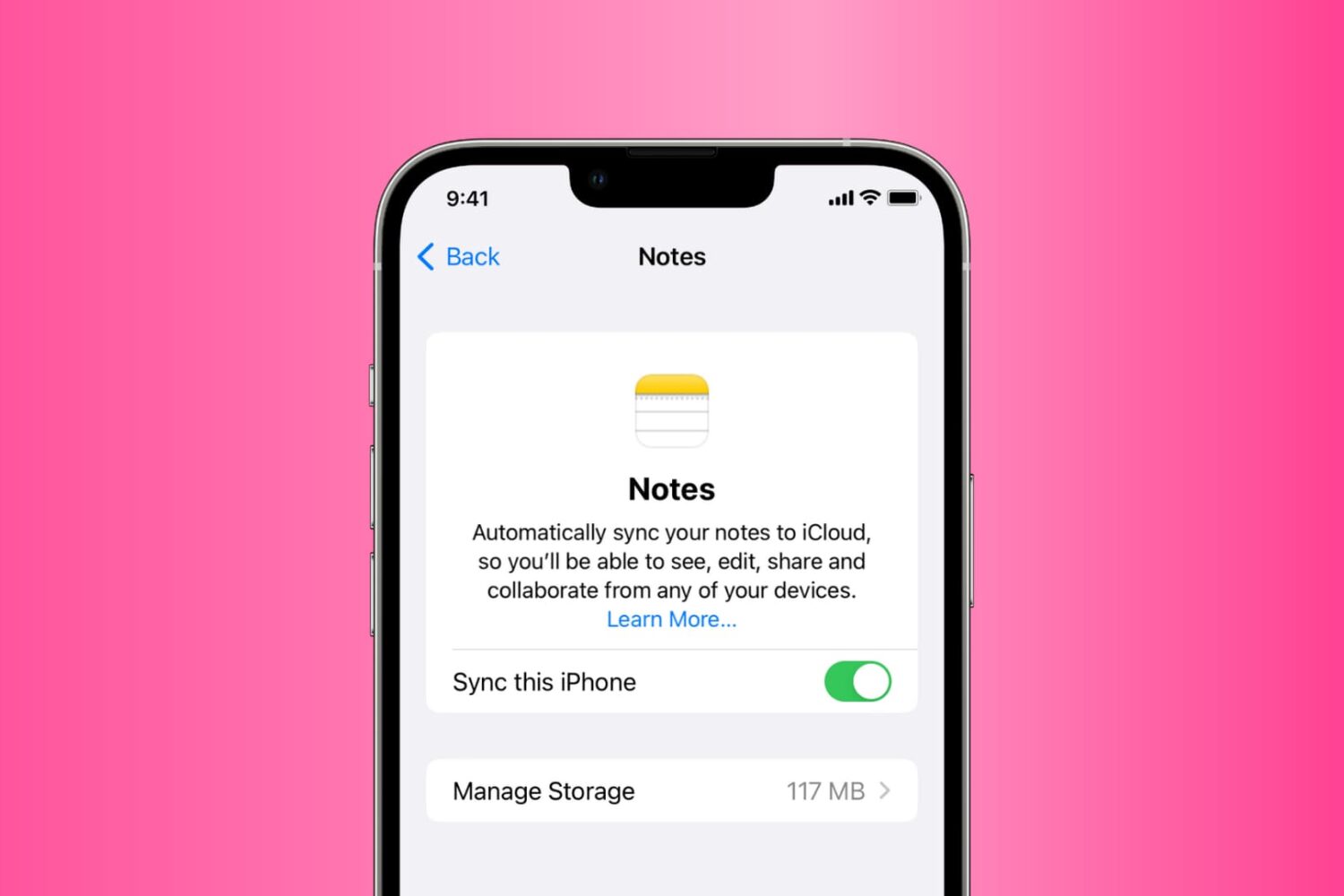
Go through these solutions to fix the Notes app not working, opening, freezing, crashing, or not displaying your notes on iPhone, iPad, and Mac.
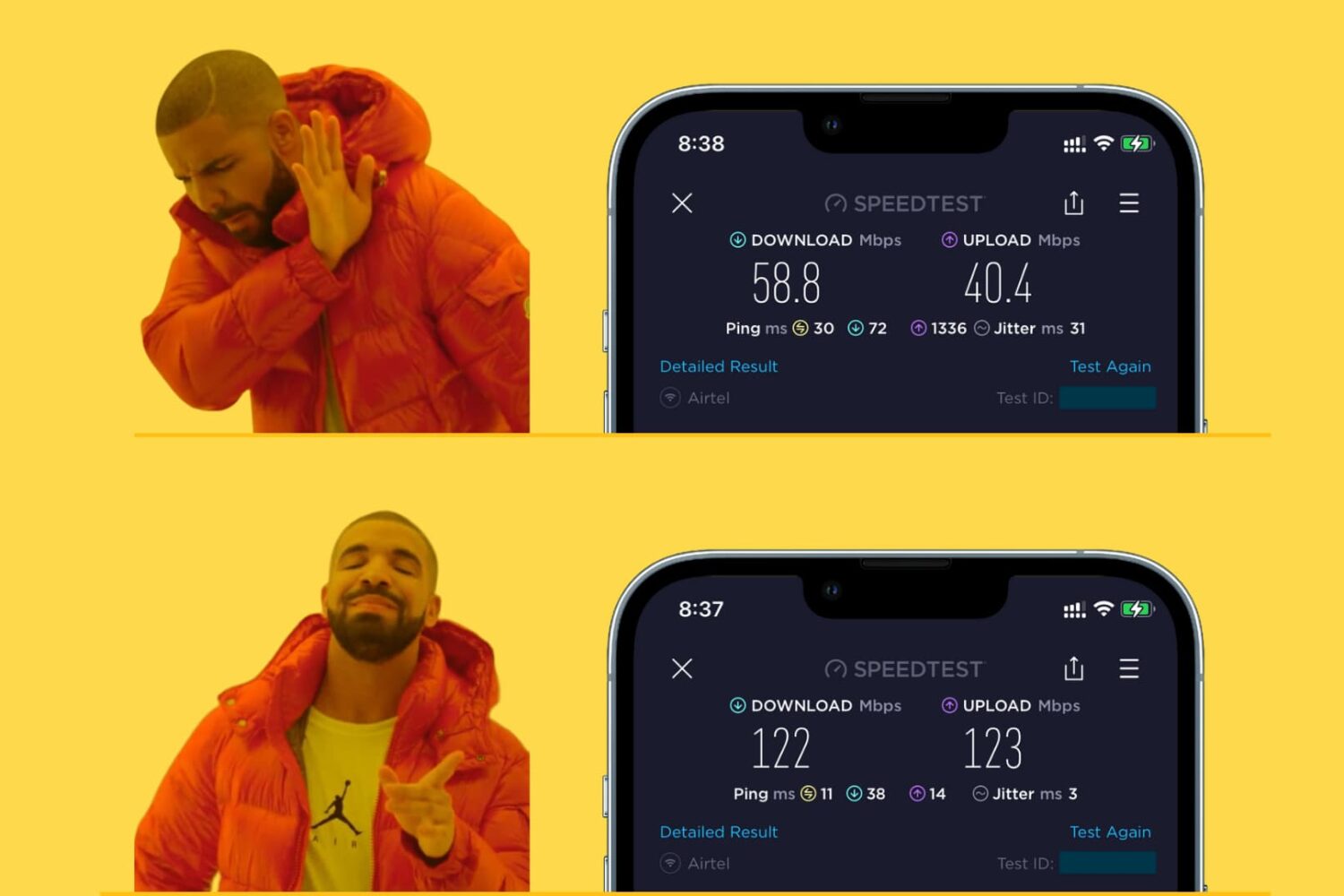
Learn how to make your iPhone, iPad, Mac, or Apple Watch join the faster Wi-Fi network and ignore the slower ones, so you get the best internet speeds.
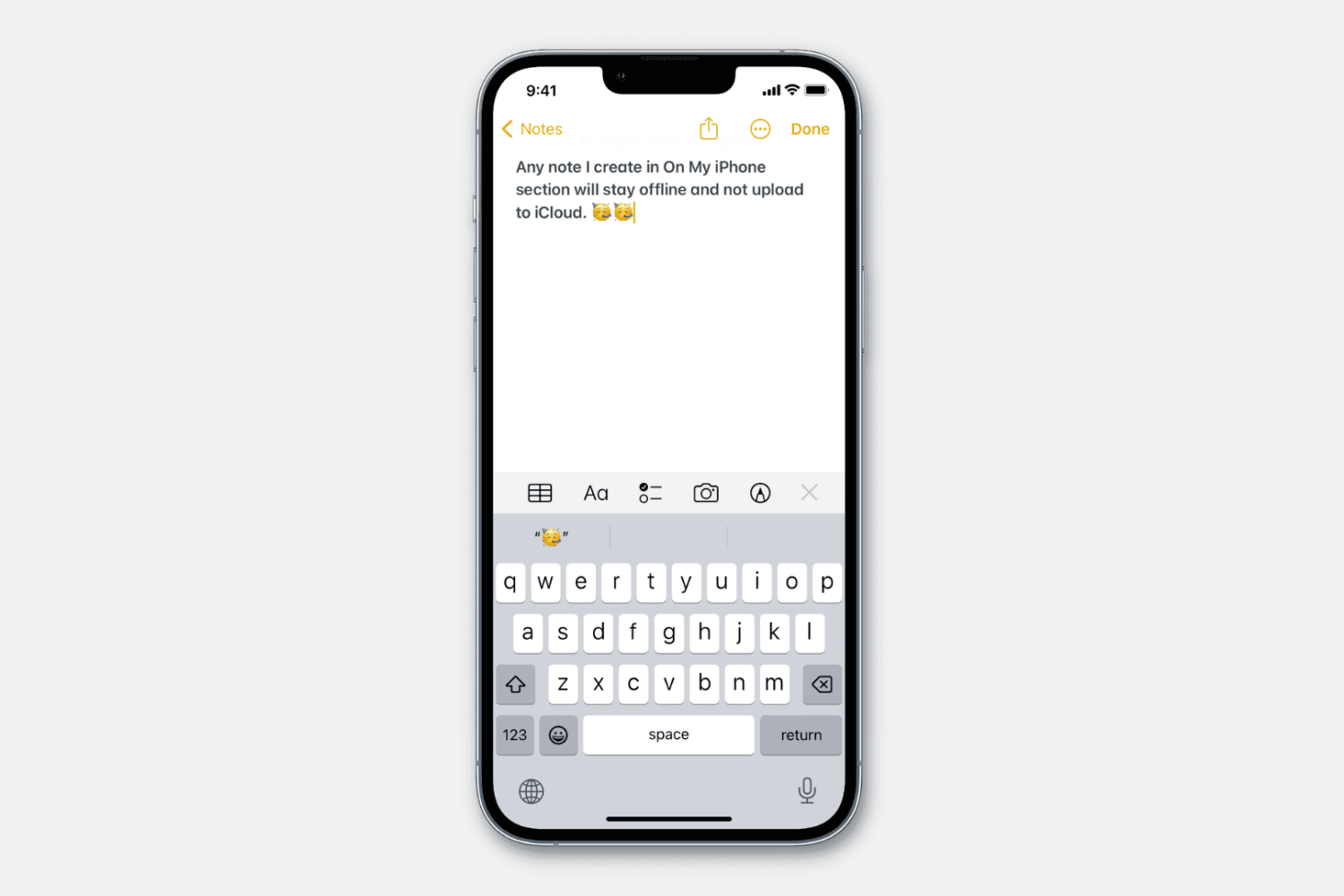
Learn how to stop specific notes from uploading to iCloud and prevent them from syncing to all your Apple devices.

Learn how to transfer video, audio, subtitles, and all other kinds of files from your computer to the VLC Media Player app on your iPhone or iPad.
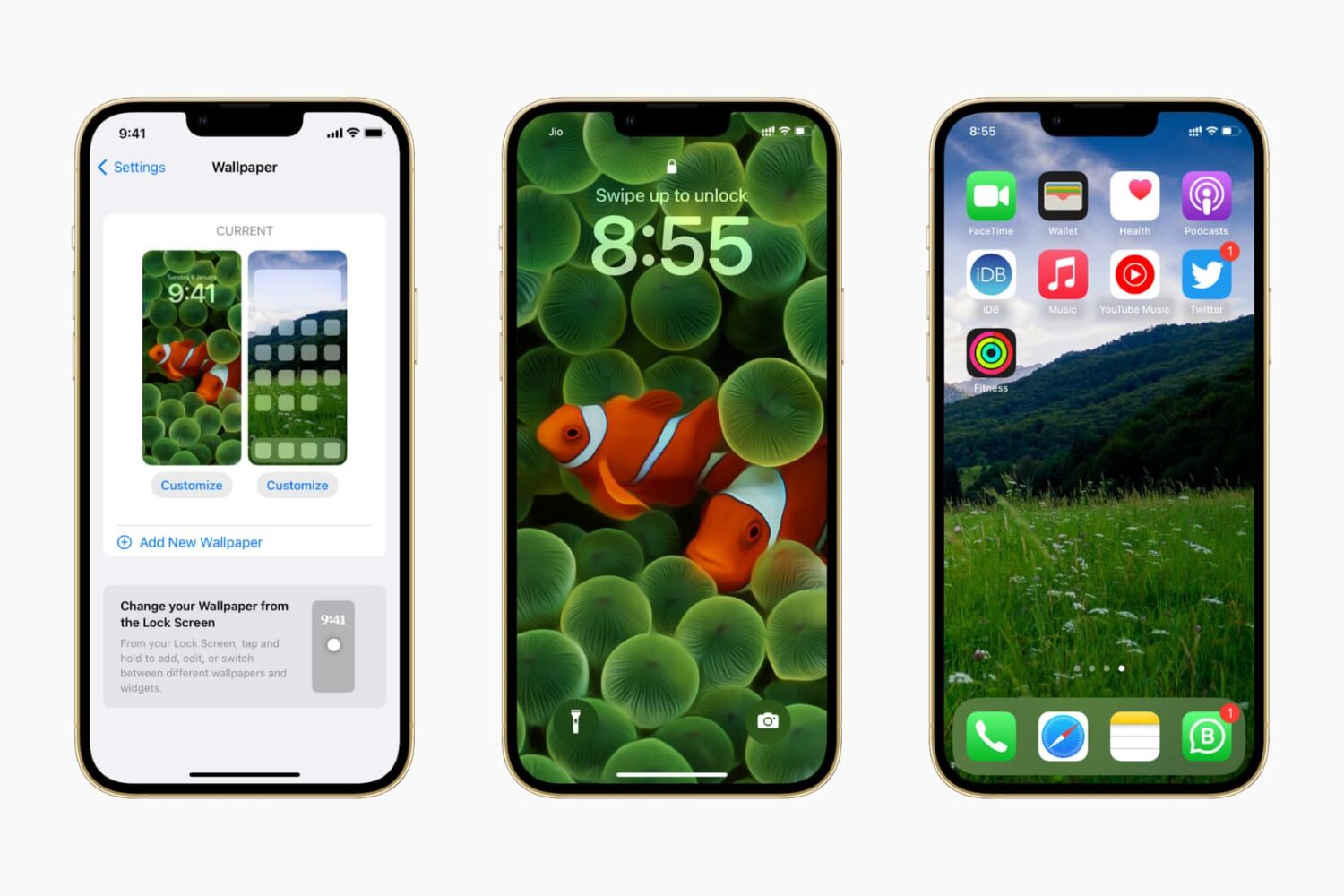
In this guide, we show you where to find some of the very best iPhone wallpapers and other backdrops for your Apple devices for free.