You can use the Reminders app built into your iPhone or iPad to remind yourself to do things at certain times throughout the day, but it can also be used for location-based reminders. Among these, you can have the app remind you of things when you get in or out of your car. In this tutorial, we'll show you how you can set your Reminders app to do this.
How to
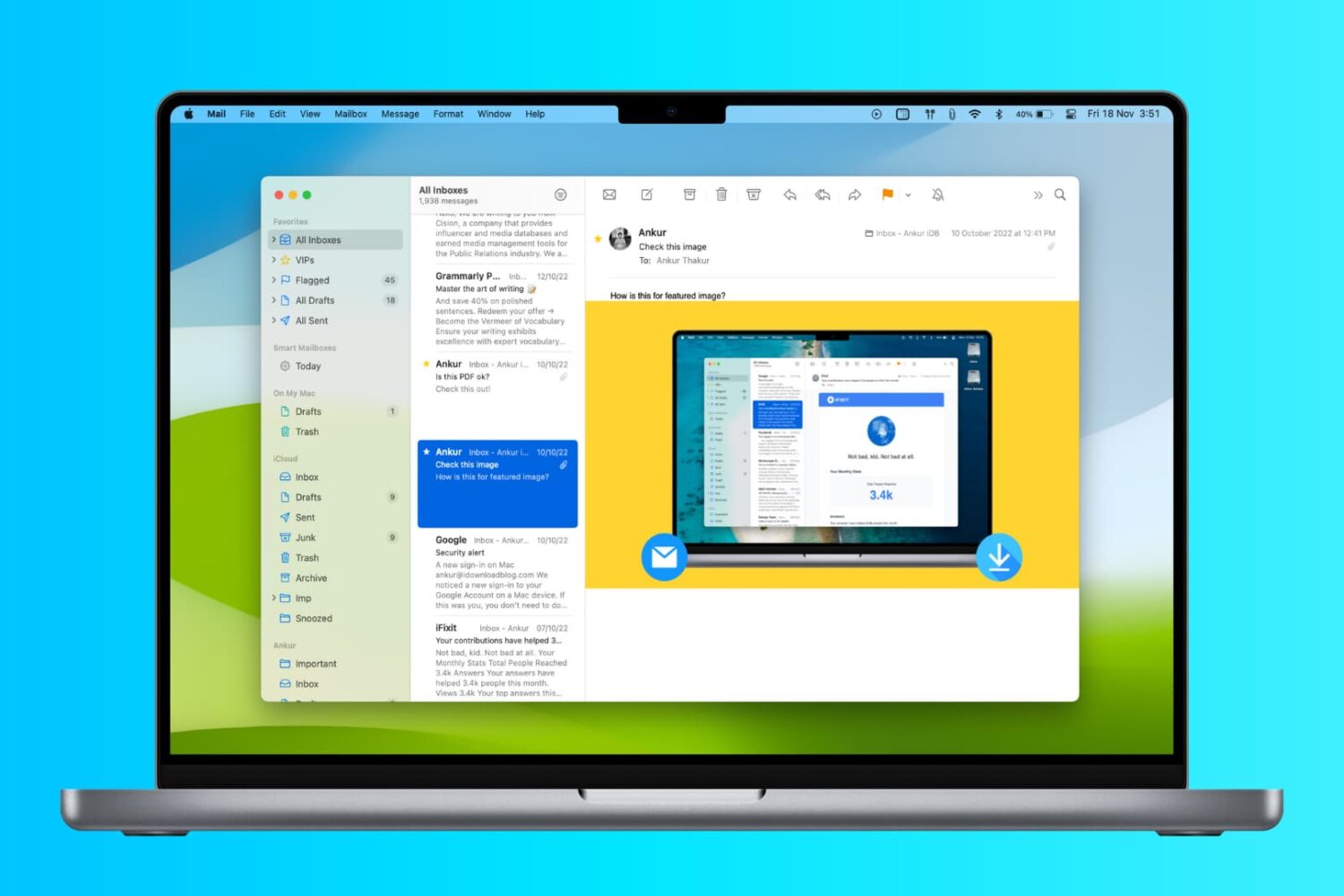
How to show email attachments as icons in the Mail app on Mac
In this tutorial, we’ll show you two ways to display attachments in the Mail app on your Mac as icons to improve readability.
Pro Tip: create an applet to watermark images
Adding watermarks to photos is an invaluable tool for photographers who want to put a company logo or information on a photograph to share the proper credits that made the photo possible.
It can be done manually in a variety of different kinds of photo-editing software, such as Adobe Photoshop or Pixelmator, but in this tutorial, we'll show you how you can create an applet that automatically watermarks photographs for you.
Converting a regular video to slow motion with iMovie on Mac
Slow motion videos are one of the fun aspects of using your iPhone for videogprahy. You can record videos in 120 or 240 frames per second and then watch it play back in a much slower manner than it typically would.
On the other hand, if you don't use your iPhone to capture video, getting the video files from your other devices to transform into slow motion is a little trickier. Fortunately, iMovie for Mac can convert your videos into slow motion, and in this tutorial, we'll show you how.
How to install a glowing Apple logo on iPhone 6s
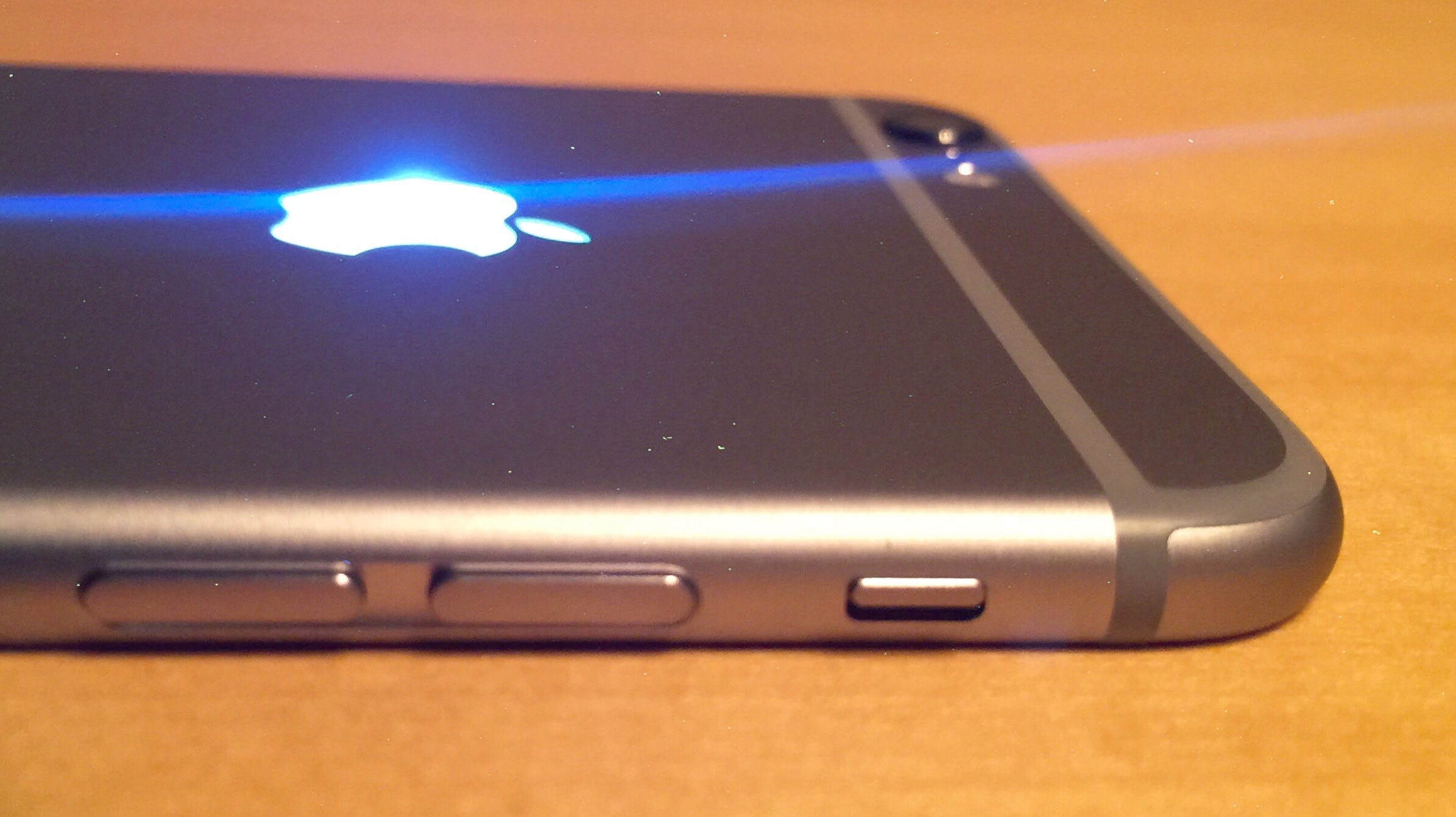
An iconic image, the glowing Apple logo adorns store locations and flagship MacBook devices. It is the quickest way to spot an Apple device in the wild. However, Apple refuses to provide the same iconic design on iPhones and iPads. To resolve this conundrum, that meant taking matters into my own hands.
For years, I wanted an iPhone with a glowing logo. All the way back to iPhone 4, it has been possible to mod your device with a small LED. However, with iPhone 6, @theunlockr is offering a simple all-in-one DIY kit, helping transform your device in about 30-60 minutes. Take a step inside to see my personal handy work and a great tutorial video to ease your nerves.
How to create your own Geofilters for Snapchat
Snapchat's Geofilters, special overlays that communicate the “where and when” of a Snap, can be quite useful—you can apply one to a Snap before sending it to a friend, or add it to your Story.
Today, Snapchat released a brand new web tool that lets you make custom On-Demand Geofilters using your own graphics or pre-made templates costing as little as $5 for a party in a small geographic area, no image editing software required.
You can customize your own Geofilters with the color palate and the text of your choosing. Once published, guests see your Geofilter when they post Snaps during your event. In this brief step-by-step tutorial, we're going to guide you through the process of creating your own Geofilter using Snapchat's new browser-based web tool.
How to reveal a file’s path in Spotlight for Mac with a simple keystroke
In macOS versions up until Lion, hovering over an item in Spotlight's search results on your Mac would reveal its full file system path. As of macOS Lion, that's no longer the default behavior—the Spotlight overlay gives you some information about the selected file, but not its location. But don't you worry, Apple hasn't ditched this feature entirely as you can reveal a file's path in your Spotlight search results at any time via this practical keyboard shortcut.
How to opt out of WhatsApp-Facebook account data sharing
As you may have heard, WhatsApp is starting to share some of users' account data with Facebook (things like your registered phone number and the last time you used the service) to improve targeted advertising and friend suggestions on Facebook and better fight spam on WhatsApp. Thankfully, you can easily opt out, right when the prompt goes up, or within 30 days of accepting the new terms, here's how.
How to stop your iPhone or iPad from backing up to iCloud
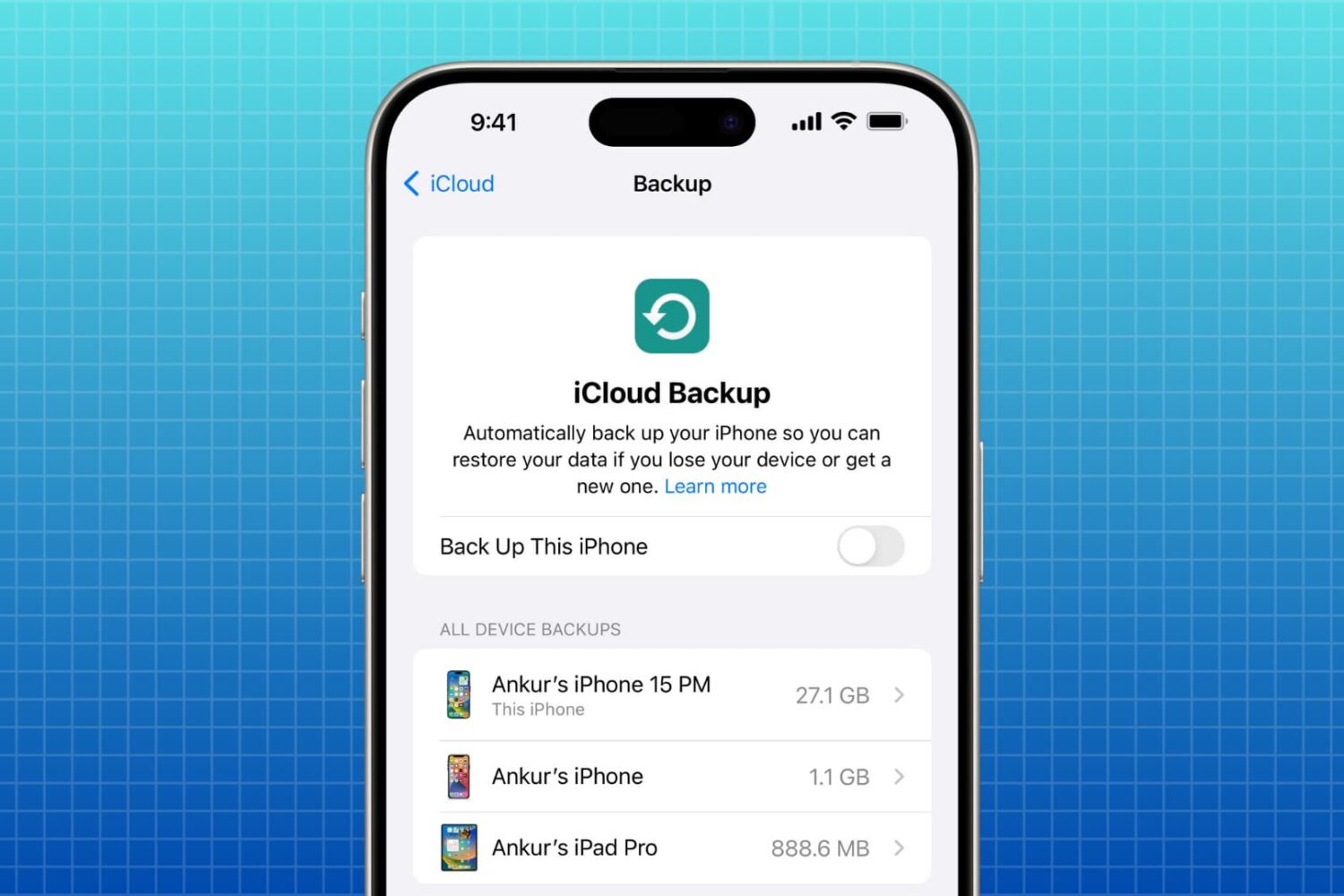
Not everyone wants their data backed up in the cloud, and if you’re one of those people, we’ll show you how to keep your iPhone or iPad from automatically backing up to iCloud.
How to use X (Twitter) permanently in Dark Mode
Learn how to activate permanent Dark Mode for the X app and website on your iPhone, Android phone, or Mac if you prefer it over normal Light Mode.
How to increase bass in music on your iPhone, iPad, and Mac
Learn how to increase the bass and boost the sound when listening to music on your iPhone, iPad, or Mac with AirPods, HomePod, and other headphones and speakers.
How to stop your iPhone from asking to install iOS updates
iOS can download and install updates without the need to connect to iTunes; this is known as Over-the-Air (OTA) updating.
When you have an OTA update waiting for you, your Settings app typically gets a red badge and iOS will constantly nag you about software updates. The thing is, not everyone always wants to install Apple's updates.
In this tutorial, we'll show you how to disable requests for iOS updates on your iPhone or iPad. This trick will also remove the nagging badge on the Settings app.