Learn how to delete documents and data saved by iOS and macOS apps in your iCloud account to free up space and remove unnecessary files.
How to delete app documents and data from iCloud to regain storage space

Learn how to delete documents and data saved by iOS and macOS apps in your iCloud account to free up space and remove unnecessary files.

Learn how to turn off Siri-suggested events in Apple's built-in Mail and Calendar apps on an iPhone, iPad, and Mac to remove unwanted entries from your schedule.

I had this issue for a while on my MacBook Air where there would constantly be a progress bar below the LaunchPad icon. Typically, this progress bar means something is downloading, but after checking, I couldn't find anything being installed on my Mac, so I figured the problem had to be deeper than that. In this post, I will share with you a few things you can try if you are facing the same issue.

There are lots of reasons why you might invest in a USB Type-C cable for the new Apple TV. One of the most compelling reasons is because a USB Type-C cable allows you to record Apple TV video output. Via QuickTime's video capturing capabilities, first introduced in OS X Yosemite, it's possible to record and save direct-feed footage from the Apple TV to your Mac.
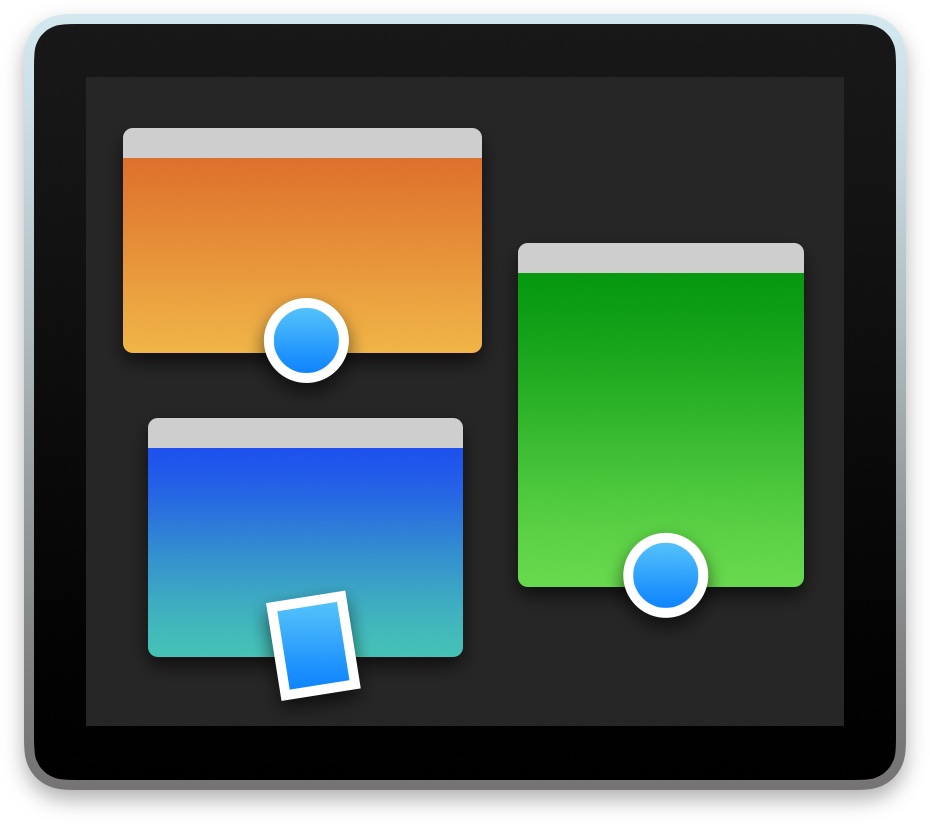
macOS has a nifty little productivity boost that makes it both easy and fun to run two apps side-by-side in your Mac's native full-screen mode.
This can be indispensable when focusing on specific tasks at hand while disregarding everything else, like online research and taking notes, or blogging and writing, or reading news while keeping tabs on your Twitter feed and so forth.
This mode, called Split View, is normally activated by dragging an app to either side of the screen by its window's upper left green button, and then choosing another app to fit the other half of the screen.
But the multi-step process is often a tad confusing for novice users, especially those accustomed to Windows 7's effortless window snapping. Thankfully, your Mac supports creating Split Views right within Mission Control, which in macOS has been tidied up and made clearer and more obvious.
In this tutorial, you'll learn how to go, and exit, Split View just by dragging app windows inside your Mac's Mission Control.

Learn how to turn off suggestions for unsaved contacts on your iPhone, iPad, or Mac that Siri has found in Mail and other apps on your device.
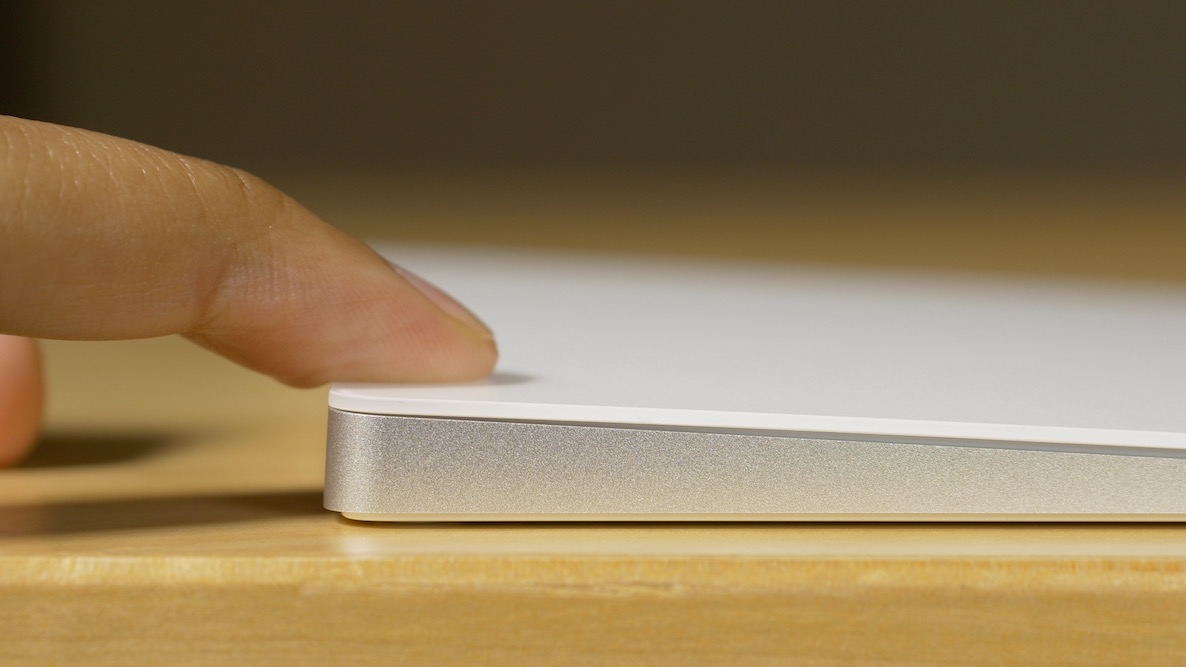
Apple just released its Force Touch-enabled Magic Trackpad 2, which joins the Force Touch trackpads already built into many of its MacBooks. The significance of the Magic Trackpad 2 sporting Force Touch, is that it essentially brings the feature to everyone without needing to go all out and purchase a brand new machine.
Force Touch is an interesting concept that's been a part of our vernacular for over a year with the unveiling of the Apple Watch. Since then, the pressure sensitive technology has made its way, in some way, shape, or form, to both MacBooks and the iPhone.
I've come to the conclusion that Force Touch is best implemented on the iPhone (as 3D Touch), but it's an interesting feature on the MacBook as well. Now that pretty much anyone can add the ability to Force Touch via a $129 Magic Trackpad 2 purchase, I figured it was time to showcase some of the things that you can do with the nifty pressure sensitive input method.
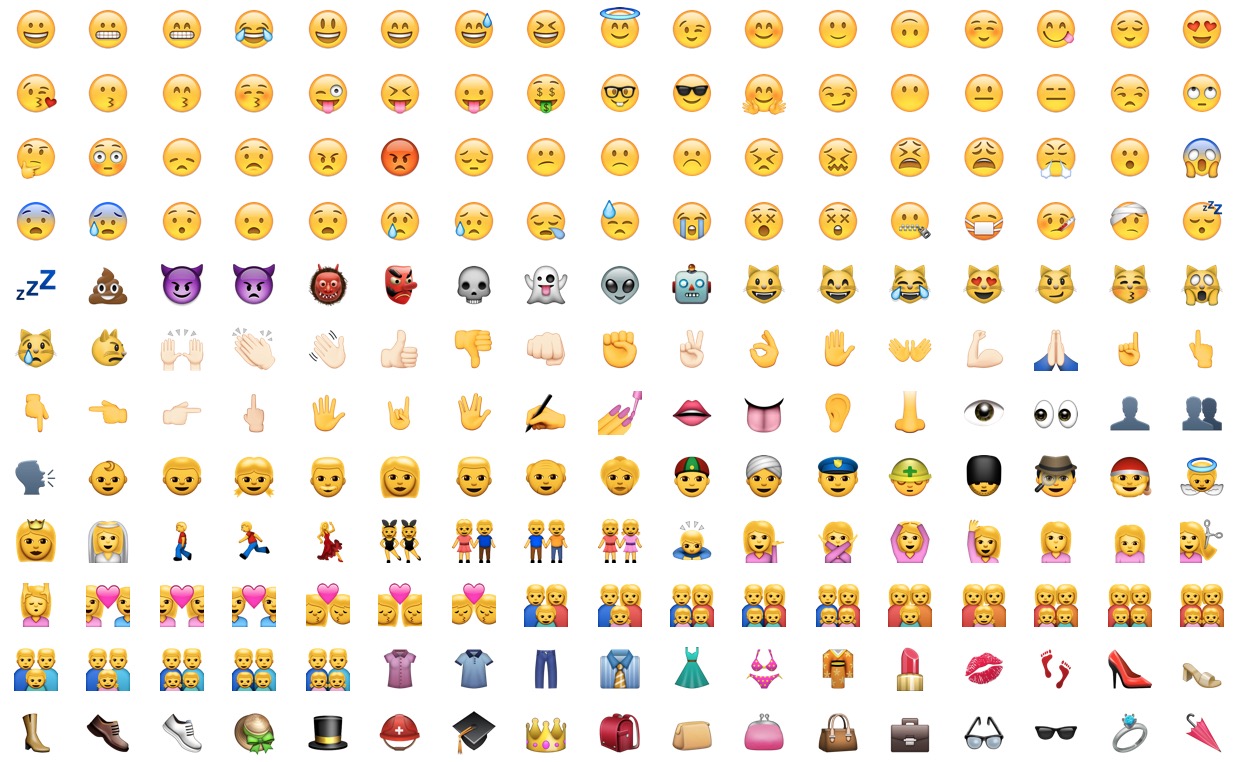
Learn how to discover the meaning of any emoji on your iPhone, iPad, and Mac instead of guessing what specific emoticons are meant to express.
Although not apparently obvious, Apple's Reminders app on iPhone, iPod touch, iPad, Mac and iCloud.com lets you share to-dos and checklists with friends and family.
Sharing a reminder list with, say, your girlfriend (or wife) is particularly convenient as you’ll both be able to add, delete and check off items as completed, and all changes will instantly appearing on everyone's devices thanks to seamless iCloud syncing.
This isn't just great for grocery lists, shared to-dos and interactive lists among family members, but for business, too. For example, you could share a to-do list with team members to keep everyone apprised of what needs to be done on any particular day.
In this post, we're going to show how easy it is to create a list in Reminders and invite others to participate across iOS, macOS, and the web.

Just like the familiar Settings application on an iPhone, iPod touch and iPad, the macOS System Preferences is probably the most frequently used application on your Mac.
If you're new to the Mac, System Preferences—much like the Control Panel on Windows—is a one-stop shop for adjusting various settings on your computer. Various settings are categorized into logical sections and laid out as a grid of preference pane icons.
In this post, we're going to outline five different time-saving ways to jump quickly into any specific setting nested within System Preferences.
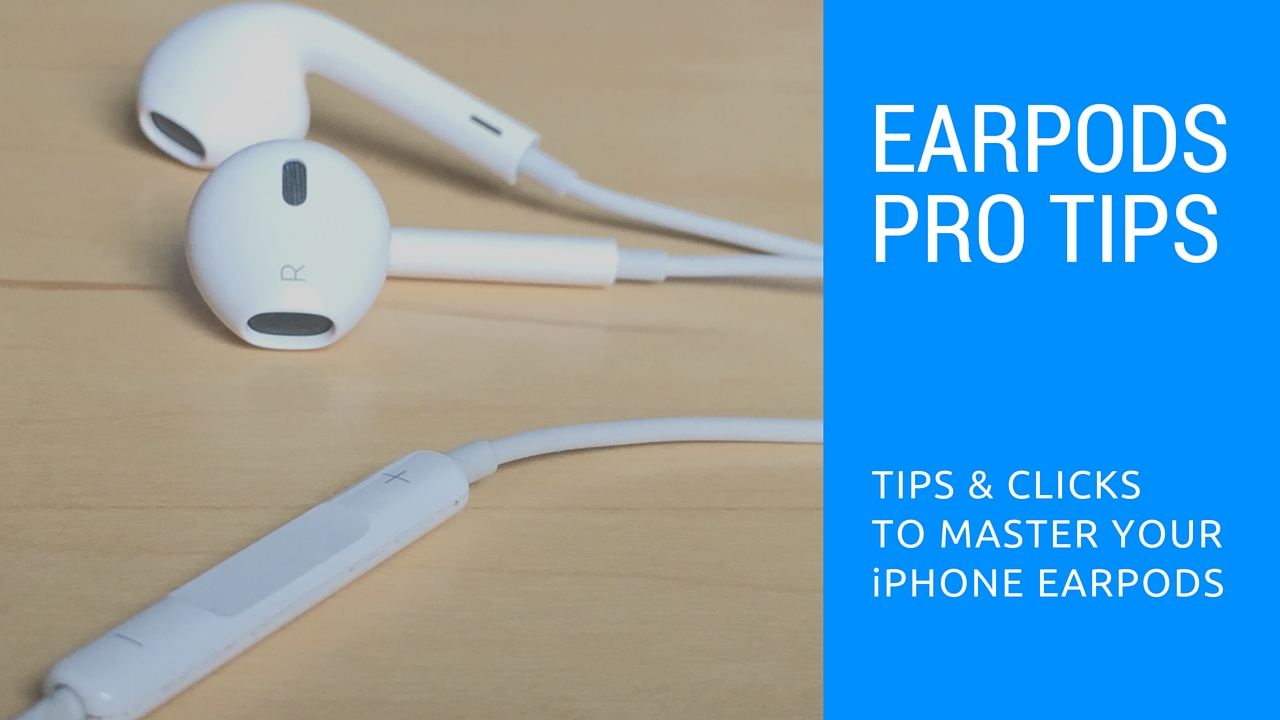
Those funky headphones that came with your iPhone—EarPods with Remote and Mic they're called—only have 3 buttons but boy do they perform a surprising number of functions beyond volume control. And with built-in mic, your EarPods can make and receive phone calls and control media playback.
Moreover, you can use them for recording voice memos, interacting with Siri hands-free, VoIP calling in apps like Skype and more, all with a pinch of the cord. Wait, I need this article to tell me how to plug my EarPods and listen to music?
We're not saying you're not familiar with your EarPods. But as with other things in life, there are always new tricks to be learned. This post will hopefully help you master your EarPods like a pro.
In this article, we'll tell you all the cool things your EarPods can do, from rich playback control and controlling Siri to switching calls on the fly, using VoiceOver and so forth. We'll also discuss EarPods compatibility, talk about keeping your headset in pristine condition and lay out sound advice for using your headset responsibly.

With the recent release of Apple's new "Magic" devices—the Magic Trackpad 2, Magic Mouse 2, and the Magic Keyboard—some of you may be wondering if your Mac can support these new peripherals. Since all of the new Magic devices are wireless and work with the latest Bluetooth versions, it's important to know if your Mac will support them before making a purchase.
Apple doesn't exactly make it easy and straightforward to find what version of Bluetooth your Mac sports, but it can be done. In this post, we'll show you a simple method for quickly deriving your Mac's Bluetooth version in just a few steps.