How to

How to customize your view of System Preferences icons on your Mac

Like iOS's built-in Settings app, the System Preferences application on OS X lets you customize the various aspects of your Mac to your liking.

For instance, you can adjust the size and location of the Dock, select a desktop background, set your computer’s clock to a different time zone, customize how your keyboard, mouse and trackpad work and much more.

With System Preferences, changing your computer's settings happens in one easily accessible central place. Our recent tutorial has shown you how to manually remove a third-party pane from System Preferences if it stays intact after uninstalling its container app.

Today, we're going to discuss customizing your view of System Preferences and teach you to organize System Preferences icons and show and hide individual icons from the view.

How to manually remove System Preferences panes from your Mac

Some third-party apps you install on your Mac might nest custom panes within OS X's System Preferences, mostly those distributed outside the Mac App Store due to sandboxing requirements. Uninstalling such an app automatically removes the underlying pane from System Preferences but not always, leaving you scratching your head.

Case in point: Tuxera's MacFUSE, a dynamically loadable kernel extension.

I needed to mount files to an NTFS-formatted drive the other day so I installed MacFUSE. After removing the app a few days later using its own uninstaller, I noticed its pane in System Preferences was left intact. Should that happen to you, here's how you can safely remove stubborn System Preferences panes from your Mac.

How to reopen windows and tabs from your last browsing session in Safari for Mac

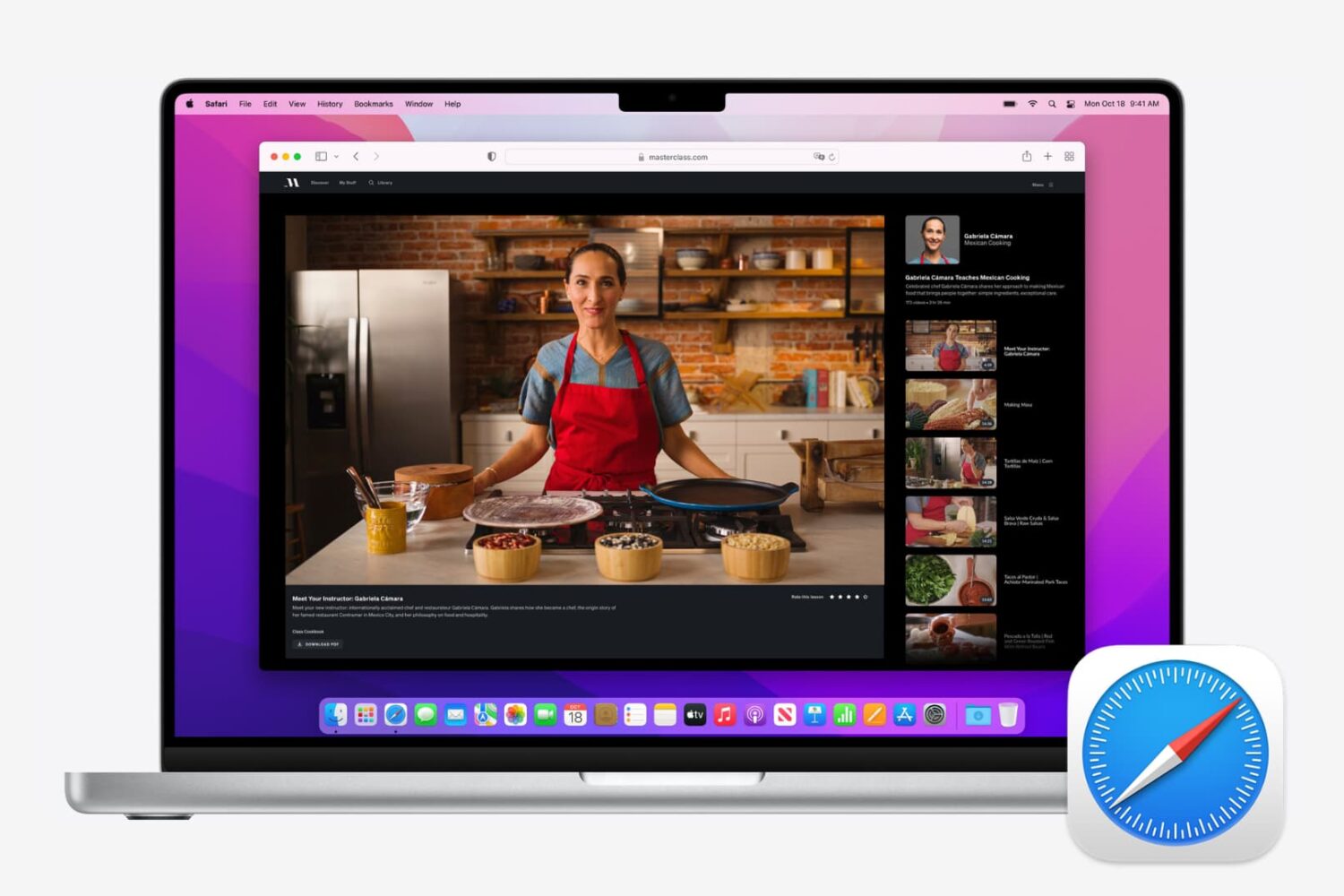
If you've ever accidentally closed a Safari window loaded with dozens of tabs, you know how daunting a task recreating them from your browsing history can be. Like many people, I used to be a huge fan of Google's Chrome before I eventually made a switch to Safari.

One of Chrome's simple yet tremendously useful features that I've always valued is a switch in settings telling the app to open with all the windows from your last browsing session.

Apple's desktop Safari, too, has had that feature for a while now but did you know of a hidden option for reopening all windows from the last session?

How to send video wirelessly from your Mac to TV

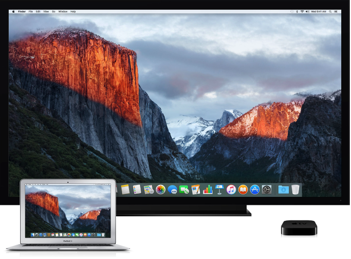
Since OS X 10.9 Mavericks owners of the Apple TV have been able to wirelessly mirror their Mac screen to the big screen TV with an AirPlay feature called AirDisplay. There was just one slight problem: you couldn't stream individual videos without mirroring the whole screen.

Apple has solved this annoyance with OS X 10.11 El Capitan, which introduced richer AirPlay support permitting you to send video from Safari and other apps to the Apple TV.

How to start up your Mac from a bootable CD/DVD, USB thumb drive or external storage device

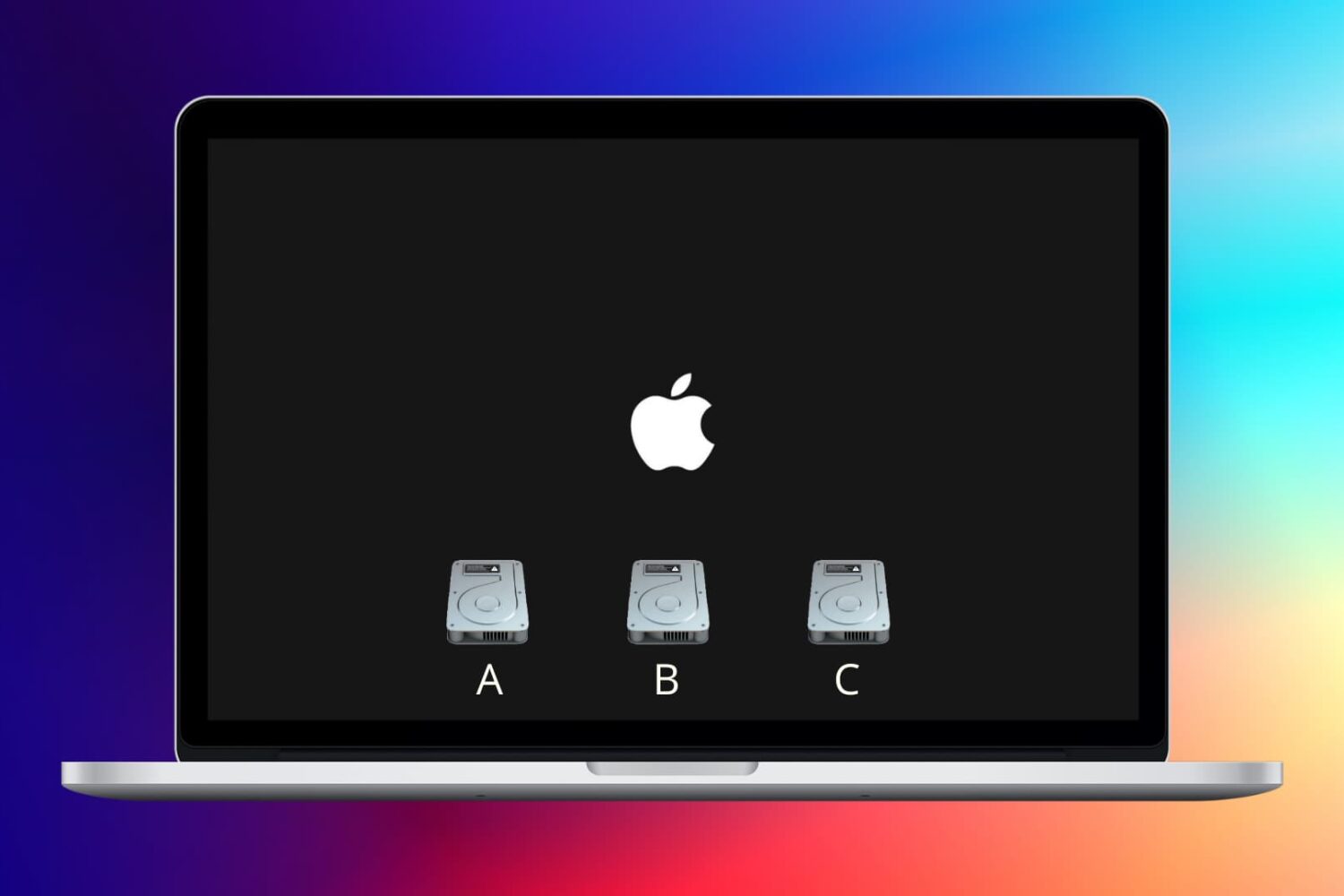
macOS can start up your Mac in a myriad of ways. We've already covered some of them in detail, such as using built-in Startup Manager to pick a disk to startup your Mac from and booting into Safe, Verbose and Target Disk modes.

In this article, we get to talk about starting your Mac up from external storage like optical media or an external USB-based hard drive or flash storage. Booting from an external storage allows you to start up your Mac in another version or copy of macOS, Additionally, it can help you troubleshoot certain issues, and more.

How to repair disk permissions on Mac

Some Mac hiccups and startup issues can be resolved by repairing disk permissions in macOS. Disk permissions allow your Mac to control what users have access to files and folders on your Mac.

Unfortunately, it's quite easy to unintentionally mess up disk permissions. In fact, the very act of installing and uninstalling apps on your Mac can over time result in broken permissions.

And when file permissions break, your apps might be allowed to alter each other's files or even modify read-only system files, which in turn can lead to various permission errors and erroneous behavior in macOS. It is therefore essential that disk permission in macOS are as they are supposed to be.

In this tutorial, I'm going to show you how to verify and fix disk permissions in macOS, which is typically a basic troubleshooting step to fix any software issues your Mac might be plagued with.

How to boot your Mac in Target Disk Mode

Our tutorial series dealing with the many ways you can start up your Mac continues with Target Disk Mode, a feature Apple conceived to allow your Mac to act as an external disk for another Mac.

It's not surprising that the vast majority of average Mac owners are totally oblivious to the existence of Target Disk Mode, and who could blame them? After all, Target Disk Mode isn't exactly front and center on macOS.

In this tutorial, you're going to be taught how to activate Target Disk Mode through the System Preferences application, or enter it directly at boot time with a simple keystroke. I'm also going to explain in layman's terms why, when and how Target Disk Mode should be used.

How to use Time Machine on your Mac – the full roundup

Over the last several months, we've revisited Time Machine, the backup utility present in OS X. We've showed you everything from performing an initial Time Machine setup, to encrypting Time Machine backups, to restoring specific files from those backups.

Time Machine is a great tool that every OS X user should become intimately familiar with, and in this roundup, we'll revisit each of the topics covered over the last couple of months.

How to boot your Mac in Verbose Mode

We previously discussed how booting your Mac into macOS' Safe Mode can help troubleshoot various issues with your computer. In more obscure situations and borderline cases, however, Safe Mode may not be enough to understand why your Mac freezes or crashes during the system boot process.

Enter macOS Verbose Mode.

Not only does Verbose Mode makes it easy to access detailed status messages as your Mac is starting up, but also lets you see what's really going on behind the scenes and watch as macOS loads kernel extensions and other startup items.

In this tutorial, we're going to cover booting your Mac in macOS' Verbose Mode, explain in which situations it might come in handy and give you some handy tips related to using Verbose Mode.