How to

Why and how to stress test your Mac fans and CPU

How to stress test Mac CPU and fan

As rare as it may be, your processor or CPU cooling fans can fail, and there is a really easy way to test your Mac's hardware with the Terminal app that comes with macOS to ensure everything is working right.

In this tutorial, we'll show you how to stress test your Mac using Terminal so you can ensure all your processor's cores are working up to snuff and your cooling fans aren't grinding or failing to cool your Mac as they should.

How to enable ‘Show me the best tweets first’ on Twitter

Twitter recently unveiled a new feature that lets you elect to have the service surface new and interesting content at the top of your timeline since your last visit.

Called “Show me the best tweets first,” it's a staggered release so not everyone may have it at the same time although the majority of Twitter's user base should now see this option in their settings.

This post will take you through the steps you need to take in order to enable this feature in Twitter's mobile apps and in the desktop interface, so that you never miss important updates from people you follow.

How to quickly get your answers from a website you’ve searched before in Safari

In addition to finding all occurrences of a word within any webpage, Apple's Safari browser for the iPhone, iPod touch, iPad and Mac includes a nifty little feature called Quick Website Search which lets you get your answers from within a specific website as long as you've used its search box before.

Safari keeps tracks of the webpages as you surf the web so you can later find anything within a previously visited website, right from the Smart Search field.

In this tutorial, you'll learn how to leverage Safari's Quick Website Search feature to search within a website.

How to share iCloud calendars

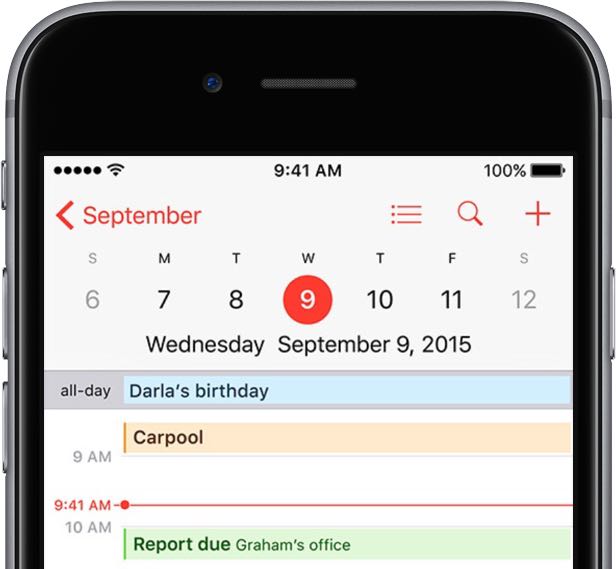
Apple's Calendar application for the iPhone, iPod touch, iPad, Mac and iCloud.com makes it simple to share events and to-dos with select people, or let anyone with a link subscribe to a read-only calendar.

For example, you could share a “To Do” calendar with your significant other, create a calendar for your entire family so every member can put errands on it, invite your wife to a shared “Kids” calendar to keep parents in the loop about school activities and more.

Not only do shared calendars increase your productivity in the workplace, they help those who use them become more organized in everyday life. You can assign edit privileges to invitees, adjust how participants access the calendar and more.

Invitees have a myriad of options at their disposal to view shared calendars, including the iCloud Calendar web app, the stock Calendar app on the iPhone, iPad, iPod touch and Mac or Microsoft Outlook on a Windows computer.

In this tutorial, you will learn how to share a calendar privately or publicly on iPhone, iPad, Mac and iCloud.com. You will also learn how to manage calendar sharing by adding or removing participants, changing privileges, adjusting calendar notifications, and more.


Using Gatekeeper to help secure your Mac

macOS comes with a security feature known as Gatekeeper, which can help prevent unwanted apps from launching on your Mac without your permission. It can also prevent potentially malicious apps from launching because it can be used to limit the kinds of apps that are allowed to open on your Mac.

In lieu of the recent Sparkle updater framework vulnerability having been uncovered in a variety of popular macOS apps, now is a great time to set up your Gatekeeper settings to prevent potential issues with malware on your Mac in the future.

In this tutorial, we'll be showing you how Gatekeeper works and how you can configure it to keep your Mac just as secure as you want it to be.

How to disable suggested search terms in Safari

Google Suggestions while typing in Safari address bar

Safari Smart Search Field lets you type in either an URL to visit or a search query to send to the default search engine. It's also a place where search suggestions automatically pop up as you type. With this cool feature, you can type just the first few letters of a query and rely on the search engine (Google, Bing, Yahoo, etc.) to help you complete the search term without needing to type out the rest of your query. But, certain users may not be fond of this feature for privacy reasons.

If you're among them, use the step-by-step instructions provided in this tutorial to turn off suggested search terms in Safari for iPhone, iPad, and Mac.

How to delete your old iPhoto library

After upgrading your Mac to OS X Yosemite or later, the new Photos app gets installed automatically.

On first launch, Photos will auto-upgrade your default iPhoto library to its new library format. People with multiple iPhoto libraries must manually convert them to the new format by holding the Option (⌥) key when clicking the Photos icon in the Dock.

Upon completing migration, you'll have two sets of photo libraries on your machine: the original iPhoto libraries and their Photos counterpart.

In order to free up a significant amount of storage space on your Mac, you can safely delete any iPhoto library that has been migrated to the new Photos app.

How to rotate a video on your Mac

Every so often, you may come across the need to rotate a video after you've recorded it with your camera or iOS device because it didn't quite come out how you expected it to.

Fortunately, Apple's QuickTime app, which is built into the macOS operating system on your Mac, is powerful enough to do just that; and it's very easy to do.

In this tutorial, we'll be showing you how to rotate a video in any direction on your Mac using the QuickTime app.