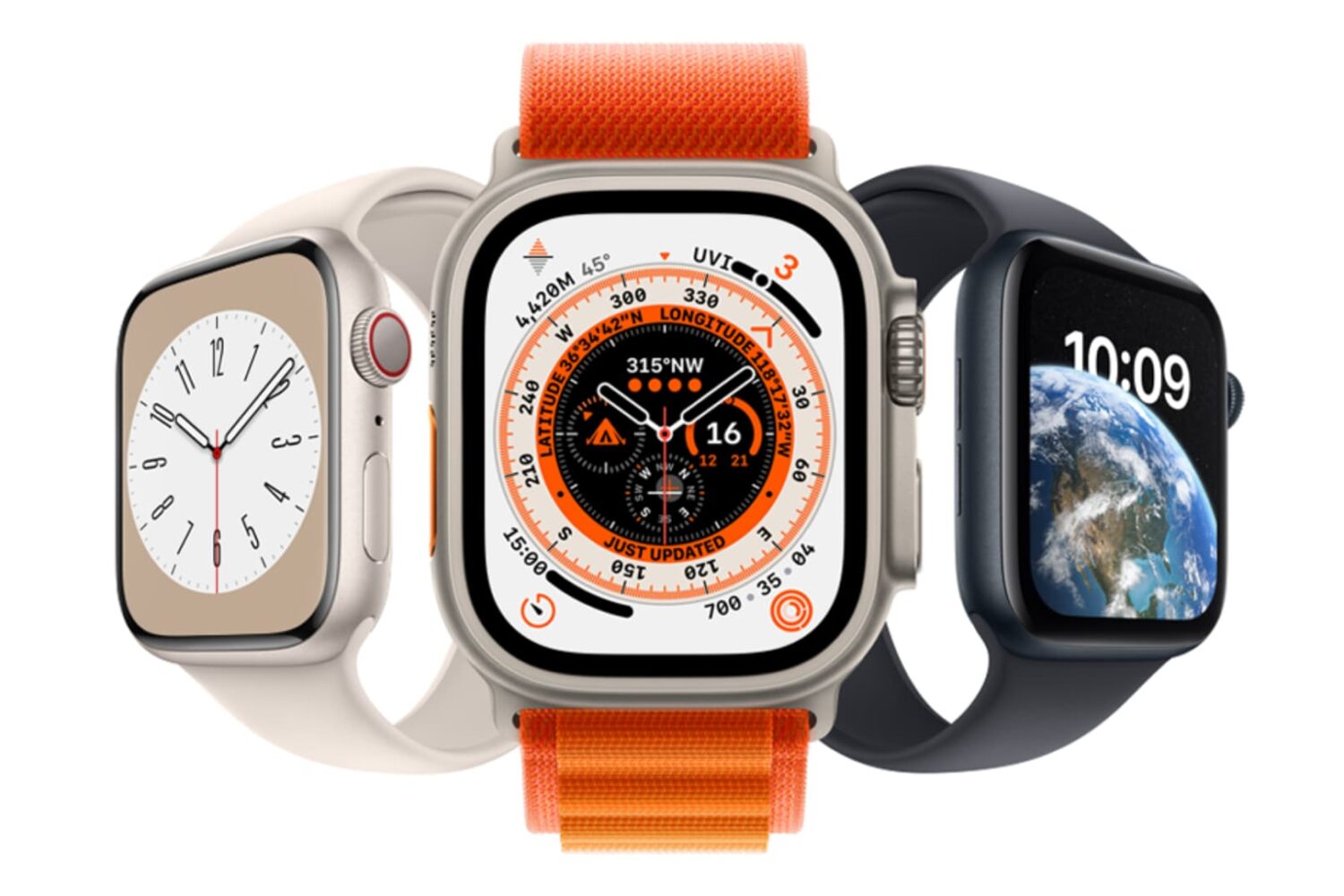
Connect your Apple Watch to AirPods or other Bluetooth and wireless speakers to listen to music and podcasts there.
How to route audio from Apple Watch to wireless devices
Stay up-to-date on the latest Apple Watch news, and learn how to get the most out of your device with our comprehensive tutorials. From updates to features to troubleshooting tips, we’ve got you covered.
Connect your Apple Watch to AirPods or other Bluetooth and wireless speakers to listen to music and podcasts there.
Although not quite new, we reported this morning that Apple Watch can't connect to a 5Ghz Wi-Fi network. It's not a bug or anything. It's just a limitation of the current hardware found in Apple Watch. For those users that are not aware of this limitation, it can cause problems when believing that because you are on a known Wi-Fi network, Apple Watch and iPhone should still be able to connect even if they're out of Bluetooth range.
There is just no way to make your Apple Watch connect to a 5Ghz Wi-Fi network, but there are ways to work around that limitation. I've actually been helping people with that specific issue for a few days now, and because I've seen misinformation going around, I thought it would be best to just get things cleared up and explain how you can have both your iPhone and Apple Watch play nice with each other, even if your iPhone is connected to a 5Ghz network.
In this post, we’ll show you how to configure both stock apps and third-party apps to send or not send notifications to your Apple Watch.
Learn how to use Handoff on your Apple Watch to move what you’re doing on your wrist to the bigger screen of your iPhone, iPad, or Mac.
When your iPhone is buried under sheets, left in another room, or out of sight, the obvious thing to do to locate it is to call your iPhone using another phone. However, this may not be helpful if your iPhone is in silent mode, Do Not Disturb, or has an active Focus mode.
In these situations, or if you don’t have a second phone around, you can use your Apple Watch to play a loud alarm sound on your iPhone or trigger its camera LED to blink.
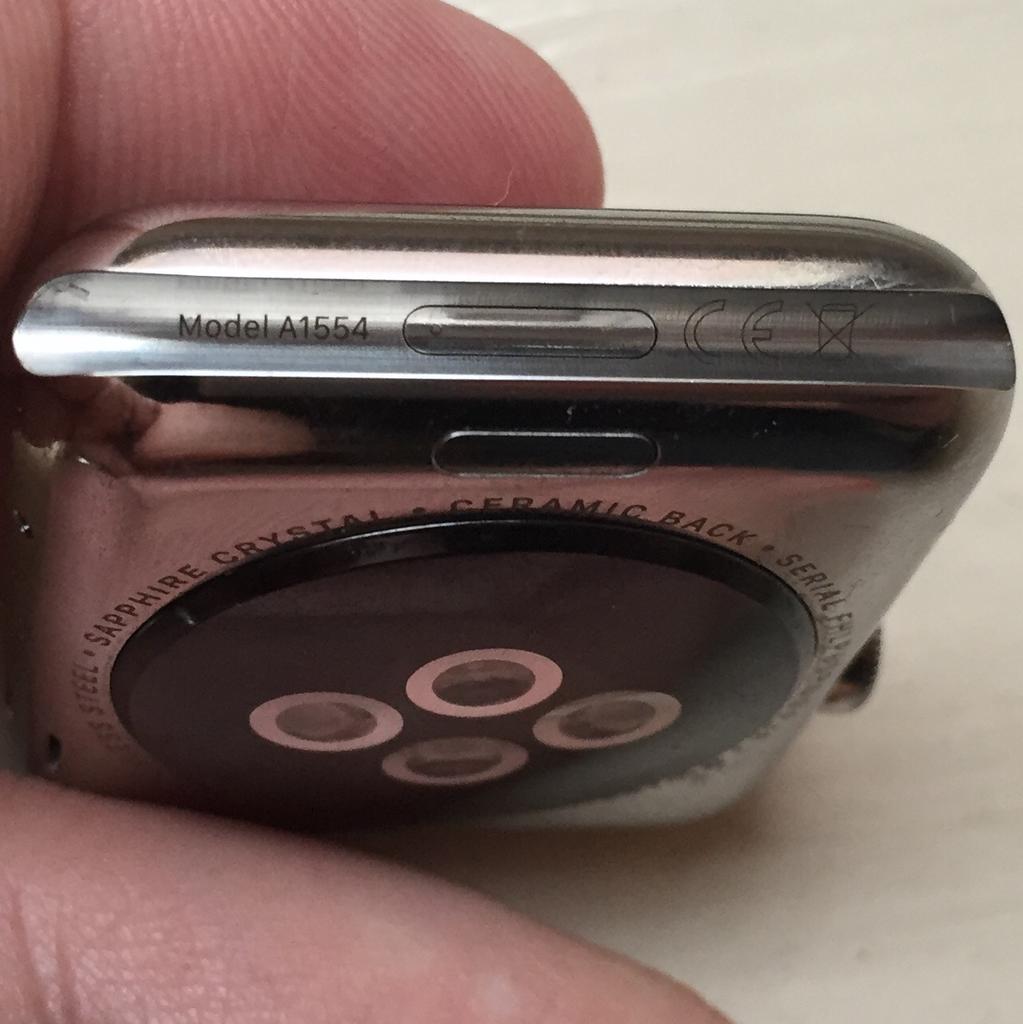
Contrary to some reports, shipping Apple Watch units do feature a hidden diagnostic port inside the groove of the bottom strap connector slot. It looks a lot like Lightning I/O, bit it's not Lightning.
Featuring a six-dot brass contact, it's believed to be aimed at service technicians for diagnostics purposes, while potentially providing direct access to the Watch OS and demo software installation on demo units in Apple Stores.
This tutorial explains how you can access the 6-pin port using just a sewing needle. Before we get to it, keep in mind that doing so could impact the water resistance of your Apple Watch and might void your warranty.
Learn how to calibrate your Apple Watch for accurate Workout and Activity tracking when you’re using it away from your paired iPhone.
Learn how to easily create a backup of your Apple Watch, ensuring your valuable information remains secure and easily restorable.
Enhance your Apple Watch experience by standardizing app icon sizes, making it easier and more intuitive to tap and navigate through your apps.
Learn how to download and install apps on your Apple Watch from the App Store, either directly on the watch itself or through the paired iPhone.
The Apple Watch features a Home Screen that significantly differs from the Home Screen on your iPhone or iPad. The icon layout is a big departure from what you’re used to on your iPhone, and while some may like it, others may think it looks a bit messy. Thankfully, apps can be rearranged per your liking, and we’ll show you how.
This tiny tutorial tells you about simple tips to quickly return to the last used app on your Apple Watch so that it's easier to multitask or switch back and forth between recently used apps!