You can use the dedicated search field within the Settings app to quickly find a specific setting on your iPhone or iPad.
How to quickly locate a specific setting on iPhone and iPad

Learn how to master your Apple devices with our comprehensive tutorials. From iPhone and iPad to Mac, Apple Watch, AirPods, and more, our expert guides will help you unlock the full potential of your Apple products. Discover new features, tips, and tricks each day to enhance your user experience.
You can use the dedicated search field within the Settings app to quickly find a specific setting on your iPhone or iPad.
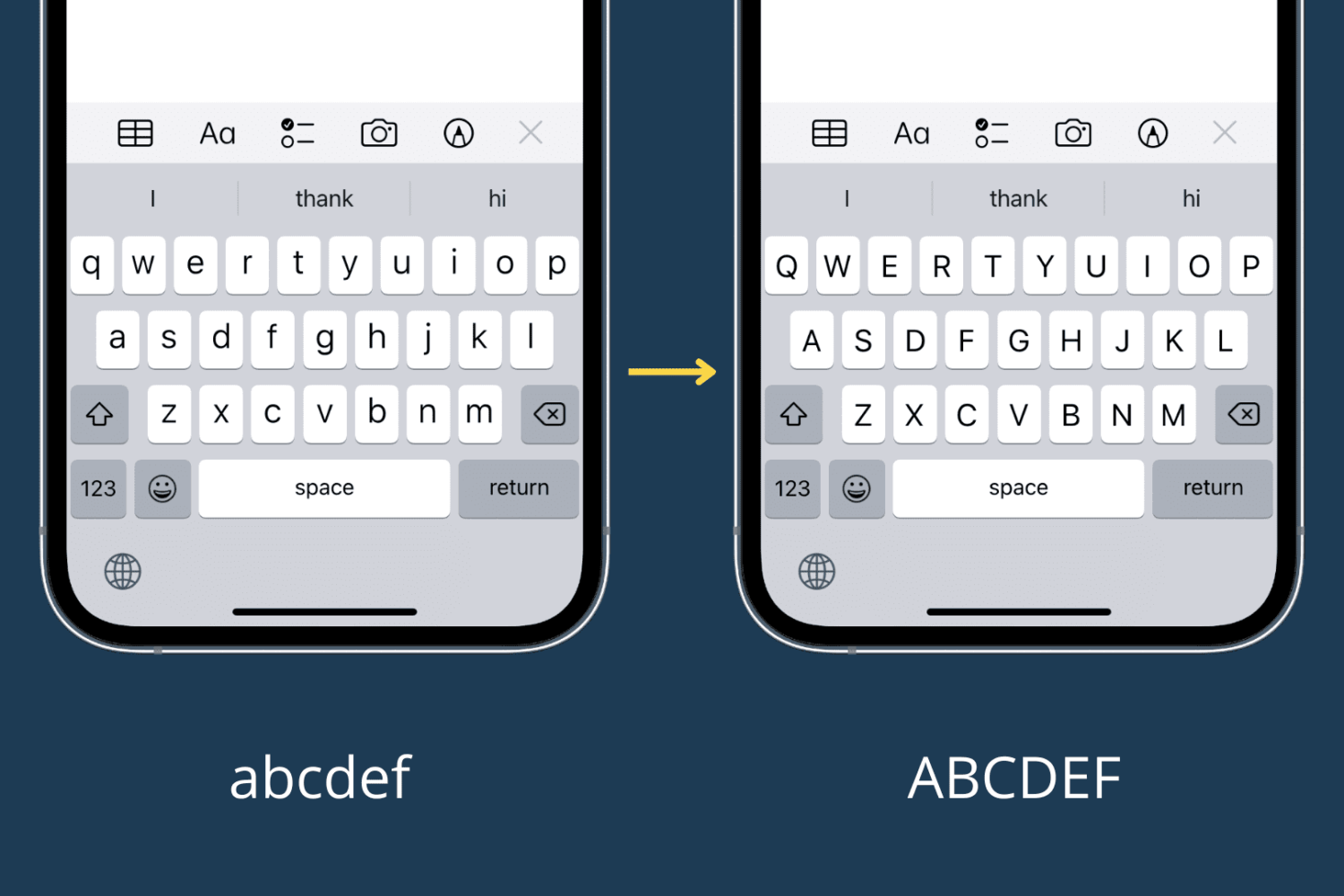
Learn how to switch your iPhone or iPad onscreen keyboard to an UPPERCASE design instead of the default lowercase letters printed on each key.
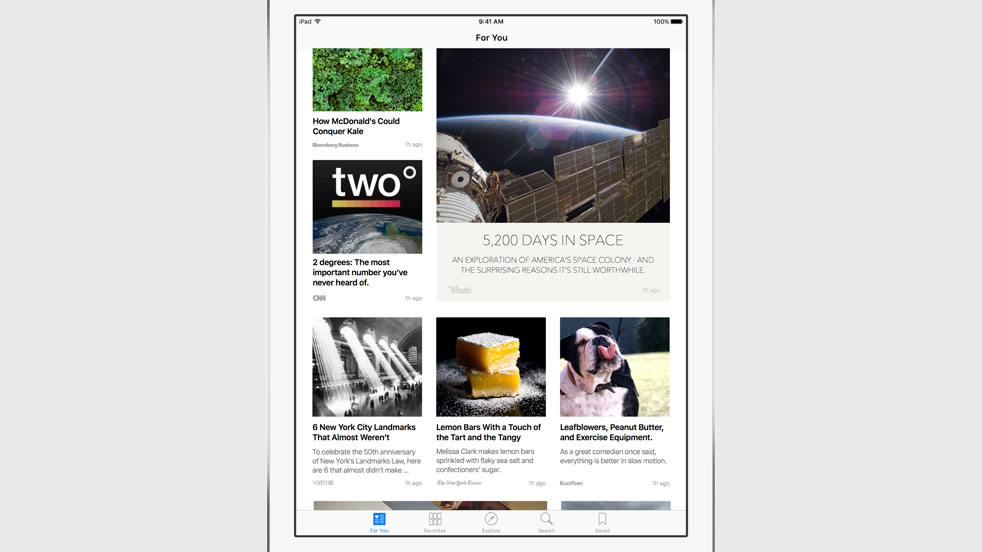
Among other things, iOS 9 adds four new non-removable apps to your Home screen, one of them called News and the other three being iCloud Drive, Find My iPhone and Find My Friends.
Unfortunately, folks living outside the United States are out of luck as News is US-only at launch.
Now, the forthcoming iOS 9.1 software update will officially bring News to the United Kingdom and perhaps some other markets. That being said, you can actually enable News regardless of where you live, and here's how.
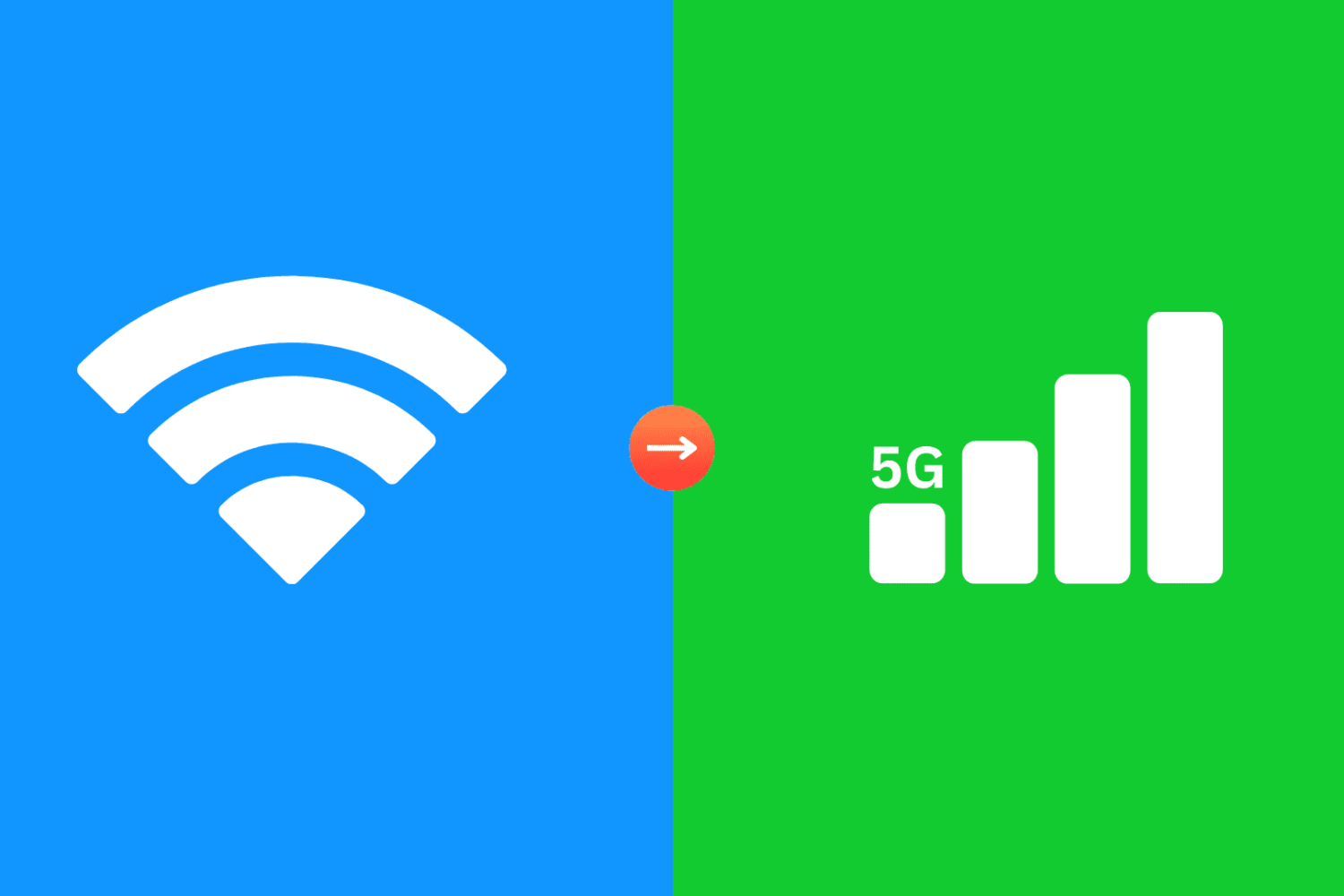
Wi-Fi Assist is a thoughtful feature on iPhone and iPad that automatically switches your device’s internet to cellular data (5G or 4G/LTE) when the connected Wi-Fi network is poor, ensuring you never have internet downtime.

Learn how to load the computer version of a website in Safari on your iPhone or iPad and switch back to mobile view if needed.
macOS can start up your Mac in a myriad of ways. We've already covered some of them in detail, such as using built-in Startup Manager to pick a disk to startup your Mac from and booting into Safe, Verbose and Target Disk modes.
In this article, we get to talk about starting your Mac up from external storage like optical media or an external USB-based hard drive or flash storage. Booting from an external storage allows you to start up your Mac in another version or copy of macOS, Additionally, it can help you troubleshoot certain issues, and more.
If you're thinking about pre-ordering a new iPhone 6s or iPhone 6s Plus, purchasing the device outright is a viable option. I always buy my iPhones outright because I don't want to be tied to lengthy carrier contracts.
In the past, Apple wouldn't sell you the latest iPhones contract-free (at its full, non-subsidized price) unless at least a few months have passed following their introduction. As it turns out, you can now pre-order an iPhone 6s or iPhone 6s Plus contract-free, straight from Apple—here's how.
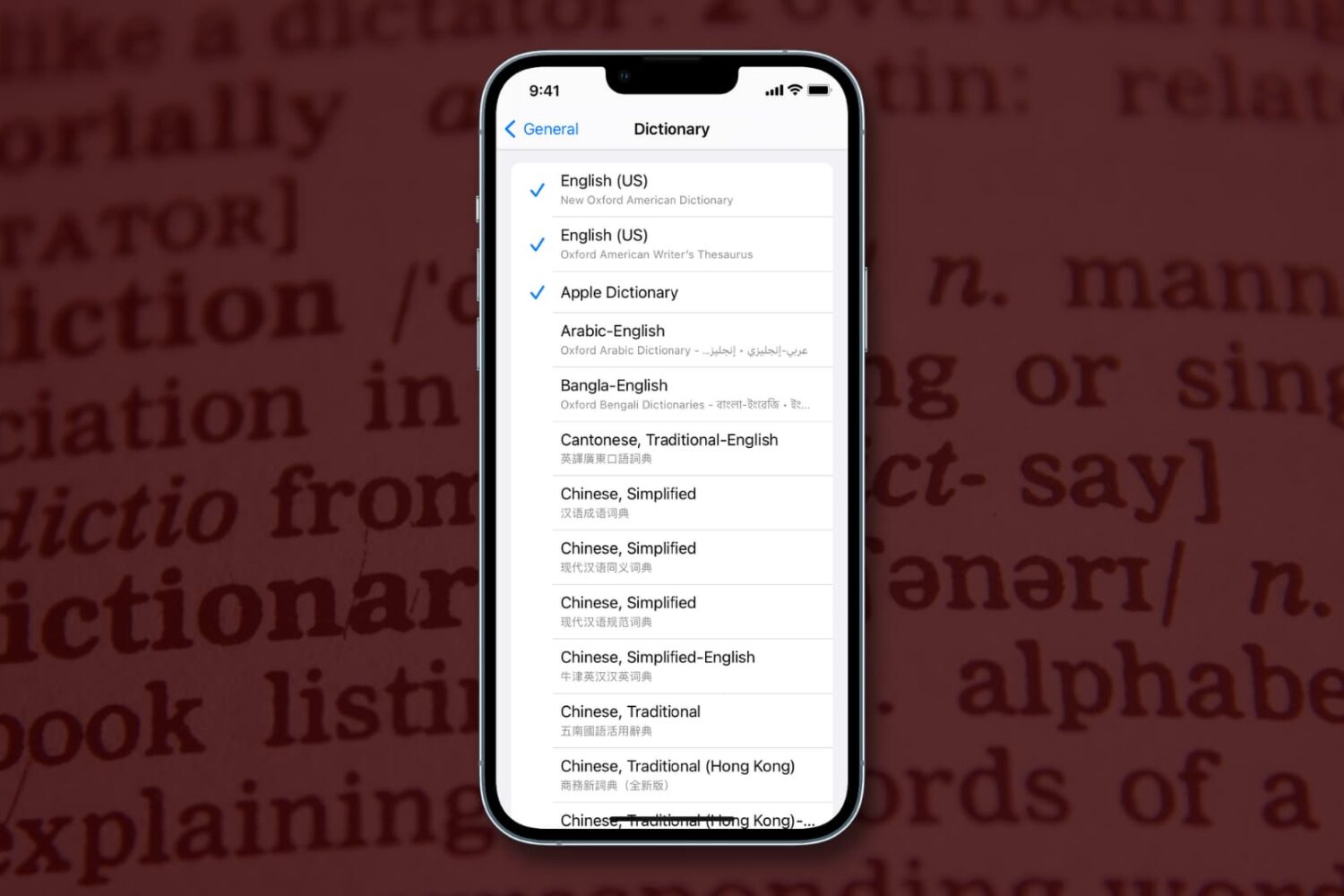
Learn how to download specific language dictionaries, use the Look Up feature, and remove dictionaries you might no longer need on your iPhone or iPad with this guide.

Finder in macOS won’t always remember window sizes and positions. Thankfully, it’s possible to override a window’s default opening behavior on macOS and set it to open to the same size as the last one you created. We’ll show you the right steps for that.

Find out how to use your Mac’s trackpad to quickly preview a website link in a small pop-up Safari window.
Some Mac hiccups and startup issues can be resolved by repairing disk permissions in macOS. Disk permissions allow your Mac to control what users have access to files and folders on your Mac.
Unfortunately, it's quite easy to unintentionally mess up disk permissions. In fact, the very act of installing and uninstalling apps on your Mac can over time result in broken permissions.
And when file permissions break, your apps might be allowed to alter each other's files or even modify read-only system files, which in turn can lead to various permission errors and erroneous behavior in macOS. It is therefore essential that disk permission in macOS are as they are supposed to be.
In this tutorial, I'm going to show you how to verify and fix disk permissions in macOS, which is typically a basic troubleshooting step to fix any software issues your Mac might be plagued with.
Our tutorial series dealing with the many ways you can start up your Mac continues with Target Disk Mode, a feature Apple conceived to allow your Mac to act as an external disk for another Mac.
It's not surprising that the vast majority of average Mac owners are totally oblivious to the existence of Target Disk Mode, and who could blame them? After all, Target Disk Mode isn't exactly front and center on macOS.
In this tutorial, you're going to be taught how to activate Target Disk Mode through the System Preferences application, or enter it directly at boot time with a simple keystroke. I'm also going to explain in layman's terms why, when and how Target Disk Mode should be used.