AirDrop

Samsung’s AirDrop-like feature lets you share content with five people simultaneously

Quick Share, Samsung's long-expected version of AirDrop, which is Apple's proximity sharing feature, has finally gone official with yesterday's introduction of the new Galaxy S20 family. While we were aware that Samsung's version of AirDrop was coming, now we know that it one-ups Apple with the ability to share files with up to five Galaxy devices simultaneously whereas AirDrop only works between two iPhone, iPad, iPod touch and Mac devices.

How to use wireless, wired, and cellular AirDrop to transfer files

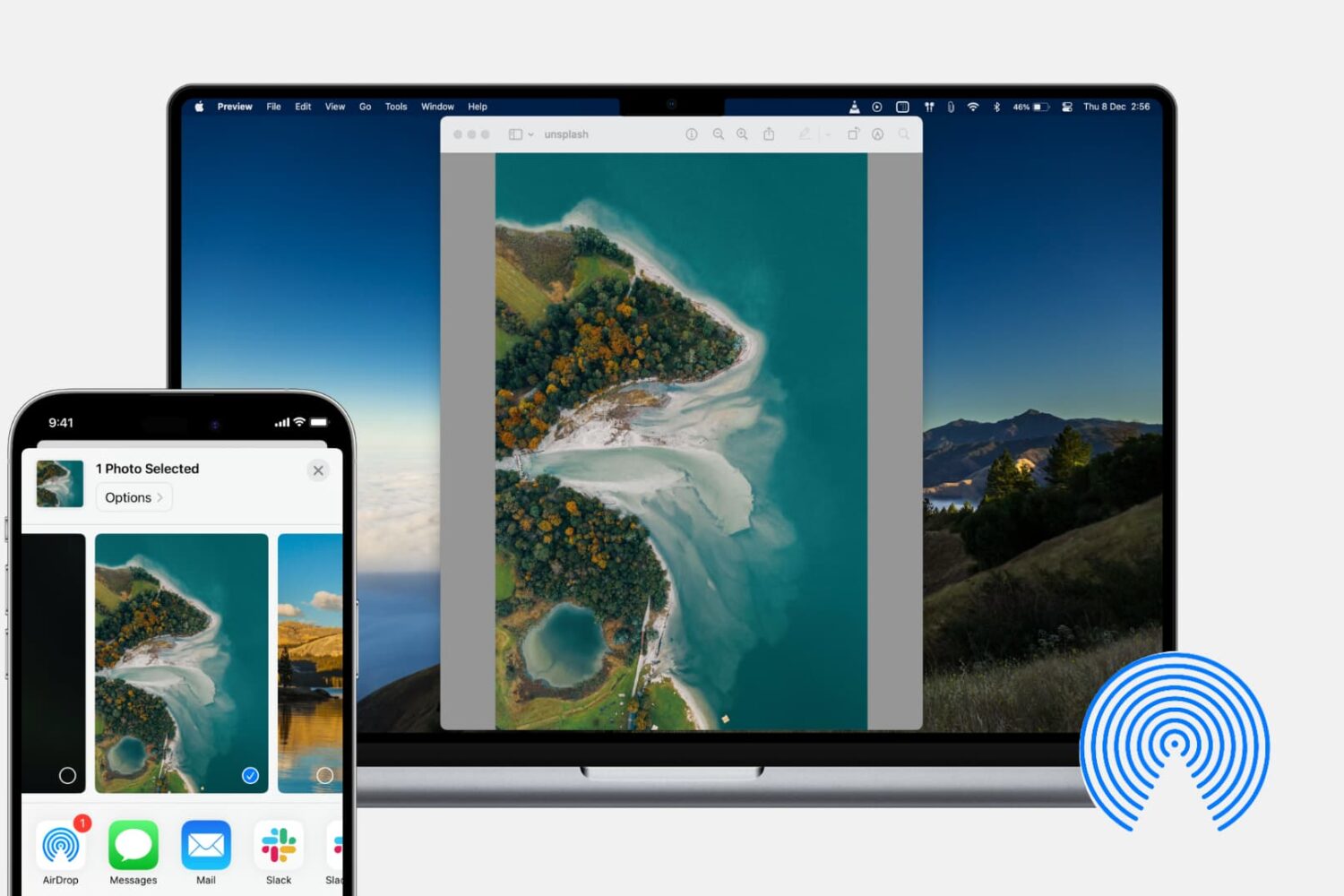
AirDrop between Mac and iPhone

If you’re new to iPhone, iPad, or Mac, AirDrop might be unfamiliar to you. It’s a built-in Apple service that lets you wirelessly share files with nearby Apple devices. The sharing process is encrypted, ensuring your private files can only be decrypted on the recipient device.

In this tutorial, we’ll show you how to share photos, videos, PDFs, web links, and other files between iPhone, iPad, and Mac using AirDrop.

SilentAir makes the AirDrop receiving pop-up less intrusive

AirDrop comes in handy when you want to wirelessly send files from one device to another, but the user interface leaves a lot to be desired, especially when receiving large files.

The single most significant complaint is that the intrusive AirDrop receiving pop-up appears on the screen for too long, blocking you from doing anything else until the pop-up vanishes. But a new free jailbreak tweak called SilentAir by iOS developer Muirey03 aims to change that.

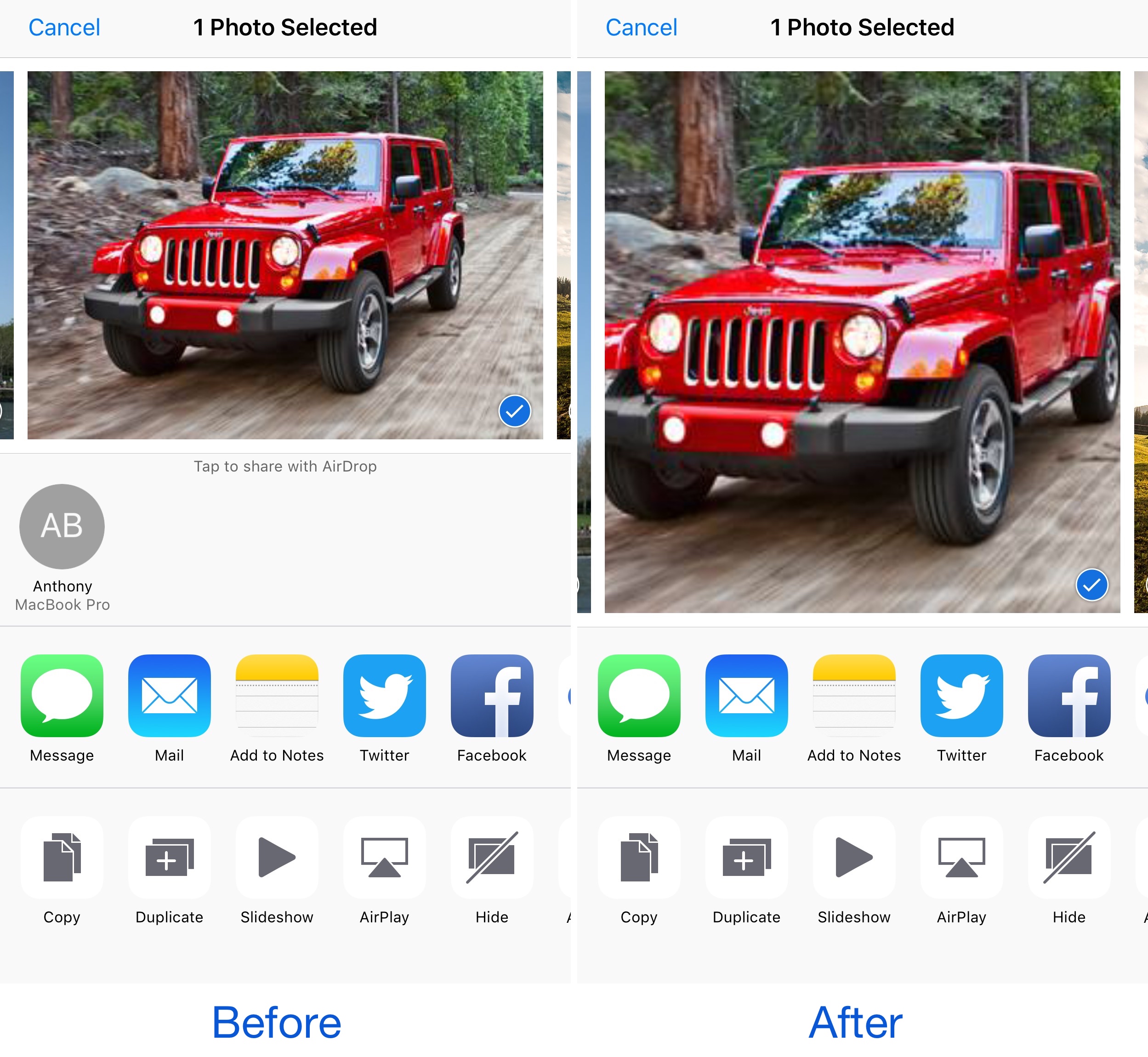
AirDrop Remover nixes the AirDrop button from iOS Share Sheets

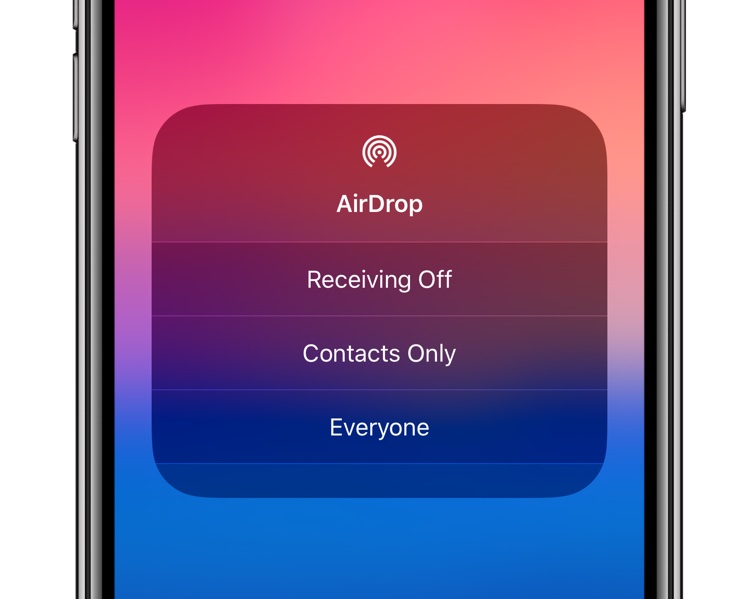
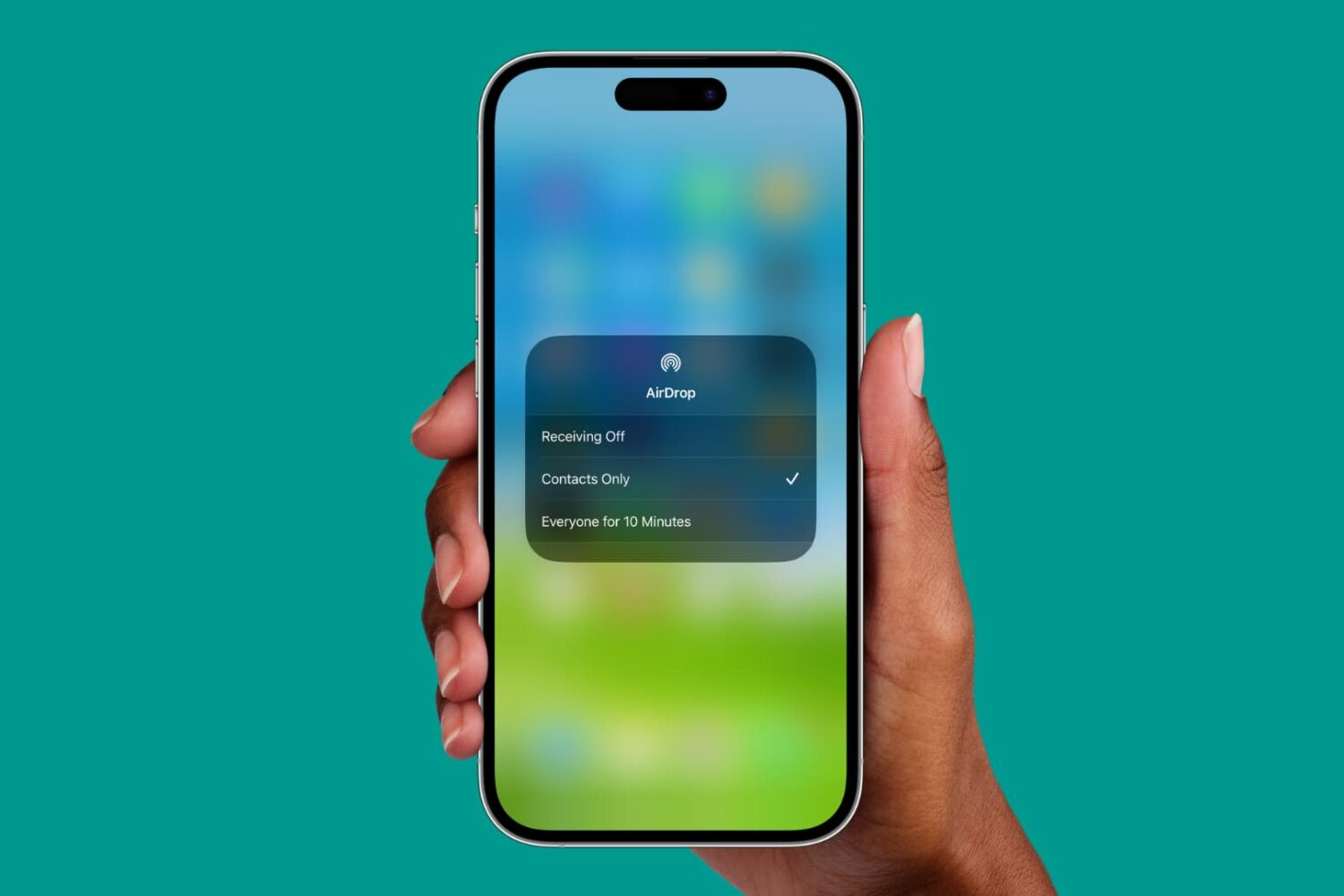
AirDrop is a very convenient way to send and receive files between iOS devices and Macs; on the other hand, not everyone uses it. While you can easily disable AirDrop, the feature still clutters your interfaces whether it's disabled or not.

Those with a jailbreak can hide AirDrop from their device entirely, and a new free jailbreak tweak called AirDrop Disabler by Justin Petkovic aides in this process by removing AirDrop from your Share Sheets.

How to change the default AirDrop destination folder on Mac

Change Airdrop Location on Mac

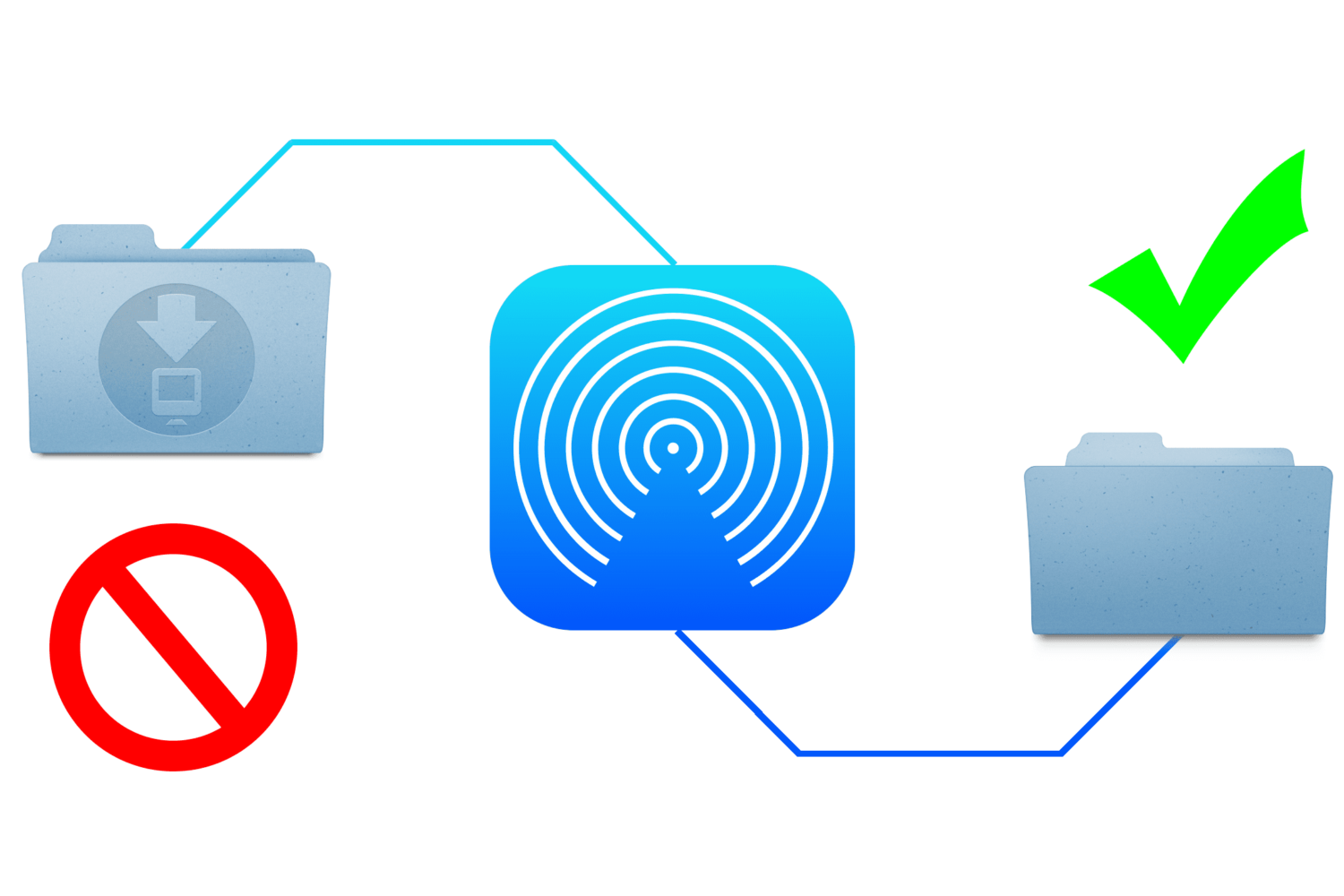
When you send files to your Mac via AirDrop, the received files are automatically saved to the Downloads folder. While this is a logical place for them to go, it's non-configurable and lumps them in with your Mail attachments and Safari downloads.

This approach is not granular enough for some users who may wish to designate a specific folder for AirDrop files to be saved to. Although macOS does not allow this out of the box, it's possible with some straightforward steps.

In this guide, we show you how to change the save location of files you receive via AirDrop on your Mac.

How and where to share faster with AirDrop

In the absence of reliable figures from Apple, it is not much more than conjecture to say that AirDrop is likely a feature often neglected by the average iOS user. The gut feeling persists though, simply based on day to day observations, and it is a tenable position to take until proven wrong by Cupertino or another reputable source. The file transfer protocol is indeed handy for the transfer of heavier media files (e.g. videos, photo albums), but often only becomes relevant to us when we for example have upgraded to a new device.

Next to sheer transmission speed however, there are other notable areas where AirDrop has the clear edge when it comes to sharing all kinds of material from your iPhone. The AirDrop icon has now fully permeated the sharing tab in iOS 10’s user interface and that is for a good reason: it is without fail going to be more nimble than iMessage, Mail or other contenders, often actually skipping steps that would throttle the process elsewhere. Such being the case, here are some unique scenarios where AirDrop excels on your iPhone and why you should try to embrace the feature more regularly.