SpotAngels, Ditty, Gaia GPS, and other apps to check out this weekend

This week's edition of our Apps of the Week roundup includes an app for preventing parking tickets, a musical meme-maker, and an off-road GPS app. And as usual, we have two great new games for you to check out this weekend.

SpotAngels

This isn't a new app, but it's worth checking out for those who aren't familiar with it. SpotAngels detects when you park and sends you alerts if and when you have to move your car. It does this by using your phone's motion sensors and Bluetooth (as it disconnects from your car) to know that you've parked, and then it checks your location against its data base of trouble spots. These include meters, to away zones, street cleaning, permit parking and other rules in dozens of major cities like New York, Dallas and Portland. The app also helps you find free parking around you, and since it's crowd-sourced, anyone can submit an update. SpotAngels is available for free.

Ditty

Here's another not-so-new app that you might find fun to play with this weekend. It's called Ditty, and it allows you to make goofy songs and music videos using a mix of GIFs, photos, videos and more. The app will actually sing anything you type, and there are tons of famous songs to choose from, with new content added weekly. Add your friends to follow their feeds, or post a Ditty yourself for a chance to be featured in the app. Ditty is available for free (with some IAPs).

Gaia GPS

Established GPS apps like Apple Maps and Waze do a nice job of getting you around the streets. But what about getting you around off road? That's where Gaia GPS comes in. This app features a beautiful and well-thought out interface that makes navigating the backcountry simple. Features include worldwide topo, road and satellite maps, syncing of photos, tracks and waypoints, a database with hiking trails, parks and other natural sights, and several customization options. This is a freemium app, and unfortunately most of the features are tucked behind an in-app purchase. But, Gaia has a great track record in this space and the app is getting rave reviews. If you need something like this, check it out. Gaia is available for free (with some IAPs).

Zombie Gunship Survival

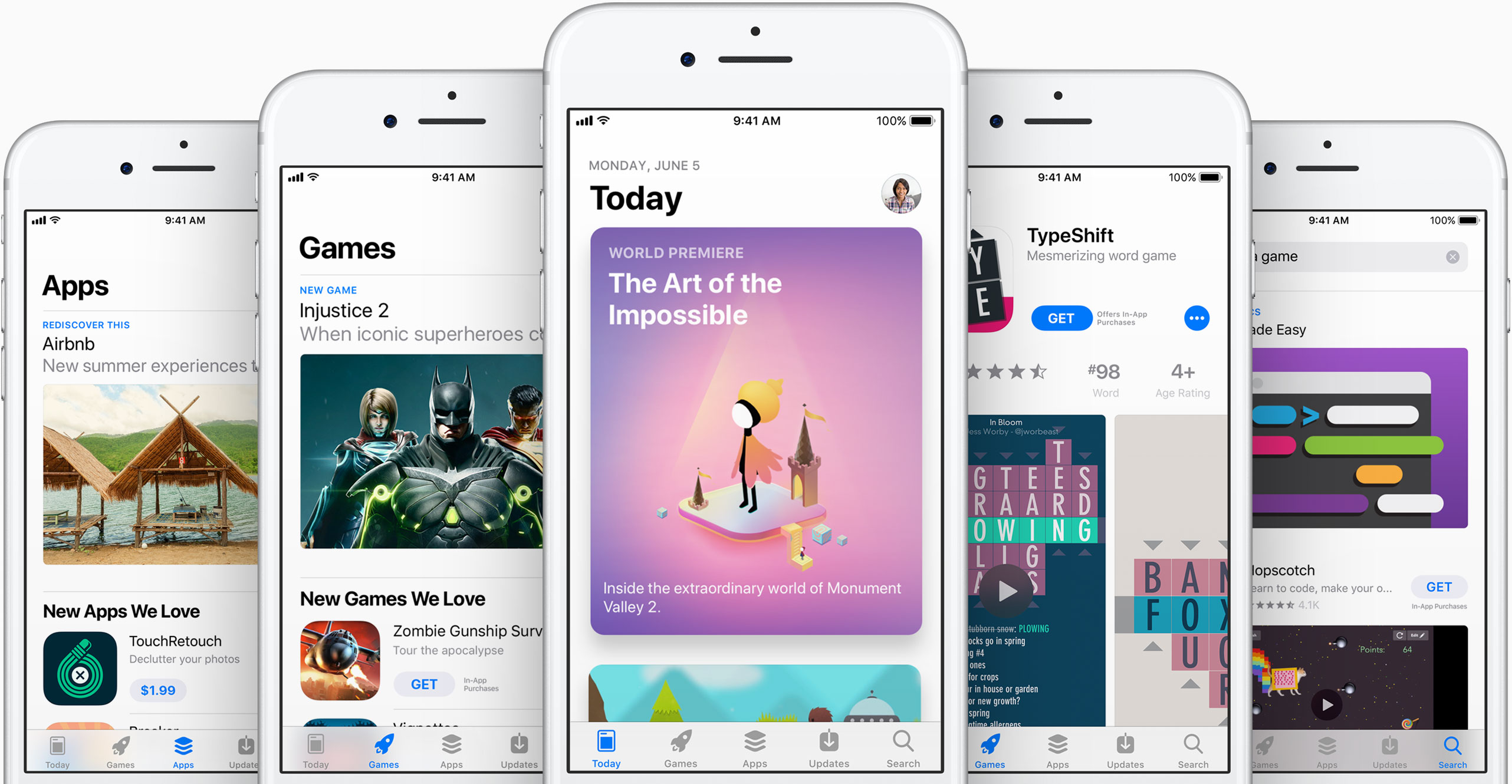
The long-awaited sequel to Zombie Gunship is here! Zombie Gunship Survival has you as one of the few survivors in a devastating zombie apocalypse. To stay alive, you must take the gunner seat aboard a heavily-armed AC-130 ground attack aircraft and blow up the undead in this intense, high-definition shooter experience. You'll build up your remote airfield as a base for operations, defend that base, deploy your troops to annihilate the undead, and try to survive one of the most hostile environments ever. This is another freemium title, so there are a lot of in-app purchases, but the game itself has nearly a 5-star App Store rating on 1,200 reviews. Zombie Gunship Survival is available for free.

Goat Simulator PAYDAY

The goat is back! Goat Simulator: Payday is the most criminally realistic goat simulation ever! There are 3 new thugs, including a flying flamingo that can control people's brains, a wheelchairing dolphin that can climb almost any surface, a spitting camel, and of course the goat. You can meet up with your Pranknet crew, buy masks to disguise your identity, carry out "jobs" to collect cash to buy things, and you can even steal and drive cars. There's no real elaborate story line here, just a GTA-style open world adventure game that encourages you to inflict the maximum amount of destruction. Goat Simulator PAYDAY is available for $4.99.

More apps to check out Apple’s free app of the week: klocki You can now drag and drop files on iPad between Readdle’s productivity apps 1Password’s Travel Mode protects your private data from unwarranted searches Not to be outdone by Instagram, Snapchat unveils custom Stories of its own Duet Display brings even more desktop power to your iPad drawing experience YouTube TV app gains AirPlay support New Pokémon game is based on Magikarp, the weakest Pokémon ever At long last, Konami’s Pro Evolution Soccer 2017 hits App Store

Minimalists can put the Settings app on a diet with SkinnySettings

Most people use the Settings app on a daily basis given just how much functionality is packed inside of it from both Apple and the jailbreak tweaks you’ve installed from Cydia.

That said, if you find the Settings app is more cluttered up than it needs to be out of the box, then you might like the concept behind a new free jailbreak tweak called SkinnySettings by CydiaGeek.

Vibrancy makes your Lock screen clock subtler

Given just how often people use their Lock screen clock to see what time it is, it’s a shame that Apple doesn’t give users visual customization options to tailor its looks around the user's personality.

Nevertheless, those with a jailbreak can use a new free jailbreak tweak dubbed Vibrancy (iOS 10) by iOS developer NeinZedd9 to make the Lock screen clock text subtler, giving the illusion that the time is fading away into the wallpaper.

Tweet your Now Playing music from anywhere with NPTweet

The rhythmic souls out there who listen to their songs on a daily basis generally like to talk about and share their music with other connoisseurs.

Fortunately, a new free jailbreak tweak dubbed NPTweet by iOS developer ichitaso is now available that makes it super easy to Tweet a Now Playing track from anywhere in iOS by calling upon the help of Flipswitch.

Apple developing dedicated AI chip for future devices

Apple is working on a processor dedicated specifically to AI-related tasks, reports Bloomberg. Citing sources familiar with the matter, the outlet says the chip is known internally as the Apple Neural Engine, and its goal is to improve the way devices handle facial recognition, speech recondition and other AI-related tasks.

Currently, Apple devices handle complex AI processes with two different chips—the main processor and the GPU. This new chip would let Apple offload those tasks onto a dedicated module designed specifically for complex artificial intelligence processing, resulting in better battery life and performance.

The Apple AI chip is designed to make significant improvements to Apple’s hardware over time, and the company plans to eventually integrate the chip into many of its devices, including the iPhone and iPad, according to the person with knowledge of the matter. Apple has tested prototypes of future iPhones with the chip, the person said, adding that it’s unclear if the component will be ready this year.

It's no surprise Apple looking to move quickly with this AI chip. Other manufacturers, such as Google and Qualcomm, are already using dedicated AI modules, and artificial intelligence sits at the heart of two major spaces the company is rumored to be interested in: self-driving vehicles and augmented reality.

Source: Bloomberg

The best 4K monitors

Good news for folks in the market for a 4K computer monitor. Prices are really starting to come down on Ultra HD displays, and 4K video games and content are becoming more and more common.

There are several to choose from, but as usual, we're here to help you sort through the noise. In our latest accessory roundup, we take a look at the best 4K monitors for your laptop or desktop computer.

How to post images and videos to Instagram on the web

Marketing image with a tagline "Everyone has a story" in white font printed on top of a colorful Instagram gradient background

Instagram for iOS is pretty decent, but there are times when you just wanna quickly post an image without having the app unnecessarily eat into that precious cellular data by refreshing feeds and other content. While you can send photos from other iPhone apps via Instagram's Share sheet extension, it's now possible to upload images through Safari as well.

This tutorial provides step-by-step instructions explaining how to upload your photographs to Instagram using the mobile web interface, no apps needed whatsoever.

Before we get to it, know that you cannot take or upload photos from Instagram's web interface on a desktop computer. Only Instagram's web UI on mobile lets you do that.

iPhone 8 to switch from 16:9 to 18:9 display—here’s what this means for you

Apple is expected to change iPhone's screen aspect ratio from 16:9 on iPhone 7 to 18:9 on iPhone 8, according to multiple reports. Economic Daily News said today that the device's screen ratio will change to 18.5:9 instead of the previous 16:9.

18.5:9 accounts for the rumored curvature of iPhone 8's OLED display: the phone's active display area is understood to be 5.1 or 5.2 inches in the precise 18:9 aspect ratio.

Yesterday, DigiTimes said that Apple is expected to unveil a new iPhone in the second half of 2017, equipped with a 5.8-inch AMOLED panel in the—you guessed right—18:9 aspect ratio.

Aspect ratio is the relationship between the height and width of a display. In simpler terms, a 16:9 screen has 16 pixels in one direction for every 9 pixels in the other. The most common aspect ratios are 4:3, popularized by older TVs, and 16:9 found on widescreen ones.

18:9 has been popularized by the latest phones from Samsung and LG, which have screens that are taller than the 16:9 ratio used by the majority of smartphones.

Already, these new phones have prompted panel vendors to expand capacity to meet fast-growing demand for 18:9 smartphone displays.

It looks like the 18:9 screen aspect ratio is here to stay, but what's so special about it?

Mockup of iPhone 8 with Full Vision Display, via iFanr.

For starters, the 18:9 screen aspect ratio (you could just call it a 2:1 display) results in a display that's a little bit taller than a typical 16:9 screen. As a result, an 18:9 phone may provide a better grip than its 16:9 counterpart.

As a bonus, 18:9 is perfectly suited for Split View multitasking that Apple is expected to bring to iPhone with iOS 11. More importantly, on an 18:9 screen you can have one app on top of another in portrait mode. In the Camera app, as an example, you might be able to take a square photo on half of the screen and review it on the other half.

18:9 screens also show more content vertically so users see more of a webpage in Safari, additional images in their Instagram feed, more tweets and so forth, without scrolling.

On the downside, a majority of HD videos today are encoded in the 16:9 format and many games and apps are optimized for 16:9 on a landscape mode. If iPhone 8 will really come outfitted with an 18:9 display, all 16:9 videos will show blank space on the sides of the phone.

As Ron Amadeo of Ars Technica noted in his review of Galaxy S8, the device's unusual aspect ratio results in pillarboxing when watching 16:9 video without zooming or stretching it.

What's the point of having thin bezels on a phone if your 16:9 movie-watching experience suffers from blank space on the sides, you might be asking. While this is no doubt concerning, you can always double-tap to prompt iOS's media player to zoom in the video so that it fills the entire screen, in which case parts of the video would get cropped out.

Still, 18:9 could gain momentum if filmmakers adopt it.

iPhone 8 concept courtesy of designer Gábor Balogh.

For what it's worth, select new shows on Amazon Video and Netflix are shot in 18:9. Plus, Italian cinematographer Vittorio Storaro is pushing the new Univisum 2:1 format (or 18:9) versus the typically wider 2.20:1 aspect ratio commonly used in movie theaters nowadays.

It's unclear, and this is important, if iPhone 8's upgraded camera will feature a new aspect ratio that's closer to 18:9. Take Galaxy S8's 12-megapixel camera which shoots in 4:3 by default. But start shooting in the 18.5:9 mode and you only get 7.9-megapixel of its capabilities.

In the same vein, LG G6's thirteen-megapixel camera offers a maximum of 8.7-megapixel capability in 18.5:9 mode, or 9.7 megapixels for 16:9 images. Only 4:3 images can be shot in the full 13-megapixel resolution.

On the other hand, as iPhone 8 is said to include an active screen area at the display's bottom potentially designed for showing persistent on-screen controls, like Android, it's entirely conceivably that the actual content area could be in the 16:9 aspect ratio.

Apps are likely going to need to be updated to take the full advantage of the 18:9 canvas, but having been there before we expect a relatively painless transition. Be that as it may, Apple certainly is no stranger to making an iPhone's screen taller.

Claimed iPhone 8 case (middle) next to iPhone 7 (left) and iPhone 7 Plus case (right).

With 2012's iPhone 5, Apple made the display a tad taller without making it wider so that users could still reach corners at the top in one-handed mode. It took developers several months to update their apps to take full advantage of the new screen format. It follows that existing apps on an 18:9 iPhone would show black bars on the top and bottom of the screen.

At any rate, Google has urged developers to work with newer 18:9 aspect ratios for their apps and Apple is expected to do the same if iPhone 8 adopts the new screen format.

In other words, expect 18:9 to quickly become the new norm for smartphones.

As we reported before, iPhone 8 should manage to squeeze a 5.8-inch AMOLED panel (with an active display area measuring 5.1 inches) inside a chassis that would be just a little bit wider and a tad taller than the existing 4.7-inch iPhones.

Hopefully, Apple will achieve this by drastically reducing or eliminating the bezels and integrating the Home button, Touch ID, the camera and sensors into the display assembly.

Fun fact: the original iPhone had a screen aspect ratio of 3:2.

iPhone 8 mockup top of post via Benjamin Geskin.

Gatwick Airport rolls out iBeacons for augmented reality indoor navigation

Gatwick Airport, the UK’s second busiest airport after London Heathrow, has installed 2,000 battery-powered iBeacons for indoor navigation and passenger tracking.

Available across Gatwick Airport’s two terminals, the system is accurate up to three meters, much more reliable than GPS and enables an augmented-reality wayfinding tool so passengers can be shown directions in the camera view of their mobile device.

It could be used to inform passengers they’re running late and help them avoid missing flights.

Conceivably, Gatwick Airport could also take advantage of iBeacons for efficient queue management and to reduce congestion by being able to determine whether to offload luggage if a late passenger is far away.

According to the airport, they won't be collecting any personal data from the beacons with the exception of “generic information on ‘people densities’ in different beacon zones.”

Deployed in just three weeks, iBeacons form part of Gatwick’s £2.5 billion (about $3.1 billion) transformation initiative. The technology is currently being integrated into some of the Gatwick apps.

The airport is in discussion with other airlines to enable the indoor positioning and wayfinding tools to also feature on their apps and services.

According to Gatwick:

Airlines could go further—and with the consent of their passengers—may send reminders on their airline app to late running passengers, for example, or find out where they are and make an informed decision on whether to wait or offload their luggage so the aircraft can take off on time.

The lack of satellite signals makes road-based navigation systems, like Apple Maps, unreliable indoors. That's why Apple has developed inexpensive iBeacons, which are tiny battery-powered Bluetooth transmitters.

You can now order photo books and archive images on Google Photos

At its annual developers conference earlier in the month, Google announced three new features for its Photos app: automatically curated albums, photo books and sharing suggestions.

Today, the company pushed an update to its Photos app for iOS, Android and the web, bringing support for ordering printed photo books comprised of your best photographs. You can make a photo book in minutes with automatic photo curation and easy customization.

Photo books

To order a printed photo book, select the images you’d like to fill your album with. Google’s machine learning picks the best shots for your, removing duplicates and poor quality images.

In fact, the app will even offer personalized suggestions for photo books, like your trip to the Grand Canyon, time with family during the holidays, your puppy and so forth.

You can order a seven-inch square softcover book for $10 a piece or its nine-inch hardcover version for twice as much. Each has twenty pages though you can buy additional pages if you'd like:

Softcover—$0.35 per additional page Hardcover—$0.65 per additional page

Photo books are currently available to users in the US only.

However, the search company has made promises to bring them to more countries soon.

Google photo books key highlights:

Quickly find your best shots— Start from an album or search for a person, place or thing. Then, Google Photos can automatically pick out your best photos—helping you save time. Perfect your book in minutes—Easily move around your photos, add a book title and tweak your cover design. Beautifully crafted for you—Just choose a size and get started on your phone or computer. Photo books are made in the USA from premium, responsibly sourced materials.

Apple's Photos app supports photo books, too. As a matter of fact, ordering photo books has been part of the now phased-out iPhoto app for almost a decade.

Archive photos

Aside from photo books, today's update includes the Archive feature.

Chances are your photo library includes not only your selfies, food shots and cherished memories, but the more mundane pictures as well, like recipes, receipts, scanned documents and so forth.

Now you can move images to the app's new Archive section to tidy up your photo grid.

To get started, simply select a few photos you'd like to archive, tap the Menu icon and choose Archive from the popup menu. This simply moves the selected photos to your archive rather than delete them. Any archived images and videos remain visible in search and albums.

Aside from the image archival feature and photo books, this update includes performance improvements and reduces the amount of on-device storage space used by the app.

Instagram Direct now lets you send links and images in landscape and portrait orientations

Instagram yesterday announced a pair of minor updates for Direct, a direct-messaging feature built into its mainland mobile app for iOS and Android. For starters, Instagram Direct now supports sending images and videos in portrait and landscape orientations.

Plus, Instagram is just now offering support for sending links in direct messages.

The ability to send a permanent photo or video in landscape and portrait orientations through Direct means you no longer have to worry about weirdly cropping it as it will now show up properly in its intended orientation.

“We’ve added support for links in Direct,” noted the company. “You can share website links with friends and preview them directly from your thread.” As a bonus, the team also has implemented automatic links to phone numbers and addresses send through Direct.

Landscape and portrait uploads in Direct are available today on iOS, with Android coming soon. Links in Direct messages are available today on both iOS and Android.

Today's features are part of Instagram's version 10.22 update.

Grab Instagram for free via App Store.

iPhone 8’s Touch ID said to use on-screen optical fingerprint scanning

Apple is said to have developed a next-generation Touch ID sensor where an OLED display of the device doubles as a fingerprint sensor. This should enable users to rest their finger on the display to authenticate themselves.

According to a Chinese-language Economic Daily News report, citing sources from Apple's chip supplier Taiwan Semiconductor Manufacturing Company, Apple has managed to develop an optical fingerprint sensor to enable authentication directly on the screen.

KGI Securities analyst Ming-Chi Kuo first called it in January.

He said because Touch ID’s capacitive sensor does not work through the display’s cover glass, Apple could go with an optical sensor which doesn’t require physical contact with a user’s finger.

Other iPhone 8 features, according to a TSMC source, include no physical Home button, the screen ratio of 18.5:9 instead of the previous 16:9 and invisible infrared image sensors to enhance camera functionality and enable augmented reality features.

Apple is understood to have been plagued with yield issues regarding the new optical fingerprint sensor. It's unclear if the company has managed to resolve those technical issues.