Learn how to close all open Finder windows on your Mac in one fell swoop and save time instead of closing them one by one.
How to close all Finder windows at once on Mac

Learn how to close all open Finder windows on your Mac in one fell swoop and save time instead of closing them one by one.

I have to admit that I'm not a huge user of Notification Center, and this applies to both iOS and the Mac. One of the reasons that I'm turned off by Notification Center is the disarray that I see when viewing it.
By default, Notification Center is set to sort manually, which means that you can go into its preferences, and sort each app by hand. That's fine and all, but it makes for a less than ideal experience when trying to find the most relevant notifications based on time of arrival.
For me, this results in a less than ideal experience when opening Notification Center. If you have a lot of apps enabled for Notifications, it can be overwhelming, because there's no real logical order to the way they're sorted. To remedy this issue, try this simple tip, and sort your notifications by time of arrival instead.
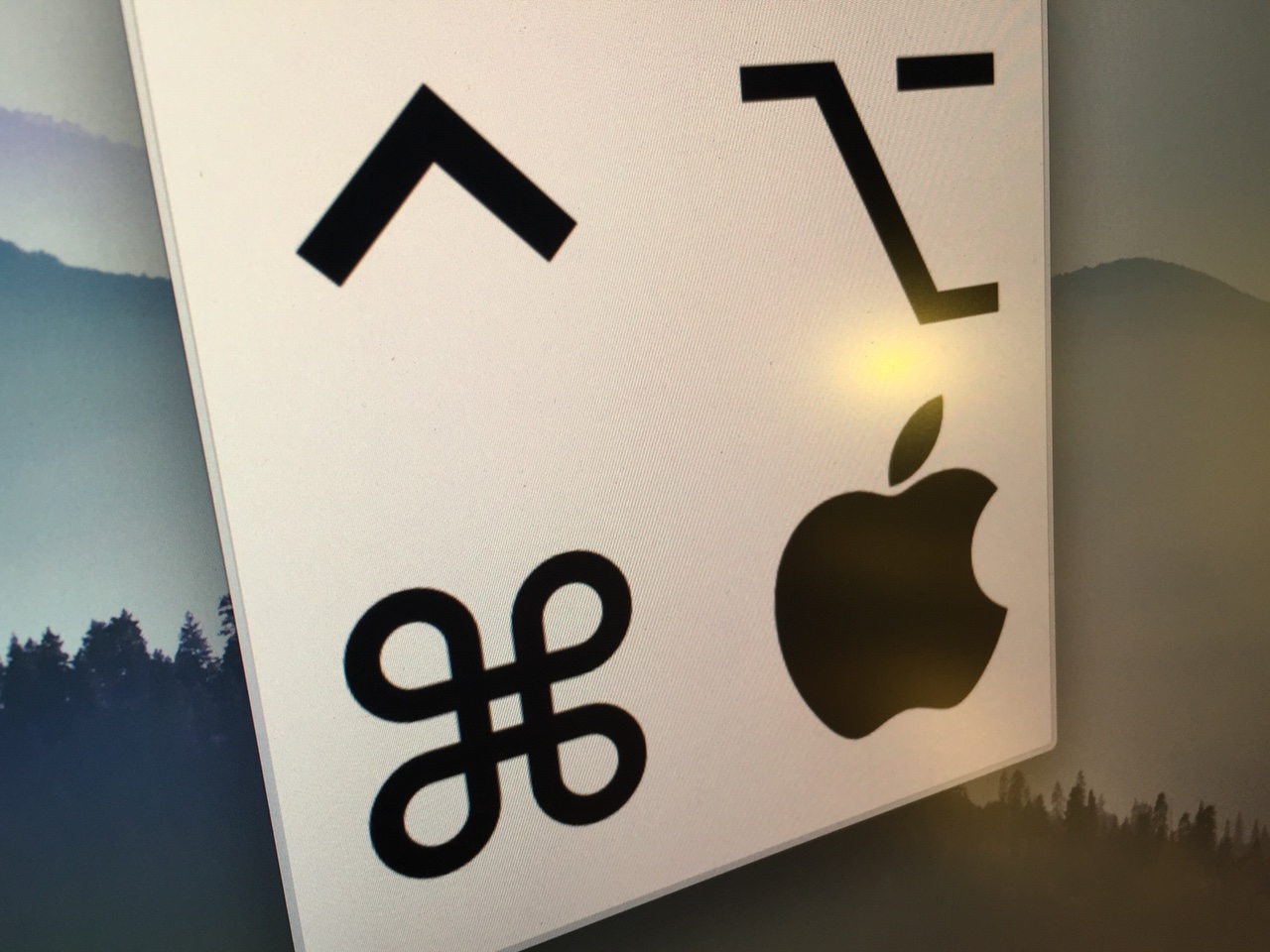
You may have noticed how I like to use keyboard symbols in my posts. You know, things like ⇧, or ⌃, or ⌘, or even ⌥. I use → a lot too, which is helpful when laying out a certain order of steps in my tutorials.
Some of you may think that I've memorized the code for these symbols (I haven't), or that I copy and paste them from a document or keep them on my clipboard somehow (I don't). Instead, I use the venerable TextExpander utility to make inserting these symbols a totally effortless affair.

It might seem fairly obvious, but it might be a good idea to assign a keyboard shortcut to Notification Center on the Mac. Perhaps you already have, or maybe you still haven't. I hadn't, at least not up until a few days ago when a reader suggested that I do so, and I honestly can't come up with a reason as to why I waited so long. I think it's because I just never thought about doing it.
Assigning Notification Center to a keyboard shortcut just makes sense. It especially makes sense if you use a keyboard and mouse combination on your Mac, instead of a trackpad. Granted, MacBook users might not be so easily convinced, because invoking Notification Center can be accomplished via an effortless two-finger swipe on the trackpad.
But if you're working on an iMac, or if you're using a traditional mouse and keyboard combination with your MacBook, as I am, then I definitely recommend that you follow this uber-simple tip.

Adding tweets and Twitter videos to your website can add an interactive and engaging element to your content. In this tutorial, we will walk you through the simple process of embedding tweets and Twitter videos onto your blog or website, allowing you to enhance your content and engage your audience.
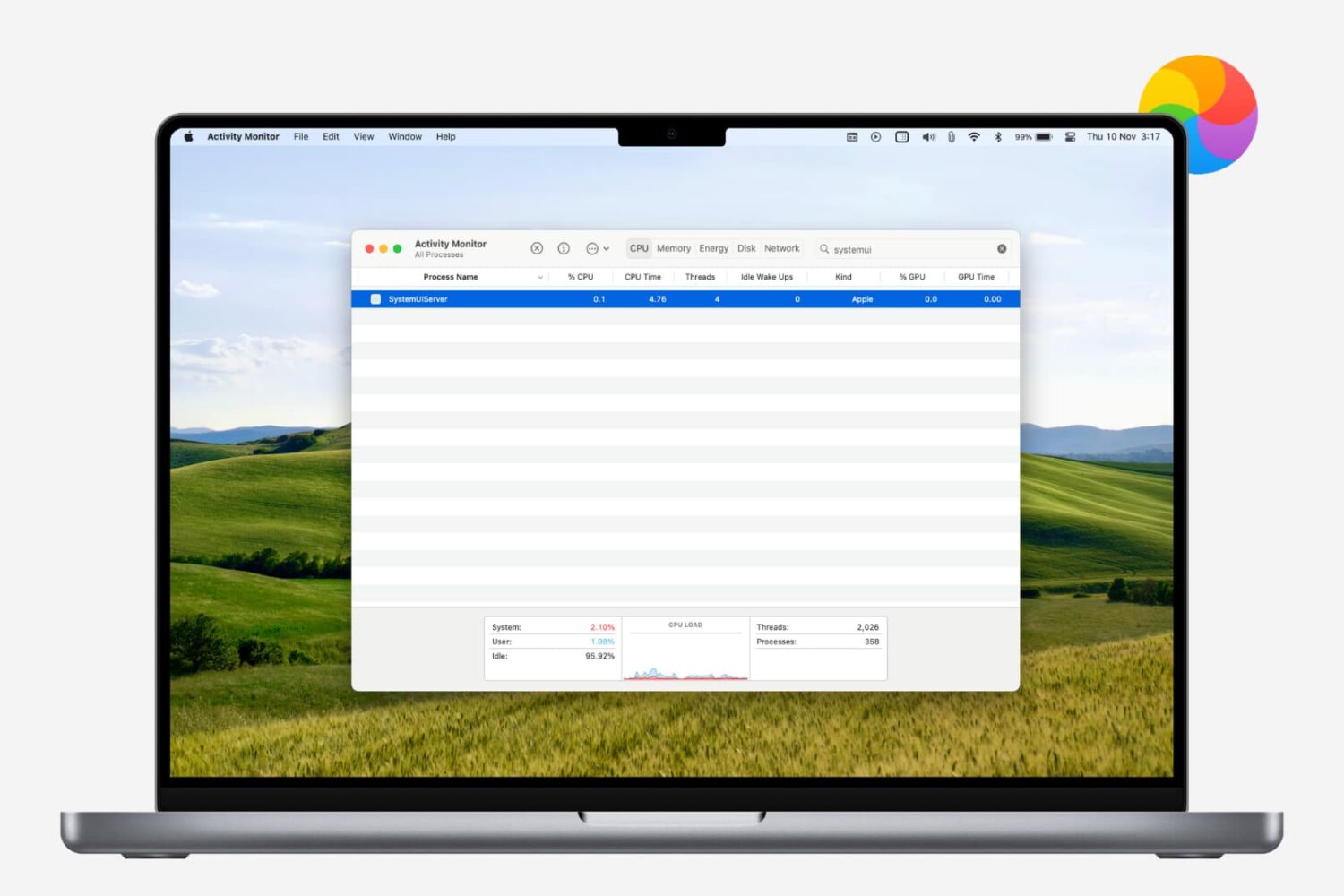
Learn how to restart the menu bar on your Mac if it’s frozen, unresponsive, or malfunctioning, and clicking the icons doesn’t trigger the intended action.

Learn how to change the default Finder folder on your Mac to streamline your workflow and enhance productivity.

Every Mac that Apple ships, sans the Mac mini, comes with an iSight camera embedded in the bezel at the top of the display. If my memory serves me correctly, Apple's computers were one of the first to really popularize the standardization of built-in cameras.
I'm probably not alone when I say that I rarely, if ever, use my MacBook Pro's iSight camera. In fact, it's become more of a worry to me when thinking about the potential hacking and privacy concerns. I'm far from a tin foil hat wearer, but I have to be honest and admit that the thought has crossed my mind before... you know, the one where hackers view my iSight camera unbeknown to me.
With all of that said, wouldn't it be nice if you could disable your Mac camera with a simple software tweak? Inside, I'll show you how to do just that.

Learn about three ways to restart or relaunch Finder on your Mac in case it hangs, stops responding, or fails to refresh your files with the latest changes.
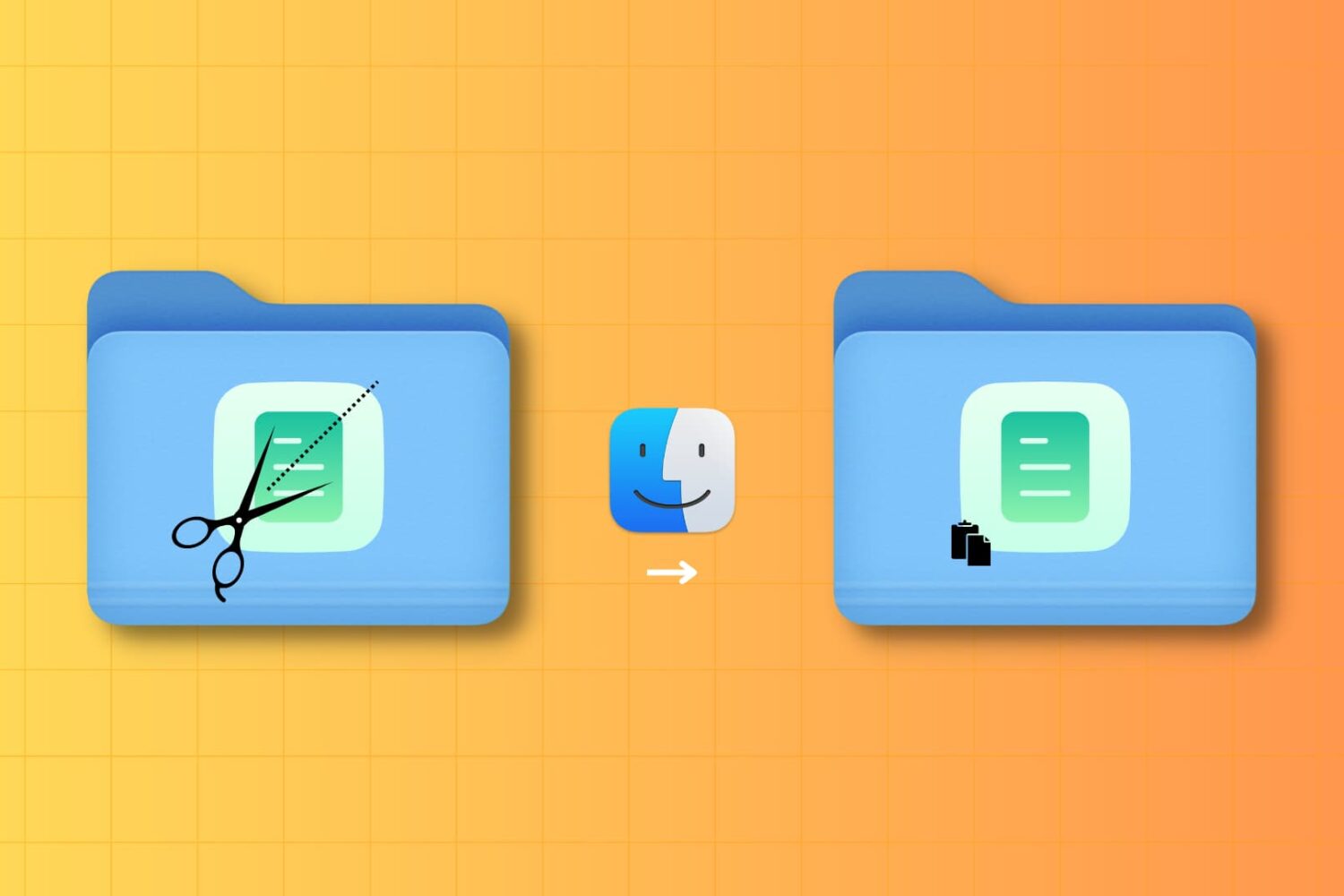
It may not be obvious, but your Mac has the option to cut a file and paste it to a new location in Finder. In this tutorial, we’ll show you four different ways to use cut and paste files on a Mac.

Use this simple trick to make your Mac’s Dock hide and show instantly without any delay or system animation.

Learn how to view places on a map where you shot photos with your iPhone, so you can visualize and relive these locations, track your travels, and more.