Sébastien Page

Sebastien is the Founder and Editor in Chief of iDB. Once a BlackBerry user, Sebastien instantly fell in love with the iPhone when it was first announced in 2007. Shortly after, he decided to start sharing his knowledge of the iPhone and its nascent ecosystem, which led to the creation of this blog. Sebastien currently owns 14 iPhones, 4 iPads, a MacBook Pro with Touch Bar, a MacBook Air, 2 Apple Watches, 3 Apple TVs, countless HomePods and AirTags as well as a few pairs of AirPods.

iOS 9 includes Markup feature to let you annotate email attachments

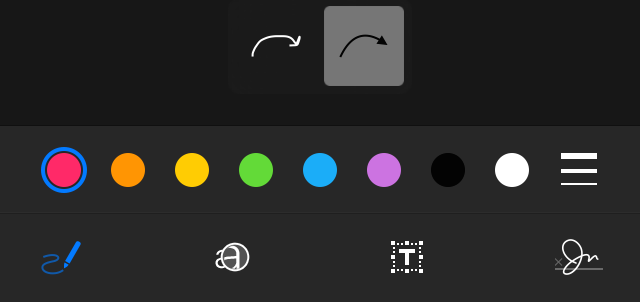
Similar to a feature that first made its way to the Mail app under OS X Yosemite, iOS 9 now includes Markup, a tool that lets you annotate email attachments, including image files as well as PDFs, effectively turning the Mail app into a more powerful one with a growing focus on productivity.

Just like its OS X counterpart, Markup for iOS 9 allows you to sketch, zoom, add text, and sign documents on the go. Absent from the list of annotations is the Shape button, which lets you easily insert squares, circles, etc.

Markup for iOS 9 works for both incoming or outgoing attachments, meaning that you can annotate either the attachments you receive, or those that you send. This seems to actually go hand in hand with another new iOS 9 feature that lets you attach documents from iCloud Drive.
Carrier Settings Update: what it is and how to check for it

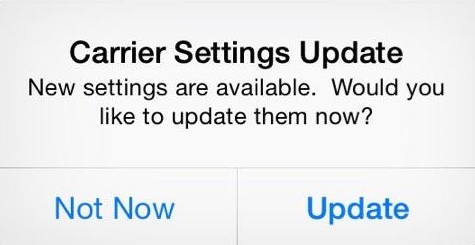
From time to time, you might see a Carrier Settings Update message pop up on your iPhone, saying that new settings are available, and asking if you would like to update them now. Admittedly, this message is somewhat cryptic, and doesn't give you any information regarding what's included in the update or where it's coming from. Maybe even worth, I've had a friend ask me once if his iPhone got hacked as the message looked suspicious to him. In this post, we'll tell you more about carrier settings updates, what they are, and how to check for them.

How to export and import your Health data

Apple has really changed the way I think about my overall health and fitness, starting with iOS 7 and the M7 motion coprocessor of iPhone 5s. I went from being completely oblivious of my weight and physical fitness, to being obsessed with them. Apple Watch has made that even more obvious, as I now feel accountable for everything I do. At the end of the day, I have the satisfaction of looking at my stats in the Health app and see my progress.

As someone who talks about Apple for a living, I am often restoring devices, moving data from one iPhone to another, and also upgrading hardware every year. This is part of the fun for me. But there is a downside to this behavior: every time I set an iPhone as a new device, I lose all of the data from my Health app.

In this post, I will show you how to export Health app data, and import that same data into a freshly restored device, or a new device, depending on your situation.

UPDATE: A new application has been released in the App Store that makes the Health data import process much easier. While the information contained in this post is still accurate, I must say that Health Data Importer makes moving your Health data from one iPhone to another a breeze and I suggest you read that post instead.

iOS 9 lets you save email attachments to iCloud Drive

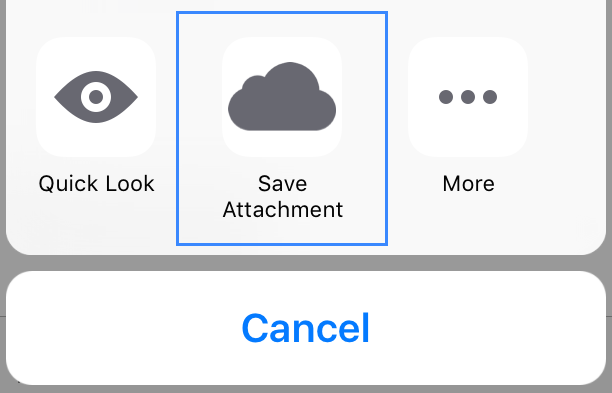
iOS 9 offers a new feature that allows you to save attachments received via emails to iCloud Drive. Similar to the way iOS currently lets you save email attachments to third-party services such as Dropbox or Google Drive, this new feature takes advantage of the Share extension, bringing a new Save Attachment icon for easy sharing to your iCloud Drive.

Apple Music and the S-word

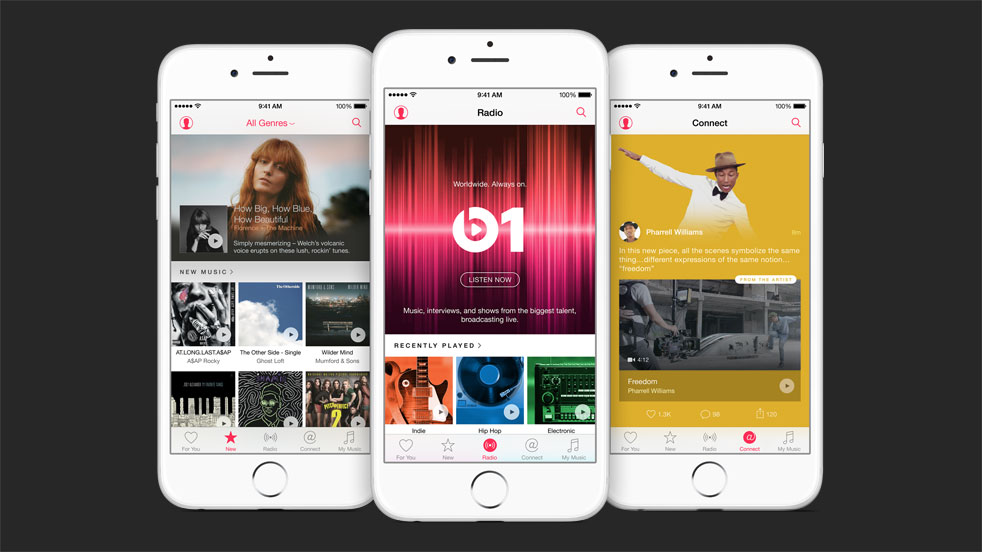
While following the keynote yesterday and trying to cover the event at the same time here on iDB with the rest of the team, there seemed to be one word I didn't hear Eddy Cue pronounce: streaming. I actually made a note of it in our Let's Talk iOS episode dedicated to WWDC 2015.

It seemed odd that the word wouldn't even get a mention. To confirm the omission was on purpose, I took a look at Apple's mini-site dedicated to Apple Music, and realized the word streaming is nowhere to found there either. It's like it's not even part of the offer. Is the S-word taboo? 

The jailbreak tweaks of the week

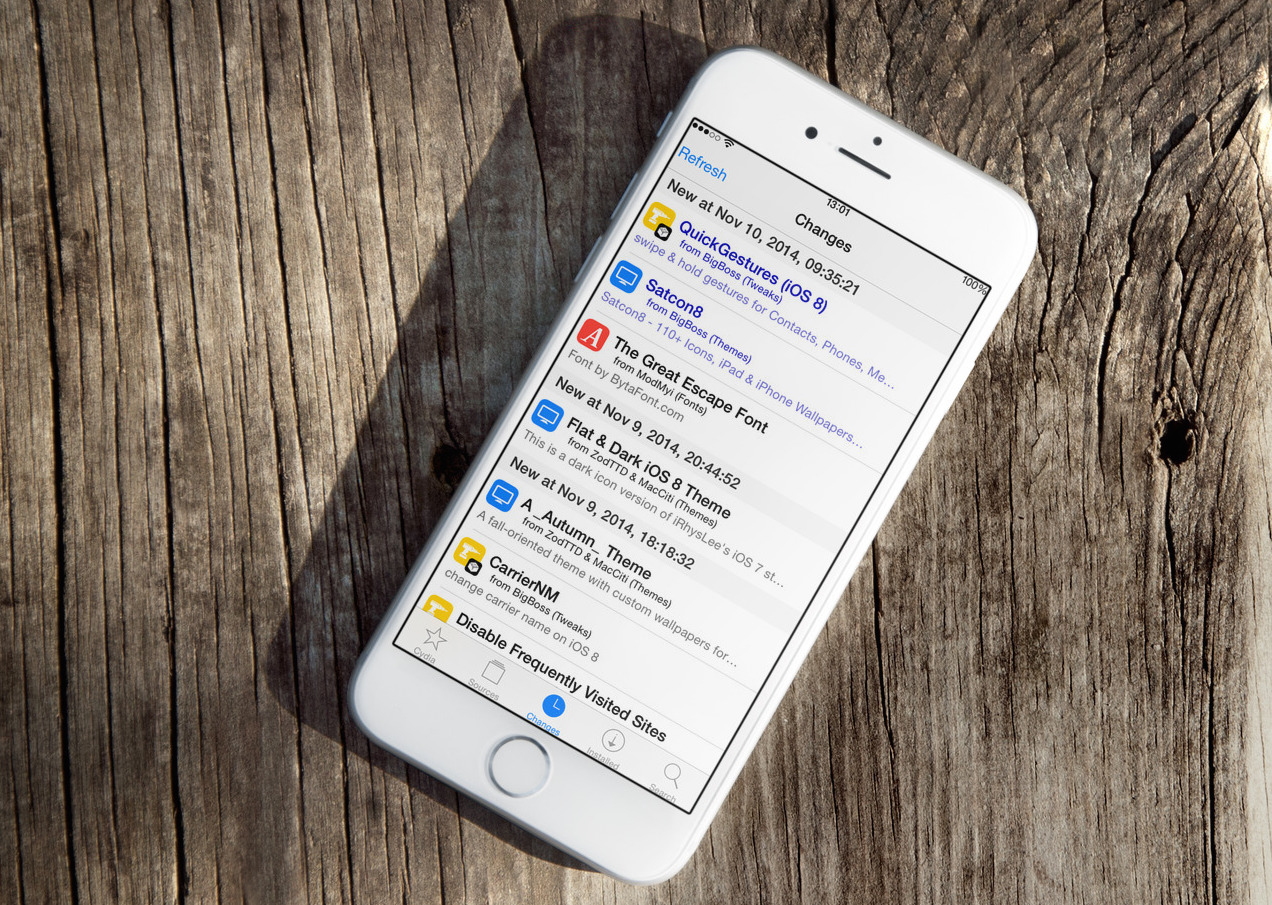
Like every Sunday, we roundup all the tweaks that were released on Cydia during the week that just ended, making it an easy and convenient way for you to see what's new, without having to scroll through dozens of font packages you'll never use. 

This week on iDB: iOS 8.3 jailbreak, WWDC preview, and more

Like every Sunday, we get to take a look at some of the most popular posts that were published on iDB during the week that just ended. Whether it is a news item, a new jailbreak tweak, a tutorial, or an app review, we sum it all up in one convenient place for you.

As always, if you like what you're reading, please feel free to spread the love by sharing our posts on your favorite social network.

We're usually hanging out a lot on Twitter and Facebook, more rarely on Google+.

Don't forget to listen to the latest episode of our new podcast, Let's Talk iOS:

Subscribe on iTunes

And of course, make sure to catch up with the new episode of Let's Talk Jailbreak:

Want to support iDB? Download our iOS 8 Interactive User Guide or Yosemite Interactive Starter Guide in the iBooks Store.

Reminders Nano is the app Apple should have shipped with Apple Watch

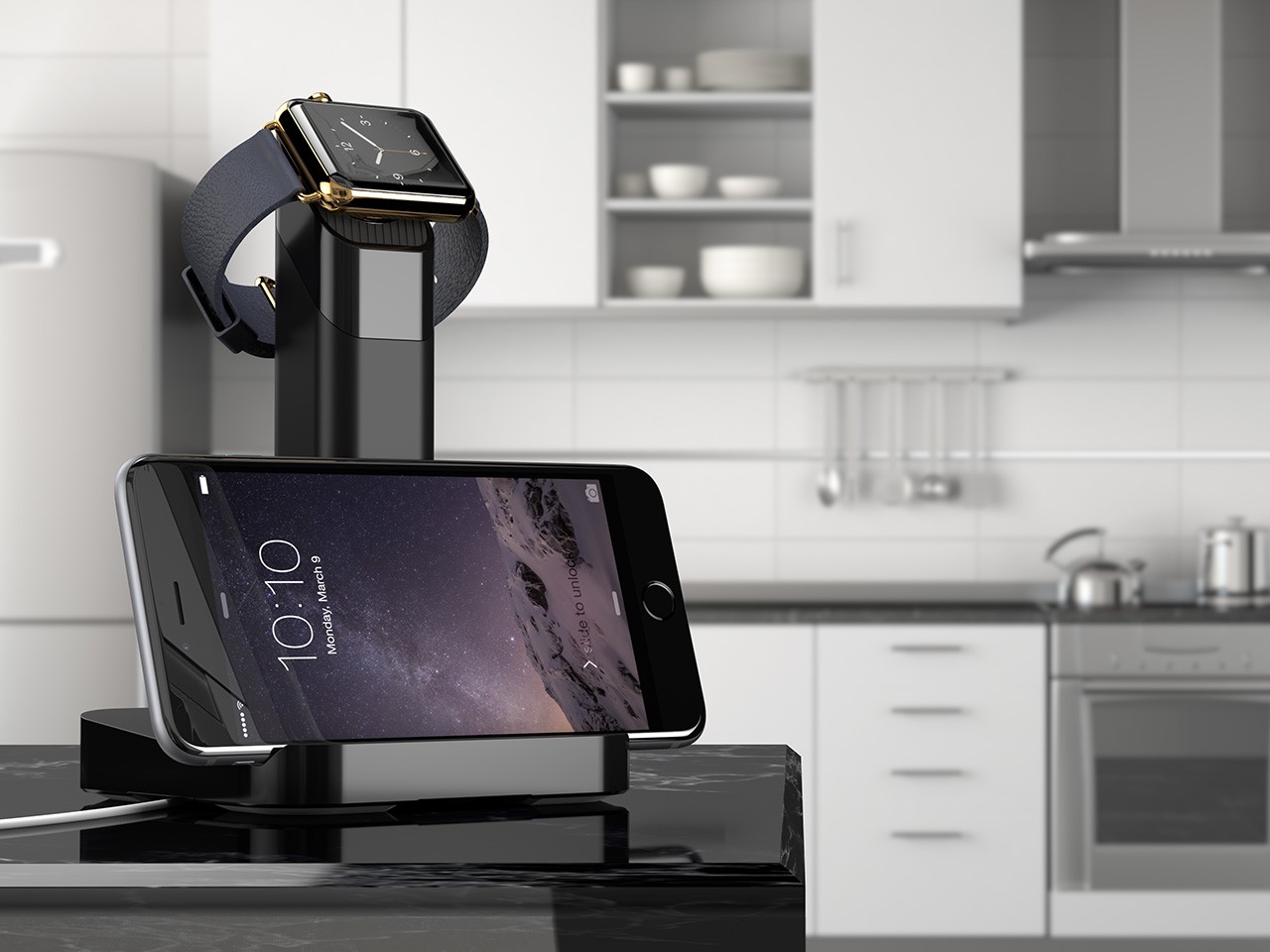
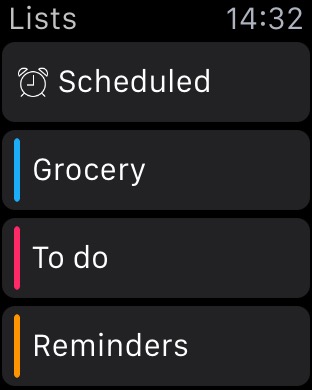
Several first-party apps are noticeably missing from Apple Watch, with Reminders and Podcasts being probably the most obvious. I'm confident Apple will bring these apps to Apple Watch sooner than later, but we're left dealing with workarounds and third-party apps to fill our needs for the time being.

Reminders Nano is one of these apps that picks up where Apple left off. Bringing a comprehensive yet simple reminders app to Apple Watch, Reminders Nano looks like something Apple itself would have shipped.

How to change your email display name

Change email display name on iPhone and Mac

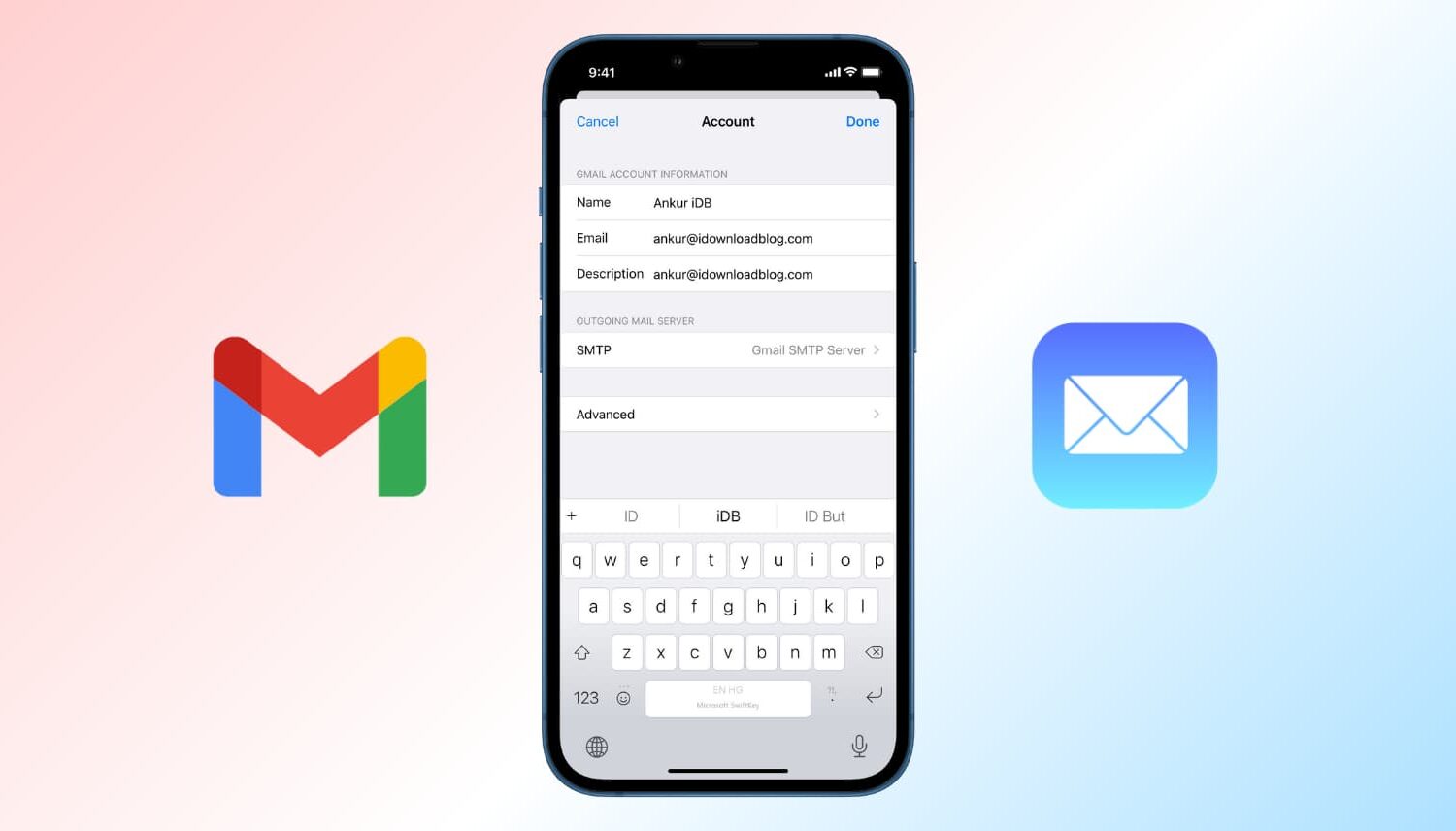
When you send someone an email, it usually shows the name you set while creating the account. Suppose you made a typo while setting up your email, or used your nickname or a fake name, and now every email you send has this name you no longer like.

In this tutorial, we show you how to change the name that's displayed in the email you send to someone from your iPhone, iPad, Mac, and iCloud.