Are you looking for the best iPhone Home Screen app arrangement? Explore some simple ways to arrange your Home Screen on iPhone and iPad, for a perfect mix of productivity and aesthetics.
6 ideas to arrange Home Screen icons on iPhone or iPad

Are you looking for the best iPhone Home Screen app arrangement? Explore some simple ways to arrange your Home Screen on iPhone and iPad, for a perfect mix of productivity and aesthetics.

This guide shares some helpful tips about using Siri on your Apple TV so you can watch shows, play specific songs, check the weather, open apps, and do other things with your voice on the big TV screen.

Find out how to recover a forgotten password for a Pages, Numbers, or Keynote document and learn about tips to avoid losing it again.
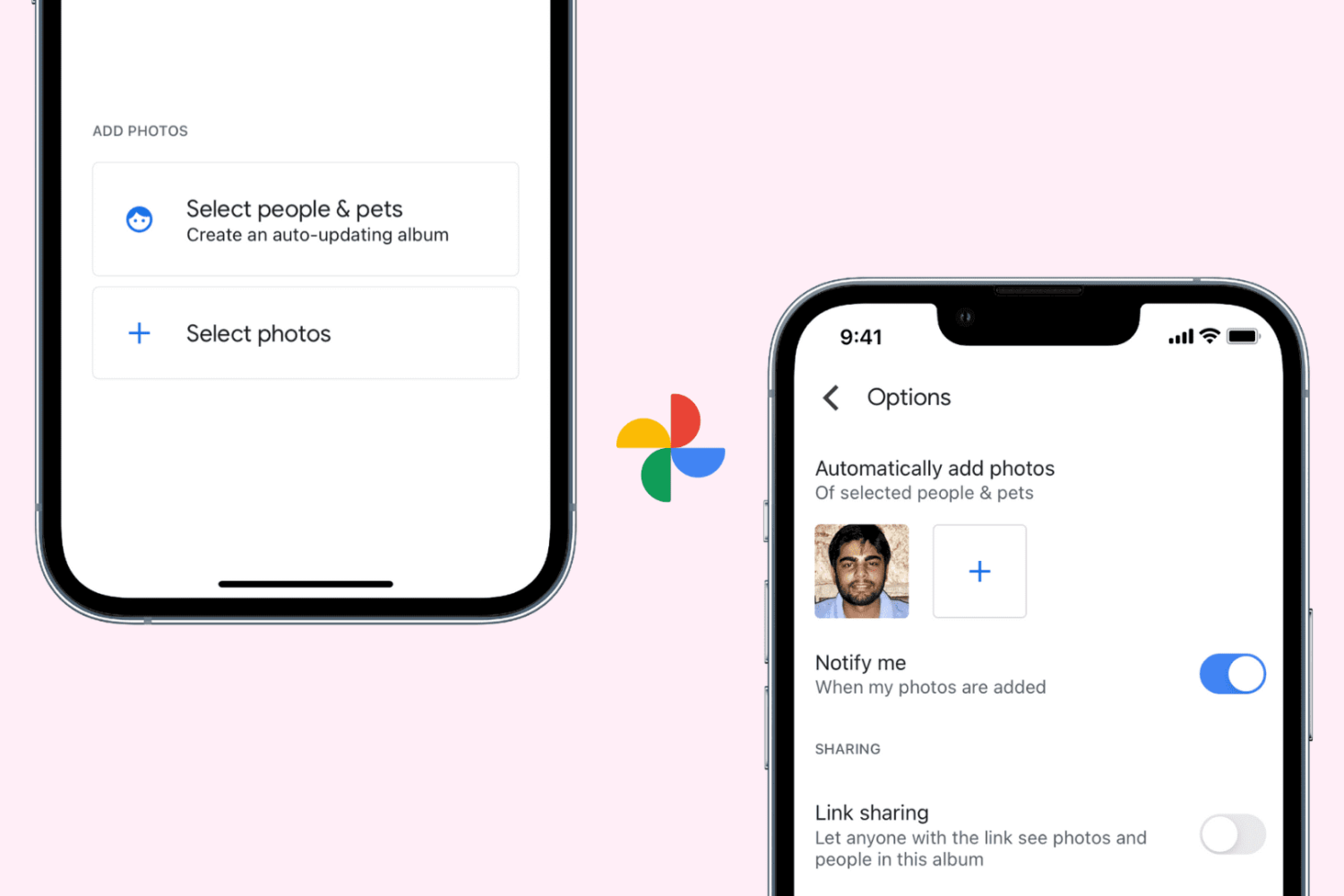
Google Photos has some nice features and is a good alternative or addition to the Photos app. You can create movies in Google Photos and collages. Another handy feature is the auto-updating album which is similar to the Smart Album feature in Photos on Mac.
With this type of album, you can set it to update automatically when new pictures of family, friends, and pets are added to Google Photos. This saves you some time from having to manually add new photos to an album.
To help you organize your pictures better in Google Photos, here’s how to create auto-updating albums.
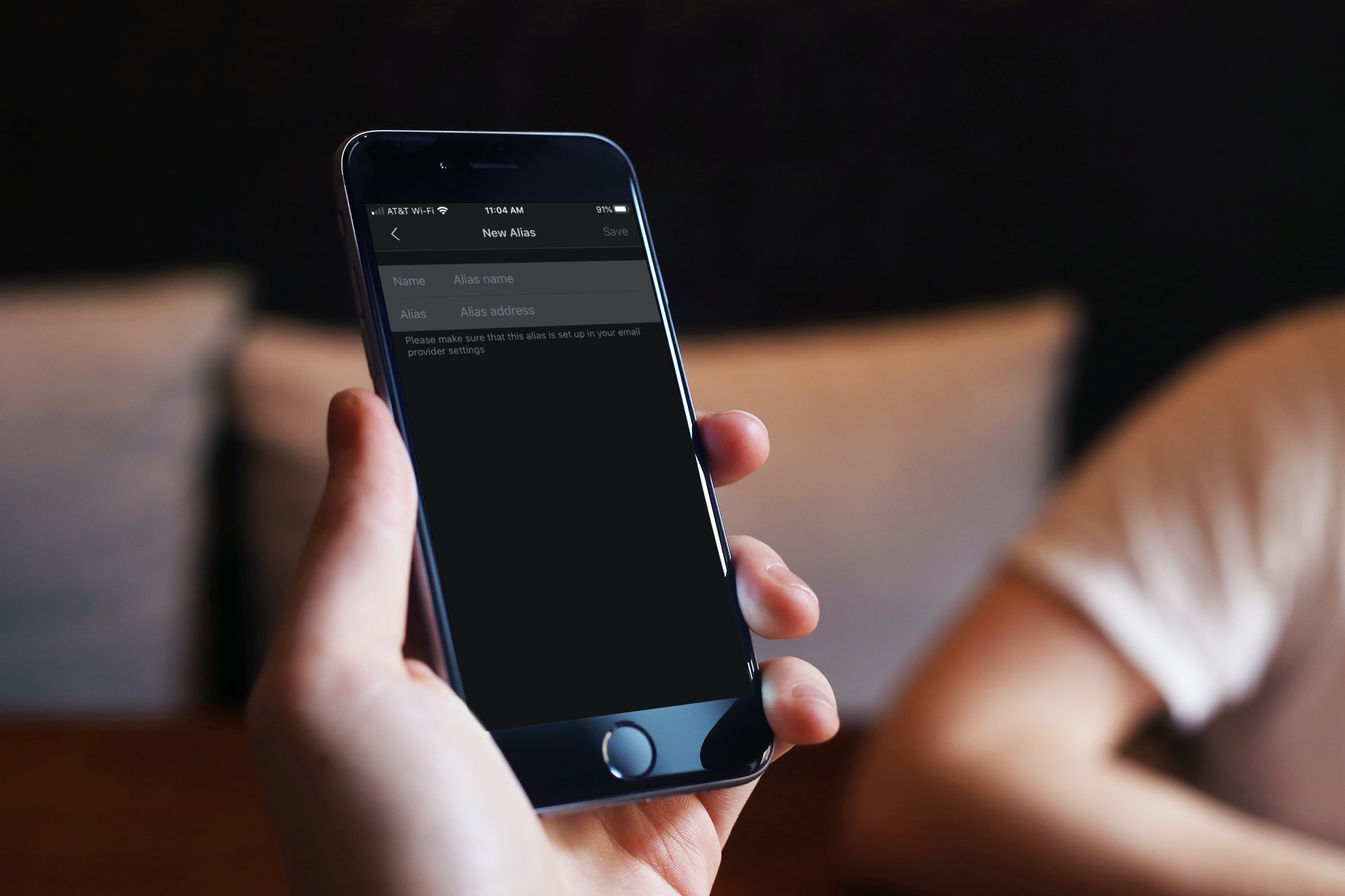
If you have decided to set up and use an email alias for your iCloud, Gmail, or Yahoo account and use Spark, then you’ll want to add that alias there too.
The Spark email app lets you add aliases for your various accounts on iPhone, iPad, and Mac. So, no matter which device you use the app on, here’s how to add an email alias in Spark.
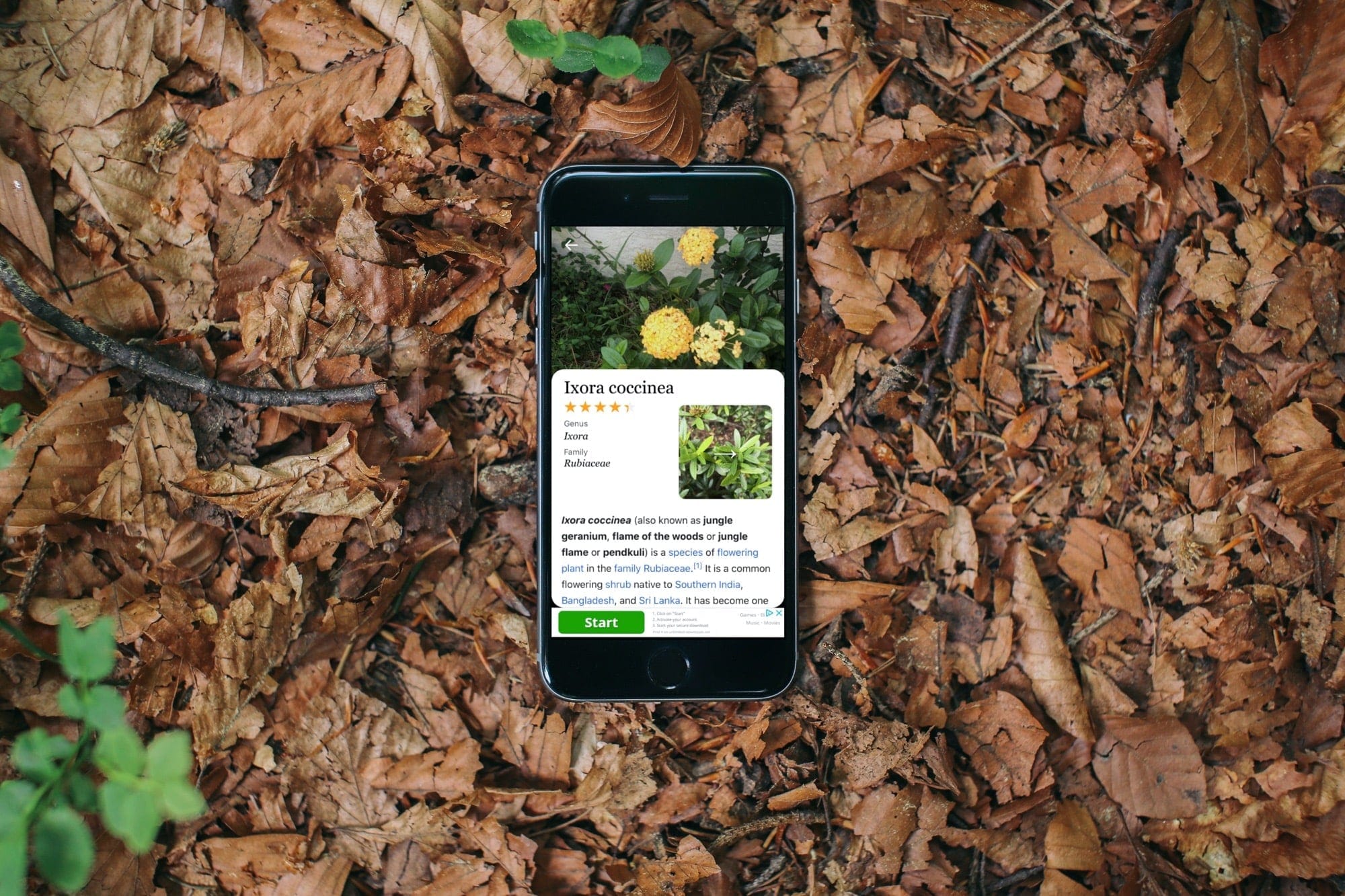
Check out this list of the best plant identifier apps for iPhone and iPad so you can stop wondering about that flower or plant you see and get all the necessary information about them whenever you want.

Learn how to schedule posts on X (formerly Twitter) from your computer or mobile, so you can update your followers even when offline and inactive.

Learn how to add, format, and customize ordered and bulleted lists in your document, spreadsheet, and presentations to improve the look and readability of your text.
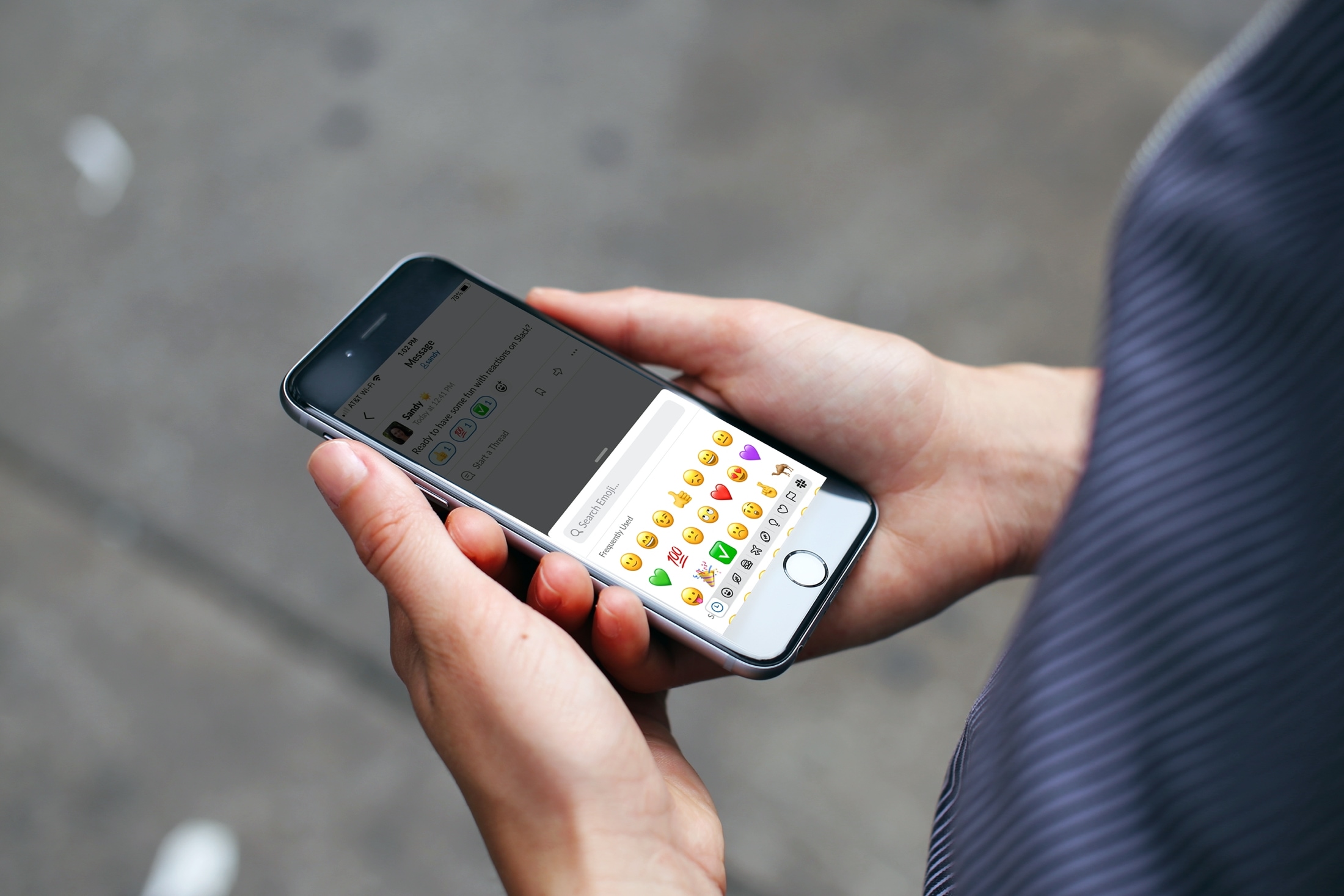
If you and your team use Slack for communicating, then you probably already appreciate many of its handy features. And one of the features makes acknowledging messages or comments without actually answering simple. Reactions.
With reactions in Slack, you can quickly use an emoji or other symbol to indicate you’ve accomplished a task, are looking into the issue, or will be right back.
If you’re just now starting to use Slack or simply haven’t taken a moment to check out this feature, here’s how to use reactions in Slack as well as add or remove them.
If you and your team use Slack for team communication, these keyboard shortcuts for Slack on Mac can help you perform actions faster.
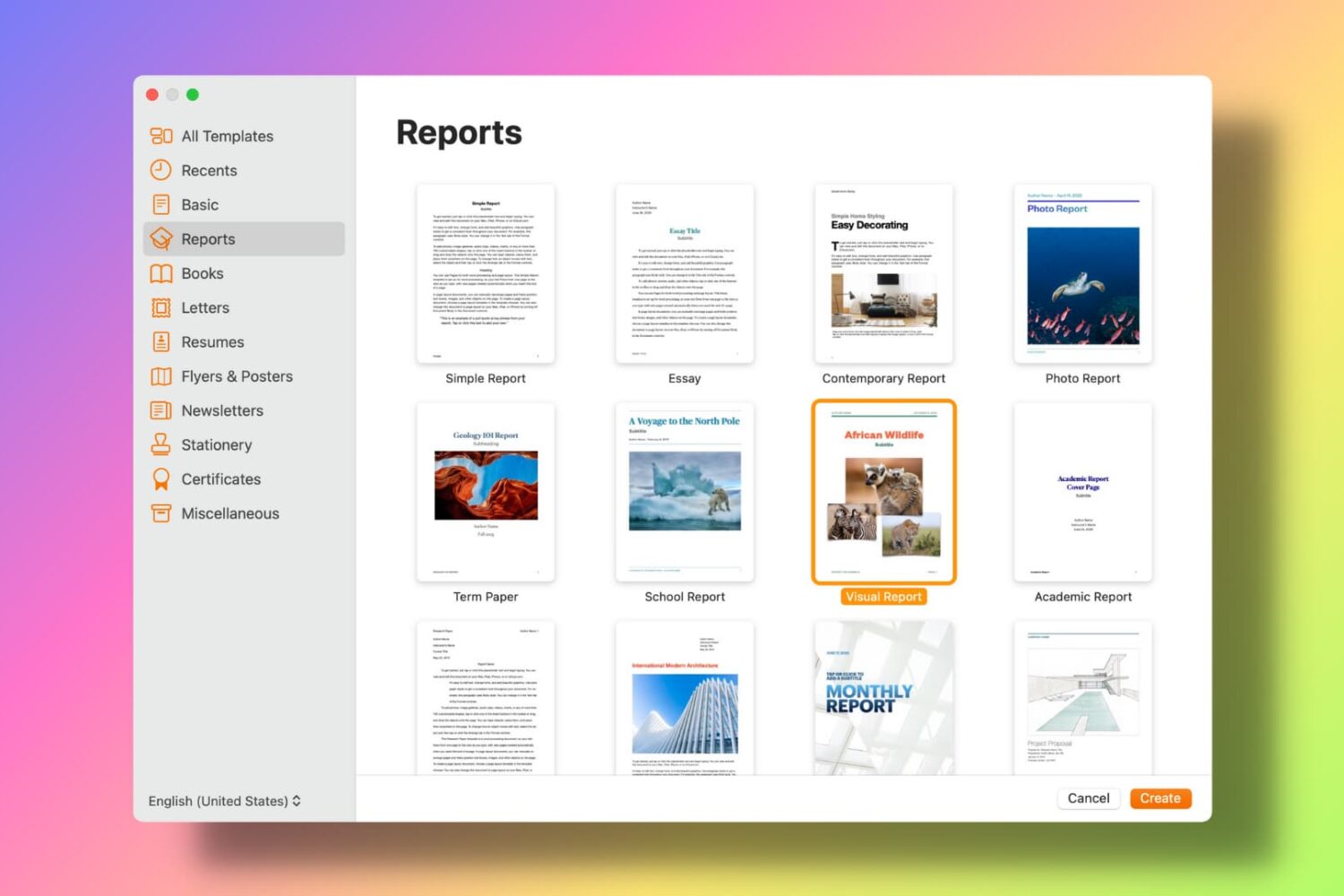
Learn how to set a default template in Apple Pages, Numbers, and Keynote for Mac to save yourself a step when creating new documents, spreadsheets, and presentations.
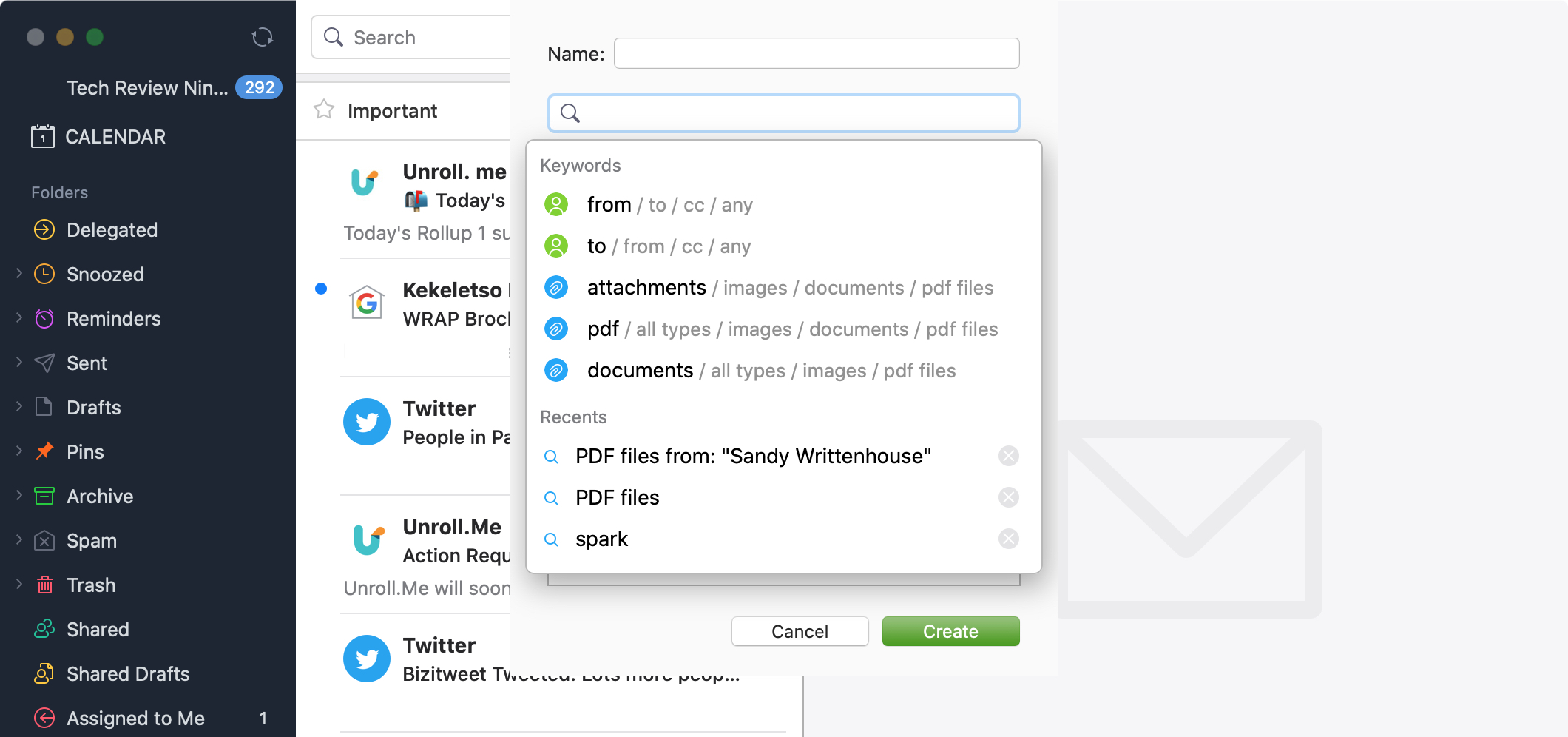
Just like smart mailboxes in the Mail app, you can set up smart folders in the Spark email app. This makes organizing your inbox easier, plus gives you a specific spot to go to for those particular emails you need.
You can use smart folders in Spark for travel arrangements, purchase receipts, or work-related emails. Or, you can set them up for emails you received in certain time frame, with a particular type of attachment, or from a specific sender.
Whatever you might find smart folders useful for in Spark, here’s how to create and edit them on iPhone, iPad, and Mac.