Jeff Benjamin

Jeff has been with iDownloadBlog since 2010, acting as resident video specialist, and tutorial expert. He earned his degree in Computer Network Systems back in 2001, but decided Cisco routers and the like just weren’t for him. Since then, he’s been heavily involved with online writing. He’s written for numerous tech and video game sites since the late 1990′s, and has a knack for explaining things in a simple, clear, and concise manner. Jeff works primarily from the east coast on his Retina Macbook Pro, and shoots video with a Canon DSLR. During downtime he likes to travel the world, visiting the various Apple Stores across the globe. You can email him at jeff [at] idownloadblog.com and follow him on Twitter @JeffBenjam or on Google+.

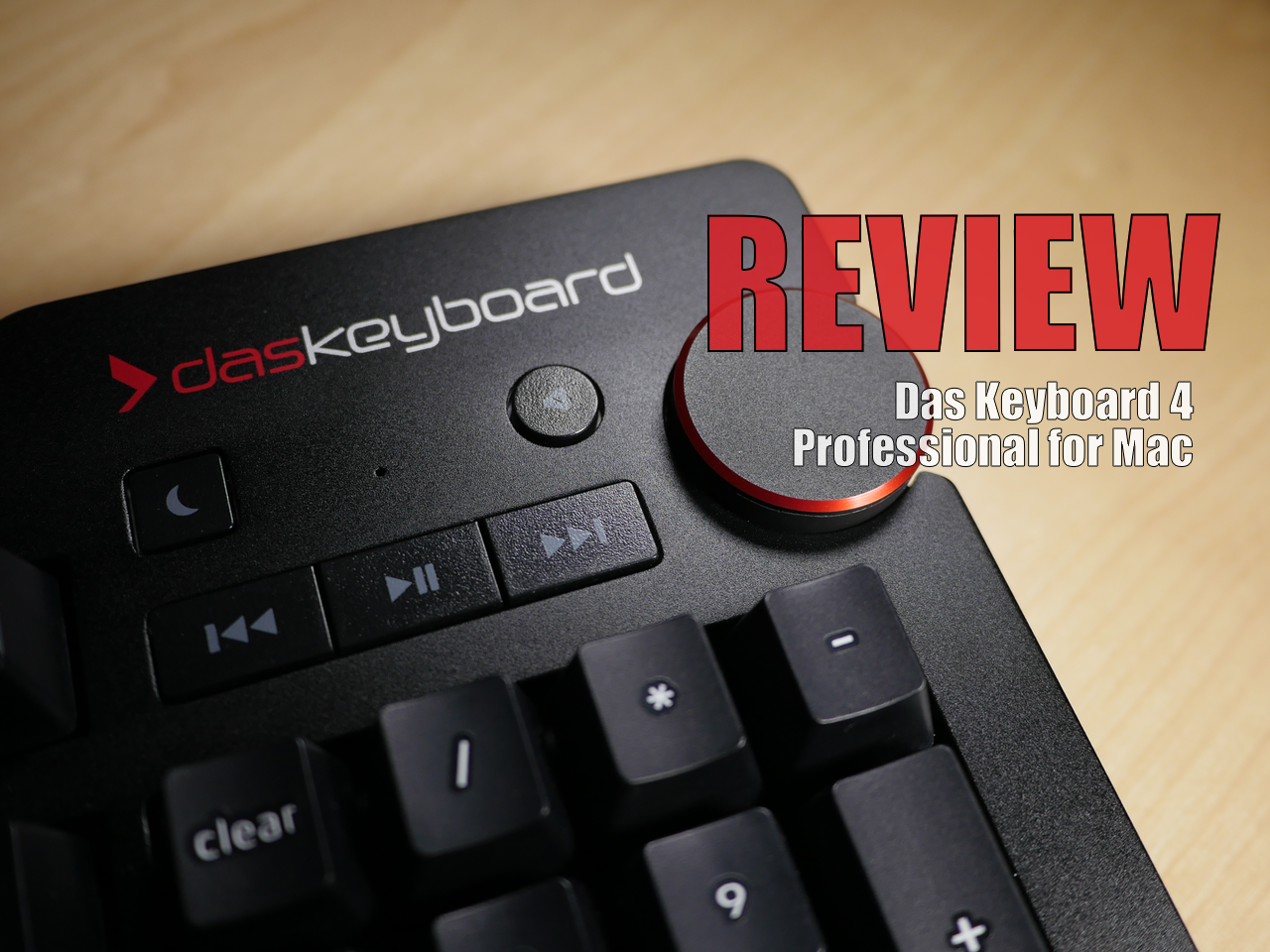
Review: Das Keyboard 4 Professional for Mac

I've been using the Das Keyboard Professional Model S for the last two years, and I've thoroughly enjoyed typing on this mechanical keyboard. If you do any sort of long form typing on a regular basis, then having a mechanical keyboard can make a huge difference in your life.

After typing on my MacBook's chiclet keyboard for years, I began to develop problems with severe wrist pain. Although it was never officially diagnosed, I'm pretty sure that I suffered from some sort of repetitive stress injury, which made it excruciatingly painful to type for extended periods of time. Needless to say, having a mechanical keyboard has alleviated 99% of these issues, and I can never see myself going back to using the MacBook's chiclet keyboard full time.

Earlier this month, Das Keyboard released an updated keyboard for Mac with new features and functionality. The Das Keyboard 4 Professional for Mac, as it is called, brings a similar typing experience to the table. Is it something you should consider if you're in the market for a new keyboard? Should previous Das Keyboard owners upgrade? Have a look at our video review and walkthrough for the answer.
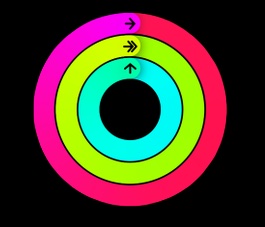
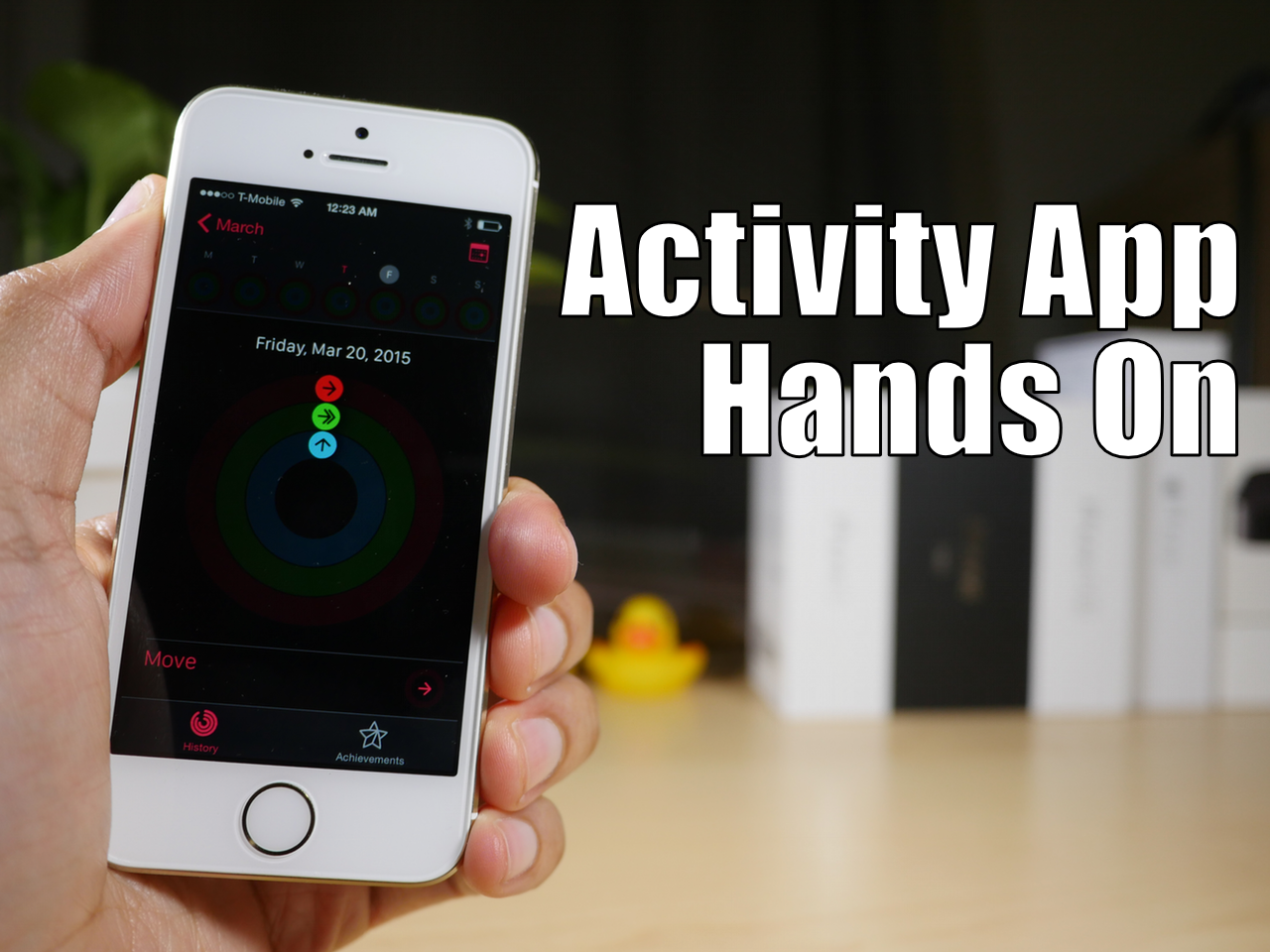
How to unlock the Apple Watch Activity app on iOS 8.2, no jailbreak required

A few days ago, we showed you a detailed walkthrough video of iOS 8.2's Activity App. Today, we'll show you how you can go hands-on with this brand new app.

In the tutorial that follows, we'll walk you through each step needed to get the iOS 8.2 Apple Watch Activity app running on your iPhone today, even though the Apple Watch is still weeks from releasing. No jailbreak required.

How to access the Couria beta for jailbroken iPhones

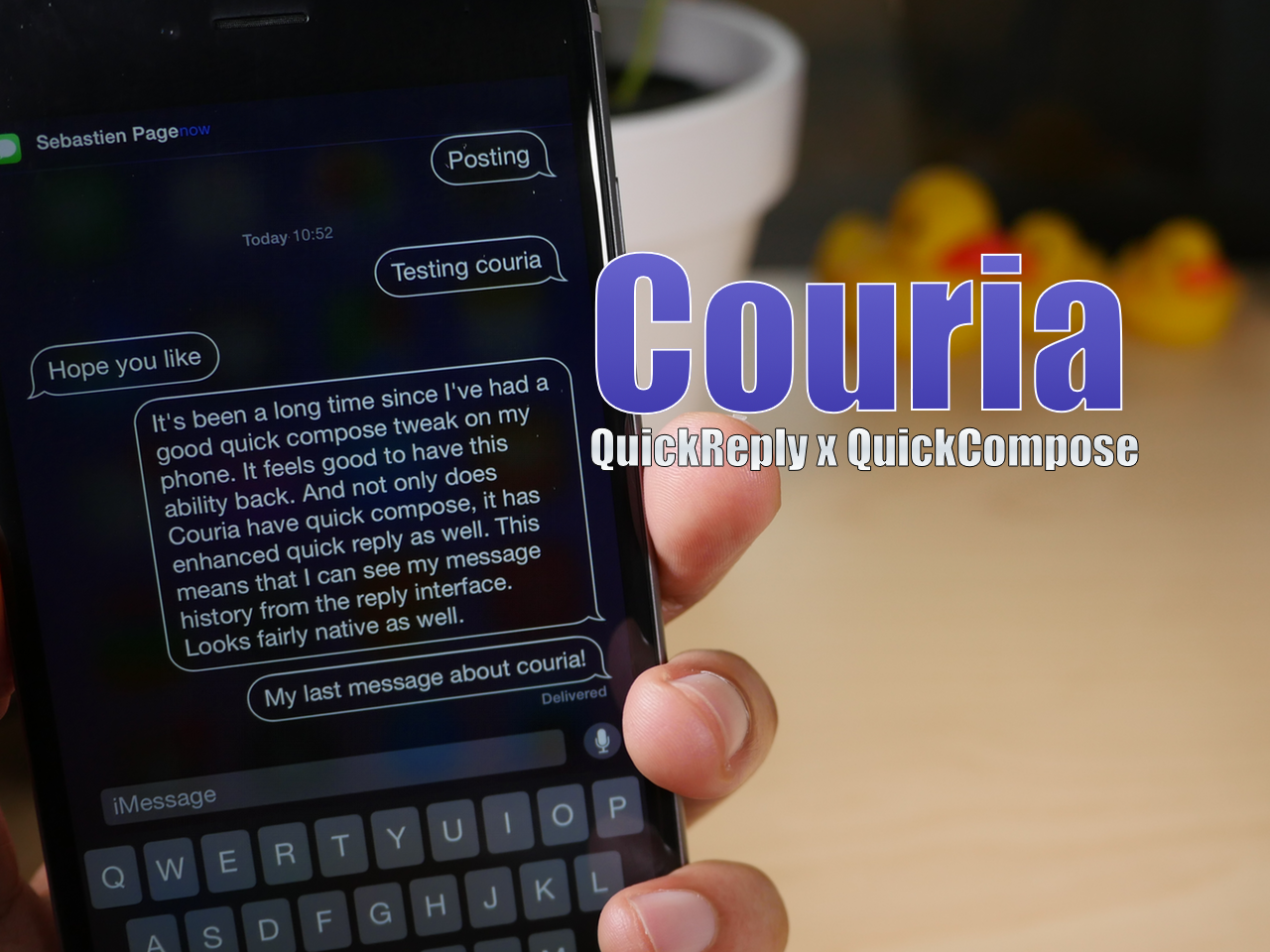
Yesterday, we brought you a preview of the upcoming quick reply and quick compose tweak, Couria. Today, we're showing you how you can go hands on with the tweak.

Couria is now available on a special beta repo by its developer, QusicS. If you've been desperate for a good quick compose solution and an enhanced quick reply interface, then you may want to take it for a test drive.

How to use window snapping with HyperDock on Mac

As many of you guys know, I'm a huge HyperDock ($9.99 on the Mac App Store) proponent. I use it primarily to have access to window previews of running apps in the OS X dock, but the tweak has additional features as well.

The biggest side benefit to using HyperDock is its window snapping capabilities. It's not the deepest window snapping feature-set out there, but if you need basic Windows-like functionality, it's should have more than enough to win you over.

TypeTab brings faster address entry to new Safari tabs

When you open a new tab in Safari, the default behavior is to showcase your favorites. You can then tap a favorite, or you can tap the address bar to manually insert a web address. TypeTab makes it so that the cursor is automatically inserted into the address bar and that the keyboard is exposed. Therefore, it's quicker to begin typing a web address when opening a new tab.

Hands-on with Couria, an upcoming quick reply and quick compose tweak for iOS 8

Couria is a quick reply and quick compose tweak for iOS that originally debuted back in the iOS 7 days. Today, the Messaging landscape for jailbroken devices is significantly different, with a key major player, biteSMS, now defunct.

With this in mind, a few tweaks that are currently in the works are hoping to reinvigorate the Messaging app tweak genre. One of them, Couria, plays heavily on the infrastructure already put in place by Apple, piggybacking on the native quick reply feature in iOS 8.

Apple Watch: a deeper look at the Activity app in iOS 8.2

For the last few hours I've been playing with the Activity app on iOS 8.2. The Activity app is a stock app included in iOS 8.2, but it's currently hidden until you connect an Apple Watch. Thanks to developer Hamza Sood, I was able to access the app early and take it for a a test drive on video. Here's what I found...

Let’s Talk Jailbreak 99: You have 5,813 messages

Episode 99: Prominent hackers set to attended a TaiG organized jailbreak convention in China, Downgrading comes back into view with the release of a new TinyUmbrella, how to get WhatsApp calling on your jailbroken iPhone, how to enhance Tweetbot.

Subscribe via RSS

Multify: an awesome new multitasking tweak for iOS 8

Every so often a big tweak comes around that gets me more excited than most, and Multify—a new tweak from John Corbett and Joel Einbinder—meets that criteria to a tee. Multify is an upcoming tweak that brings true multitasking to iOS in an easy to use and surprisingly stable package. Yes, other tweaks have attempted to do similar things in the past, but this is by far the best implementation that I've seen or used thus far.

Lithium: theme the battery indicator on iOS 8 sans WinterBoard

Lithium is a brand new jailbreak tweak that adds a themed battery indicator to iOS 8. A similar tweak with a similar name, Alkaline, already exists on the Cydia store, and Lithium pretty much replicates the feeling of that tweak.

While some users report that Alkaline works perfectly on their iOS 8 device, it's never worked without a visual glitch on my iPhone 6 Plus. For that reason, I'd be up for trying Lithium on an extended basis.

How to create folder shortcuts on Mac

On Windows, you create shortcuts. On Mac? There's this little thing called aliases. Aliases are shortcuts that make it easier to find a file, folder, disk, or application. You can place aliases on your desktop, in the Dock, or anywhere else that's easy to find. In this tutorial, I'll show you two easy ways to create aliases on your Mac.

Let’s Talk iOS 073: Ghost track

Episode 73 features in-depth discussions about iOS 8.3 beta 3 and its new features, Apple's public iOS beta program, the Apple Watch Activity app, and the best Apple Watch features.

Subscribe on iTunes