Jeff Benjamin

Jeff has been with iDownloadBlog since 2010, acting as resident video specialist, and tutorial expert. He earned his degree in Computer Network Systems back in 2001, but decided Cisco routers and the like just weren’t for him. Since then, he’s been heavily involved with online writing. He’s written for numerous tech and video game sites since the late 1990′s, and has a knack for explaining things in a simple, clear, and concise manner. Jeff works primarily from the east coast on his Retina Macbook Pro, and shoots video with a Canon DSLR. During downtime he likes to travel the world, visiting the various Apple Stores across the globe. You can email him at jeff [at] idownloadblog.com and follow him on Twitter @JeffBenjam or on Google+.

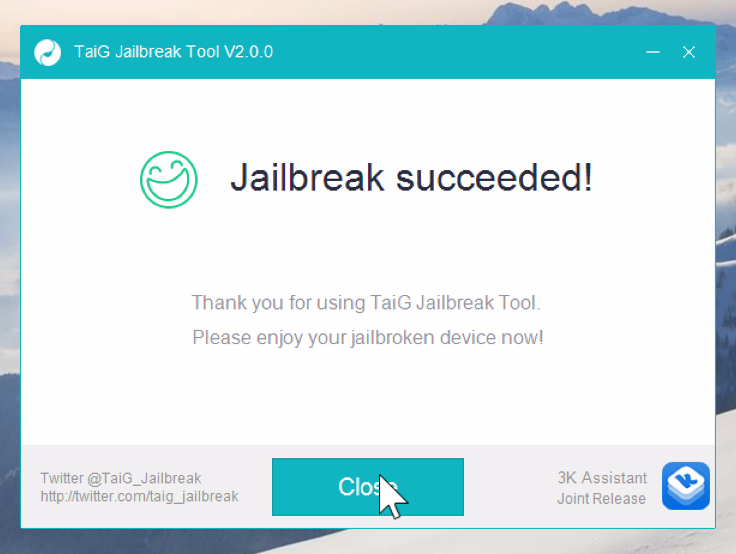
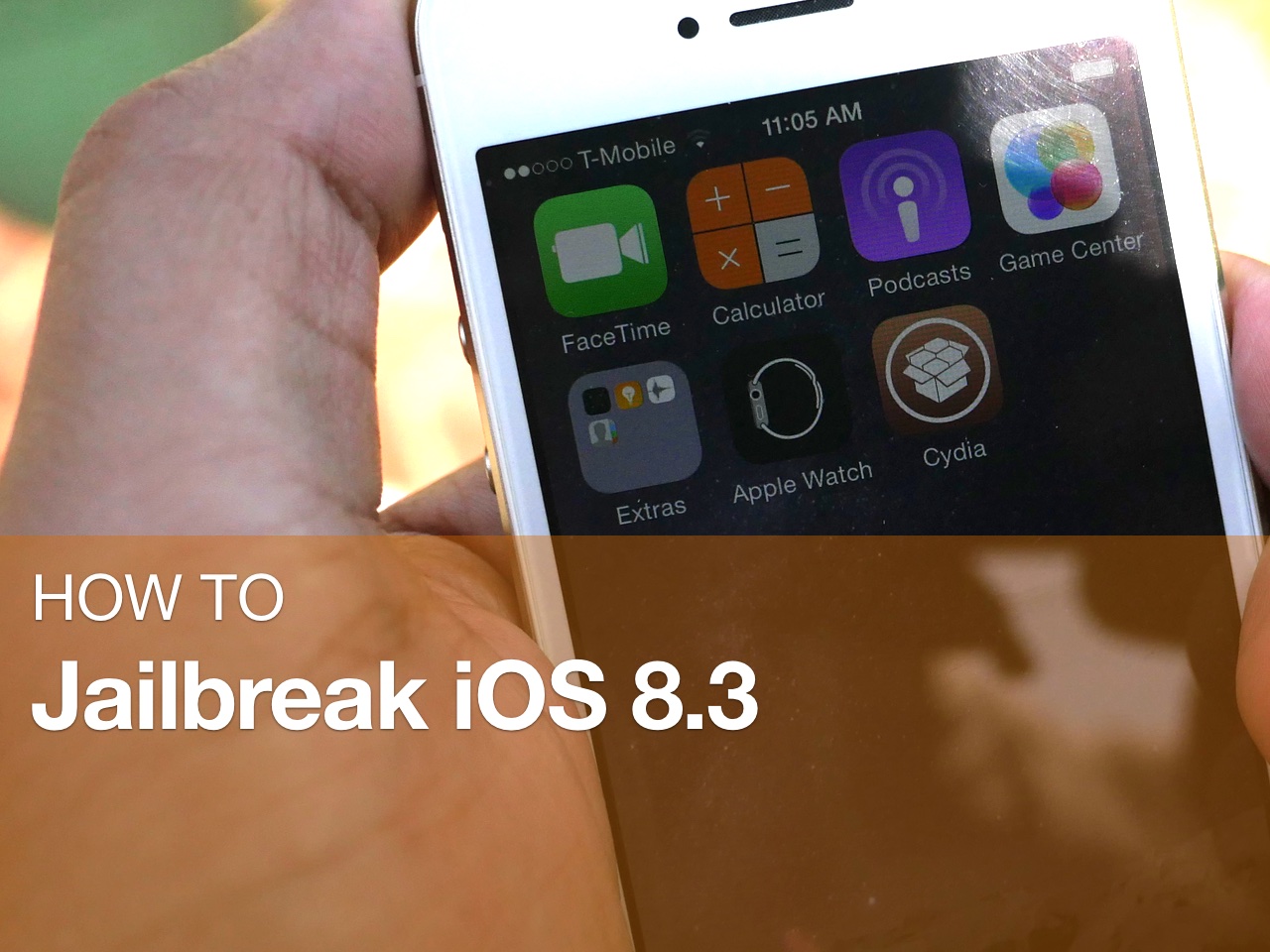
How to jailbreak iOS 8.3 with TaiG 2.0

In this tutorial, I will show you how to jailbreak your iPhone or iPad running iOS 8.3 using TaiG 2.0. This jailbreak is super easy to do, and takes minimal effort if the instructions are followed closely.

Watch our full video walkthrough inside, as I take you through the step-by-step jailbreak process for iOS 8.3.

The status of Cydia Substrate on iOS 8.3

When TaiG released its iOS 8.3 jailbreak early this morning, it was largely assumed that saurik would need to do something on his end to ensure compatibility with Cydia Substrate—the support framework used to run your favorite jailbreak tweaks.

As it turns out, that's not exactly the case. In fact, saurik himself has cleared the air, making it apparent that the ball is in TaiG's court when it comes to providing a fix for substrate.

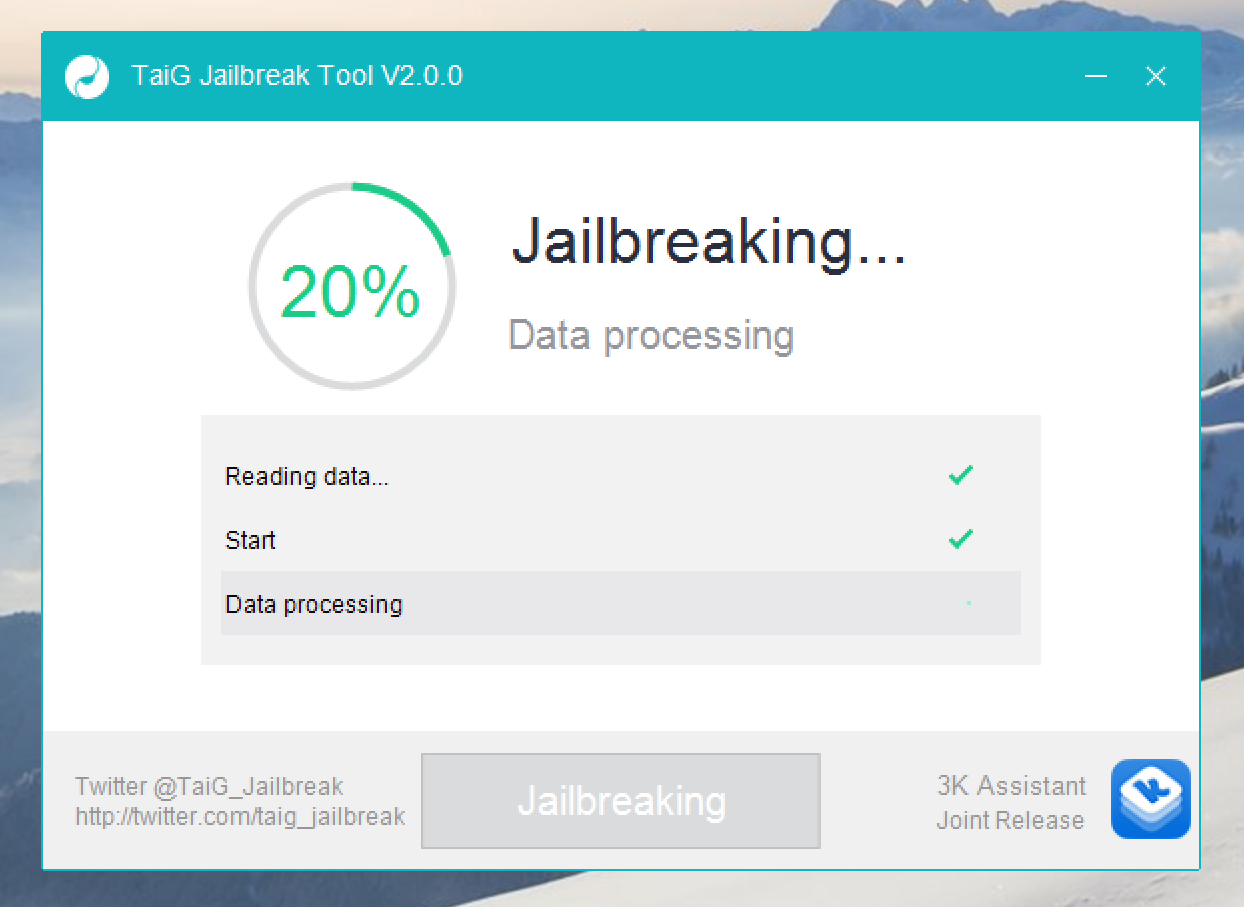
How to fix the TaiG 20% timeout for the iOS 8.3 jailbreak

Thankfully, the 20% error that was causing us problems earlier today has been solved. If you received this error, you need to downgrade your version of iTunes.

I decided to downgrade to iTunes 12.1.0 as suggested by several of my Twitter followers, and just like that, it worked. If you're having problems with TaiG 2.0.0 hanging at 20% completion for the iOS 8.3 jailbreak, then try downgrading your version of iTunes.

Many would-be iOS 8.3 jailbreakers stuck at 20% with the TaiG tool

Many would-be jailbreakers are stuck at the 20% progress mark with the just-released TaiG 2.0.0 jailbreak tool for iOS 8.3. The jailbreak starts well enough, but after a quick takeoff, putters out at the 20% mark. Thankfully a workaround is now available.

After a few minutes of being stuck on 20%, the iPhone will reboot and will stay stuck at 20%, and the reboot process will continue. Are you experiencing this issue? Sound off in our comments

Let’s Talk iOS 087: A Swift reaction

Episode 87: Apple backtracks on artist compensation during its 3-month Apple Music trial period, a hands-on with El Capitan, the future of Force Touch, and thoughts on the Galaxy S6.

Subscribe on iTunes

Support Let's Talk iOS

Please fill out this quick survey: podsurvey.com/ios

TaiG releases an untethered jailbreak for iOS 8.3

A jailbreak has been released for iOS 8.3 by the TaiG team. This jailbreak supports iOS 8.1.3 through iOS 8.3 and is Windows only.

See: How to jailbreak iOS 8.3

The tool, which is dubbed TaiG 2.0, can be downloaded right now from our downloads page.

This release is quite interesting, since it was thought that the Pangu team would be the one to release a jailbreak for iOS 8.3 and TaiG would focus on iOS 9. That, obviously, is no longer the case.

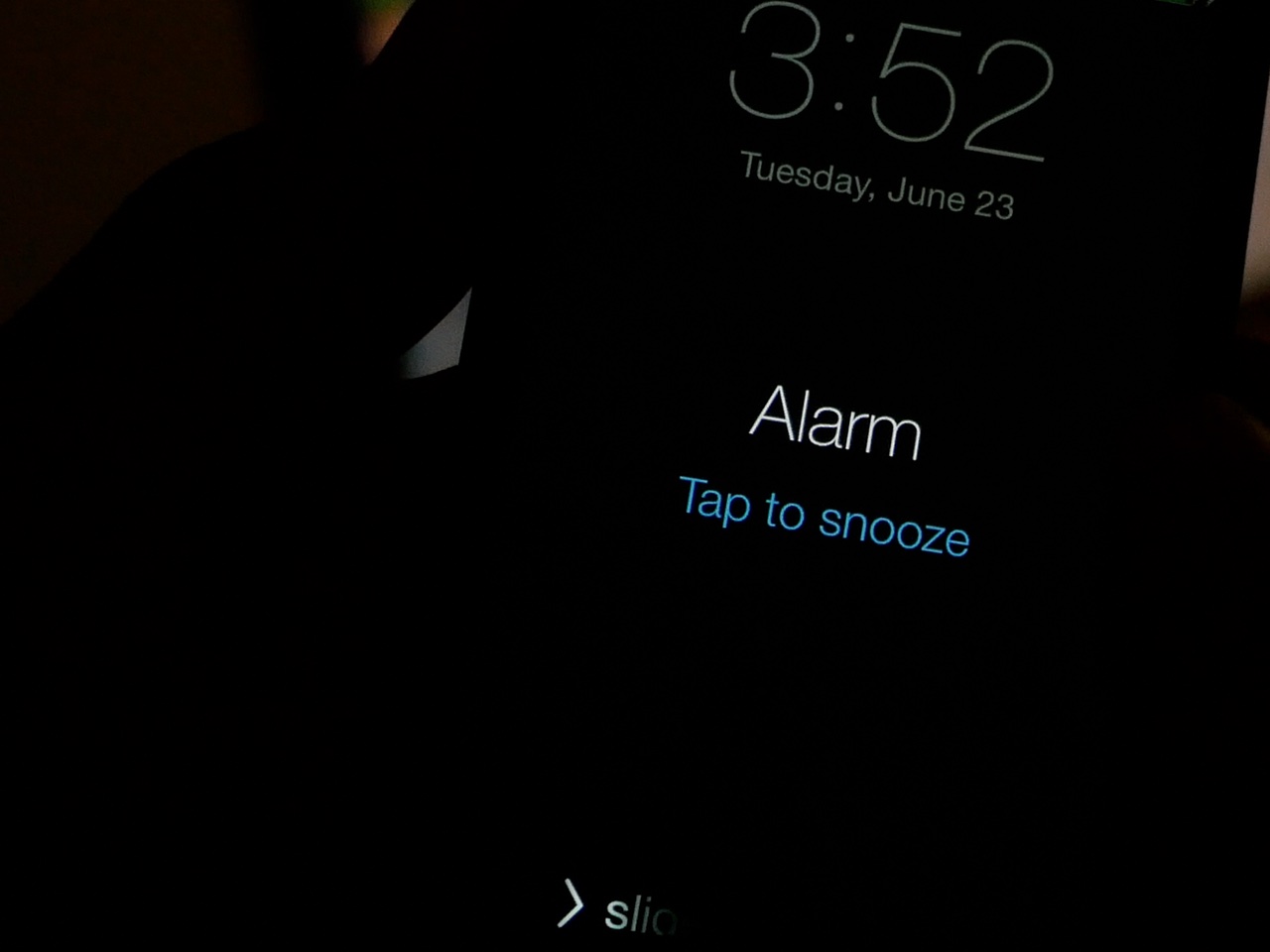
SnoozeHelper turns your entire Lock screen into a snooze button

When you're half awake, tapping the tiny "tap to snooze" button on the Lock screen can be a daunting chore. Fortunately, if you're a jailbreaker, it's much easier to snooze an overzealous alarm

By turning your Lock screen into one giant button, SnoozeHelper (free) makes it super easy to snooze a pesky alarm clock. Watch our video walkthrough inside to see what I mean.

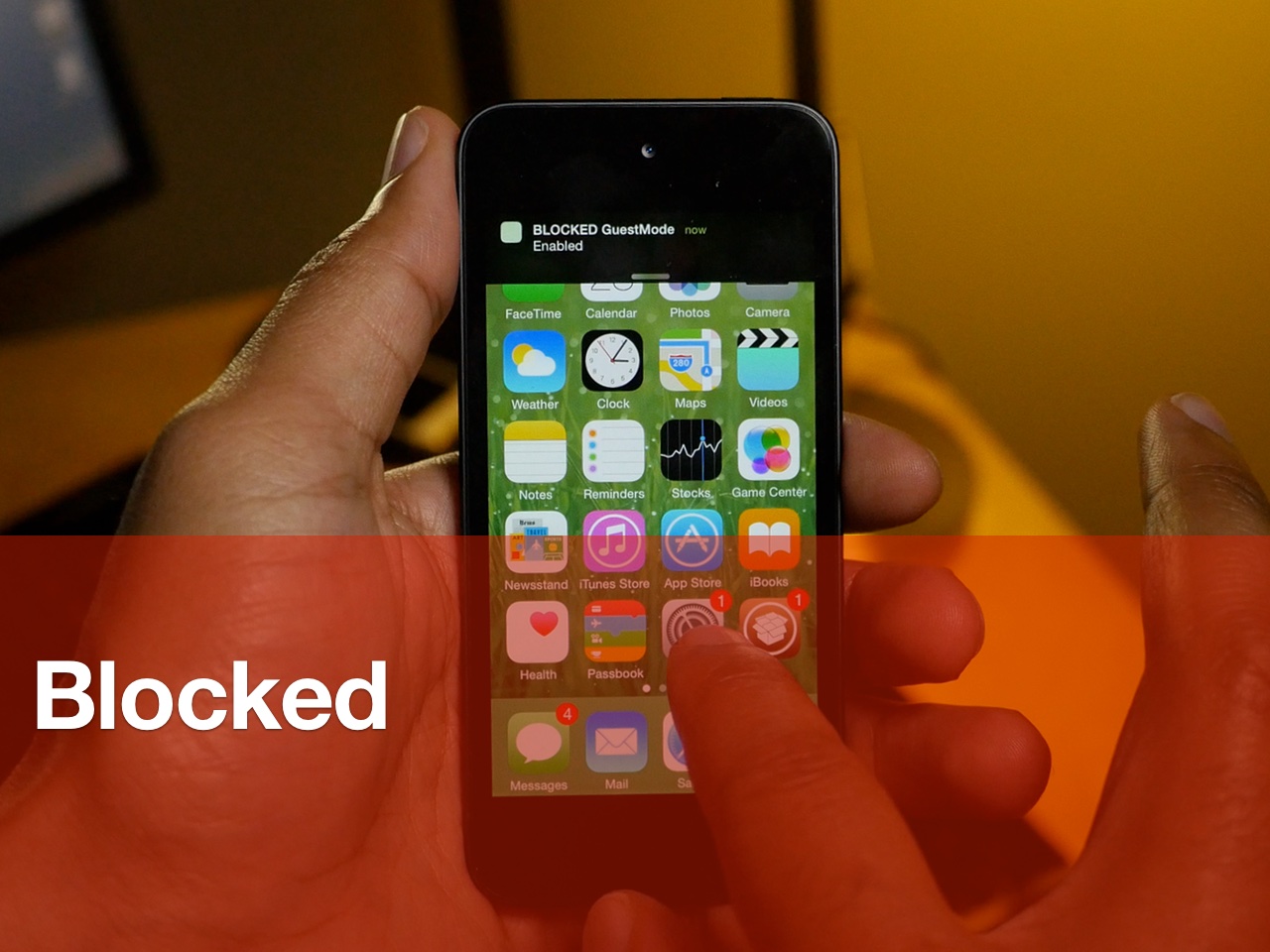
Blocked is a new security tweak that lets you limit iPhone access

Jailbreakers Nikias Bassen (Pimskeks) and Melissa Archer have teamed up for a new security-oriented jailbreak tweak called Blocked. Released at WWJC 2015, Blocked brings two new operation modes to the iPhone for enhanced security.

The two modes, SleepMode and GuestMode, each work to block access to certain features. By using Activator gestures, users can quickly and stealthily enter either mode to beef up device security.

Watch our video walkthrough inside to see how to the tweak works.

How to mute tabs in Safari on your Mac

Like pinned tabs, tab muting isn't a new idea, as it's been implemented in other web browsers in the past. But starting with OS X 10.11, Apple has brought native tab muting to the Safari browser.

The ability to mute tabs at will brings more control to the user. It's especially beneficial when encountering those annoying auto-playing advertisements.

In this video walkthrough, I'll show you how to use Safari tab muting, and explain its ins and outs.

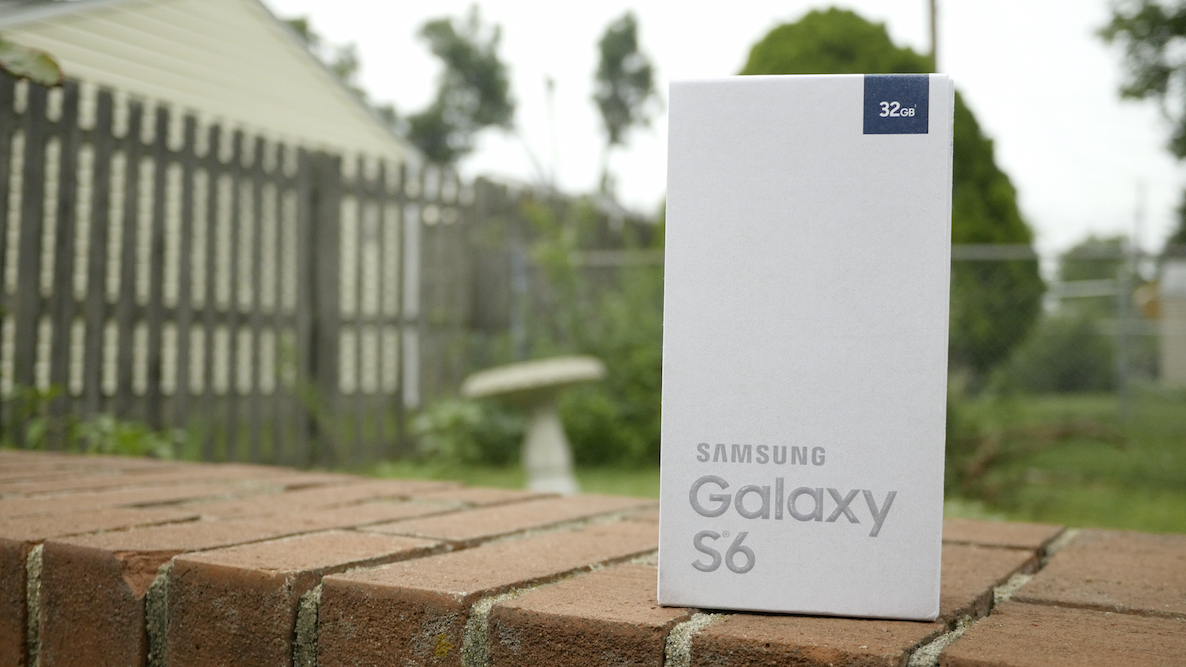
5 Galaxy S6 features that iPhone users will like

I've been testing out the Samsung Galaxy S6 for some time now, and I've used it for long enough to be able to confidently compile some of my thoughts on what is Apple's main iPhone competitor.

Obviously, the most stand-out feature with this device is the build quality. Samsung, after many Galaxy iterations, has finally stepped up its game when it comes to design materials. The Galaxy S6 is made out of metal instead of plastic, and it's a huge improvement over the cheap-feeling Galaxy phones of yesteryear.

But not only is build quality vastly improved, this phone packs quite a punch with regard to features. In fact, there are even some features that I, as someone who unequivocally prefers the iPhone, can't deny are pretty great. Inside, I'll cover 5 features from the Galaxy S6 that many iPhone users will enjoy.
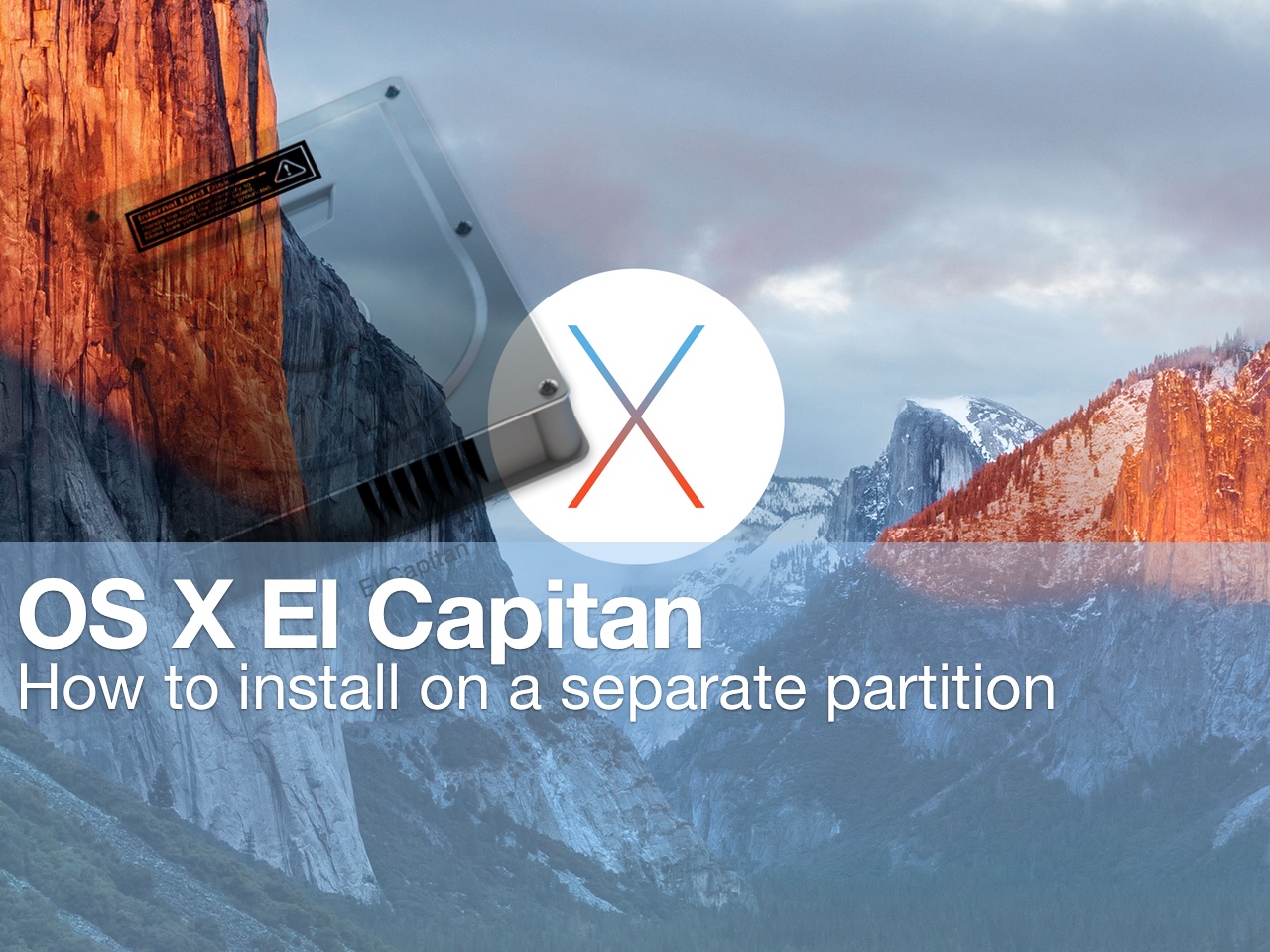
How to install beta software on a separate partition

Itching to run the latest macOS beta, but don't want to upgrade your primary Mac installation with a beta release? You'd be wise to carefully consider the prospects of running a beta release as a daily driver. That said, it is possible to run beta software on your primary machine without compromising your current installation.

By creating a small test partition on your primary drive, you can create a great landing space for the beta. Read and watch our walkthrough to see how easy it is.

How to set up Time Machine on Mac OS X

Time Machine is a Mac utility that allows you to automate hourly, daily, and weekly backups on an external drive that's connected directly to your Mac or via a local network. It's seen as the first line of defense against data loss, and features simple setup.

Setting up Time Machine, in its most basic configuration, is extremely easy. All you need to do is launch the Time Machine preferences, turn on Time Machine, select a Backup Disk, and you're pretty much set.

Of course, there's much more to Time Machine than just the initial setup, but in this first post in our Time Machine tutorial series for OS X, we'll cover some of the basic set up options.